
A few years ago, building a website meant hiring a developer and spending thousands of dollars. Most small business owners just skipped it and hoped social media was enough.
That changed completely.
Today, you can build a real, professional website in an afternoon. No coding. No developer. No technical skills needed at all. Website builders made this possible, and millions of people use them every single day.
But are they right for you? That depends on what you need. Some people love website builders. Others hit a wall fast. This guide helps you figure out which side you are on before you spend a single dollar.
One thing worth knowing upfront. Most articles on this topic are written by the website builder companies themselves, or by sites that earn a commission when you sign up for one.
That is not automatically dishonest, but it does mean those guides rarely tell you when a builder is the wrong choice.
This guide is not tied to any single platform, so the section on who should not use one is not a formality. It is the part a vendor cannot write honestly.
Here is what you will learn:
- What a website builder actually is, in plain words
- How it works, step by step
- The most popular builders and who each one is best for
- A hands-on walkthrough of building your first page with Wix
- How much everything really costs
- Who should use one and who should not
If you want a side by side breakdown instead of a walkthrough, see our comparison of Wix, Squarespace, and WordPress.
Key Takeaways
- A website builder lets you create a website by clicking and typing. No coding required.
- 72% of consumers judge a business by its website. A bad website or no website hurts you. Playcode
- Most website builders cost between $15 and $50 per month for a proper business plan.
- The most popular builders are Wix, Squarespace, WordPress, Shopify, and Hostinger.
- Website builders are great for beginners and small businesses. They are not ideal for complex, custom web applications.
- You can try most builders for free before paying anything.
Quick Answer
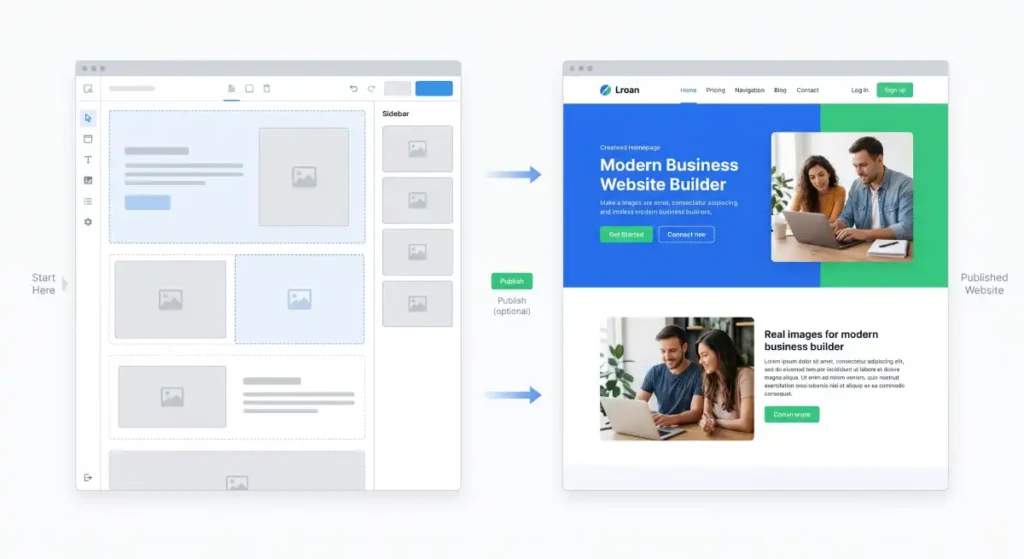
A website builder is an online tool that lets anyone create a website without writing code.
You pick a template, add your text and photos, and publish. The whole platform handles the technical side for you.
Most builders cost between 10 and 50 US dollars per month and can get a basic site live in a few hours.
What is a Website Builder
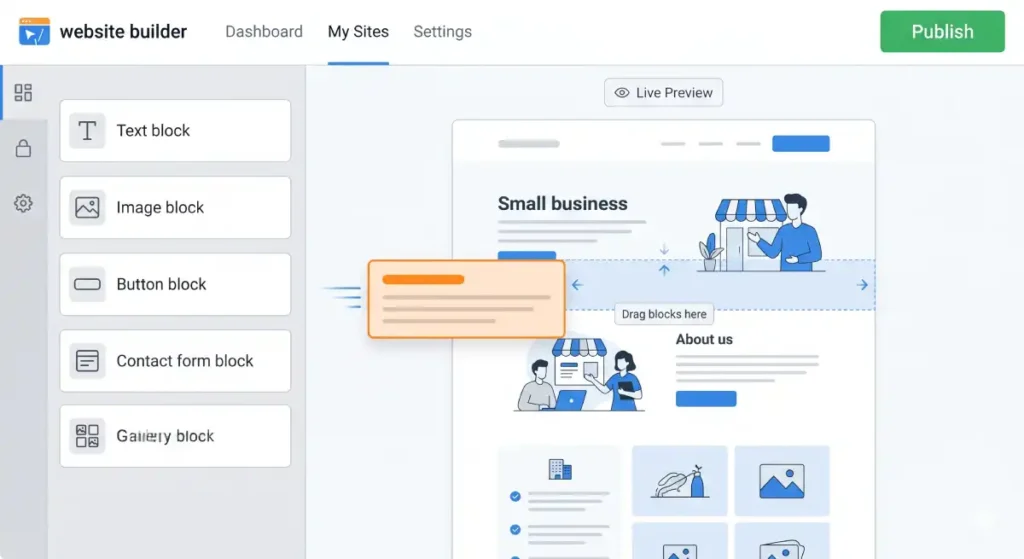
Think of a website builder like building blocks for websites.
You get a set of ready-made blocks. Text blocks. Image blocks. Button blocks. Contact form blocks. You drag them where you want. You type your words in. You pick your colors. When you are done, you click publish and your site is live.
You do not touch any code. You do not need to understand servers or databases. The builder takes care of all of that in the background.
Before website builders existed, making a website looked like this:
- Hire a web developer (cost: hundreds or thousands of dollars)
- Wait weeks for them to build it
- Pay again every time you wanted to change something
Now it looks like this:
- Sign up for a website builder (free to start)
- Pick a template that looks like your business
- Type your content
- Publish in a few hours
That is the whole point of a website builder. It removes every technical barrier between you and having a website.
How Does a Website Builder Work
Here is the simple version of what happens behind the scenes.
When you sign up for a website builder, the company gives you access to their platform. That platform runs on their servers. Your website lives on their servers too. You edit everything through a visual editor in your browser.
Think of it like editing a Google Doc. You see the page in front of you. You click where you want to change something. You type. The change saves automatically.
The three main parts of any website builder are:
1. Templates
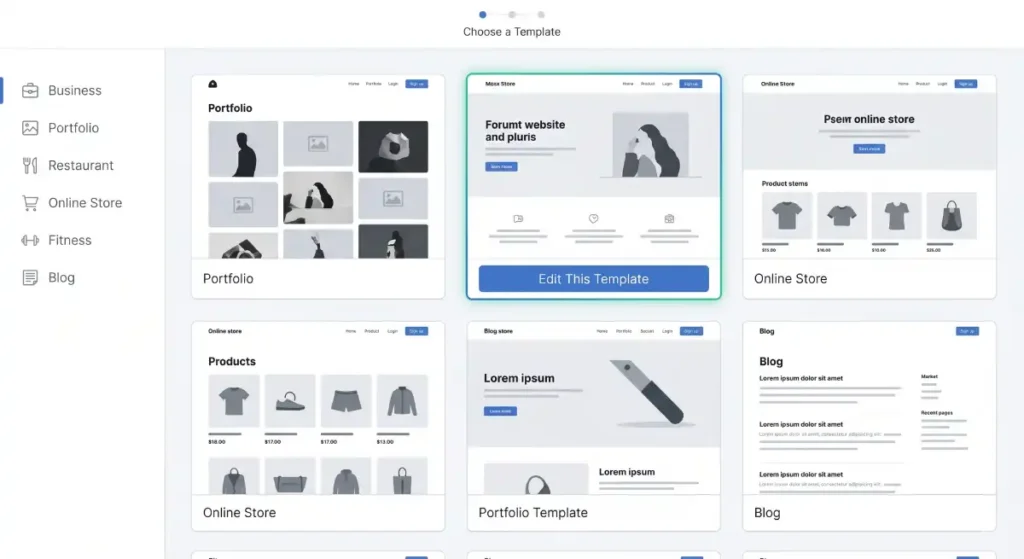
A template is a pre-designed website layout. It already has a header, a menu, sections for text and images, and a footer. You just swap in your own content. Most builders have hundreds of templates sorted by industry like restaurant, photography, fitness, and online store.
2. The Editor
This is where you actually build. You click on any element on the page and change it. Move a photo. Resize a button. Change the font. Add a new section. Everything is visual. What you see is exactly what your visitors will see.
3. Hosting and Publishing
Clicking publish sends your files to the builder’s servers and puts your site live. You do not need a separate hosting company or any server setup. For a deeper look at what happens on the hosting side, see how web hosting actually works.
Types of Website Builders
Not all website builders work the same way. There are three main types:
Drag and Drop Builders
These give you the most freedom. You can move any element anywhere on the page. Wix is the most popular example. Great for creative businesses and anyone who wants full control over how their site looks.
Section Based Builders
These work in rows and sections. You can edit within each section but cannot move things freely across the page. Squarespace and Shopify use this style. Less flexible but cleaner results for beginners.
Content Management Systems (CMS)
WordPress is the big one here. It is more powerful and flexible than any drag and drop builder, but it has a steeper learning curve. WordPress powers more than 40% of all websites on the internet. It is not really a website builder in the traditional sense. It is more of a full publishing platform that you host yourself.
Where AI Builders Fit In
There is a fourth type worth calling out on its own, since it has grown fast and gets pitched hard by every major platform right now.
An AI website builder asks you a handful of questions about your business, then generates a full starting site for you.
Layout, page structure, written copy, and sometimes images, all produced from a short prompt.
Wix, Squarespace, and Hostinger all now offer this as an entry point. Squarespace puts its AI builder above the fold on its own homepage.
Hostinger has published examples of an AI generated About page built from a single prompt.
Here is the part the platforms are less eager to spell out. AI generated starting content is still a starting point, not a finished site.
The generated copy tends to read generic until you rewrite it in your own voice. The generated images are sometimes stock rather than real photos of your business.
And the layout choices the AI makes are based on patterns across thousands of other sites, so an AI generated site can end up looking like a lot of other AI generated sites in the same category, the same way template based sites can look alike.
If you are short on time, an AI builder is a reasonable way to get from a blank page to something you can edit. Treat it as a first draft, not a finished product.
Budget time to rewrite the text and swap in real photos before you publish.
Top Website Builders Compared
| Builder | Best For | Starting Price | Ease of Use |
|---|---|---|---|
| Wix | Most people, creative sites | Free / $17 per month | Very Easy |
| Squarespace | Portfolios, small businesses | $16 per month | Easy |
| Shopify | Online stores | $29 per month | Easy |
| WordPress | Blogs, complex sites | Free (hosting extra) | Medium |
| Hostinger | Budget users | $2.99 per month | Very Easy |
| Webflow | Designers, agencies | Free / $14 per month | Hard |
| GoDaddy | Quick simple sites | $9.99 per month | Very Easy |
Who Should Use a Website Builder
Website builders are not one size fits all. Here is a breakdown of exactly who benefits most.
The small business owner
You run a local bakery, a cleaning service, or a pet grooming business. You need a site that shows your services, your location, your hours, and a way for people to contact you. You do not need anything complicated. A website builder gets you online in one day and costs less than a tank of gas per month.
Real example: Maria runs a small cake shop. She uses Squarespace to show her menu, a photo gallery of her cakes, and a contact form for custom orders. She updates photos herself every time she makes something new. Her whole site took one weekend to build and costs her $16 a month.
The freelancer or creative
You are a photographer, a designer, a writer, or a consultant. You need a portfolio that shows your work and has a way for clients to reach you. Wix and Squarespace both have stunning portfolio templates built for exactly this purpose.
Real example: Jake is a freelance photographer. He signed up for Wix, picked a photography template, uploaded 30 of his best photos, added a contact form, and published. He had a live portfolio in three hours. Clients now find him on Google.
The blogger
You want to write about travel, food, finance, or any topic you care about. Most website builders have a built in blog feature. WordPress is the strongest for blogging. Wix and Squarespace also do it well.
The e-commerce seller
You want to sell products online. Shopify is the gold standard here. It handles payments, inventory, shipping calculations, and even selling through Instagram and TikTok from one dashboard.
Real example: Priya sells handmade candles. She set up a Shopify store in a weekend. She lists 12 products, accepts credit cards and PayPal, and ships across the country. Shopify handles the checkout and sends her email notifications for every order.
If you are weighing platforms for a store specifically, see our website builders for ecommerce comparison and our honest assessment of ecommerce on a website builder.
The non-profit or community group
You need a simple site to share information and accept donations. Squarespace and Wix both have affordable plans with donation features built in.
See our website builders for nonprofits guide for specifics.
Who Should NOT Use a Website Builder
Website builders are not the right tool for every situation. Here is when you should think twice.
You need a very custom web application
If you are building something that requires complex user accounts, custom databases, or features that do not exist in any template, a website builder will not cut it. You need a developer.
Example: A hospital booking system that connects to patient records. A custom marketplace where buyers and sellers interact. A mobile app. None of these belong in a website builder.
You need complete ownership of your code
Most website builders lock your site to their platform. If Wix shuts down or changes its pricing, your options are limited. With WordPress or a custom built site, you own everything and can move it anywhere.
Read more on this in website builder vendor lock in. With WordPress or a custom build, you own everything and can move it anywhere.
You plan to grow into a large complex site fast
Website builders work well at small to medium scale. But if you expect to have thousands of pages, a large team of editors, and complex content workflows, a dedicated CMS will serve you better long term.
If you started on a builder and have outgrown it, see how to migrate off a website builder.
Hands-On Guide: How to Build Your First Website With Wix
This walkthrough uses Wix because its free plan needs no credit card and the editor is a clear example of the drag and drop style.
The steps below are similar if you choose Squarespace, Hostinger, or another builder instead, only the menu names and layout will differ.
Part 1: Sign Up and Pick a Template
Step 1: Go to wix.com
Open your browser and type wix.com. Click the Get Started button on the homepage.
Step 2: Create a free account
Enter your email address and set a password. You can also sign up with your Google account. Wix does not ask for a credit card at this stage.
Step 3: Answer the setup questions
Wix asks you a few questions about what kind of site you want to build. For example: Are you creating a business site, a blog, a portfolio, or an online store? Answer honestly. Wix uses these answers to show you the most relevant templates.
Step 4: Choose how to build
Wix gives you two options:
- Wix ADI (Artificial Design Intelligence): You answer a few more questions and Wix builds a basic site for you automatically. Good for total beginners.
- Wix Editor: You pick a template and edit it yourself. More control and more fun.
For this guide, choose Wix Editor.
Step 5: Browse templates and pick one
You will see hundreds of templates sorted by category. Business, photography, restaurant, fitness, online store, and more. Click any template to preview it. When you find one that looks close to what you want, click Edit This Template.
Do not stress about picking the perfect one. You can change every single color, font, image, and section later. The template is just a starting point.
Part 2: Edit Your Site in the Wix Editor
The Wix editor opens with your chosen template on screen. Everything you see is editable.
Step 6: Change the main headline
Click on the big headline text at the top of your page. A text box appears around it. Delete the placeholder text and type your own headline.
Example: The template says: Welcome to Our Studio. You change it to: Fresh Homemade Cakes Delivered to Your Door.
Keep your headline short and clear. Tell visitors exactly what you do in one line.
Step 7: Replace the main photo
Click on the hero image (the big photo at the top). A menu appears above it with options. Click Change Image. You can:
- Upload a photo from your own computer
- Pick a free photo from the Wix media library
- Search Wix’s built in stock photo library
Upload your own real photo if you have one. Real photos of your business, product, or face build more trust than stock photos.
Step 8: Edit the About section
Scroll down to the about section of the template. Click on the text. Replace it with a short paragraph about you or your business.
Keep it simple. Use this formula:
Who you are + what you do + who you help.
Example: We are a family run bakery in Austin, Texas. We make custom cakes for weddings, birthdays, and corporate events. Every cake is baked fresh to order.
Step 9: Update the contact section
Scroll to the contact section. Add your real phone number, email address, and location. If you have a Google Maps location, Wix lets you embed a map directly on the page. Click the map widget and type your address.
Step 10: Add or remove pages
Look at the top left of the editor. Click Pages and Menu. You will see a list of all the pages in your template. Delete any pages you do not need. Add new ones if you need something the template does not have.
A simple business site usually needs just four pages:
- Home
- About
- Services (or Menu or Portfolio)
- Contact
Step 11: Change colors and fonts
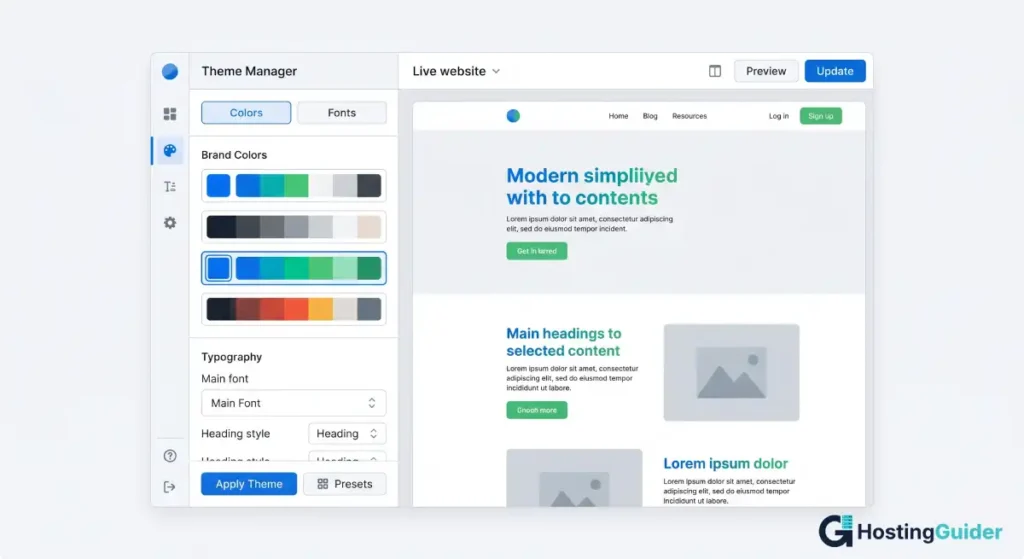
Click Design in the left panel. Then click Theme Manager. Here you can change your site colors to match your brand with one click. You can also set your font style for all headings and body text at once. Changing these two things makes your site feel completely different from the original template.
Part 3: Connect Your Domain and Publish
Step 12: Preview your site
Click the Preview button at the top of the editor. This shows you exactly how your site looks to a visitor. Click through all your pages. Check that everything looks right on desktop. Then click the mobile icon to see how it looks on a phone.
Fix anything that looks off before publishing.
Step 13: Connect a custom domain
Click Publish at the top right. Wix asks you to choose a domain.
If you are on the free plan, your site gets a free address like username.wixsite.com/yoursitename. This works but looks unprofessional.
To use a real domain like yourbusiness.com, you need to upgrade to a paid plan. Wix paid plans start at $17 per month and include a free domain for the first year.
If you already own a domain at another registrar like Namecheap or GoDaddy, you can connect it to Wix. Go to Settings > Domains > Connect a Domain and follow the steps to update your DNS records.
Step 14: Publish
Click Publish. Your site is now live on the internet. Anyone who types your address will see your website.
Step 15: Set up Google Analytics
This is optional but highly recommended. Google Analytics tells you how many people visit your site, where they come from, and which pages they look at.
In Wix, go to Marketing and SEO > Marketing Integrations > Google Analytics. Paste in your Google Analytics tracking ID. Now every visit to your site gets recorded.
After You Publish: 3 Things to Do Right Away
1. Submit your site to Google
Go to Google Search Console (search.google.com/search-console). Add your website URL. Download a verification file and upload it to Wix under Settings > SEO > Google Search Console. This tells Google your site exists and helps it get indexed faster.
2. Fill in your SEO settings
In Wix, click on each page and go to Page SEO. Write a title and description for each page. Use words that your customers would actually search for.
Example for a bakery:
- Page title: Custom Cakes Austin Texas | Fresh Baked to Order
- Description: Order custom birthday, wedding, and celebration cakes in Austin. Fresh ingredients, delivered to your door. Call us today.
3. Test on your phone
Open your site on your actual phone. Click every link. Fill out your contact form. Make sure it works perfectly on mobile because more than half of your visitors will use a phone.
How Much Does a Website Builder Cost
Here is the real cost breakdown, including what people often forget to budget for.
| Cost Item | Typical Price |
|---|---|
| Website builder plan | $10 to $50 per month |
| Custom domain name | $10 to $15 per year |
| Business email (custom) | $3 to $6 per month |
| Stock photos (if needed) | Free to $30 per month |
| Extra apps or plugins | $0 to $20 per month |
Most small businesses spend between $15 and $50 per month on a website builder plan. That covers hosting, your domain, and core features.
Watch out for these hidden costs:
- Some builders charge extra for removing their branding from your site
- E-commerce plans cost significantly more than basic plans
- Some features like booking systems or memberships require paid add-ons
- Renewal pricing is often higher than the first year promotional price
Always check the renewal price before you sign up. A builder that costs $3 in month one might cost $12 in month two when the promo ends.
Pros and Cons of Website Builders
Pros:
- Fast to set up. Most people have a basic site live within a day.
- No technical skills needed. Anyone can use them.
- Affordable. Far cheaper than hiring a developer.
- Hosting included. No separate server to manage.
- Support available. Most builders have live chat or help centers.
- Regular updates. The builder handles security and performance updates for you.
Cons:
- Limited flexibility. You cannot always do exactly what you want.
- Platform lock-in. Moving your site to another platform is difficult.
- Monthly cost forever. Unlike a one time website build, you pay every month.
- Template feel. Sites can look similar to others using the same template.
- SEO limitations. Some builders give you less control over technical SEO than WordPress.
FAQ’s
What is a website builder?
A website builder is an online tool that lets you create a website without knowing how to code. You pick a template, add your text and photos, and publish. The builder handles hosting, security, and technical setup for you. Popular examples include Wix, Squarespace, Shopify, and WordPress.
Are website builders free?
Most website builders offer a free plan with basic features. Free plans usually give you a subdomain like yoursitename.wixsite.com and show the builder’s branding on your site. To use a custom domain and remove branding, you need to upgrade to a paid plan which starts at around $10 to $17 per month.
How long does it take to build a website with a website builder?
A basic website with a few pages takes most people between a few hours and a full day to build. A more detailed site with a blog, an online store, or a booking system takes longer, usually two to five days. The more time you put into writing good content and uploading real photos, the better your site will look.
Do I need a domain name to use a website builder?
No, you do not need your own domain to start building. Every website builder gives you a free subdomain to use. But if you want a professional address like yourbusiness.com, you will need to buy a domain name. Most paid website builder plans include a free domain for the first year.
Which website builder is best for beginners?
Wix and Squarespace are the easiest website builders for beginners. Both have drag and drop editors, hundreds of templates, and helpful guides built in. Hostinger is also a good choice if you are on a tight budget, with plans starting at $2.99 per month. All three let you try before you pay.
Can I sell products with a website builder?
Yes. Most website builders have e-commerce features built in. Shopify is the strongest option if selling online is your main goal. Wix and Squarespace also have solid online store features for smaller shops. You can accept credit cards, set up shipping rules, and manage your inventory all from the same dashboard.
Is a website builder better than hiring a developer?
For most small businesses and personal sites, a website builder is the smarter choice. It is faster, cheaper, and you stay in control. A developer makes more sense when you need custom features that no builder offers, a large complex site, or a web application. If your needs are standard, a website builder covers them well.
Final Thoughts
Website builders changed who can have a website. It used to be only people with money or technical skills. Now it is anyone with an idea and an afternoon.
If you run a small business, work as a freelancer, sell products, or write a blog, a website builder gives you everything you need at a price that makes sense. Pick one, start with the free plan, and get your first page published before you overthink it.
The goal is not a perfect site on day one. The goal is a real site that people can find. You improve it over time as you learn what your visitors actually need.
Start with Wix or Squarespace if you want the easiest experience. Start with Shopify if selling products is your main goal. Start with WordPress if you want the most control and do not mind a little learning curve.
Any of them will get you further than having no website at all.


