You want to build a website. Someone told you to use a website builder. But is that actually the right choice for you?
Not everyone should use a website builder. They solve some problems really well and struggle with others. Before you sign up for anything or spend any money, you need an honest answer to that question.
This guide gives you exactly that. No sales pitch. No sugarcoating. Just a clear look at what website builders do well, where they fall short, how they handle mobile management, what their support is like, how secure they are, and who should actually use one.
By the end of this guide you will know whether a website builder is the right tool for your situation.
Here is what this guide covers:
- What a website builder actually is and how it works
- Every major pro explained with real examples
- Every major con explained honestly
- Whether you can manage your site from your phone
- How good the customer support is on each platform
- How secure website builders actually are
- Who gets the most value from a website builder
- A final verdict with a clear recommendation
Key Takeaways
- Website builders let you create a website without any coding skills
- They cost far less than hiring a developer
- The platform handles hosting, security, and updates for you
- You are tied to the platform once you start, switching is painful
- Advanced features cost more as your needs grow
- All major builders have mobile apps but desktop is still needed for design work
- Support quality varies by platform and by plan
- Security is handled automatically but two-factor authentication is your responsibility
- For most beginners and small businesses, a website builder is the right starting point
Quick Answer
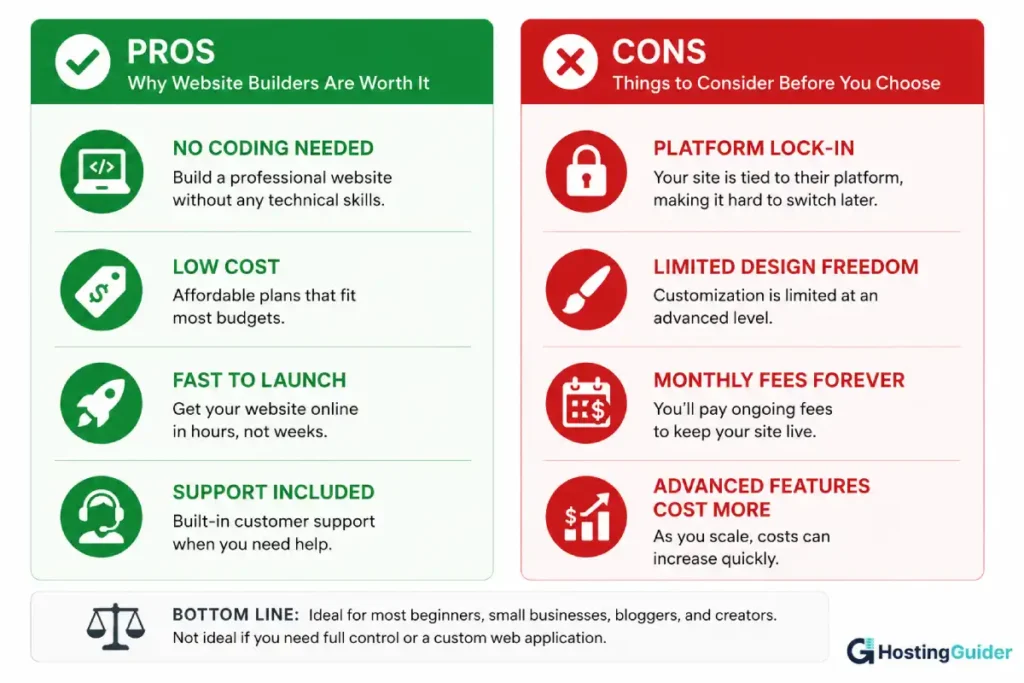
Website builders are worth using for most beginners, small businesses, bloggers, and content creators. They are fast, affordable, and require zero technical skills. The main drawbacks are platform lock-in, limited design freedom at the advanced level, and rising costs as you scale. If you need a standard website up and running without hiring a developer, a website builder is the right tool. If you need a fully custom web application or total control over your server environment, a website builder is not the right tool.
What Is a Website Builder?
A website builder is a tool that lets you create a website without writing any code.
You pick a template. You add your own text and photos. You click publish. Your website is live.
The platform stores your website on its own servers, keeps it secure, and makes sure it stays online around the clock. You never touch any of that technical side. You just focus on your content and your business.
Think of it like this. Building a website from scratch with code is like constructing a house brick by brick. You need specialist skills, time, and a lot of planning. A website builder is like buying a flat-pack house. The structure is already built. You put it together and decorate it the way you like.
The main website builders people use today are Wix, Squarespace, and WordPress.com. Each one works slightly differently and suits different types of people. But they all follow the same basic idea: build a website without code.
According to W3Techs, website builders and content management systems together power the vast majority of all websites on the internet today. That tells you how mainstream and trusted this approach has become.
Pros and Cons: At a Glance
| Pros | Cons | |
|---|---|---|
| Skill needed | Zero coding required | Cannot match everything a developer can do |
| Cost | Much cheaper than hiring someone | Monthly fee continues forever |
| Speed | Launch in hours, not weeks | Design freedom has limits |
| Maintenance | Platform handles everything for you | You are tied to the platform you choose |
| Features | Most common features built in | Advanced features cost more money |
| Support | Help center and live support included | Support quality varies by plan |
| Changes | Update your site yourself anytime | Hard to move your site to a different platform later |
| Security | SSL, backups, and updates handled automatically | Two-factor authentication is your own responsibility |
| Mobile | Mobile apps available on all platforms | Full editing still requires a desktop or laptop |
Pros of Using a Website Builder
Pro 1: You Do Not Need Any Technical Skills
This is the biggest reason most people choose a website builder.
You do not need to know HTML. You do not need to know CSS. You do not need to understand servers, databases, or domain configuration. You do not need to hire anyone or take a course before you start.
If you can type words and click buttons, you can build a website.
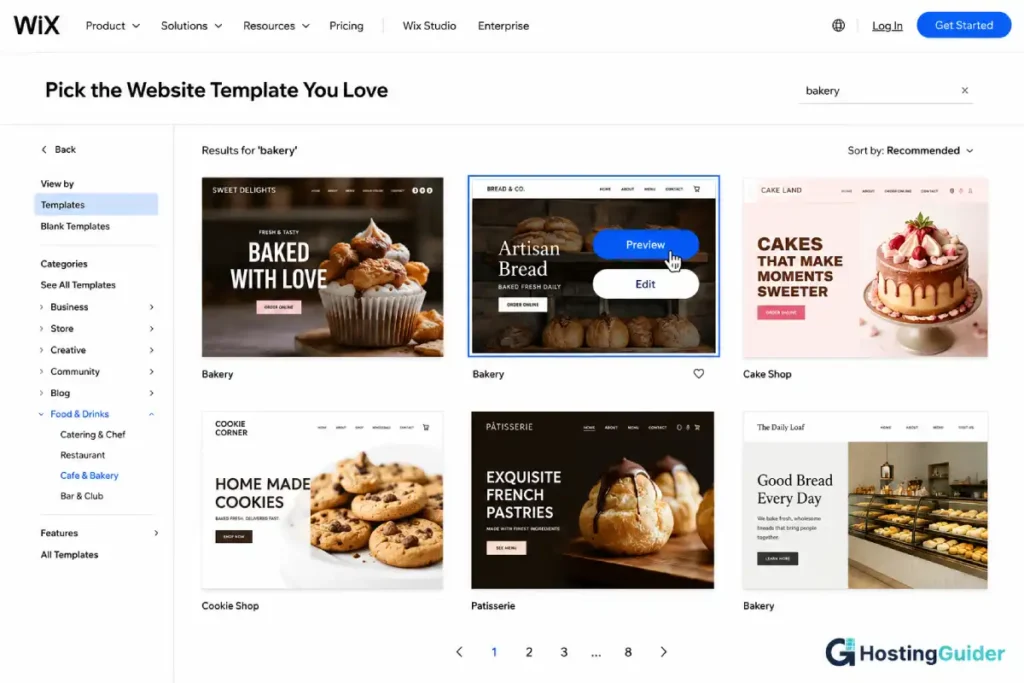
Real example: Imagine you run a small bakery. You have never built a website in your life. You sign up for Wix, pick a food template, replace the photos with your own cake photos, type in your address and opening hours, and hit publish. Your bakery now has a professional website. You did that yourself in one afternoon with zero experience.
That is the power of a website builder for a complete beginner.
Pro 2: It Costs Much Less Than Hiring a Developer
Hiring a freelance web developer costs anywhere from $500 to $10,000 or more depending on what you need. A design agency can charge $20,000 or higher for a full website project.
Website builders cost between $4 and $50 per month for most people.
| Option | Typical Cost |
|---|---|
| WordPress.com paid plan | $4 to $45 per month |
| Squarespace paid plan | $16 to $52 per month |
| Wix paid plan | $17 to $159 per month |
| Freelance web developer | $500 to $10,000 one-time fee |
| Web design agency | $5,000 to $50,000 one-time fee |
Even at $50 per month, a website builder costs $600 per year. That is still far less than the cheapest developer quote for most projects.
For a student, a solo entrepreneur, or a small business owner with a tight budget, this difference is what makes a website possible at all.
Pro 3: The Platform Handles All the Technical Work
When you build a website from scratch on your own server, you are responsible for a long list of technical tasks that have nothing to do with your actual content or business.
You have to buy and set up hosting. You have to install a security certificate. You have to update your software regularly so hackers cannot exploit old vulnerabilities. You have to back up your files manually so you do not lose everything if something goes wrong.
With a website builder, the platform does all of that automatically.
| Technical Task | Who Handles It on a Website Builder |
|---|---|
| Web hosting | The platform |
| SSL security certificate | The platform |
| Software and security updates | The platform |
| Automatic daily backups | The platform |
| Uptime and server performance | The platform |
| Spam and bot protection | The platform |
| DDoS attack protection | The platform |
You focus entirely on your content and your customers. The platform handles the rest silently in the background.
Pro 4: You Can Make Changes Yourself at Any Time
Imagine you built your website through a developer. Now you need to update your phone number. You have to email the developer, wait for them to reply, wait for them to make the change, and possibly pay them for their time.
On a website builder, you log in, click on the phone number, type the new one, and publish. That takes 30 seconds.
This level of control matters more than most people realise before they launch a website. Your prices change. Your products change. Your team changes. Your business hours change. Being able to update your own site instantly, without depending on anyone else, is a genuine and daily advantage.
Pro 5: You Start from a Professional Design
Most people who want a website are not designers. They do not know which fonts work together. They do not know how much white space looks right. They do not know which color combinations look professional.
Website builders solve this problem entirely by giving you templates that professional designers already built.
You start from something that already looks clean and balanced. Your job is just to replace the placeholder content with your own words and images.
Real example: A class 7 student named Riya wants to start a food blog. She picks a clean recipe template on WordPress.com. She has no design knowledge at all. But because she started from a well-made template, her blog looks professional from day one. She just writes her recipes and adds her own photos. The design does the heavy lifting for her.
Pro 6: The Most Common Features Are Already Built In
A few years ago, adding a contact form to your website required a developer. Adding an online store required expensive custom software. Adding an appointment booking system required custom code.
Today, all of that comes built directly into website builders at no extra cost.
| Feature | What It Does for You |
|---|---|
| Contact form | Visitors can send you messages directly from your site |
| Image gallery | Show your photos in a clean grid or slideshow |
| Blog | Write and publish articles with categories and tags |
| Basic online store | Sell products and accept payments |
| Appointment booking | Let customers schedule time with you online |
| Email newsletter signup | Collect subscriber emails and grow your list |
| Google Analytics | Track how many people visit your site and what they read |
| Social media links | Connect your Instagram, YouTube, and Facebook pages |
| SEO settings | Set your page titles and descriptions for Google |
For the majority of small websites, these built-in features cover everything you will ever need.
Pro 7: Help and Support Is Always Available
When something goes wrong on your website builder site, you have somewhere to turn.
Every major platform has a help center with thousands of written articles. They have video tutorials that walk you through common tasks. They have community forums where other users share solutions. And most paid plans include live chat or email support where a real person helps you solve the problem.
If you build a custom site yourself and something breaks, you are on your own or you pay a developer to fix it. That is a very different experience when you are a beginner trying to keep a site running.
Cons of Using a Website Builder
Con 1: You Are Tied to the Platform
This is the most important limitation to understand before you sign up for anything.
When you build your site on Wix, it lives on Wix. When you build on Squarespace, it lives on Squarespace. If you ever decide to leave that platform, you cannot simply export your site and open it somewhere else.
There is no transfer button. You would have to rebuild your entire site from scratch on the new platform. Every page. Every blog post. Every image. Every setting.
Real example: Imagine you wrote 200 blog posts on Wix over two years. Then you decide you want to move to WordPress.com. You have to copy and paste every single post manually into the new platform. At 15 minutes per post, that is 50 hours of work. And that is before you rebuild your pages, settings, and design.
This is called platform lock-in. The longer you stay on a platform and the more content you create, the harder and more expensive it becomes to leave.
| Move | How Hard Is It |
|---|---|
| Wix to Squarespace | Very hard, manual rebuild required |
| Squarespace to Wix | Very hard, manual rebuild required |
| WordPress.com to WordPress.org | Manageable, built-in export tool exists |
| Any builder to custom code | Hard, requires a developer |
Lesson: Pick your platform carefully the first time. Do not sign up for whichever one you heard about first. Think about your long-term goal before you commit.
Con 2: Design Freedom Has Limits
Website builders are flexible. But they are not unlimited.
Even the most flexible builder cannot match what a skilled developer can build with custom code. If you have a very specific and unusual design vision in mind, a website builder might not let you achieve it exactly.
Real example: You want your homepage to have a fully animated 3D logo that responds to cursor movement. You want custom page transition animations between every section. You want a navigation menu that behaves in a completely unique way. A website builder will not be able to replicate all of that. Only custom code can.
For most people building standard business websites, portfolios, and blogs, this limitation never matters. But it is worth knowing before you commit.
Con 3: Advanced Features Cost More Money
The cheapest plans on every website builder are designed to get you started. They are not designed to run a full and growing business operation.
As your needs grow, the price grows too.
| Feature You Will Probably Want Eventually | When It Gets Expensive |
|---|---|
| Removing platform ads from your site | Requires a paid plan on every platform |
| Using your own custom domain name | Requires a paid plan on every platform |
| Selling products online | Requires a mid-tier plan or higher |
| Installing extra plugins or apps | Requires a higher plan |
| Advanced analytics and reporting | Only on expensive plans |
| Removing transaction fees on sales | Requires a Commerce plan or equivalent |
| Priority customer support | Only on the highest plans |
A site that starts at $4 per month on WordPress.com can become $25 or $45 per month once you add the features your growing site actually needs. Plan ahead for this before you commit to a platform.
Con 4: SEO Has a Ceiling on Some Platforms
SEO stands for Search Engine Optimization. It is how your pages show up on Google without paying for ads. Google’s own SEO Starter Guide is a great free resource for understanding the basics.
Website builders handle basic SEO well. You can set page titles, meta descriptions, and clean URL slugs on all major platforms. That covers what most small sites need.
But advanced SEO work is harder or impossible on some builders.
| SEO Task | Available on Website Builders |
|---|---|
| Page title and meta description | Yes, on all platforms |
| Custom URL slugs | Yes, on all platforms |
| Automatic sitemap | Yes, on all platforms |
| SSL certificate | Yes, on all platforms |
| SEO plugin like Yoast | Only on WordPress.com Creator plan |
| Custom schema markup | Limited on most builders |
| Advanced redirect management | Basic only on most builders |
| Full technical SEO control | Not available on any builder |
If ranking on Google is your main growth strategy and you plan to publish hundreds of articles, WordPress.com gives you the deepest tools. But even it has limits compared to a fully self-hosted setup.
Con 5: Your Site Speed Depends on the Platform
On a website builder, your site shares infrastructure with millions of other users. You cannot choose a faster server. You cannot configure caching at a deep technical level. You cannot fine-tune performance settings the way a developer can on a dedicated server.
Most website builders are fast enough for small and medium sites. Your readers will not notice any difference in practice.
But if your site grows to millions of monthly visitors, or if you need extremely precise performance for a complex web application, you may eventually hit the performance ceiling of a shared platform.
For 99% of people reading this guide right now, this limitation does not matter yet. But it exists and is worth knowing.
Con 6: Monthly Fees Go On Forever
Buying a website builder subscription is a recurring cost. You pay every month or every year for as long as your site stays live. Stop paying and your site goes offline.
Real example: If you pay $25 per month for the WordPress.com Creator plan, that is $300 per year. Over five years, that is $1,500. Over ten years, that is $3,000. Depending on your needs, a one-time custom build from a developer might cost less in total over a long time period.
This does not mean website builders are bad value. For most people they are excellent value. But understand before you commit that the cost is ongoing, not a one-time payment.
Con 7: Moving to Another Platform Is Painful
This connects to Con 1 but deserves its own mention because it catches so many people off guard.
Each platform uses its own file formats, design systems, and content structures. Your content does not travel cleanly between them.
You can export your plain text from most platforms. But your design, layout, custom settings, apps, navigation, and configurations will not transfer. You rebuild from zero on the new platform.
| What Transfers When You Switch | What Does Not Transfer |
|---|---|
| Plain text content (mostly) | Your design and layout |
| Images (manually) | Your navigation structure |
| Basic blog posts | Your app or plugin settings |
| Nothing automatically | Your SEO settings and URLs |
Plan your platform choice carefully upfront. Switching after you have built a large site is one of the most frustrating experiences a website owner can go through.
Can You Manage Your Website from Your Phone?
Most people build their site on a desktop or laptop. But once it is live, you will not always be at your desk.
You might need to publish a blog post on the train. Reply to a customer message from a cafe. Update your prices from your phone while you are out. All three major website builders have mobile apps for exactly this. But they are not all equally capable.
Mobile App Comparison: At a Glance
| Feature | Wix App | Squarespace App | WordPress.com App |
|---|---|---|---|
| Available on iPhone | Yes | Yes | Yes |
| Available on Android | Yes | Yes | Yes |
| Free to download | Yes | Yes | Yes |
| Write and publish blog posts | Yes | Yes | Yes |
| Manage online store and orders | Yes | Yes | Yes |
| View site analytics | Yes | Yes | Yes |
| Manage contact form submissions | Yes | Yes | Yes |
| Edit pages and content | Limited | Limited | Yes |
| Add new pages | No | No | Yes |
| Change site design or template | No | No | No |
| Live chat with site visitors | Yes | No | No |
| Overall mobile experience | Good | Decent | Best |
Wix Mobile App
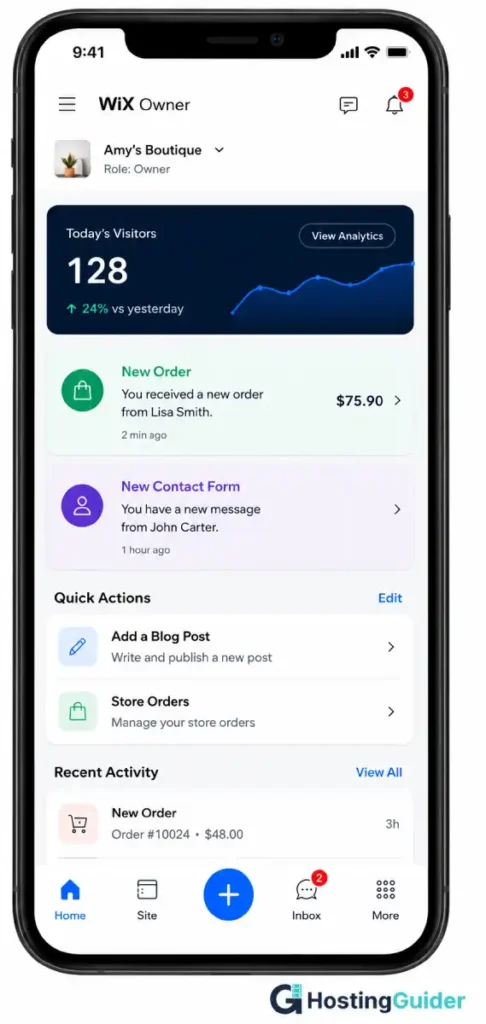
The Wix Owner app is available on both iPhone and Android. It is free and works on all plans including the free plan.
You can view your site statistics, read and reply to contact form submissions, manage orders if you have a store, add new blog posts, and use Wix Chat to reply to live visitor messages from your phone.
What you cannot do: you cannot edit your full page layout. The drag-and-drop editor does not work on mobile. Any structural or design changes still need a desktop.
Real example: Ben runs a small clothing store. He wakes up on Monday morning and checks the Wix app before breakfast. He sees three new orders came in overnight. He marks them as processing, checks his stock levels, and replies to a customer question. He did all of that from his phone before he left for work.
Squarespace Mobile App
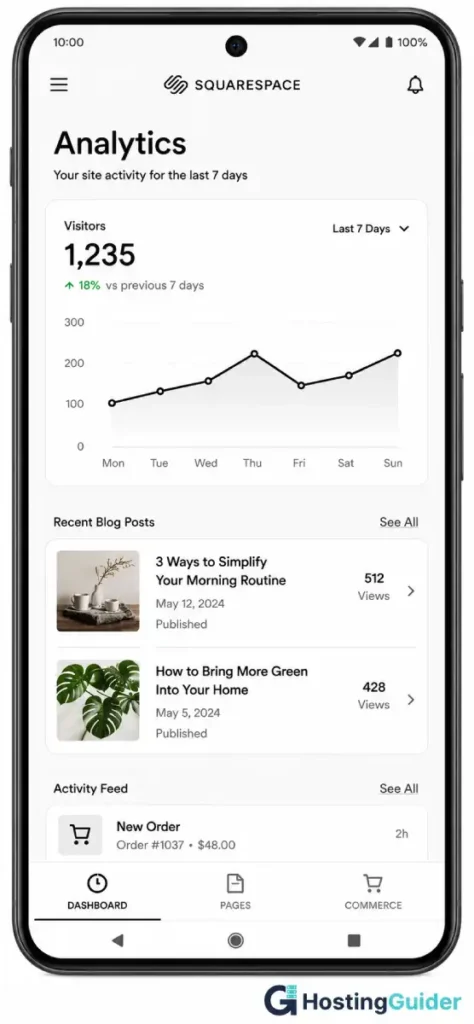
Squarespace has two separate apps. The main Squarespace app handles your website. The Squarespace Commerce app handles your store. Both are free on iPhone and Android.
You can view analytics, write and publish blog posts, manage form submissions, view and fulfill orders, and update product inventory.
What you cannot do: you cannot edit page layouts, change fonts or colors, or add new pages from the app. Design and structure changes need a desktop.
Real example: Sophie is a yoga instructor. After each class she opens the Squarespace app, checks if anyone has booked through her contact form, and posts a short blog update. She does all design work at home on her laptop. The app handles day-to-day management just fine.
WordPress.com Mobile App
The WordPress.com app is available on iPhone and Android and is free to download on all plans.
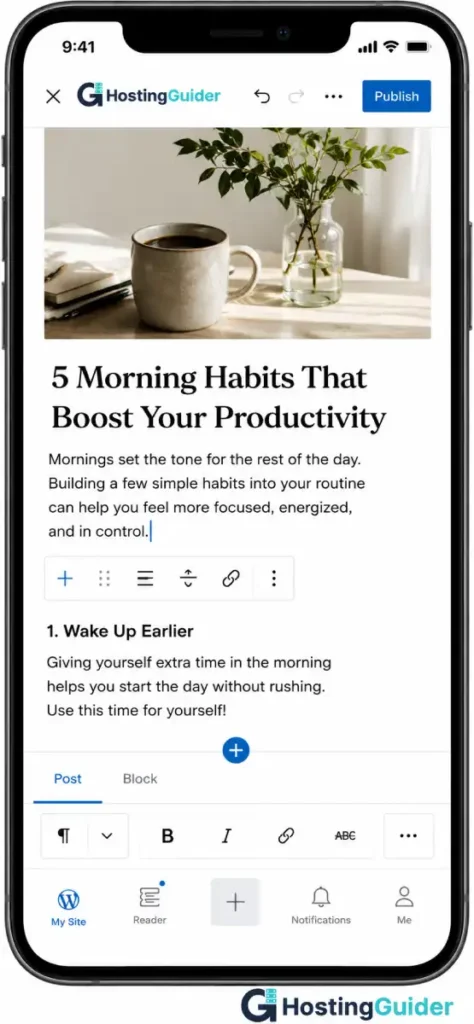
It is the most capable mobile app of the three. The mobile block editor lets you write full blog posts with headings, images, lists, and quotes, set a featured image, assign a category, write a meta description, and publish, all from your phone.
You can also create and edit pages, not just blog posts. You can moderate comments, view detailed stats, and manage multiple WordPress.com sites from one app.
What you cannot do: you cannot change your theme or site design, manage plugins, or edit navigation menus. Those still need a desktop.
Real example: Priya is a personal finance blogger who travels a lot for work. She writes first drafts of her blog posts during flights on her phone using the WordPress.com app. When she lands, she does a final edit on her laptop and publishes. She has published over 200 posts this way.
Which Mobile App Is Best for You?
| Your Situation | Best App to Use |
|---|---|
| You mainly check messages and orders on the go | Wix Owner app |
| You need to chat with site visitors from your phone | Wix Owner app only |
| You run a small shop and manage products and orders daily | Wix or Squarespace Commerce app |
| You are a blogger who writes content from your phone | WordPress.com app |
| You need the most complete mobile site management | WordPress.com app |
Customer Support: How Good Is Each Platform’s Help?
When something goes wrong with your website, you want help fast. This section explains exactly what support each platform offers, which plan you need to access it, and how good the help actually is.
Customer Support Comparison: At a Glance
| Support Type | Wix | Squarespace | WordPress.com |
|---|---|---|---|
| Help center articles | Yes | Yes | Yes |
| Video tutorials | Yes | Yes | Yes |
| Community forum | Yes | Yes | Yes |
| Email support | Yes, paid plans | Yes, all plans | Yes, paid plans |
| Live chat | Yes, Core plan and above | Yes, all plans | Yes, Explorer plan and above |
| Phone support | Yes, Business plan and above | No | No |
| Priority support | Yes, Business Elite | No | No |
| Support available | 24/7 | 24/7 | 24/7 |
| Overall support quality | Good | Excellent | Good |
Wix Customer Support
Wix offers a detailed help center at support.wix.com with thousands of articles covering every feature. Most common questions have a step-by-step answer with screenshots.
Wix offers live chat support. You start with an automated assistant. If it cannot solve your problem, you connect with a human agent. Response times are usually under five minutes during business hours.
Wix is the only major website builder that offers phone support. You request a callback from your dashboard and a Wix agent calls you back, usually within a few minutes. This is available on the Business plan and above.
| Support Type | Plan Required |
|---|---|
| Help Center | All plans including free |
| Community Forum | All plans including free |
| Email support | All paid plans |
| Live Chat | Core plan and above |
| Phone callback | Business plan and above |
[IMAGE: SCREENSHOT — The Wix support center page showing a search bar at the top, topic category cards in a grid including Editor, Payments, SEO, Domains, and Apps, and a live chat button visible in the bottom right corner of the screen]
Squarespace Customer Support
Squarespace is widely considered to have the best customer support of the three platforms. Users consistently rate their support agents as knowledgeable, patient, and helpful.
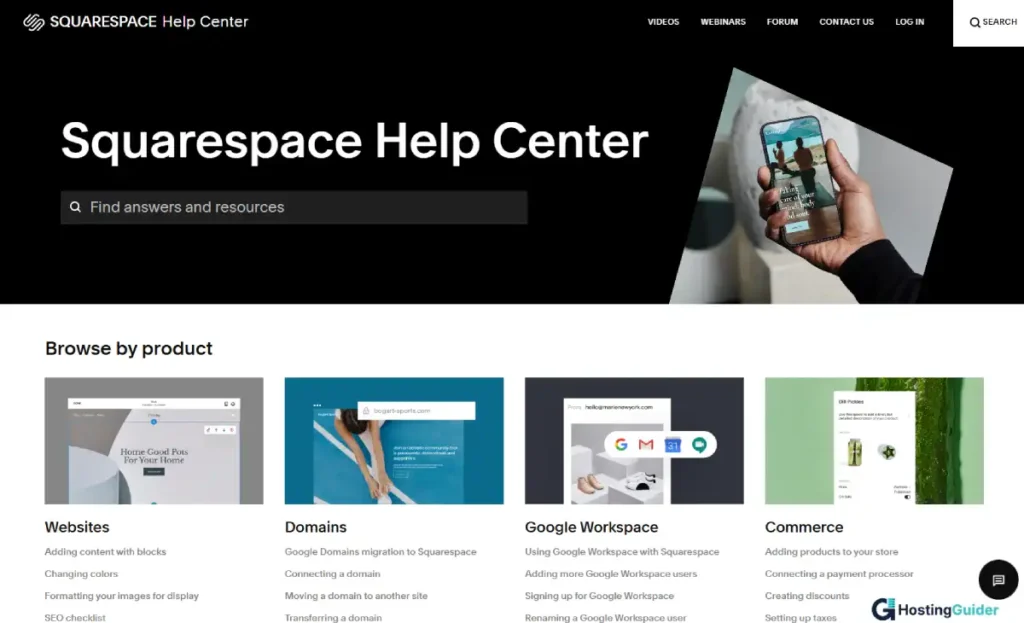
The Squarespace Help Center at support.squarespace.com has detailed articles with screenshots and short video clips. The search function works well and usually surfaces the right answer quickly.
Live chat is available on all Squarespace plans, including the free trial. You do not need to be on a paid plan to get human support. That is a significant advantage over Wix and WordPress.com.
Squarespace does not offer phone support on any plan. For most people this is not a problem. But if you strongly prefer talking to someone on the phone, this is worth knowing before you commit.
| Support Type | Plan Required |
|---|---|
| Help Center | All plans including trial |
| Community Forum | All plans including trial |
| Live Chat | All plans including trial |
| Email support | All plans including trial |
| Phone support | Not available |
WordPress.com Customer Support
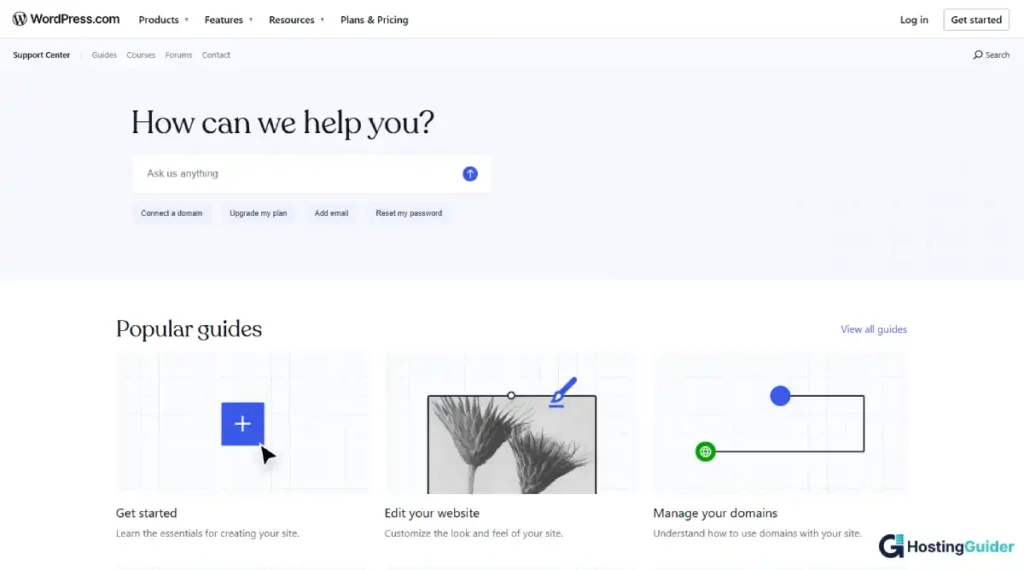
WordPress.com support is solid but varies significantly by plan. Free plan users have the most limited access to direct human help.
The WordPress.com support documentation at wordpress.com/support is thorough and covers every feature in detail. The community forums are very active because WordPress is used by so many people worldwide. Almost any question you have has already been asked and answered somewhere in the forums.
Live chat is available on the Explorer plan and above. On the free and Starter plans you do not have access to live chat. This is the biggest support gap compared to Squarespace.
| Support Type | Plan Required |
|---|---|
| Help Center | All plans including free |
| Community Forum | All plans including free |
| Email support | Starter plan and above |
| Live Chat | Explorer plan and above |
| Phone support | Not available |
Which Platform Has the Best Support?
| Your Priority | Best Choice |
|---|---|
| Best quality support agents | Squarespace |
| Live chat on the cheapest possible plan | Squarespace |
| Phone support | Wix |
| Largest community knowledge base | WordPress.com |
| 24/7 help with no plan upgrade needed | Squarespace |
Security: How Safe Is Each Platform?
A hacked website loses visitor trust immediately. It can be removed from Google search results. It can expose your customers’ data. And recovering from a hack is slow, expensive, and stressful.
The good news is that website builders handle most security automatically. You do not need to be a security expert. But you should understand what each platform protects you from and what is still your own responsibility.
Security Comparison: At a Glance
| Security Feature | Wix | Squarespace | WordPress.com |
|---|---|---|---|
| SSL certificate | Yes, automatic | Yes, automatic | Yes, automatic |
| Automatic backups | Yes | Partial | Yes, via Jetpack |
| DDoS attack protection | Yes | Yes | Yes |
| Two-factor authentication | Yes | Yes | Yes |
| PCI compliance for payments | Yes | Yes | Yes |
| Automatic platform updates | Yes | Yes | Yes |
| Plugin vulnerability risk | Not applicable | Not applicable | Low on .com plans |
| Uptime guarantee | 99.9% | 99.98% | 99.9% |
What Is SSL and Why Does It Matter?
SSL stands for Secure Sockets Layer. When a website has SSL, its address starts with https:// and you see a padlock icon in the browser bar.
SSL encrypts the connection between your visitor and your website. If anyone tries to intercept the data, they cannot read it.
Google also uses SSL as a ranking signal. Sites without SSL rank lower in search results. Browsers like Chrome show a security warning to visitors on sites without it, which drives people away fast.
All three platforms include SSL automatically on all plans at no extra cost. You do not set it up. It is just there from day one.
Wix Security
Wix manages all security at the platform level. Because you never install third-party software on Wix, you cannot accidentally introduce security vulnerabilities the way you sometimes can on self-hosted systems.
Wix updates its platform automatically and silently. You never need to click an update button.
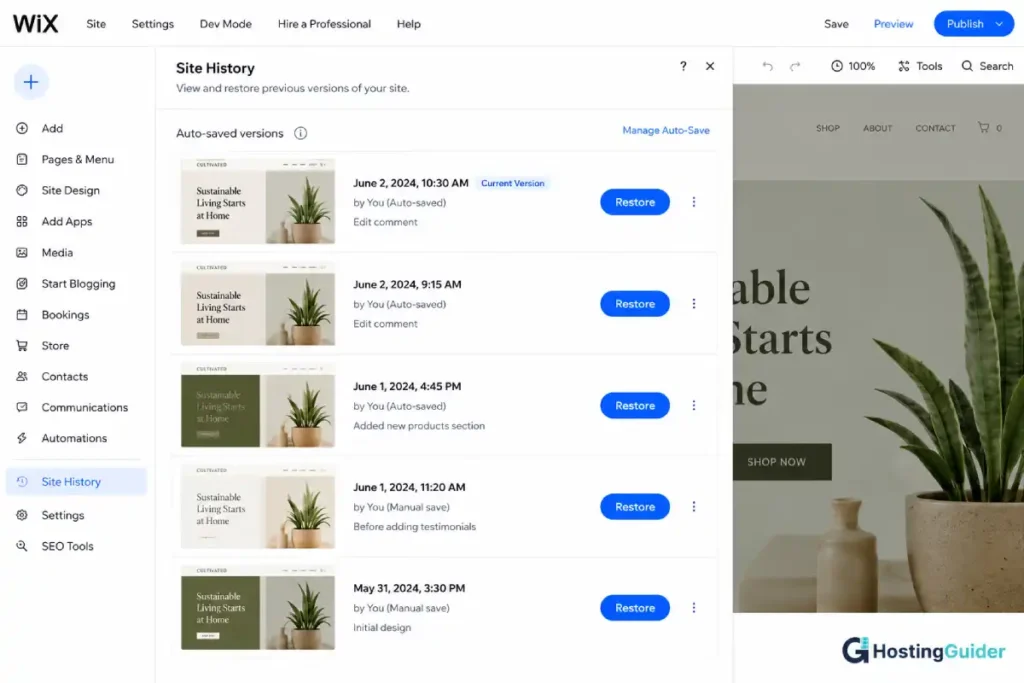
Wix saves versions of your site automatically as you make changes. You can restore a previous version any time. Go to your dashboard, click Site History, and pick any saved version to restore with one click.
Wix has built-in DDoS protection across its full infrastructure. A DDoS attack is when someone floods your site with fake traffic to crash it. Wix absorbs these attacks at the infrastructure level before they ever reach your site.
Enable two-factor authentication on your Wix account in your account settings. It takes two minutes and protects your account even if someone gets your password.
Squarespace Security
Squarespace has a strong security record and is often noted as one of the most stable website builder platforms available.
Squarespace updates everything automatically. You never manage software versions or apply patches. The platform team handles all of that without any action needed from you.
Squarespace does not have a one-click restore backup feature on all plans. However, your site data is stored redundantly across multiple servers. For extra peace of mind, export your content manually from Settings, then Advanced, then Import and Export. Keep a copy outside of Squarespace.
Squarespace has one of the strongest uptime records in the industry at 99.98%. You can check their live status at status.squarespace.com at any time.
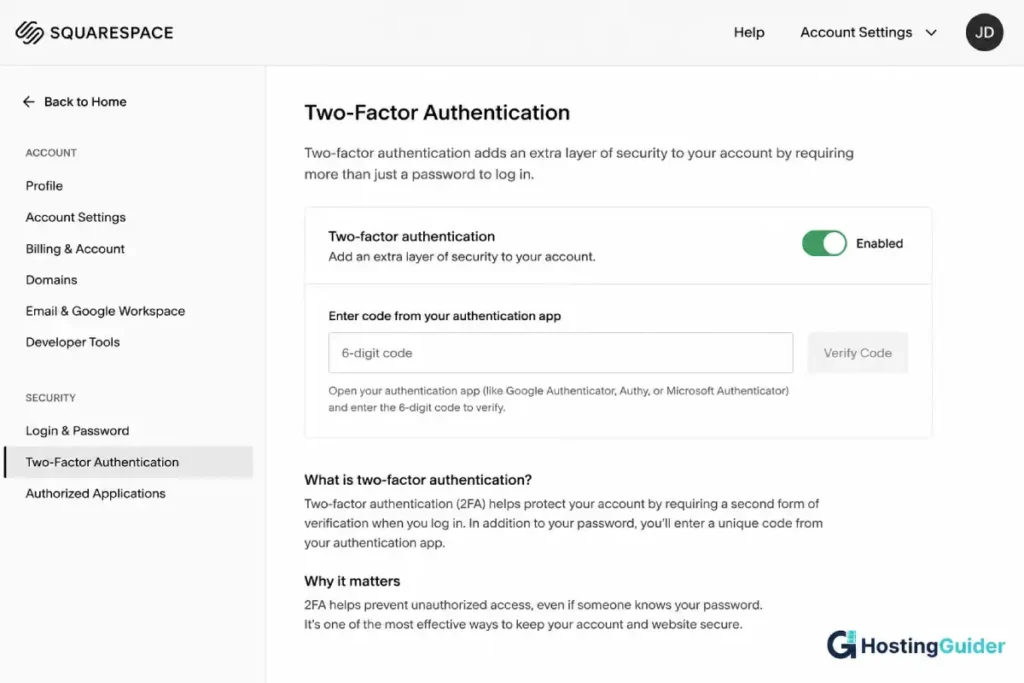
Enable two-factor authentication in your Squarespace account settings under Security. Use an authenticator app like Google Authenticator for the strongest protection.
WordPress.com Security
WordPress.com is a hosted platform managed by Automattic. This is different from self-hosted WordPress.org, which requires you to manage your own server and plugins.
On WordPress.com, Automattic manages the hosting, the core software updates, and the security infrastructure. You do not install arbitrary software on most plans, which removes a major category of security risk.
WordPress.com includes real-time automatic backups through Jetpack Backup on paid plans. Your site is backed up continuously. If something goes wrong, you can restore it to any previous point in time from your dashboard.
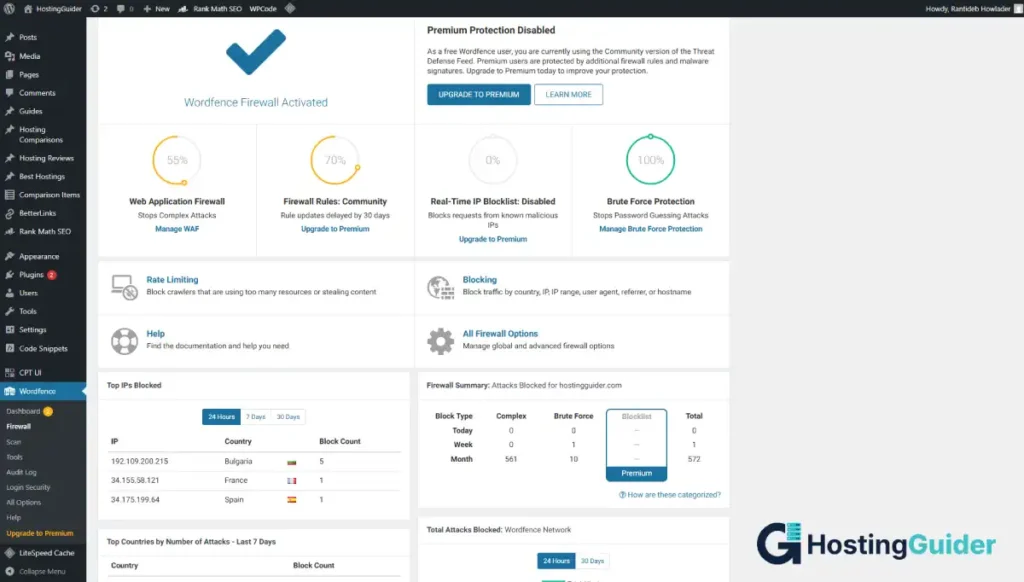
On the Creator plan and above where plugin installation is available, WordPress.com scans for known vulnerable plugins and alerts you to any risks. You can also enable automatic plugin updates to stay protected without manual action.
Enable two-factor authentication from your WordPress.com account settings. You can use an SMS code or an authenticator app.
Which Platform Is Most Secure?
All three platforms are secure for the vast majority of website owners. The practical differences between them will never matter for most people.
| Security Priority | Best Choice |
|---|---|
| Easiest automatic security with no effort | Any of the three |
| Best backup and restore feature | WordPress.com via Jetpack |
| Strongest uptime record | Squarespace at 99.98% |
| Phone account recovery support | Wix |
| Lowest plugin vulnerability risk | Wix or Squarespace (no plugins) |
| Most control over security settings | WordPress.com on Creator plan |
The biggest security risk on any website platform is not the platform itself. It is a weak password and no two-factor authentication on your account. That single step protects you more than anything else on this list.
Four Security Steps to Do Right Now
Do these four things as soon as your site is live on any platform:
| Step | What to Do |
|---|---|
| Step 1 | Use a strong unique password you do not use anywhere else |
| Step 2 | Enable two-factor authentication on your account |
| Step 3 | Use an email address only you have access to for your account |
| Step 4 | Never click login links in emails, always go directly to the platform website by typing the address yourself |
Who Gets the Most Value from a Website Builder?
Website builders are the right choice for some people and the wrong choice for others. Here is an honest breakdown.
Website Builders Work Best For
| Who You Are | Why a Builder Works Well for You |
|---|---|
| A complete beginner | No skills needed to get started today |
| A small local business | Fast, affordable, and easy to update yourself |
| A blogger or content creator | Strong publishing tools and good SEO basics |
| A freelancer or consultant | Professional portfolio at a very low monthly cost |
| A student or young entrepreneur | Affordable with no developer needed |
| A small online shop | Built-in e-commerce handles most basic store needs |
| A nonprofit or community group | Low cost and manageable by a volunteer |
| Someone who wants full control of updates | You log in and change anything yourself |
Website Builders Are Not the Right Choice For
| Who You Are | Why You Might Need Something Else |
|---|---|
| A large e-commerce store | Complex inventory and checkout needs outgrow most builders |
| A developer building a web application | Website builders are content tools, not application frameworks |
| A business with strict compliance requirements | May need dedicated server control builders cannot provide |
| Someone who needs 100% custom design freedom | Only custom code gives you that |
| A site expecting millions of daily visitors | May outgrow shared platform infrastructure over time |
Frequently Asked Questions
Do I need any coding skills to use a website builder?
No. Website builders are specifically designed for people with zero coding knowledge. You click, type, drag, and publish. The most technical thing you will ever do on most platforms is paste in an embed code from YouTube or Google Maps, and even that is optional. If you can use a smartphone or send an email, you have enough technical skill to build a website on a modern website builder.
Is a website builder good enough for a real business?
Yes, for most small and medium businesses. Millions of real businesses use website builders as their primary online presence, including restaurants, salons, photographers, coaches, consultants, retailers, and nonprofits. The platforms handle payments, booking, contact forms, blogs, and basic e-commerce well. The limitations only become relevant when you need very advanced custom functionality or very high-traffic infrastructure that shared platforms cannot handle.
Can I use my own domain name on a website builder?
Yes, but you need a paid plan on every major platform to connect a custom domain. On free plans, your site address includes the platform name, like yoursitename.wixsite.com or yoursitename.wordpress.com. On any paid plan, you can connect a domain you already own or purchase one through the platform during the upgrade process.
What happens to my website if I stop paying?
If you stop paying for your plan, your site goes offline. Your content is not deleted immediately on most platforms. You usually have a grace period of a few weeks to reactivate your plan before anything is permanently removed. But your site will not be visible to the public during that time. Always keep your billing information up to date and set your plan to auto-renew so your site never goes down unexpectedly.
Can I move my website to a different platform later?
You can move, but it requires significant manual work. There is no tool that exports a Wix site into Squarespace format, or a Squarespace site into WordPress format. You can export your plain text content from most platforms, but your design, layout, and settings do not transfer. WordPress.com to WordPress.org is the one move that has a reasonably clean built-in export tool. For all other moves, plan on rebuilding your site from scratch on the new platform.
Is a website builder secure enough for taking payments?
Yes. All major website builders are PCI compliant for payment processing. PCI compliance is the industry standard that protects your customers’ card data. Payment processing on Wix, Squarespace, and WordPress.com goes through trusted providers like Stripe, PayPal, and Wix Payments, all of which meet the highest security standards. You do not need to do anything special to make payments secure. The platform and payment provider handle it automatically.
Which website builder is cheapest for a beginner?
WordPress.com has the cheapest entry-level paid plan at $4 per month when billed yearly. That gives you a custom domain and no WordPress.com ads on your site. Squarespace starts at $16 per month and Wix at $17 per month for their entry plans. All three have a free option, but free plans include the platform’s branding on your site and do not allow a custom domain name. For a beginner on a tight budget, WordPress.com offers the most at the lowest starting price.
Final Verdict
| Question | Answer |
|---|---|
| Should a complete beginner use a website builder? | Yes, almost always |
| Is it cheaper than hiring a developer? | Yes, significantly cheaper |
| Can I do everything a developer can? | No, but most people never need to |
| Am I locked in once I start? | Yes, switching is painful so choose carefully |
| Is it good enough to grow a real business? | Yes, up to a significant size |
| Can I manage my site from my phone? | Partially, but design changes need a desktop |
| Is the support good enough when things go wrong? | Yes, especially on Squarespace |
| Is it secure enough for a real website? | Yes, all major builders handle security automatically |
| What is the single biggest risk? | Picking the wrong platform and having to rebuild later |
| What is the single most important action after signing up? | Enable two-factor authentication immediately |
For most people reading this guide, a website builder is the smartest starting point. The time you save, the money you keep, and the ability to manage your own site are worth more than the limitations for the vast majority of small websites.
The one thing you must get right from the start is picking the right platform for your specific goal. A builder that is perfect for a blogger is not perfect for a photographer. A builder that is perfect for a small shop is not perfect for a high-volume e-commerce business.
Take the time to understand your goal before you commit. Everything else in this guide is designed to help you do exactly that.