
Slow websites lose visitors. Research from Google shows that as page load time goes from 1 second to 3 seconds, the chance of a visitor leaving jumps by 32%. By 5 seconds, that number climbs to 90%. Caching is the single most effective fix for this problem.
This guide walks you through caching from the ground up. Whether you run a small blog or a busy online store, you will learn what caching is, how it works, and how to set it up step by step. The goal is simple: a faster site that ranks better and keeps visitors happy.
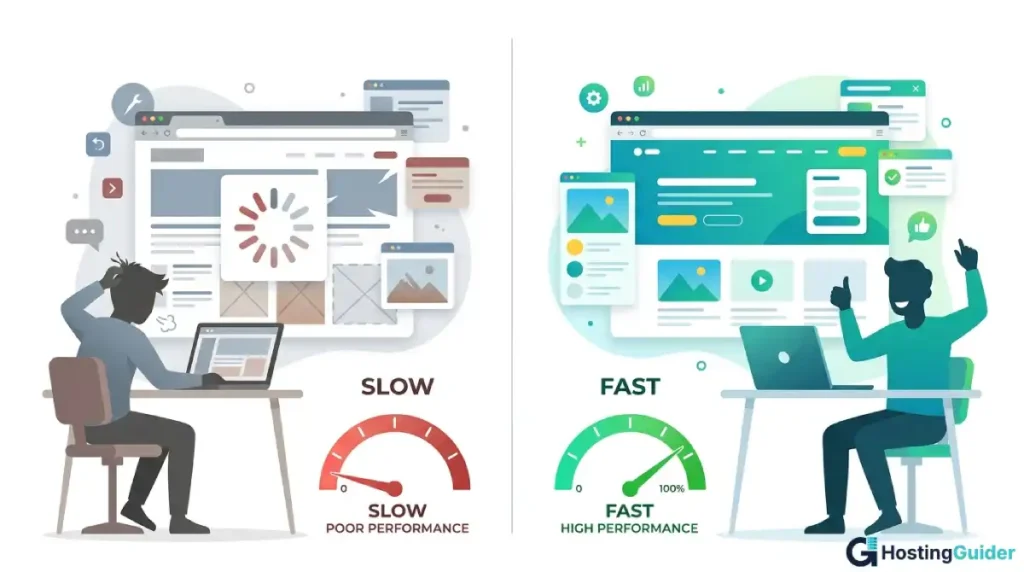
Table of Contents
What Is Website Caching?
Website caching is the process of storing copies of files in a temporary location so they can be served quickly on the next request. When someone visits your site, the saved copy loads instead of building the page from scratch. This saves time, reduces server work, and gives users a faster experience.
Picture a coffee shop. If the barista grinds beans, brews fresh coffee, and pours it for every order, lines get long. If a hot pot stays ready, customers get served in seconds. Caching works the same way for websites.
A site without caching does a lot of work on every visit:
- It fetches data from the database
- It runs server-side scripts
- It builds the HTML page
- It sends files back to the browser
With caching, most of this work happens once. The saved version then serves new visitors right away.
Why Caching Matters for Speed and SEO
Page speed shapes everything that happens on your site. Google uses Core Web Vitals as ranking signals, which means slow pages drop in search results. Slow pages also push visitors away before they ever see your content.
Good caching delivers real results:
- Page load time can drop by 50% or more
- Server costs go down because fewer requests hit the backend
- Search rankings improve as Core Web Vitals scores rise
- Conversion rates climb when pages load fast
- Bounce rates fall, since users stick around
Caching is also the easiest speed fix to apply. You do not need to rewrite code or move servers. A few settings can produce a big jump in performance, often within minutes.
How Caching Works Behind the Scenes
A first-time visitor to your site triggers this flow:
- The browser sends a request to your server
- The server runs scripts, queries the database, and builds the page
- The server sends back HTML, CSS, JavaScript, and images
- The browser displays the page
Without caching, this happens every time, for every visitor. With caching, the next visit looks like this:
- The browser checks its local cache first
- Files that are still fresh load straight from the device
- The server, if asked, returns a saved copy of the page
- The page appears almost instantly
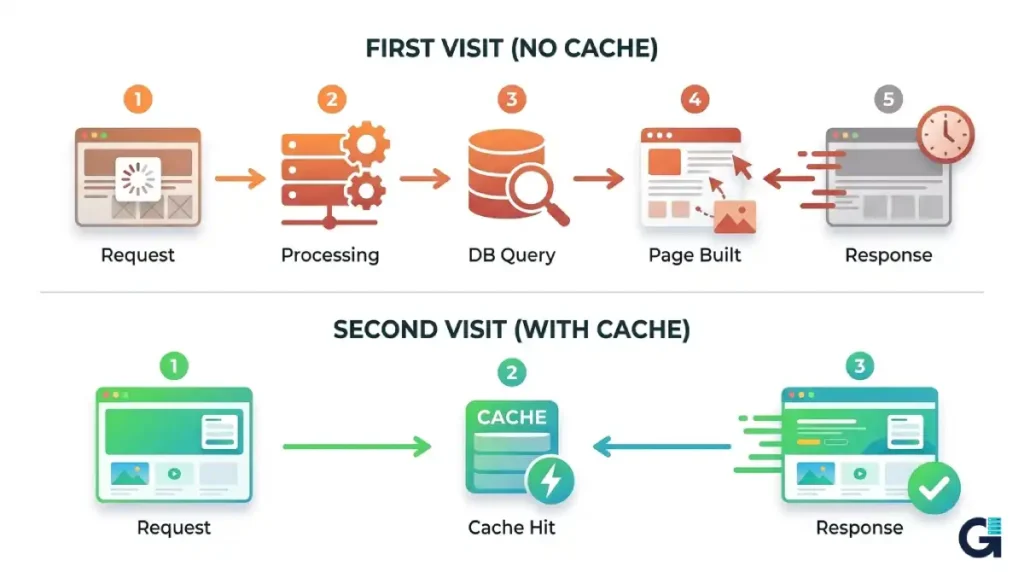
The result is fewer database hits, less CPU use, and faster delivery. On busy sites, this can be the difference between staying online during a traffic spike and crashing.
Types of Caching You Should Know
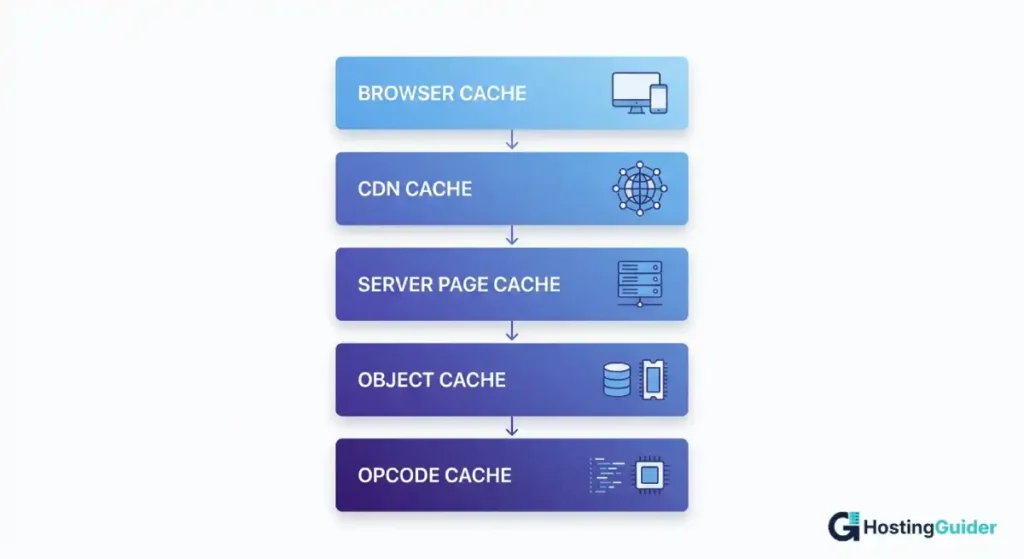
A well-tuned site uses several layers of caching at once. Each layer solves a different problem, and they all work together.
1. Browser Caching
Browser caching stores files on the visitor device. Logos, stylesheets, fonts, and scripts get saved locally. On the next visit, the browser pulls these files from disk instead of downloading them again.
You control browser caching with HTTP response headers. The two main ones are:
- Cache-Control tells the browser how long to keep a file
- Expires sets a hard expiration date
Mozilla offers a clear free reference in its HTTP caching documentation.
2. Server-Side Page Caching
The server saves a full HTML version of each page. When a request arrives, it returns the saved file instead of rebuilding the page.
This gives the biggest speed lift to dynamic sites built on platforms like WordPress, Drupal, or Magento, where pages are normally built from PHP code and database queries.
3. CDN Caching
A Content Delivery Network (CDN) stores copies of your files on servers around the world. A visitor from Tokyo gets files from a Tokyo server. A visitor from Berlin gets files from a Berlin server.
This shortens the physical distance data must travel. Popular providers include Cloudflare, Fastly, and BunnyCDN. Many offer free plans for small sites.
4. Object Caching
Object caching stores small bits of data, such as database query results, in memory. Tools like Redis and Memcached handle this. Object caching helps sites with lots of dynamic content, including online stores, forums, and membership platforms.
5. Opcode Caching
PHP normally compiles code on every request. Opcode caches store the compiled version, so the server skips the compile step. OPcache is built into modern PHP and should always be enabled on production servers.
Hands-On: Setting Up Caching Step by Step
Now to the practical side. Here is how to apply each layer in real situations.
Step 1: Enable Browser Caching
If your server runs Apache, add this to your .htaccess file:
<IfModule mod_expires.c>
ExpiresActive On
ExpiresByType image/jpg access plus 1 year
ExpiresByType image/jpeg access plus 1 year
ExpiresByType image/png access plus 1 year
ExpiresByType text/css access plus 1 month
ExpiresByType application/javascript access plus 1 month
</IfModule>
For Nginx, add this inside your server block:
location ~* \.(jpg|jpeg|png|gif|ico|css|js)$ {
    expires 30d;
    add_header Cache-Control public;
}
After saving, test the headers using browser developer tools. Open the Network tab, reload the page, and check the response headers for any image. You should see Cache-Control and Expires values.
Step 2: Install a Page Cache Plugin (WordPress)
If you run WordPress, pick one of these plugins:
- WP Rocket (paid, beginner friendly)
- W3 Total Cache (free, more technical)
- LiteSpeed Cache (free, requires a LiteSpeed server)
After installing, enable page caching in the plugin settings. Most plugins work fine with default options. Always test your site after activation, especially the cart, checkout, and login pages.
Step 3: Set Up a CDN
Sign up for a free Cloudflare account. Change your domain nameservers to Cloudflare. Within 24 hours, your static files will be served from edge locations worldwide.
Inside the Cloudflare dashboard, open the Caching menu. Set the cache level to Standard. Turn on Auto Minify for HTML, CSS, and JavaScript. These steps alone can shave full seconds off load times for global visitors.
Step 4: Add Object Caching for High-Traffic Sites
If your site gets heavy traffic or runs an online store, install Redis. On Ubuntu, run this command:
sudo apt install redis-server
Then connect WordPress to Redis using a plugin such as Redis Object Cache. The setup takes about ten minutes and reduces database load sharply.
Step 5: Verify and Test Performance
Use these tools to confirm everything works:
- Google PageSpeed Insights
- GTmetrix
- WebPageTest
- Pingdom Tools
Look for cache hit messages, TTL values, and final load times. A score above 90 in PageSpeed Insights means your caching setup is working well.
Common Caching Pitfalls to Avoid
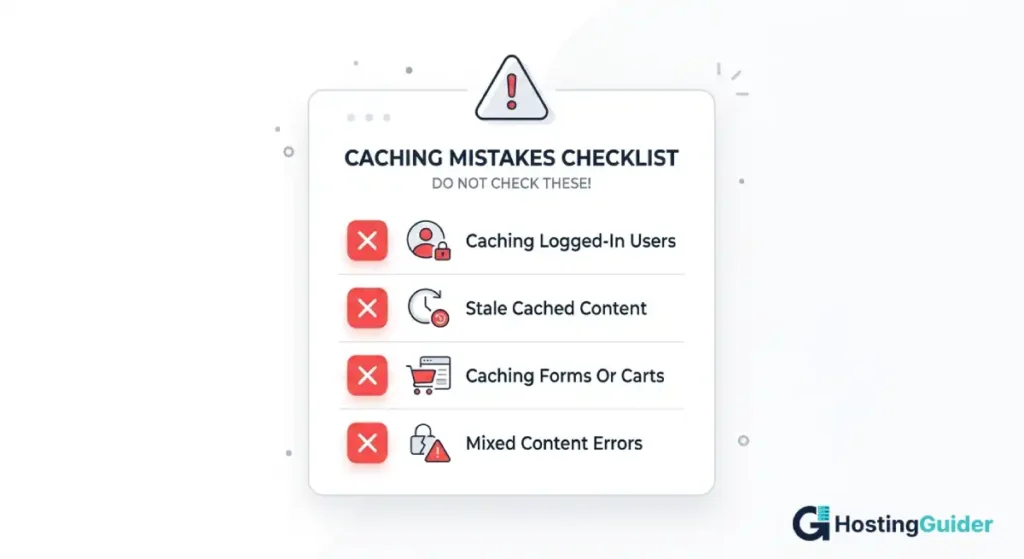
Caching can break sites if set up poorly. Watch out for these common problems.
Caching Logged-In Pages
Never cache pages for logged-in users. They need fresh data, such as cart contents, account details, or admin views. Most cache plugins handle this automatically, but always check the settings.
Stale Content
If you update a page and visitors still see the old version, your cache is stale. Clear the cache after every major change, and turn on automatic purging when posts are edited.
Caching Forms and Cart Pages
Pages with forms, login screens, or shopping carts should be excluded from caching. Add these URLs to the cache exclusion list inside your plugin or CDN settings.
Mixed Content After HTTPS Switch
Old cached files may still load over HTTP after you move to HTTPS. Clear all caches, both server and CDN, when changing your site protocol.
Best Practices for Effective Caching
Follow these tips to get the most out of caching:
- Use long cache times for static files like images and fonts. They rarely change.
- Use shorter cache times for HTML, since content updates often.
- Add version numbers to file names when you update them. This forces browsers to fetch the new version.
- Combine caching with image optimization for the best speed results.
- Watch your cache hit ratio. A healthy ratio sits above 80%.
- Use a staging site to test changes before going live.
- Set up automatic cache purging for content updates.
Tools to Test and Monitor Caching
Reliable testing tools include:
- Google PageSpeed Insights: gives detailed cache recommendations
- GTmetrix: shows cache headers and load times in clear waterfall charts
- WebPageTest: detailed waterfall view of every request
- Cloudflare Analytics: shows CDN cache hit rates
- Browser DevTools: open the Network tab to view cache status for each file
Run a test before any change, then again after, so you can measure the actual impact.
Caching for Different Site Types
The right caching strategy depends on the kind of site you run.
Blogs and News Sites
Use page caching with long TTL values. Static articles rarely change between visits. Pair page caching with a CDN to reach a global audience quickly.
E-commerce Sites
Be careful with product pages and cart sessions. Cache static parts of pages, but exclude personalized sections such as cart, checkout, and account pages. Use object caching to handle product database queries faster.
Membership Sites
Most pages need fresh, user-specific data. Use object caching and a CDN for static assets, but skip page caching on member-only areas.
Static Sites
Static site generators such as Hugo, Astro, or Jekyll output plain HTML. Pair them with a CDN for the fastest possible load times. Static sites with CDN caching often score above 95 in PageSpeed Insights with no extra effort.
Frequently Asked Questions
What is the difference between browser cache and server cache?
Browser cache stores files on the visitor device, while server cache stores files on the website server. Browser cache speeds up repeat visits for the same person. Server cache speeds up first visits for everyone by skipping page generation steps. Most fast sites use both layers together.
How long should I cache my website files?
Cache static files like images, fonts, and icons for 1 year. Cache CSS and JavaScript for 1 month. Cache HTML for a few hours, or use cache validation headers like ETag. Adjust these values based on how often your content changes.
What is caching in SEO?
Caching is a technology that stores copies of website files so they can be delivered faster to visitors. While caching is not a direct Google ranking factor, it improves page speed, user experience, and Core Web Vitals. Faster websites often perform better in search results because they reduce loading times, improve engagement, and help search engines crawl pages more efficiently.
Does caching affect SEO?
Yes, caching improves SEO. Faster pages rank higher in Google search and pass Core Web Vitals checks more easily. Caching also lowers bounce rates, which is a positive engagement signal. Just make sure search engines can still crawl all your important pages.
Can caching break my website?
Caching can cause issues if set up poorly. Old content might show up after updates, login pages might display the wrong user data, and forms may submit stale tokens. Always clear the cache after changes and exclude dynamic pages such as cart and checkout from caching.
What is a CDN and do I need one?
A CDN (Content Delivery Network) is a network of servers that store your files across many locations worldwide. It serves files from the location closest to each visitor. If your audience spans more than one country, a CDN gives a much faster experience and is worth setting up, even on free plans.
How do I clear my website cache?
Use the purge button inside your cache plugin to clear server cache. Inside your CDN dashboard, look for a Purge or Clear Cache option. To clear browser cache for testing, press Ctrl+F5 on Windows or Cmd+Shift+R on Mac for a hard refresh.
Is free caching as good as paid caching?
Free tools like the Cloudflare free plan and W3 Total Cache work well for most sites. Paid options such as WP Rocket offer easier setup, better defaults, and extra features like database cleaning. The performance gap is small if you configure free tools properly.
Final Thoughts
Caching is the easiest way to make any website faster. Start with browser caching and a page cache plugin. Add a CDN to reach visitors around the world. Bring in object caching once your traffic grows.
Test changes with PageSpeed Insights. Watch your scores monthly. Adjust cache settings as your site grows.
A faster site means happier visitors, better rankings, and more conversions. Caching gets you there with little effort and almost no cost.


