
When you type a website address and hit enter, a computer sitting in some data center halfway across the world sends you back a full webpage in under a second. That computer is your web host. Without it, the internet would be empty.
This guide walks you through how web hosting actually works, with real examples you can follow. By the end, you will know how to pick a plan, set up a site from scratch, and avoid the mistakes that cost beginners hundreds of dollars.
Here is what you will learn inside this guide:
- What web hosting really means in plain English
- The exact path your website takes from server to screen
- The 5 main types of hosting with real life examples for each
- A full hands on walkthrough to launch your first site
- A complete worked example using a real scenario
- Security basics and the mistakes most beginners make
Grab a coffee, open your laptop, and follow along. You can have a live site by the time you finish reading.
Table of Contents
Key Takeaways
- Web hosting stores your website files on a server, a computer that runs 24/7 and replies to visitor requests
- A working website needs three things: a domain name, a hosting plan, and the website files themselves
- The Domain Name System (DNS) translates names like example.com into IP addresses servers can read
- Shared hosting is fine for blogs under 10,000 monthly visitors; bigger sites need VPS, cloud, or dedicated
- Aim for 99.9 percent uptime, under 2.5 second load time, and free SSL on any plan you pick
- You can launch a basic WordPress site in under 30 minutes with the steps below
Quick Answer
Web hosting works by storing your website files on a server, a powerful computer connected to the internet around the clock. When someone types your domain name, the request travels through DNS, locates your server, and the server sends the files back. The browser then assembles those files into the page the visitor sees.
What Is Web Hosting in Simple Words
Web hosting is the rented space where your website lives online. The internet is a giant city. Your domain is the street address. Your hosting account is the actual building where all your stuff sits.
Without hosting, your files have nowhere to live and visitors have nothing to load. A web host gives you space on a server, plus the tools to manage your files, email accounts, databases, and security.
Real life comparison: Imagine you want to open a coffee shop. You need a name (your brand), a building (your hosting), and an address people can find (your domain). Web hosting is the building. Strip that away and the rest is useless.
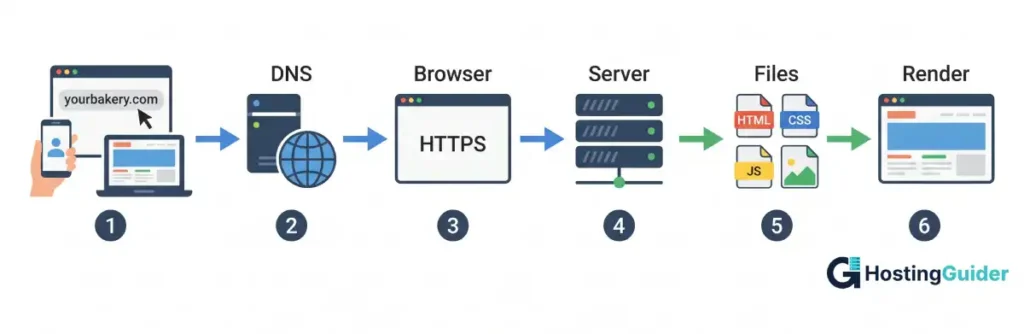
How Web Hosting Actually Works Step By Step
The trip from typing a URL to seeing a webpage takes less than a second, but plenty happens behind the scenes. Here is the full journey, with a real example you can picture.
Step 1: A visitor types your domain name. Say someone types yourbakery.com into Chrome on their phone.
Step 2: The browser asks DNS for the address. DNS works like a phone book. It looks up yourbakery.com and returns the matching IP address, something like 192.168.10.5. You can read more on how this works in the Cloudflare DNS guide.
Step 3: The browser sends a request to that IP. The browser knocks on the server door using HTTP or HTTPS and asks for the homepage.
Step 4: The server pulls the right files. Your server finds the homepage HTML, the CSS that styles it, the JavaScript that powers buttons, plus images and product photos.
Step 5: The server sends everything back. All those files travel back across the internet to the visitor’s browser in milliseconds.
Step 6: The browser builds the page. The browser reads the files and paints the page on screen, showing menus, photos, and your bakery’s contact form. Mozilla covers this rendering process in detail on MDN Web Docs.
Worked example: Say you visit nytimes.com. DNS returns the New York Times server IP. Your browser asks for the homepage. The server sends back today’s articles. Your screen displays the news. All of this happens in about one to two seconds.
The Main Parts of Web Hosting
Every hosting setup has four core parts. If any one breaks, your site goes dark.
The Server: A high powered computer that runs server software like Apache, Nginx, or LiteSpeed. It listens for visitor requests around the clock and responds in milliseconds.
The Domain Name: The human friendly address (like example.com) that people type to find your site. Domains are managed by registries under ICANN, the body that oversees domain name rules worldwide.
The DNS System: A global network that translates domain names into IP addresses. Think of it as the internet’s contact list. Without DNS, you would have to memorize 192.0.78.24 instead of typing wordpress.com.
The Website Files: The actual content. HTML for structure, CSS for design, JavaScript for actions, images for visuals, and a database for dynamic content like blog posts or product catalogs.
Types of Web Hosting Explained With Real Examples
Different sites need different setups. Picking wrong can slow your site or waste hundreds of dollars. Here is a clear comparison with examples for each.
| Hosting Type | Best For | Cost Range | Real Life Example |
|---|---|---|---|
| Shared Hosting | New blogs, small business sites | 3 to 10 dollars per month | A local plumber’s 5 page site |
| VPS Hosting | Growing sites, small apps | 20 to 80 dollars per month | A food blogger with 50,000 monthly readers |
| Dedicated Hosting | Large sites, heavy traffic | 80 to 300 dollars and up | A national news site |
| Cloud Hosting | Apps with traffic spikes | Pay as you grow | A startup launching a viral product |
| Managed WordPress | WordPress users only | 15 to 50 dollars per month | A coach selling online courses |
Shared Hosting puts hundreds of websites on one server. It costs the least but performance drops if a neighbor site uses too many resources. Example: Sarah just started a bakery blog. She gets 800 visitors a month. Shared hosting at 4 dollars per month works perfectly.
VPS Hosting (Virtual Private Server) gives you a fenced off slice of a server with its own resources. Example: Marcus runs an Etsy store blog. His traffic grew from 2,000 to 60,000 visitors per month. Shared hosting kept crashing during sales, so he moved to VPS at 30 dollars per month and the issues vanished.
Dedicated Hosting gives you the full physical server. Total control, total power, total responsibility. Example: A regional news outlet with 5 million monthly visitors needs the whole server to handle traffic spikes during breaking news.
Cloud Hosting spreads your site across many servers. If one fails, another takes over. Example: A startup launches a product on Product Hunt and gets featured. Traffic jumps from 200 to 50,000 visitors in a single day. Cloud hosting scales automatically and stays online.
Managed WordPress Hosting is built only for WordPress sites. The host handles updates, backups, security, and speed tweaks. Example: A coach selling online courses wants zero tech work. She picks managed WordPress at 25 dollars per month and never thinks about server tasks again.
How To Choose The Right Hosting Plan
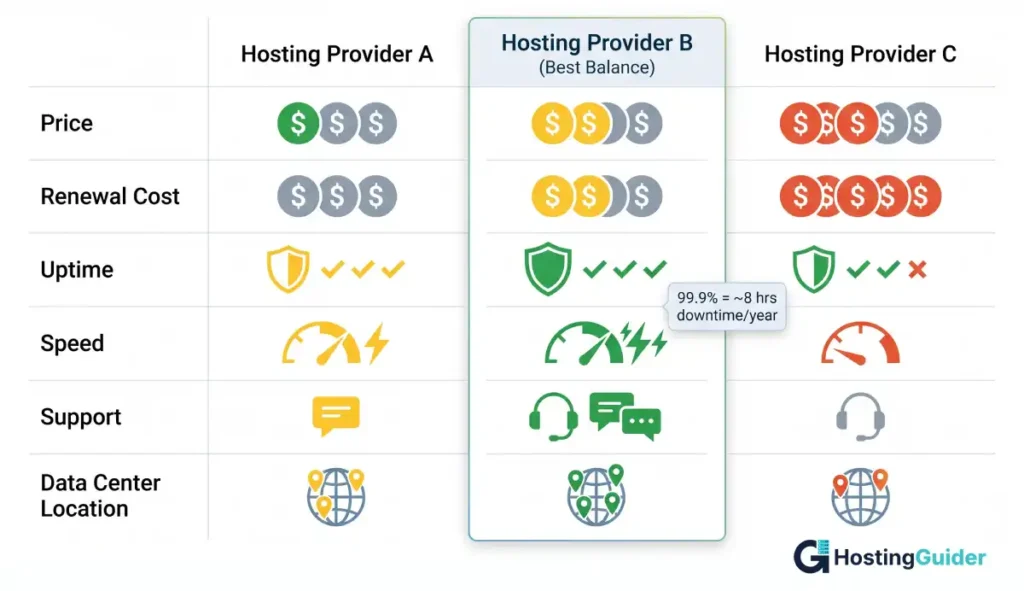
Picking a plan feels confusing because every host promises the same thing. Use this checklist to cut through the noise.
Match traffic to the plan: A new blog with 500 monthly visitors does not need VPS. Start small. Upgrade when you cross 10,000 visitors per month or when load times slow down.
Check uptime guarantees: Look for 99.9 percent or better. At 99 percent uptime, your site is offline 87 hours per year. At 99.9 percent, only 8 hours.
Look at speed: Page speed shapes rankings and sales. Google explains this in their Core Web Vitals guide. Aim for under 2.5 seconds.
Read the renewal price: Many hosts offer 2.95 dollars per month for the first year, then jump to 12.99 dollars after. Always check year two pricing before signing up.
Confirm support hours: 24/7 live chat saves you when something breaks at 2 AM. Email only support means waiting 12 hours for help.
Check the location: Pick a data center close to your main audience. A US business hosted in Singapore loads twice as slow for American visitors.
Pro tip: Make a quick comparison sheet with three hosts side by side. Compare price, speed, uptime, support, and renewal cost. The best deal is rarely the cheapest sticker price.
How To Set Up Web Hosting Step By Step
This is the hands on part. Follow these steps and your site can be live in under 30 minutes.
Step 1: Pick a hosting provider. Compare three or four hosts. Read recent reviews, check speed test results, and confirm the support quality. Popular beginner picks include Hostinger, Bluehost, and SiteGround.
Step 2: Buy a domain name. Many hosts include a free domain in the first year. Pick something short, brandable, and easy to spell. Avoid hyphens and numbers if possible. Example: yourbakery.com works better than your-bakery-2025.com.
Step 3: Choose a hosting plan. Most beginners do best on a basic shared plan. You can upgrade later without losing your site or data.
Step 4: Set up your account. Enter your details, create a password with at least 14 characters, and turn on two factor authentication right away. Save your login info in a password manager.
Step 5: Connect your domain to your host. If you bought the domain from the host, this is automatic. If you bought it elsewhere, log into your domain registrar, find the nameserver settings, and replace them with the ones your host provides. Example: change ns1.oldregistrar.com to ns1.yourhost.com. DNS changes can take 24 to 48 hours to spread.
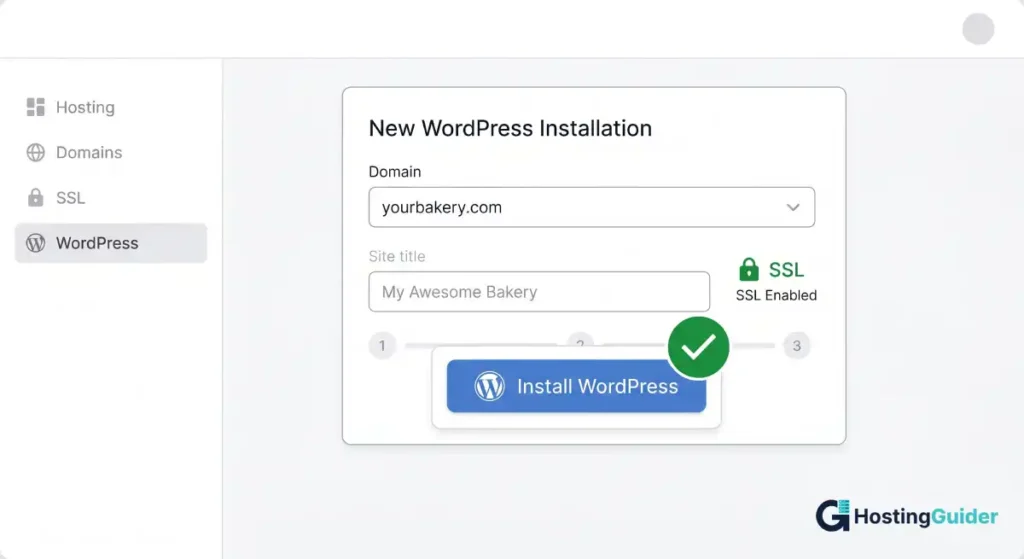
Step 6: Install WordPress (or your chosen platform). Log into your host’s control panel, look for a button that says one click WordPress install or auto installer, click it, pick your domain, and enter a site title. The system installs WordPress in 30 to 60 seconds.
Step 7: Add an SSL certificate. This turns your site from HTTP to HTTPS and protects visitor data. Let’s Encrypt provides free SSL certificates that nearly every host installs automatically with one click.
Step 8: Install a clean theme. From the WordPress dashboard, click Appearance, then Themes, then Add New. Pick a fast, lightweight theme. Avoid bloated themes packed with features you do not need.
Step 9: Add core plugins. Install a security plugin (like Wordfence), a caching plugin (like WP Rocket or LiteSpeed Cache), and an SEO plugin (like Yoast or Rank Math). Skip plugins you do not actively use.
Step 10: Test your site. Open your site in Chrome, Safari, and on a phone. Run it through Google PageSpeed Insights and aim for a mobile score above 80.
Step 11: Launch and share. Submit your site to Google Search Console so Google can find your pages. Share the link with friends and start building.
A Complete Walkthrough Example
Let’s build Sarah’s bakery website from start to finish. Sarah wants a 5 page WordPress site to show her menu, take orders, and post baking tips.
Sarah’s situation: Brand new site, expects 1,000 to 3,000 visitors per month, budget is under 100 dollars for the first year.
Her decision path:
- Hosting type: Shared hosting (she has low traffic)
- Plan price: 3.99 dollars per month with a free domain for year one
- Platform: WordPress (free, flexible, beginner friendly)
- Theme: A free baking themed template
- Plugins: Security, caching, SEO, and a contact form
What Sarah does, in order:
- Signs up for shared hosting and grabs sarahsbakery.com as her free domain.
- Activates two factor authentication on her hosting account during checkout.
- Logs into the cPanel dashboard. Clicks the WordPress one click install button. Picks her domain. Enters the site title Sarah’s Bakery. Picks a strong admin password. Hits install.
- Opens her new site at sarahsbakery.com. Sees the default WordPress page.
- Logs into WordPress at sarahsbakery.com/wp-admin.
- Goes to Settings, then General. Confirms HTTPS is active.
- Goes to Appearance, then Themes. Installs a free bakery theme.
- Adds 5 pages: Home, Menu, Order, About, Contact.
- Installs Wordfence (security), LiteSpeed Cache (speed), Rank Math (SEO), and WPForms (contact form).
- Tests the site on her phone. Loads in 2.1 seconds. Submits the homepage to Google Search Console.
Total time: 38 minutes from signup to live site. Total first year cost: about 48 dollars.
A year later, Sarah’s traffic hit 25,000 visitors per month. Her shared plan started slowing down. She upgraded to a managed WordPress plan at 19 dollars per month. The migration was free. Her site speed jumped from 3.5 seconds to 1.4 seconds.
This is exactly how web hosting decisions evolve over time.
Common Web Hosting Terms You Should Know
Hosting comes with its own language. These short definitions help you read any plan with confidence.
Bandwidth: The amount of data your site sends to visitors each month. More visitors and bigger images mean more bandwidth used.
Uptime: The percent of time your site stays online. 99.9 percent uptime equals about 8 hours of downtime per year.
cPanel: The most popular hosting control panel. It lets you manage files, emails, databases, and domains in one place.
CDN: Stands for Content Delivery Network. It stores copies of your site on servers around the world so visitors load it faster.
SSL Certificate: A small file that encrypts data between your site and visitors. Required for HTTPS and trusted by all browsers.
Database: A structured place where your site stores dynamic data like blog posts, user accounts, or product details.
FTP: A way to upload and download files between your computer and your server.
Nameservers: The servers that point your domain to the right hosting account.
Common Mistakes Beginners Make With Web Hosting
Most new website owners trip on the same problems. Avoiding them saves money, time, and stress.
Picking the cheapest plan without checking quality. A 1.99 dollar host with weak servers and slow support will cost you more in lost visitors than a 5 dollar quality host. Example: a freelancer signed up with a budget host, the site crashed three times in a month, and she lost two clients before switching.
Ignoring renewal prices. A 2.95 dollar first year promo can jump to 14.99 dollars after. Always check the renewal price before paying.
Skipping backups. If your site crashes and you have no backup, you may lose everything. Pick hosts that include daily automatic backups, or run your own with a plugin like UpdraftPlus.
Choosing the wrong server location. A US store hosted in Frankfurt loads slower for American buyers. Pick a data center close to your main audience.
Forgetting about security. Use strong passwords, enable two factor login, keep WordPress updated, and add a security plugin. Most hacked sites are running outdated software.
Loading sites with junk plugins. Every plugin slows your site. Stick to 5 to 10 essential ones. Delete anything you tested and never used.
Web Hosting Security Basics
Security is not optional. A hacked site hurts your reputation, your visitors, and your search rankings. Here are the basics every site owner needs.
Use HTTPS everywhere: Get an SSL certificate and force all traffic to HTTPS. Search engines and browsers flag HTTP sites as not secure.
Update software often: Old WordPress versions, plugins, and themes are the top way hackers break in. Turn on automatic updates for minor releases.
Pick strong passwords: Use a password manager like 1Password or Bitwarden. Never reuse passwords across services.
Run regular backups: Keep at least two backups, one with your host and one in a separate place like Google Drive or Dropbox.
Watch for malware: Many hosts scan automatically. If yours does not, install a tool like Wordfence or Sucuri.
Real example: A small business owner skipped updates for a year. A plugin vulnerability let hackers inject spam links into 200 blog posts. Recovery took 3 weeks and Google penalized the site for months. A weekly backup plus monthly updates would have prevented all of it.
Frequently Asked Questions
What does web hosting do exactly?
Web hosting stores your website files on a server connected to the internet 24/7 and sends those files to visitors when requested. It also runs the software that handles email, databases, and security. Without hosting, your website would not be reachable online.
How much does web hosting cost per month?
Shared hosting starts around 3 to 10 dollars per month. VPS hosting ranges from 20 to 80 dollars. Dedicated servers cost 80 to 300 dollars or more. Cloud hosting is pay as you go and often starts near 10 dollars but scales with usage.
Can I host a website for free?
Yes, free hosting exists, but it has limits. Free plans usually show ads, give slow speeds, and block custom domains. They are fine for testing or learning. A serious business or blog needs paid hosting for speed, control, and trust.
Do I need a domain to get web hosting?
You need both a domain name and hosting to launch a website. Many hosts include a free domain for year one. You can also buy a domain from a separate registrar like Namecheap and connect it to any host using nameservers.
What is the difference between web hosting and a domain?
A domain is the name people type to find your site, like example.com. Hosting is the storage and computing power that makes your site load. The domain points to your host. You need both, but they are different services.
How fast should my website load?
A good website loads in under 2.5 seconds. Google measures this with Largest Contentful Paint, part of Core Web Vitals. Faster sites rank higher and convert better. Use a CDN, optimized images, and quality hosting to hit this target.
How do I move my website to a new host?
Back up your files and database first. Sign up with the new host, restore your backup or use their migration tool, test the site on a temporary URL, then update your domain nameservers to point to the new host. Many hosts handle the full migration for free.
Final Thoughts
Web hosting is the engine behind every website you visit. Once you understand the journey from browser request to server response, the rest of the puzzle, picking a plan, setting up a domain, and adding security, becomes simple to handle.
Start with a plan that fits your traffic today. Follow the 11 setup steps in this guide. Use Sarah’s bakery walkthrough as your template. You can be online before lunch.


