
You have seen addresses like blog.yoursite.com or shop.yoursite.com and wondered what that word at the front means. Is it a different website? Is it part of the same site? Does it cost extra?
These are great questions. And the answers are simpler than most tech guides make them sound.
This guide explains domains and subdomains in plain language. No confusing jargon. No long technical paragraphs. Just clear explanations, real examples from sites you know, and a hands-on guide that shows you exactly how to create a subdomain yourself.
Here is what you will learn:
- What a domain name is and what it does
- What a subdomain is and how it works
- The real difference between the two
- Real examples from big brands you recognize
- When to use a subdomain and when not to
- How subdomains affect your Google rankings
- A step by step guide to creating your own subdomain
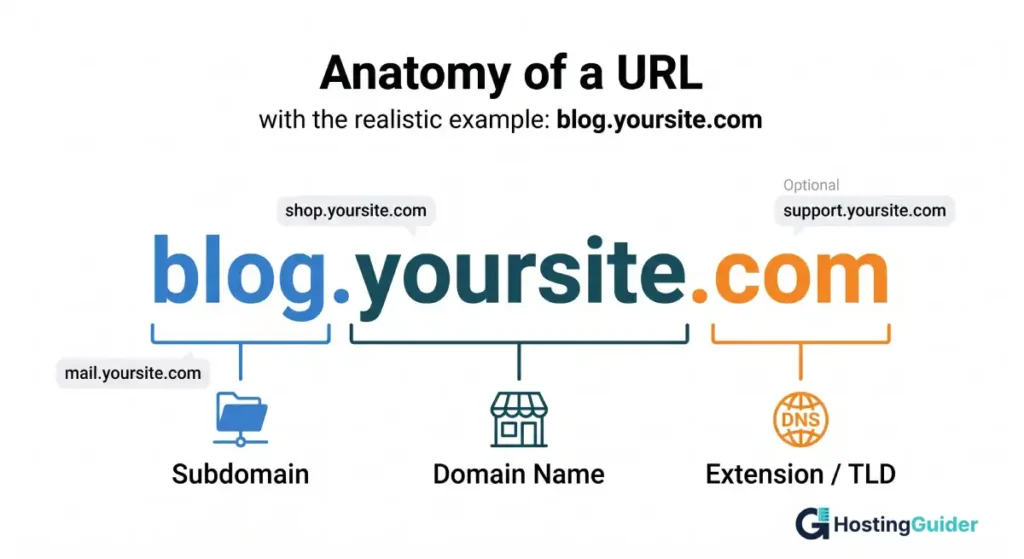
Table of Contents
Key Takeaways
- A domain name is your main web address. Example: yoursite.com
- A subdomain is a section added to the front of your domain. Example: blog.yoursite.com
- Subdomains are free to create. You do not need to pay extra for them.
- Google treats subdomains as separate websites from your main domain.
- For most small businesses, putting content in a subfolder (yoursite.com/blog) is better for SEO than using a subdomain.
- Subdomains work best when you need a completely separate section that looks and works differently from your main site.
Quick Answer
A domain is your main website address, like yoursite.com. A subdomain is a prefix added to the front of that address, like blog.yoursite.com or shop.yoursite.com. You do not pay extra to create a subdomain. However, Google treats subdomains as separate websites, which means they do not automatically share SEO strength with your main domain.
What is a Domain Name
Think of your domain name like your home address. It is the exact location people type into a browser to find your website.
A domain name has two parts:
- The name: This is the word you chose. Like yoursite or google or amazon.
- The extension: This is the ending. Like .com, .net, or .org.
Put them together and you get: yoursite.com
That is your domain. You pay for it once a year to keep it. It is yours as long as you renew it.
Simple real example:
When you type amazon.com into your browser, the word amazon is the domain name and .com is the extension. Together they form the full domain. Everyone who types that address lands on the same main Amazon website.
What is a Subdomain
A subdomain is a word you add to the front of your domain, separated by a dot.
Look at this address: blog.yoursite.com
- blog is the subdomain
- yoursite is the domain name
- .com is the extension
The subdomain creates a separate section of your website. It can look completely different from your main site. It can even run on different software.
The best part: you do not need to buy a subdomain. Once you own a domain name, you can create as many subdomains as you want for free inside your hosting account.
Simple real example:
Imagine your website is a house. The domain name is the main front door address. A subdomain is like adding a separate entrance on the side of the house. Same property, different door, different room inside.
Domain vs Subdomain: Side by Side
Here is the clearest way to see the difference:
| Domain | Subdomain | |
|---|---|---|
| Example | yoursite.com | blog.yoursite.com |
| Cost | Paid yearly | Free to create |
| Who sees it | Everyone visiting your site | People going to that specific section |
| Google treats it as | Its own website | A separate website |
| SEO strength shared | Yes, within the domain | No, starts from zero |
| Best for | Your main website | Separate sections with different purposes |
| Setup time | Takes registration | Takes a few minutes in your hosting |
Real Examples from Big Brands
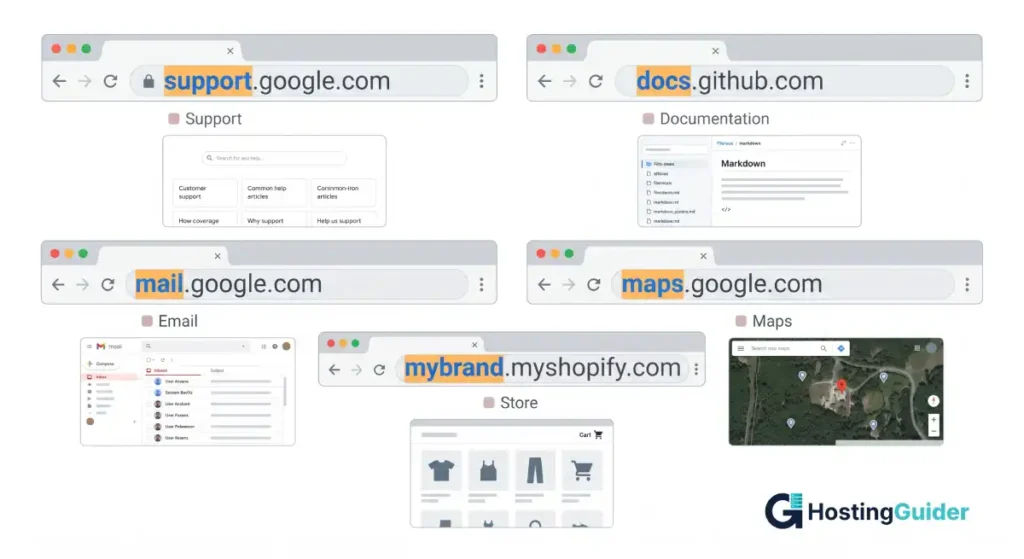
You have already visited subdomains hundreds of times without knowing it. Here are brands you know and how they use them:
support.google.com The main site is google.com. The support section runs on a subdomain. It has its own design, its own search, and its own team managing it.
shop.app The payment company Shopify uses subdomains for individual merchant stores. When a small business signs up, they get something like mybrand.myshopify.com as their subdomain.
docs.github.com GitHub runs its documentation on a subdomain. The main site handles code. The docs site handles guides. Two different purposes, same domain.
mail.google.com This is Gmail. It runs on a subdomain of google.com. When you check your email, you are on a subdomain, not the main Google search page.
maps.google.com Google Maps runs the same way. One company, many subdomains, each serving a different purpose.
These companies use subdomains because each section serves a very different function. A help center needs different software than a search engine. Separating them makes sense at that scale.
Subdomain vs Subfolder: What is the Difference
This is where people get confused. A subfolder is different from a subdomain, and the choice between them matters a lot for SEO.
Subfolder: yoursite.com/blog
Subdomain: blog.yoursite.com
They look similar but they work very differently.
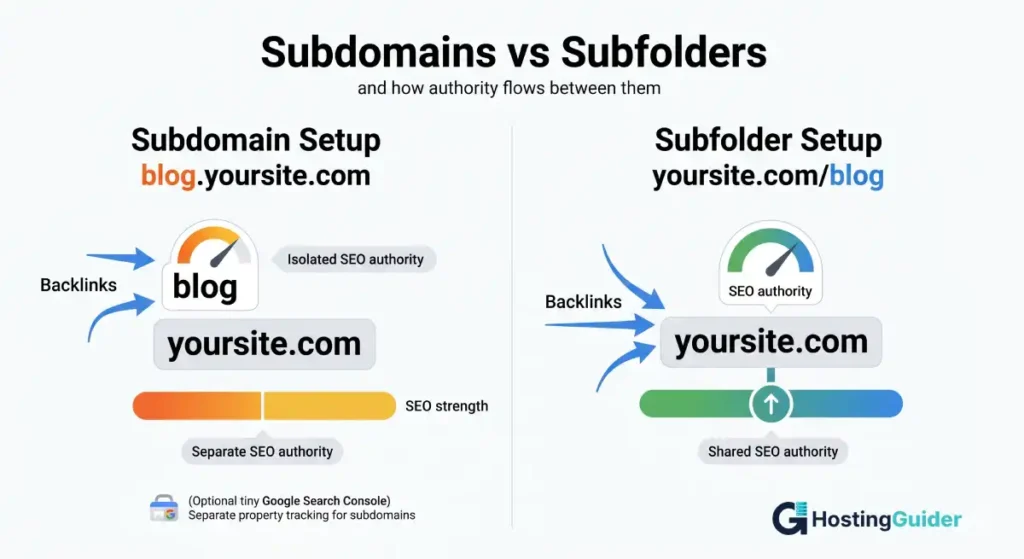
A subfolder is just a folder inside your main website. Like a folder on your computer. Everything inside it is still part of the same site. Google sees it all as one thing. Any SEO strength your site builds helps the subfolder too.
A subdomain is treated by Google as its own separate website. It does not automatically get any SEO benefit from your main domain. It has to build its own strength from scratch.
Simple example:
Imagine you own a coffee shop and write a blog about coffee recipes.
- If you put the blog at yoursite.com/blog, all the visitors and links your blog gets help your main site grow stronger.
- If you put the blog at blog.yoursite.com, the blog grows separately. Your main site does not benefit from it directly.
Multiple case studies confirm that moving content from a subdomain to a subfolder can lead to traffic increases of 15 to 45 percent within months. That is a big difference for something that looks like a small URL change. WiseRank
When Should You Use a Subdomain
Use a subdomain when the section you are creating is very different from your main website. Here are situations where it makes sense:
1. A separate store on a different platform
Your main site runs on WordPress but you want a Shopify store. You can point shop.yoursite.com to Shopify while yoursite.com stays on WordPress.
2. A help center or support portal
Your main site sells products. Your help center has thousands of articles, a different search tool, and a different look. Running it on support.yoursite.com keeps things organized.
3. A version of your site in another language
You serve both English and Spanish speakers. You run en.yoursite.com for English and es.yoursite.com for Spanish. This helps search engines show the right version to the right people.
4. A staging or test site
Before you make big changes to your website, you test them on staging.yoursite.com. That way nothing breaks on the live site while you experiment.
5. A web app that works differently from your main site
Your main site is a blog. Your product is an online tool. Running the tool on app.yoursite.com means it can use different technology without affecting your blog.
When Should You NOT Use a Subdomain
Do not use a subdomain for your blog if your main goal is growing your search traffic. Put it in a subfolder instead: yoursite.com/blog
Do not use a subdomain to separate content that is closely related to your main site. If the content supports your main business, keep it under the same roof.
Do not use a subdomain just because it looks cool or organized. The SEO cost of splitting your authority is real.
Google treats a subdomain as a separate website from the root domain, which means your main site and subdomain do not always share ranking power, authority, and backlinks. For small and medium businesses still growing their SEO, that split can slow things down significantly. Hosted
How Subdomains Affect Your Google Rankings
Here is the plain truth about subdomains and SEO:
Subdomains start from zero. When you create a new subdomain, it has no ranking history, no authority, and no backlinks. It has to build all of that on its own, just like a brand new website.
Backlinks to your subdomain do not help your main domain. If 100 websites link to blog.yoursite.com, your main yoursite.com does not get stronger from those links. They stay on the subdomain.
You need to set up Google Search Console separately. Google sees blog.yoursite.com as a different property from yoursite.com. You have to add and verify each one separately to track their traffic and rankings.
Subdomains can rank well. They are not bad for SEO by themselves. A subdomain can perform well in search if it has high quality, unique content and follows standard SEO practices. The challenge is that it takes more time and effort to get there. Hosted
The bottom line for small businesses: Use subfolders for content. Use subdomains only when you have a specific technical or organizational reason that makes the separation necessary.
Hands-On Guide: How to Create a Subdomain
This guide walks you through creating a subdomain in cPanel, which is the control panel used by most web hosting companies including Bluehost, Hostinger, SiteGround, and Namecheap shared hosting.
Before You Start
You need:
- A registered domain name (like yoursite.com)
- A hosting account with cPanel access
- To know what you want the subdomain to be called (example: blog, shop, support, app)
Part 1: Log in to Your Hosting cPanel
Step 1: Find your cPanel login
Log in to your hosting account. Look for a button that says cPanel, Control Panel, or Manage Hosting. The exact label depends on your host.
At Hostinger: Log in > click Hosting in the top menu > click Manage next to your plan > click cPanel in the sidebar.
At Bluehost: Log in > click Advanced in the left sidebar > this opens cPanel directly.
At Namecheap: Log in > go to Hosting List > click Go to cPanel next to your hosting plan.
Step 2: Find the Subdomains section
Inside cPanel, look for a section called Domains. Under it, click Subdomains.
If you cannot see it right away, use the search box at the top of cPanel and type subdomains. It will appear in the results. Click it.
Part 2: Create the Subdomain
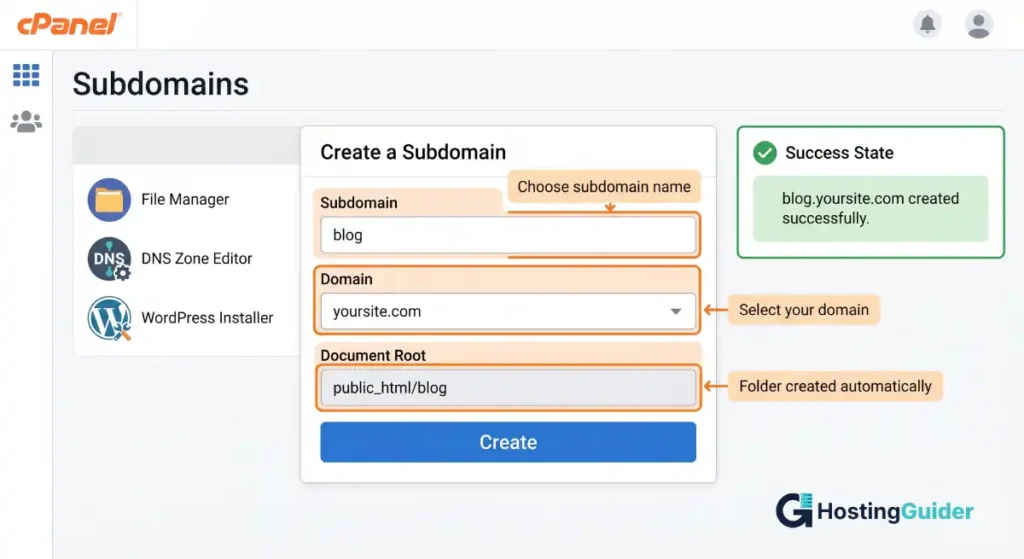
Step 3: Fill in the subdomain name
You will see a form with three fields:
- Subdomain: Type the word you want to use. Example: blog or shop or support. Do not type the full address. Just the word.
- Domain: A dropdown will show your domain names. Select the one you want to attach the subdomain to.
- Document Root: This fills in automatically. It shows the folder on your server where files for this subdomain will live. You can leave it as is.
Real example of what to type:
- Subdomain field: blog
- Domain field: yoursite.com
- Document Root: public_html/blog (fills automatically)
This creates: blog.yoursite.com
Step 4: Click Create
Click the Create button. cPanel confirms the subdomain was created. This usually takes less than 30 seconds.
Your subdomain is now live as a web address. It currently shows an empty folder or a default page because you have not added any content yet.
Part 3: Point Your Subdomain Somewhere
Creating the subdomain gives you the address. Now you need to decide what it shows.
Option A: Install WordPress on the subdomain
Go back to cPanel. Find Softaculous Apps Installer or WordPress under the Website section. Click Install. When asked for the URL, change it from yoursite.com to blog.yoursite.com. Complete the install. Your subdomain now runs a fresh WordPress site.
Option B: Point to an external service
If you want blog.yoursite.com to point to a Shopify store or another platform, you need to update the DNS records for your subdomain.
Go to cPanel and find Zone Editor or DNS Zone Editor. Add a CNAME record:
- Name: blog (just the subdomain word)
- Value: the address your external service gave you (Shopify gives you something like shops.myshopify.com to use here)
- TTL: 3600
Save the record. DNS changes take 24 to 48 hours to fully update across the internet.
Option C: Upload files directly
If you have a simple HTML page or a file to upload, use the File Manager in cPanel. Navigate to the folder that was created for your subdomain (public_html/blog). Upload your files there. They will show up at blog.yoursite.com.
Part 4: Add Your Subdomain to Google Search Console
This step is important if you want Google to track your subdomain separately.
Step 1: Go to Google Search Console and log in.
Step 2: Click Add Property in the top left dropdown.
Step 3: Choose URL Prefix and type your full subdomain address. Example: blog.yoursite.com
Step 4: Verify ownership. The easiest method is to upload an HTML verification file to your subdomain folder using cPanel File Manager, or add a TXT record in your DNS Zone Editor.
Step 5: Click Verify. Once verified, Google Search Console starts tracking traffic and performance for your subdomain separately.
Quick Reference: Subdomain Setup Checklist
| Task | Where to Do It | Done |
|---|---|---|
| Log in to cPanel | Your hosting account | |
| Open Subdomains tool | Domains section in cPanel | |
| Type subdomain name and domain | Subdomain form | |
| Click Create | Subdomain form | |
| Install WordPress or upload files | Softaculous or File Manager | |
| Add CNAME if pointing to external service | Zone Editor in cPanel | |
| Add subdomain to Google Search Console | search.google.com/search-console | |
| Add subdomain to Google Analytics | analytics.google.com |
Common Mistakes People Make with Subdomains
Moving your blog to a subdomain when your traffic is already growing
If your blog is on yoursite.com/blog and getting good traffic, moving it to blog.yoursite.com will likely drop your rankings. The subdomain starts fresh with no history.
Forgetting SSL for the subdomain
Your main domain has SSL (the padlock). But subdomains need their own SSL certificate in some cases. Check that your hosting plan includes a wildcard SSL certificate that covers all subdomains. If not, add a free SSL for each subdomain through your host or through Cloudflare.
Not adding the subdomain to Google Search Console
Many website owners create a subdomain, add content, and then wonder why it does not appear in Google. The reason is often that it was never verified in Search Console. Add it as a separate property.
Creating too many subdomains
Every subdomain needs its own content strategy, SEO work, and maintenance. Creating five subdomains when you have a small team spreads your effort too thin. Start with one and make it strong before adding more.
FAQ’s
What is the difference between a subdomain and a domain?
A domain is your main web address, like yoursite.com. A subdomain is a section added to the front of your domain, like blog.yoursite.com. You pay to register a domain. Subdomains are free to create. Google treats them as separate websites, so they do not automatically share SEO strength with each other.
Does a subdomain cost money?
No. A subdomain does not cost extra money. Once you own a domain name and have a hosting plan, you can create as many subdomains as you need at no additional charge. You create them inside your hosting control panel in a few clicks.
Is a subdomain good or bad for SEO?
A subdomain is not bad for SEO on its own. The issue is that Google treats it as a separate website, so it does not share authority or backlink strength with your main domain. For most small businesses, putting content in a subfolder like yoursite.com/blog is better for SEO because all content works together to strengthen one domain.
How do I create a subdomain?
To create a subdomain, log in to your hosting cPanel, open the Subdomains tool under the Domains section, type the word you want to use as the subdomain, select your domain from the dropdown, and click Create. The subdomain is active within seconds. You then install WordPress or upload files to make it show content.
Can a subdomain have its own design and software?
Yes. A subdomain can look completely different from your main website and run on different software. For example, your main site can run on WordPress while your subdomain runs on Shopify or a custom app. This is one of the main reasons businesses use subdomains.
How many subdomains can I create?
Most hosting plans let you create unlimited subdomains. There is no technical limit set by your domain name. The practical limit is how many separate sections you can manage and maintain with good content. Creating subdomains you cannot keep up with hurts more than it helps.
What is the difference between a subdomain and a subfolder?
A subdomain comes before the domain: blog.yoursite.com. A subfolder comes after the domain: yoursite.com/blog. Both organize content but work differently for SEO. A subfolder shares authority with your main domain and is easier to manage. A subdomain is treated as a separate site and needs its own SEO work from scratch. For most content, subfolders are the better choice.
Final Thoughts
Domains and subdomains are simpler than they sound once you see them clearly.
Your domain is your main address. Your subdomain is a separate section of that address. Subdomains are free, easy to create, and useful for the right situations. But they are not always the best tool for the job.
If you are a small or medium business still growing your website traffic, put your blog, services pages, and resources in subfolders under your main domain. That keeps all your SEO strength in one place.
If you need a genuinely separate section, like a customer portal, a web app, or a help center that runs on different software, a subdomain is the right choice.
Use the hands-on guide above to create your first subdomain in under five minutes. Then add it to Google Search Console so you can track exactly how it performs from day one.
For more on how domains and DNS work together, the Cloudflare Learning Center is a reliable and free resource written in plain language.


