
WordPress runs roughly 43% of all websites, according to W3Techs, which makes it the biggest target on the open web. Most attacks are not personal. They are bots scanning thousands of sites a minute, looking for outdated plugins, weak passwords, or one tiny misconfiguration to slip through.
The good news: you do not need a security degree to protect your WordPress site from hacking. You need a layered setup that closes the easy doors first. This guide walks through 12 steps you can finish in an afternoon, plus what to do if you suspect your site is already compromised.
How do you protect a WordPress site from hacking?
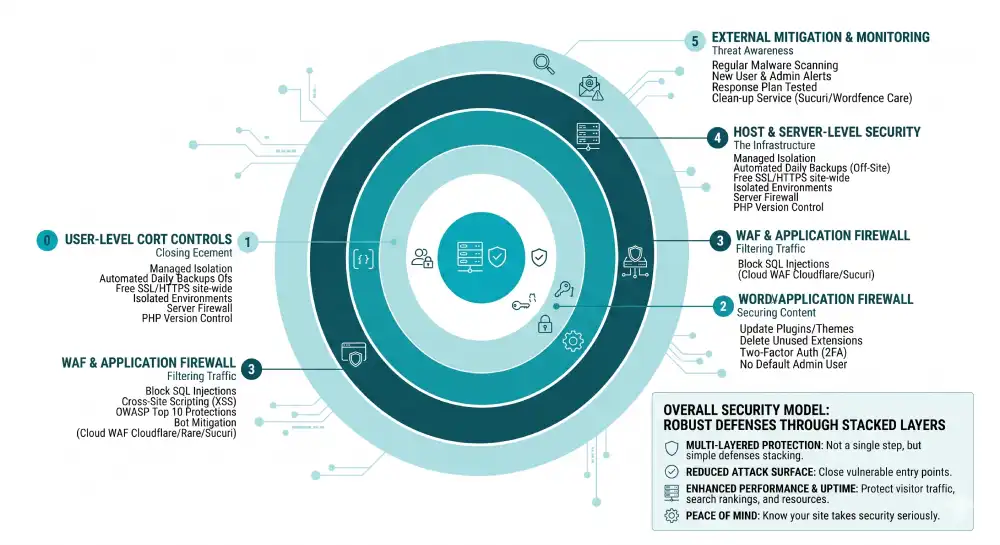
You protect a WordPress site by stacking simple defenses: keep WordPress core, themes, and plugins updated; use strong unique passwords with two-factor authentication; install a security plugin and a web application firewall; force HTTPS; restrict file permissions; back up automatically off-site; and choose a host that takes server-level security seriously. No single step is enough on its own. The strength comes from the layers.
Why WordPress sites get hacked
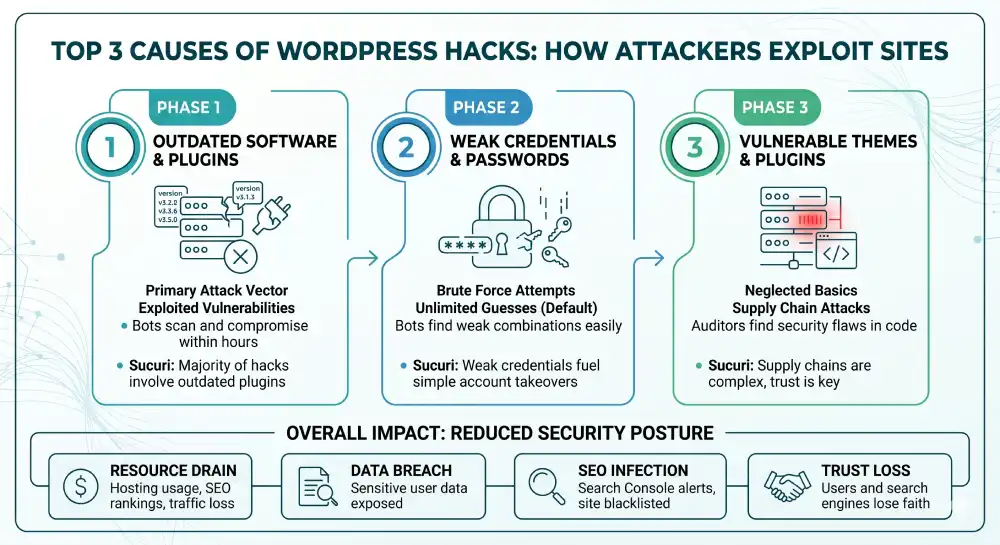
Most WordPress hacks happen because of three things, in this order: outdated software, weak credentials, and vulnerable plugins or themes. Sucuri’s Website Threat Research Report has shown for years that the majority of compromised WordPress sites were running an out-of-date plugin at the time of infection.
Hackers rarely target small sites because they want your data. They want your hosting resources, your search rankings, your visitor traffic, or a quiet place to hide phishing pages. That is why even a small blog with no obvious “value” still gets hit. You are useful to them as infrastructure.
Before you start: what you’ll need
Before working through the steps below, line up the following:
- Admin access to your WordPress dashboard
- Access to your hosting control panel (cPanel, Plesk, or your host’s custom panel)
- An FTP/SFTP client like FileZilla, in case you need to edit files directly
- A password manager (Bitwarden, 1Password, or similar)
- 30 to 60 minutes of focused time
Do not start mid-traffic spike or right before a launch. A few changes briefly affect the dashboard or login flow.
Step 1: Update WordPress core, themes, and plugins
Updates patch known vulnerabilities. The moment a security fix ships, attackers reverse-engineer it to find what it fixed, then scan for sites still running the old version. Sometimes within hours.
Inside your dashboard, go to Dashboard > Updates. Apply WordPress core updates first, then themes, then plugins. Enable auto-updates for plugins you trust, and review unfamiliar ones manually.
Delete any plugin or theme you are not using. Inactive plugins still sit on your server, and an inactive vulnerable plugin is just as exploitable as an active one.
The official WordPress hardening guide treats removal of unused code as a baseline step, not an extra, making it a critical part of proper hosting security.
Step 2: Use strong, unique passwords
Reused passwords are the single biggest reason small sites get hijacked. If your email password leaked in a breach three years ago and you used the same one for WordPress, bots are already trying it.
Set a password that is at least 16 characters, mixes letters, numbers, and symbols, and is unique to that site. Use a password manager to store it. Apply the same standard to every admin and editor account.
If an account belongs to a former contractor or staff member, demote it to Subscriber or delete it entirely. There is no value in keeping inactive admin accounts alive.
Step 3: Enable two-factor authentication
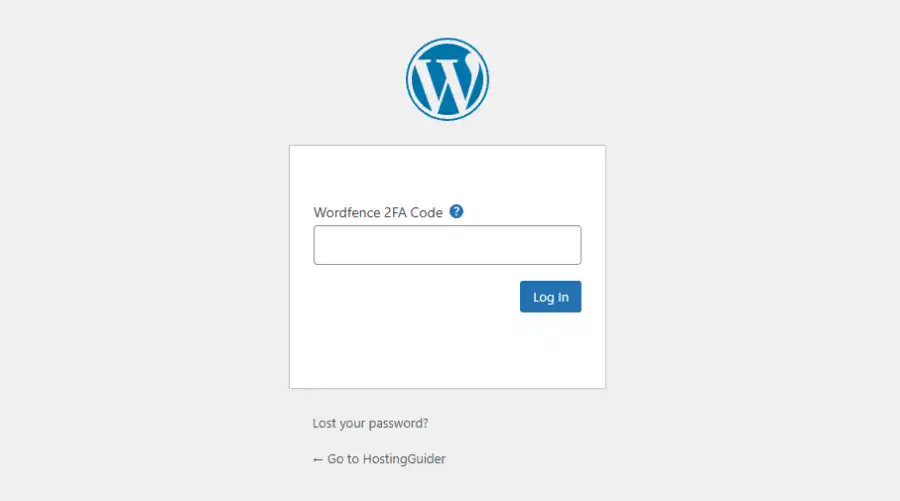
Two-factor authentication (2FA) makes a stolen password useless on its own. The attacker would also need a code from your phone or an authenticator app.
Plugins like Wordfence Login Security, Two Factor, or miniOrange add 2FA in a few clicks. After install, scan the QR code with Google Authenticator or Authy, save the backup codes somewhere safe, and test login on a separate browser before closing your session.
Make 2FA mandatory for any user with Editor, Author, or Administrator roles. Subscribers can be optional.
Step 4: Limit login attempts
By default, WordPress lets anyone try unlimited password guesses on /wp-login.php. That is an open invitation for brute force bots.
Install a plugin like Limit Login Attempts Reloaded, or use the login security feature inside Wordfence or Solid Security. Set it to lock an IP after 3 to 5 failed attempts, with a 20-minute lockout that escalates on repeat offenders.
While you are there, turn on email alerts for repeated lockouts. If the same IP hits your login page 200 times in a day, you want to know.
Step 5: Change the default admin username and login URL
If your admin username is still “admin”, “administrator”, or your domain name, you have given attackers half the credentials for free. Create a new Administrator account with a non-obvious username, log in with it, then delete the old one and reassign its content.
Next, change the login URL. Plugins like WPS Hide Login move /wp-login.php and /wp-admin to a custom path like /secret-entrance. This blocks a huge percentage of automated bot traffic, since bots hit the default URL and move on when it returns 404.
This is not a replacement for strong passwords or 2FA. It just thins the noise.
Step 6: Install a reputable security plugin
A good security plugin gives you malware scanning, firewall rules, file integrity monitoring, and login protection from one dashboard. The well-known options are Wordfence, Sucuri Security, Solid Security (formerly iThemes Security), and All In One WP Security.
Pick one. Running two security plugins at once causes conflicts and slows the site down. After install, run a full scan, fix anything flagged, and schedule weekly automated scans with email alerts.
Configure the plugin to alert you on changes to core files, new admin user creation, and plugin or theme installations. Surprise admin accounts are one of the clearest signs of a hack.
Step 7: Set up a web application firewall (WAF)
A WAF sits between visitors and your site, filtering malicious traffic before it reaches WordPress. It blocks SQL injection attempts, cross-site scripting, and known bot signatures. The OWASP project maintains the OWASP Top 10, which lists the most common web app attacks a server-side web hosting firewall helps blunt.
You have two options:
- A cloud WAF like Cloudflare, Sucuri Firewall, or BunkerWeb. Traffic routes through them first.
- A plugin-based WAF inside Wordfence or similar, which runs on your server.
Cloud WAFs are usually faster and stop attacks before they touch your hosting. Plugin WAFs are easier to set up but only catch attacks that have already reached your server.
Step 8: Force HTTPS with SSL
An SSL certificate encrypts data between your visitors and the site. It also signals to Google and to users that the site is trusted. Most hosts now offer free SSL through Let’s Encrypt with one click.
Once SSL is active, force HTTPS site-wide. Add this to your .htaccess file at the top:
RewriteEngine On
RewriteCond %{HTTPS} off
RewriteRule ^(.*)$ https://%{HTTP_HOST}%{REQUEST_URI} [L,R=301]
Or use a plugin like Really Simple SSL, which handles redirects and mixed content warnings automatically. Then update your WordPress Address and Site URL in Settings > General to use https://.
Step 9: Set correct file permissions
Wrong file permissions let attackers write to files they should only be reading. The WordPress recommended baseline is:
| File or folder | Permission |
|---|---|
| Folders | 755 |
| Files | 644 |
wp-config.php | 600 or 640 |
You can set these via SFTP (right-click > File Permissions in FileZilla) or your host’s file manager. Never set anything to 777. That permission means anyone on the server can read, write, and execute the file.
Step 10: Disable file editing in the dashboard
WordPress lets administrators edit theme and plugin files directly from the dashboard. If a hacker steals an admin login, this becomes the fastest way for them to inject backdoor code into your site.
Open wp-config.php and add this line above the “/* That’s all, stop editing! */” comment:
define( 'DISALLOW_FILE_EDIT', true );The Appearance > Theme File Editor menu disappears, and so does Plugins > Plugin File Editor. You can still edit files through SFTP or your host, which is how you should be doing it anyway.
Step 11: Schedule automated, off-site backups
A backup is your seatbelt. If something gets through, a clean backup turns a disaster into a 20-minute restore, especially when you factor in what website downtime actually costs a business.
Use a plugin like UpdraftPlus, BlogVault, or Solid Backups. Configure it to:
- Back up daily for active sites, weekly for low-traffic ones
- Store backups off-site (Google Drive, Dropbox, Amazon S3, or the plugin’s own cloud)
- Keep at least 14 days of history, so you can roll back past a stealth infection
- Test a restore once a quarter so you know it actually works
A backup you have never tested is a hope, not a plan.
Step 12: Choose a security-focused host
Cheap shared hosting puts hundreds of sites on one server. If one neighbor gets hacked badly, the whole server can suffer. Hosts like Kinsta, WP Engine, Pressable, Cloudways, and SiteGround invest heavily in server-level security, malware scanning, and isolated containers.
Look for a host that includes:
- Automatic daily backups stored off-server
- Free SSL
- Server-level firewall and DDoS mitigation
- Malware scanning and free clean-up if you do get hacked
- PHP version control so you stay on a supported release
You will pay more than $3 a month, but you will save far more than the difference the first time something goes wrong.
What are the most common ways WordPress sites get hacked?
The most common attack paths, in roughly the order you will see them in real reports, are: vulnerable plugins (especially abandoned or pirated ones), brute force login attacks, weak or reused admin passwords, outdated core and themes, exposed wp-config.php files, and supply-chain attacks where a legitimate plugin is compromised at the developer level. Almost none of these involve clever zero-days. They involve neglected basics.
How do you know if your WordPress site has been hacked?
Watch for these signals:
- Sudden traffic drops or Google Search Console flagging the site for malware
- Unknown admin users or new posts you did not write
- Slowdowns, redirects to spammy URLs, or pop-ups on certain pages
- Browser warnings like “Deceptive site ahead”
- Unfamiliar files in
/wp-content/uploads/with.phpextensions - Hosting provider notifying you of suspicious resource use
Run a scan with Wordfence or Sucuri SiteCheck. Check Google Search Console > Security & Manual Actions for Google’s view. Google’s hacked sites recovery guide walks through detection and cleanup if you confirm a problem.
Common mistakes to avoid
A few habits quietly undo good security work:
- Using nulled or pirated themes and plugins. Free is not free; many ship with backdoors.
- Leaving readme files and debug logs in the public root. They expose version numbers and paths.
- Sharing one admin account between multiple people instead of creating individual accounts.
- Treating “security through obscurity” (just hiding the login URL) as a full defense.
- Ignoring email alerts because you get too many. Mute the noise, do not hide the signal.
What to do if your site is already hacked
If you confirm a hack, act in this order:
- Take the site offline or put it in maintenance mode to stop further damage.
- Change every password: WordPress admins, hosting, FTP, database, and email.
- Restore from a clean backup taken before the infection, if you have one.
- If no clean backup exists, hire a malware cleanup service (Sucuri, Wordfence Care, or your host’s team) before doing anything else.
- Once clean, run all 12 steps above before going live again.
- Submit a review request in Google Search Console if your site was flagged.
Do not just delete suspicious files and hope. A real cleanup checks the database, scheduled tasks, .htaccess, and every PHP file for injected code.
FAQ’s
Is WordPress safe to use in 2026?
Yes. WordPress core itself is well maintained and patched regularly. The risk almost always comes from how a site is configured, not from WordPress itself. A site with updated software, strong passwords, two-factor authentication, a WAF, and reliable backups is often more secure than many poorly maintained custom-built websites.
Do I need a paid security plugin?
For a personal blog or small business website, the free tiers of Wordfence or Sucuri are usually enough when paired with a hosting provider that includes server-level protection. Paid plans add benefits like real-time firewall rules, faster malware signature updates, and priority malware cleanup support. Upgrading makes sense once your site starts generating revenue or handling customer data.
How often should I back up my WordPress site?
Your backup schedule should match how often the site changes. Daily backups are ideal for ecommerce stores, membership sites, or news websites. Weekly backups are usually enough for static business websites. Always keep backups stored off-site, maintain at least 14 days of backup history, and test a full restore at least once every few months.
Can a free SSL certificate really protect my site?
Yes. A free Let’s Encrypt SSL certificate provides the same encryption strength as a paid certificate. The encryption technology is identical. Paid certificates mainly add extras like extended validation or warranty coverage, which most websites do not need. Free SSL is fully sufficient for securing data in transit.
Should I hide the fact that my site uses WordPress?
You can remove the WordPress generator meta tag and rename certain folders, but experienced attackers can still identify a WordPress installation quickly. Hiding WordPress may reduce some low-quality automated bot traffic, but it should never replace proper security practices. Consider it a minor extra layer rather than a core defense strategy.
What is the single biggest WordPress security mistake?
Failing to install updates. Outdated plugins remain one of the most common causes of hacked WordPress websites year after year. If you only implement one security measure, automate updates and remove any plugins or themes you no longer actively use.
Your next step
Pick three steps from the list above that you have not done yet, and finish them today. The first hour you spend hardening WordPress is the highest-return security work most site owners ever do.


