
Most managed WordPress hosting pages look the same. They all promise speed, security, and expert support. They all show uptime percentages that round to 100. They all have glowing testimonials from satisfied customers.
The problem is that the fine print tells a very different story. Some providers include daily backups only on higher plans. Some offer staging environments on paper, but limit you to one per site. Some charge extra for CDN access that competitors include by default. Some have visitor limits so low that a single successful campaign triggers an automatic upgrade.
Knowing which features actually matter, and what to look for inside each one, is what separates a good hosting decision from an expensive mistake. This guide covers the five features that should drive your choice, what each one needs to include to be genuinely useful, and how to evaluate providers honestly.
Key Takeaways
- Not all managed WordPress hosts include the same features despite similar marketing claims
- The five features that matter most are automatic updates, backups, security, performance tools, and staging
- How each feature is implemented matters as much as whether it is listed on the pricing page
- Staging environments, CDN access, and backup retention periods are commonly watered down in entry plans
- Asking specific questions about each feature before signing up saves you from discovering limitations after committing
Quick Answer
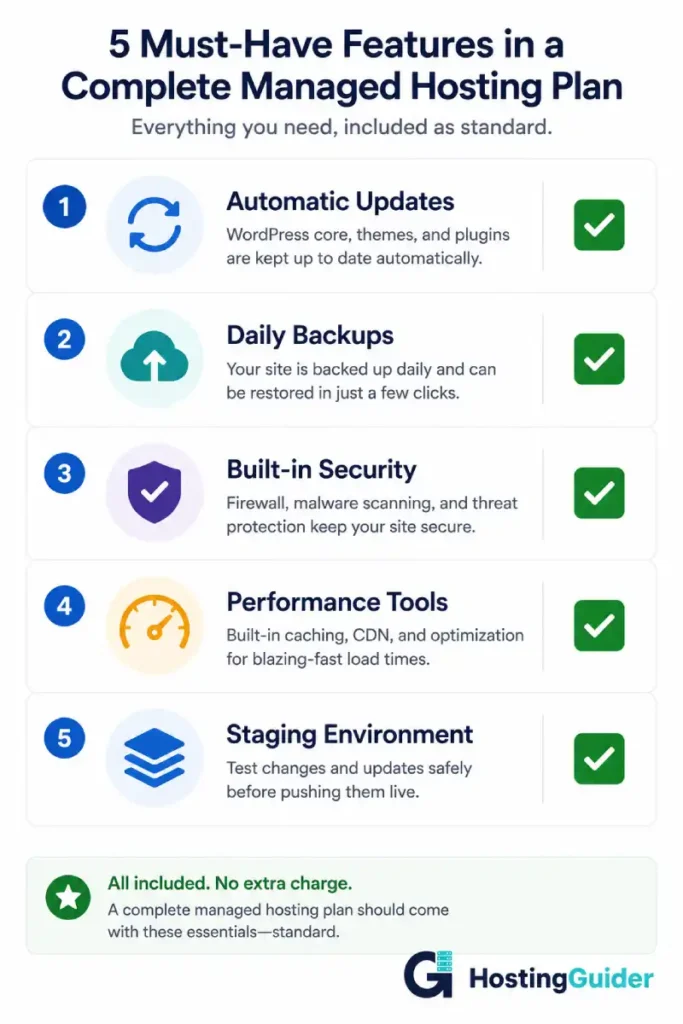
What features are important in WordPress hosting? The most important features to look for in managed WordPress hosting are automatic WordPress updates, daily backups with one-click restore, built-in security protection, server-level caching, CDN integration, and a staging environment for safe testing. These features help keep your website secure, fast, stable, and easy to manage.
A quality managed WordPress host should include all of these features in the base plan without hidden fees or major limitations.
Feature 1: Automatic Updates and Maintenance
WordPress is not static software. It receives core updates several times a year. Every plugin and theme installed on your site releases its own updates independently. PHP, the programming language WordPress runs on, goes through version cycles that require periodic upgrades.
Keeping all of this current on standard WordPress hosting is a manual, ongoing task. Miss a security patch, and automated bots find the vulnerability within hours. Fall behind on a PHP version, and certain plugins stop working entirely.
Automatic updates are the baseline reason most people choose managed WordPress hosting. But not all automatic update systems are equal.
What to look for
WordPress core updates should apply automatically on all plans, including minor and security releases. This is a baseline expectation from any managed host.
Plugin updates are where providers differ significantly. The best hosts apply plugin updates automatically after testing them for conflicts, or give you a one-click approval system. Others only notify you of available updates but leave applying them to you, which is barely better than standard hosting.
PHP version management should be handled entirely by the provider. You should never face a PHP deprecation problem on managed hosting. The host upgrades the PHP version on your site as part of their routine maintenance, with compatibility checks beforehand.
| Update Type | Minimum Expectation | What the Best Hosts Do |
|---|---|---|
| WordPress core | Automatic on all plans | Automatic with instant notification |
| Security patches | Immediate automatic application | Applied within hours of public release |
| Plugin updates | Available with one-click apply | Automatic with conflict testing |
| PHP version | Managed by provider | Automatic with compatibility checks |
| Theme updates | Notifications provided | One-click apply with staging test |
Questions to ask before signing up
Ask whether plugin updates are automatic or manual on your specific plan. Ask how they handle a plugin update that breaks the site. Ask what their PHP version policy is and whether they notify you before making changes.
Feature 2: Daily Backups with One-Click Restore
A backup is only as good as the restore process. Many hosting plans advertise backups prominently and then make restoration slow, difficult, or dependent on a support ticket.
On a quality managed WordPress plan, the backup system should work as a reliable safety net you can actually use in the moment something goes wrong, not a theoretical protection buried in a support workflow.
What to look for
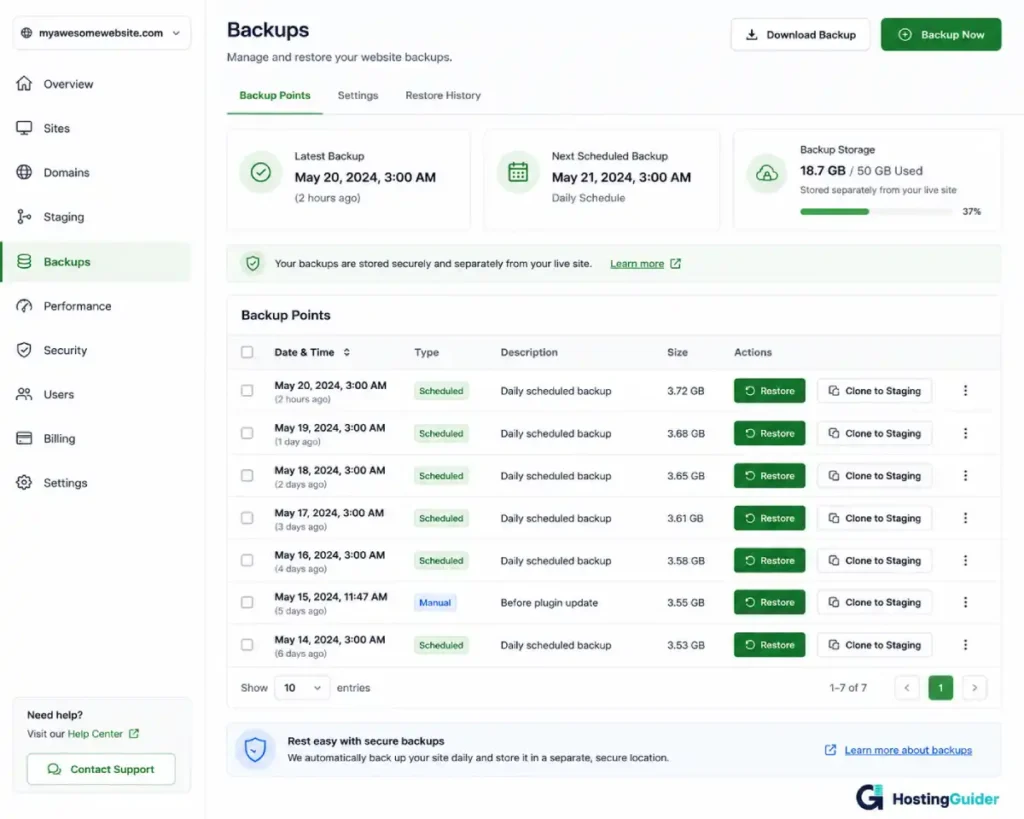
Daily automatic backups are the standard baseline. Some providers offer real-time backups that capture changes continuously. For WooCommerce stores or high-traffic sites where losing even a few hours of orders or content matters, real-time backup is worth the investment.
Backup storage location matters more than most people think. Backups stored on the same server as your live site are at risk if that server suffers a catastrophic failure. The best providers store backups in separate, redundant cloud storage isolated from your site’s main infrastructure.
Retention period determines how far back you can restore. Fourteen days is a reasonable minimum. Thirty days is better. Some incidents, like a hack that embeds hidden malicious code, are not noticed for weeks. A longer retention window gives you more options when that happens.
The restoration process itself is the most important factor in a crisis. You should be able to restore from any backup point through your hosting dashboard without contacting support. The process should complete in minutes, not hours.
| Backup Feature | What to Avoid | What to Require |
|---|---|---|
| Frequency | Weekly or manual only | Daily minimum, real-time on higher plans |
| Storage location | Same server as live site | Separate redundant cloud storage |
| Retention period | 7 days or less | 14 to 30 days minimum |
| Restore method | Support ticket required | Self-serve dashboard, minutes to complete |
| Cost | Charged as an add-on | Included in all plans |
| Partial restore | Not available | Database and file-level restore options |
Questions to ask before signing up
Ask where backup files are physically stored. Ask how long the restore process takes. Ask whether you can restore files and the database independently. Ask what happens to your backups if you cancel your plan.
Feature 3: A Built-in Security Layer
WordPress powers a large portion of the internet, which also makes it the most targeted platform for automated attacks. Bots continuously scan for sites with outdated plugins, weak login credentials, and known vulnerabilities.
Regular hosting leaves WordPress security to you. Managed hosting moves this burden to the provider’s infrastructure and team. The security layer should be active, not passive. It should block threats before they reach your site, not alert you after something has already gone wrong.
The cloud infrastructure that most managed hosts are built on provides significant advantages here, particularly in DDoS protection and network-level firewall layer.
What to look for
A web application firewall is the most important security component. It sits in front of your site and filters incoming traffic, blocking known attack patterns, SQL injection attempts, malicious bots, and suspicious requests before they reach WordPress. The firewall should be managed and updated by the provider continuously.
DDoS protection absorbs and deflects attacks that try to overwhelm your server with traffic. This should operate at the network level as part of the infrastructure, not as an optional add-on.
Malware scanning should run automatically on a regular schedule and alert you immediately if anything suspicious is detected. The best providers include malware removal as part of the service rather than billing it as a separate incident response.
SSL certificate management should be fully automatic. Certificates should install on setup and renew without you tracking expiry dates.
| Security Feature | Why It Matters | Should Be Included |
|---|---|---|
| Web application firewall | Blocks attacks before they reach WordPress | Yes, all plans |
| DDoS protection | Prevents traffic floods from taking site offline | Yes, infrastructure level |
| Malware scanning | Detects malicious code automatically | Yes, scheduled automatic |
| Malware removal | Cleans infected sites | Yes, included not extra charge |
| SSL certificate | Encrypts visitor connections | Yes, automatic install and renewal |
| Login protection | Blocks brute force attempts | Yes, built in |
| Vulnerability monitoring | Tracks known plugin vulnerabilities | Yes, on better providers |
Questions to ask before signing up
Ask whether malware removal is included or billed separately per incident. Ask how often firewall rules are updated. Ask whether there is a separate charge for DDoS mitigation. Ask what the response process is if your site is compromised.
Feature 4: Performance Tools Including Caching and CDN
Page speed affects both visitor experience and search engine rankings. A site that loads in one second converts significantly better than one that loads in four seconds. Google measures page experience as part of how it ranks pages.
Managed WordPress hosting should make your site demonstrably faster than standard hosting without you needing to configure anything. The performance tools should be built into the infrastructure and active by default.
What to look for
Server-level caching is the most impactful performance feature. WordPress without caching runs a PHP script and database query for every page request. With server-level caching, pre-built versions of your pages are stored and served instantly. This caching should happen at the server level, managed by the hosting infrastructure. A caching plugin you install yourself is not the same thing and does not perform as well.
CDN integration means your static content like images, CSS files, and JavaScript files is stored at data centres around the world. When a visitor loads your site, these files come from the nearest location rather than your central server. CDN should be included in your plan without additional charges. Providers that charge extra for CDN access are behind what most quality competitors include by default.
You can verify a provider’s performance claims by testing sites they currently host using Google PageSpeed Insights. Most providers have public showcase sites or case studies with real URLs you can test independently.
| Performance Feature | What a Basic Plan Often Offers | What a Good Plan Offers |
|---|---|---|
| Caching type | Plugin-based, user configured | Server-level, automatic |
| CDN access | Not included or extra charge | Included, global coverage |
| Image optimisation | Not included | Assisted or automatic |
| Database query optimisation | Your responsibility | Managed by provider |
| Cache bypass for WooCommerce | Manual configuration | Automatic for cart and checkout |
Questions to ask before signing up
Ask whether CDN is included in your specific plan or requires an upgrade. Ask what caching technology they use and whether it handles logged-in users and WooCommerce cart pages correctly. Ask whether CDN coverage includes the regions where most of your visitors are.
Feature 5: A Staging Environment for Safe Testing
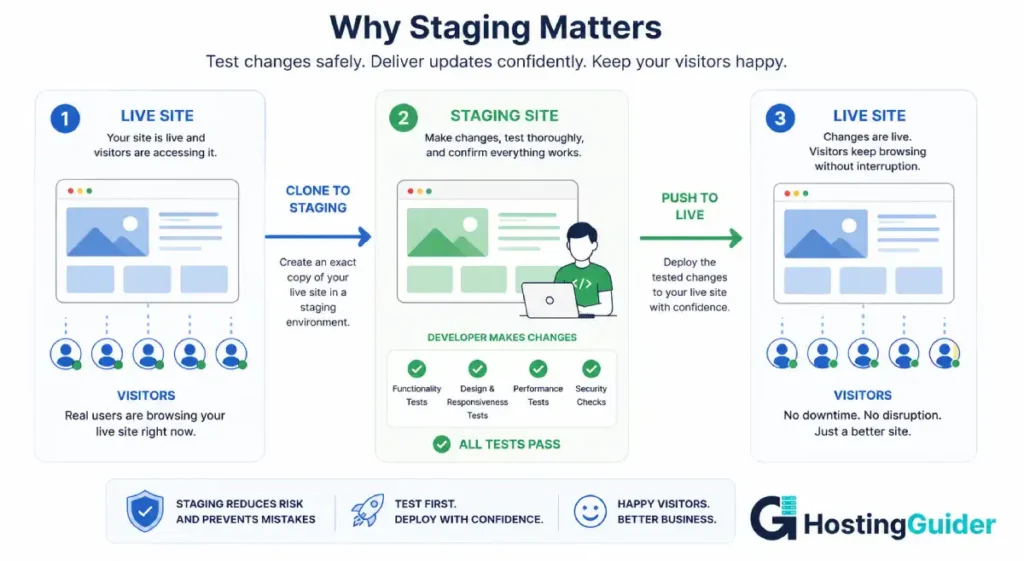
A staging environment is a private, non-public copy of your live site where you can test changes before they affect real visitors.
Without staging, testing a major plugin update, a new theme, or a code change means testing it on your live site while real people are using it. If something breaks, those visitors see the broken version while you fix it.
With staging, you make all changes on the private copy first, test everything, and push to live only when you are confident it works. Visitors only see the finished version. For anyone who has experienced a plugin update breaking their live site mid-afternoon, this feature alone justifies a meaningful portion of the cost difference between managed and standard hosting.
What to look for
Every plan at every price point should include at least one staging environment. Providers that restrict staging to premium plans are offering an incomplete service at entry level.
Pushing changes from staging to live should be a one-click process. Some providers make this cumbersome by requiring manual file downloads and uploads, which defeats the purpose entirely.
The staging environment must be a full copy of your live site including the database, all plugins, all settings, and all media files. A partial copy that excludes the database is not a reliable testing environment because most meaningful changes involve database records.
| Staging Feature | What to Avoid | What to Require |
|---|---|---|
| Availability | Premium plans only | All plans including entry level |
| Environment type | Partial copy excluding database | Full copy including database and media |
| Push to live | Manual file transfer required | One-click push |
| Number of staging sites | 0 or limited to 1 total | At least 1 per live site |
| Database push control | Not available | Files only, database only, or both |
| Staging URL protection | Not available | Password protected by default |
Questions to ask before signing up
Ask whether staging is included in the specific plan you are considering. Ask whether the staging environment includes a full database copy. Ask how the push-to-live process works and how long it takes. Ask whether the staging URL is password protected so it does not index on Google.
Additional Features Worth Checking
Beyond the five core features, several secondary factors separate good providers from genuinely excellent ones.
Expert WordPress support means the people who answer your support chats actually know WordPress. This is different from general hosting support. Ask a specific WordPress technical question during your pre-sale conversation and assess the quality of the response. The difference between a specialist and a generalist is immediately obvious.
Uptime monitoring and guarantees tell you how the provider performs historically. Look for providers with a public status page showing real historical uptime data rather than just a marketing claim. The scalability of cloud infrastructure underpins the uptime advantages that better providers can genuinely offer.
Free migration removes a practical barrier to switching. Most reputable managed WordPress hosts migrate your existing site for free when you sign up, handled by their technical team with no downtime. Providers that charge for migration or make it your responsibility are adding friction that competitors have eliminated.
Visitor and storage limits need careful examination. A plan with a 10,000 monthly visitor limit will trigger immediate upgrade pressure for many established sites. Check the overage policy too. Some providers suspend service when you exceed limits. Others upgrade you automatically, which means surprise charges.
Multi-site management tools matter if you manage more than one WordPress site. Kinsta and WP Engine both offer dashboards that let you manage multiple sites from one login and apply updates across all sites simultaneously.
Red Flags to Watch For
Backups advertised as a premium feature rather than a standard inclusion mean the provider views your data protection as an upsell rather than a baseline responsibility.
CDN listed as an add-on cost is out of step with what most quality providers include by default at current price points.
Staging environments available only on higher-tier plans signal that the entry plans are not genuinely managed hosting but standard hosting with a few managed features added.
Support response times measured in hours rather than minutes suggest the support team is understaffed for the volume of customers they serve.
Visitor limits low enough that a single successful blog post would trigger an upgrade require you to calculate the true cost of your expected traffic rather than assuming the headline price applies long-term.
How to Evaluate Providers Against These Five Features
| Evaluation Question | What a Good Answer Looks Like |
|---|---|
| Are WordPress core updates automatic? | Yes, including security releases, on all plans |
| Are plugin updates automatic or manual? | Automatic with conflict testing or one-click approval |
| How often are backups taken? | Daily minimum, real-time on higher plans |
| How long does a restore take? | Minutes, self-serve through dashboard |
| Where are backups stored? | Separate from live server, redundant cloud storage |
| Is a web application firewall included? | Yes, managed and updated by provider |
| Is CDN included in this specific plan? | Yes, with global coverage, no extra charge |
| What caching technology is used? | Server-level, multiple layers, not plugin-dependent |
| Is staging included in this plan? | Yes, full copy, one-click push to live |
| What is the support team’s WordPress expertise? | Specialists, verifiable through pre-sale test question |
| What is the visitor limit? | Enough for current traffic plus growth room |
| Is migration included? | Yes, free, handled by their team |
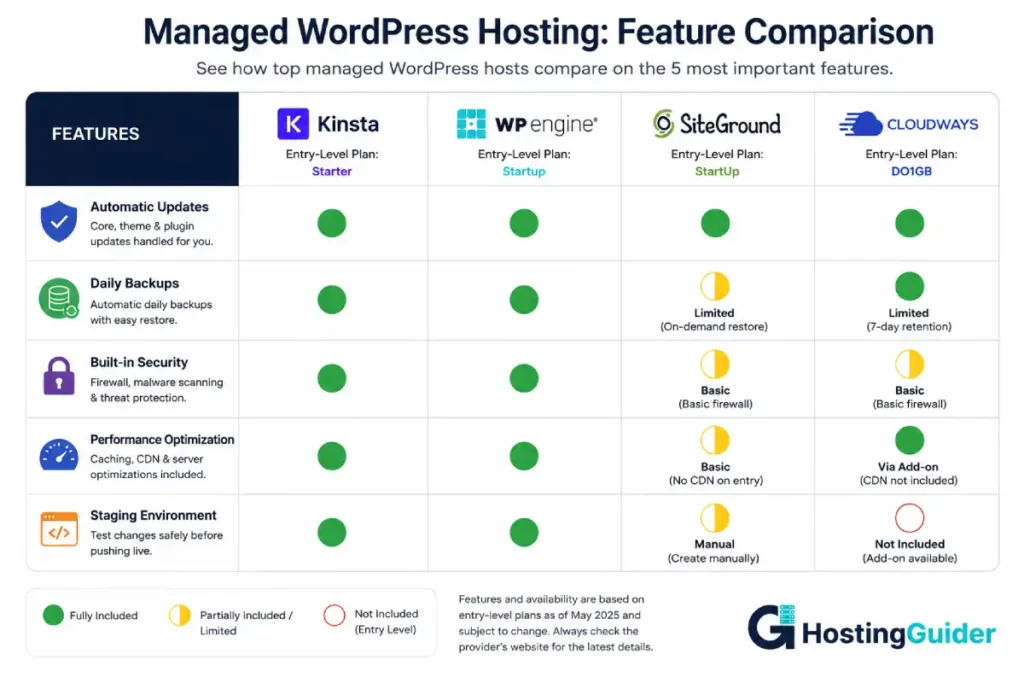
Kinsta, WP Engine, Cloudways, and SiteGround each have different answers to these questions depending on the plan tier. The checklist above helps you compare them against what actually matters rather than against marketing summaries.
Frequently Asked Questions
What is the most important feature in managed WordPress hosting?
Automatic updates are the most fundamental feature because they address the core reason people choose managed hosting in the first place. If you still have to apply WordPress core updates, plugin updates, and security patches manually, you are not getting the primary benefit of the managed service. Beyond updates, the backup system is the most practically important because it is your safety net when anything goes wrong. A self-serve restore that takes minutes is genuinely valuable in a crisis. A backup that requires a support ticket and hours of waiting is not.
Do all managed WordPress hosts include CDN?
No. CDN is included in base plans at premium managed hosts like Kinsta and WP Engine, but some providers list it as an add-on or include it only on higher-tier plans. This distinction matters both for your budget and for your site’s performance for global visitors. Before signing up, confirm whether CDN is included in the specific plan you are purchasing and whether coverage includes the regions where most of your visitors are located.
What should a staging environment include to be genuinely useful?
A staging environment should be a complete copy of your live site including the full database, all plugins, all settings, and all media files. A staging environment that excludes the database is not a reliable testing environment because most meaningful changes, like plugin configurations, theme customisations, and WooCommerce settings, live in the database. The push-to-live process should complete with one click. The staging URL should be password protected so search engines do not index a duplicate of your live site.
How do I verify a managed host’s performance claims before buying?
Find sites that are currently hosted by the provider you are considering and test their page speed using an independent tool like Google PageSpeed Insights. Most hosting providers have customer case studies or portfolio pages with real URLs. Test those independently rather than the provider’s own marketing site, which may receive special treatment. You can also look for third-party benchmark tests from independent hosting review publications that test providers under consistent controlled conditions.
What visitor limits should I expect on managed WordPress hosting plans?
Entry-level plans from most managed WordPress hosts cover between 10,000 and 25,000 monthly visits. Mid-tier plans typically cover 50,000 to 100,000 monthly visits. Premium plans handle 200,000 and beyond. Cloudways does not impose visitor limits, charging based on server resources instead. Before choosing a plan, check your current monthly visitor count and choose a plan with enough headroom for comfortable growth without triggering an immediate upgrade.
Is a web application firewall different from a regular firewall?
Yes, significantly. A regular firewall operates at the network level and controls which types of network connections are allowed in and out. A web application firewall operates at the application level and specifically analyses HTTP web traffic. It understands the patterns of WordPress-specific attacks including SQL injection attempts, cross-site scripting, and credential stuffing that a network firewall is not designed to detect or block. For WordPress sites, a web application firewall provides substantially better protection against real-world threats than a network firewall alone.


