Most WooCommerce stores start on a single server. Your WordPress application, your WooCommerce database, your media files, and your caching layer all live on the same machine. For a store in its early days, this is fine. Setup is simple, costs are low, and the server is not under enough pressure for the shared arrangement to cause problems.
Then the store grows.
Traffic picks up. You add product variations, customer reviews, order history. Your database grows from a few thousand rows to a few hundred thousand. Checkout starts to feel slower. Admin pages time out loading order lists. Your hosting panel shows CPU spikes that correspond exactly to peak shopping hours. You upgrade the server plan, and things improve briefly, then plateau at the same ceiling a few months later.
This pattern, upgrade the server, improve briefly, hit the ceiling again, is often the sign that the problem is not the server’s total resources but how those resources are being shared between two very different workloads: serving web requests and running a database. These two tasks compete for the same CPU, the same RAM, and the same disk I/O, and as a WooCommerce store scales, that competition becomes the actual bottleneck.
Separating the database server means moving your WooCommerce database off the application server and onto a dedicated database instance, either a managed database service or a separate server running only the database software. The application server stops competing with the database for resources, and each component can be scaled, tuned, and maintained independently.
This guide explains when a WooCommerce store actually needs this separation, the signals that indicate you are at that point, how the separation works in practice, and what to expect before and after.
What Separating the Database on Managed WordPress Actually Means
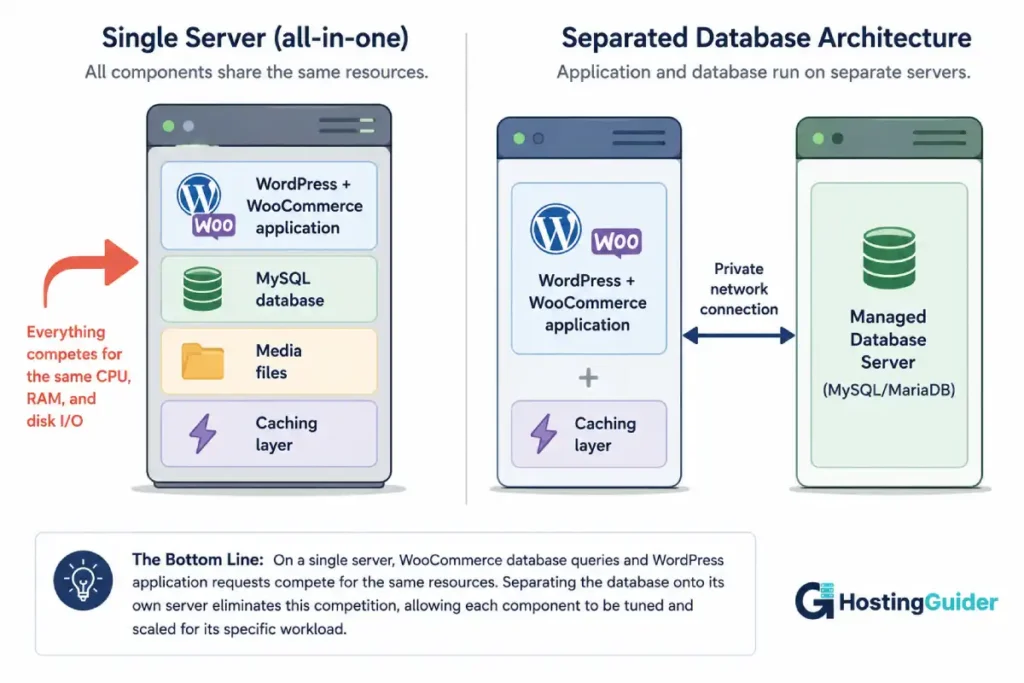
On a standard WordPress or WooCommerce installation, the database runs on the same server as the application. MySQL or MariaDB is installed on the server, listens on localhost, and your WordPress configuration (wp-config.php) connects to it using 127.0.0.1 or localhost as the database host.
When you separate the database, you move the database software and data to a different machine. WordPress still connects to the same database, with the same credentials and the same database name, but the connection string in wp-config.php points to a different host: the IP address or hostname of the new database server. The application server handles web requests, PHP execution, and caching. The database server handles only database operations, with its RAM and CPU tuned specifically for that workload rather than split across everything.
The database itself does not change. Your WooCommerce tables, your order data, your product catalogue, your customer records: all of it migrates to the new server and continues to work exactly as before, from WordPress’s perspective. The change is invisible to your customers. The difference is in how efficiently each server can handle its specific role.
There is an important nuance with managed WordPress hosting specifically. Many managed WordPress hosting providers run the database on a separate server by default, even on entry-tier plans, as part of their infrastructure architecture. If you are already on managed hosting, your database may already be on a dedicated database server. Before assuming separation is needed, check whether your provider already handles this, either through their documentation or by asking their support team directly.
The Signals That Your Managed WordPress Store Needs a Separate Database Server
These patterns consistently precede the point where database server separation produces a meaningful improvement.
Admin panel timeouts and slowness specifically on data-heavy screens. The WooCommerce admin pages for orders, products with many variations, and customer records are among the most database-intensive operations on any WooCommerce installation. If these pages are noticeably slow while the front-end is acceptable, the database is the bottleneck. Frontend caching can mask slow database performance for visitors, but the admin panel bypasses caching, which means admin slowness is often an early and accurate signal of database pressure before the front-end symptoms appear.
Database CPU or RAM consistently near its limit, separate from application CPU and RAM. If your hosting panel provides resource usage by process or service (some do, many do not), and you can see that MySQL or MariaDB is consuming a large share of CPU and RAM while WordPress itself would have room to run on the remaining resources, the two workloads are actively competing on the same machine and separation would give each one more headroom.
Checkout timeouts or errors under load, not during idle periods. Checkout is the most database-write-intensive moment in the customer journey: an order is written, stock levels are updated, customer records are created or updated, and potentially several plugin tables are written to simultaneously. If checkout failures or slowness correlate with higher concurrent visitor counts rather than occurring at random, the database is the likely cause, since write operations are more sensitive to resource contention than reads.
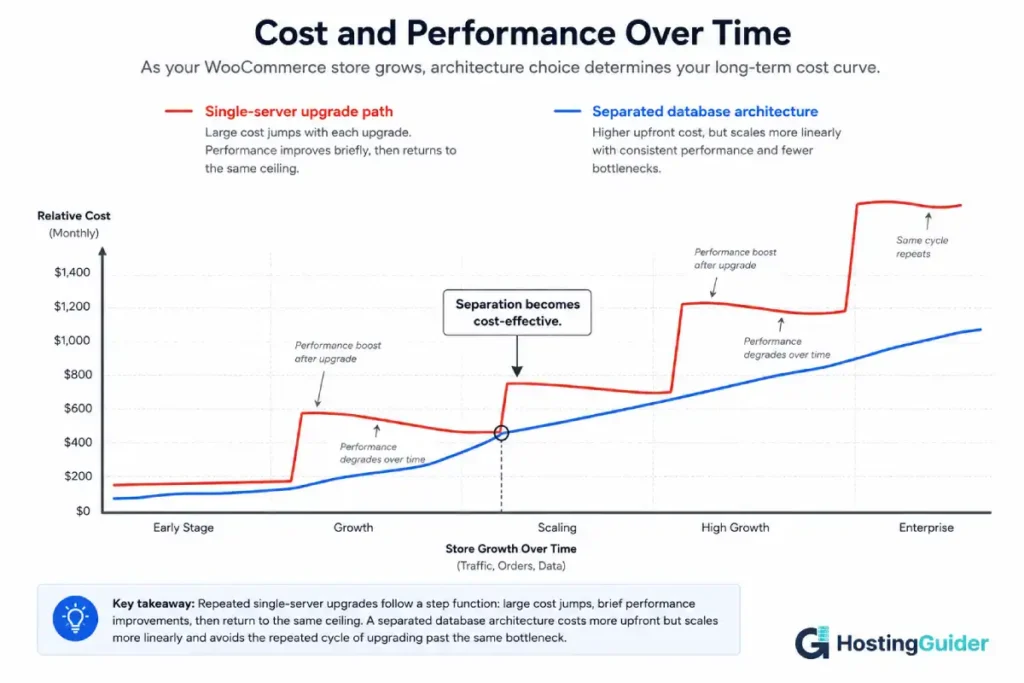
Repeated plan upgrades producing diminishing returns. If you have upgraded your hosting plan one or more times and each upgrade produces a shorter period of improvement before hitting the same ceiling, you are likely scaling the wrong resource. A larger shared server gives more total resources but does not change the fact that those resources are split between the application and the database. At some point, adding more CPU and RAM to a shared server is less effective than allocating dedicated resources to each workload.
Traffic or product catalogue at a scale where the numbers suggest it. A rough orientation: WooCommerce stores with fewer than 500 products and under 10,000 orders rarely need database separation. Stores with over 1,000 products, tens of thousands of orders, or significant simultaneous traffic (dozens of concurrent checkout-active sessions during peak periods) are good candidates for evaluating separation.
Why WooCommerce on Managed WordPress Is Particularly Database-Intensive
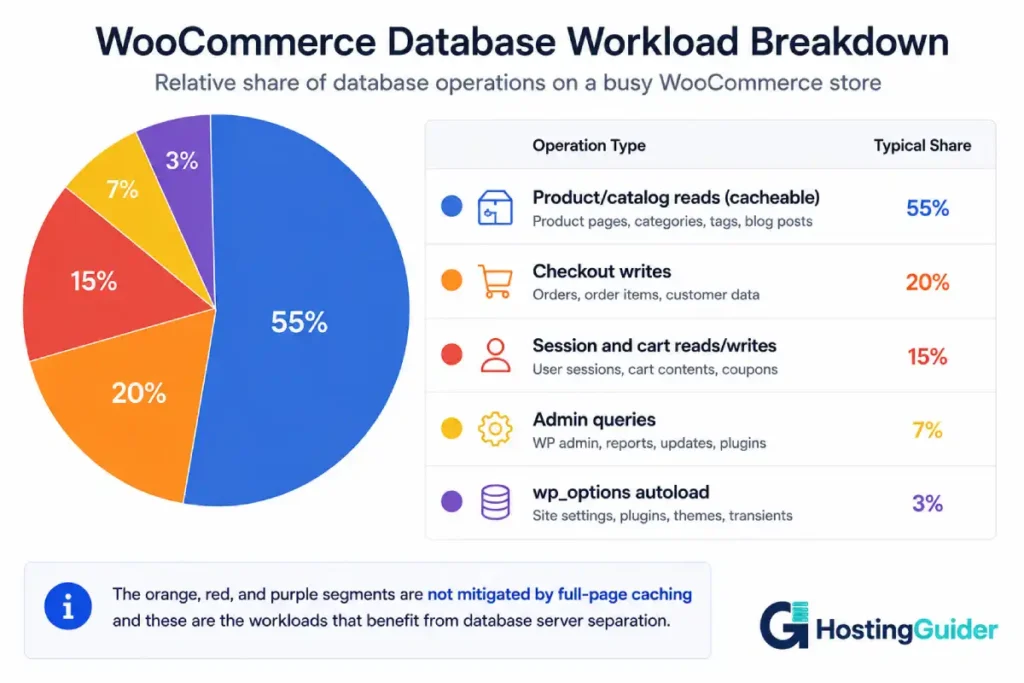
Standard WordPress, even with significant traffic, leans heavily on caching: a full-page cache can serve most visitor requests without touching the database at all. WooCommerce changes this in two significant ways.
Dynamic content bypasses the cache. Cart pages, checkout pages, My Account pages, and any page that varies by user session or by frequently-changing data (stock levels, pricing from a dynamic pricing plugin, personalised recommendations) cannot be served from a full-page cache without risking incorrect data reaching the customer. These requests hit the database every time. A WooCommerce store with 50 simultaneous customers actively shopping generates a stream of uncacheable database requests that a static site with 50 times the traffic does not.
WooCommerce’s data model is write-heavy in ways WordPress is not. Every order creates rows across multiple database tables simultaneously: wp_posts (the order post), wp_postmeta (order metadata, shipping address, payment method, individual line items), wp_woocommerce_order_items, and wp_woocommerce_order_itemmeta. Plugins add to this: a membership plugin, a points and rewards system, or a custom reporting plugin can each add their own writes to every order transaction. A database under high write load responds slower to reads, which slows the front-end for all visitors simultaneously.
The wp_options table autoloading problem. WordPress loads all “autoloaded” options from the wp_options table on every single page request. WooCommerce and many plugins add their own autoloaded options, and this table grows as plugins accumulate over time. On a large WooCommerce installation with many plugins, the wp_options autoload query can itself represent a meaningful fraction of every page’s database time, even for pages that have nothing to do with the options being loaded. This is a database problem that no amount of application server scaling addresses.
Order table growth affects query time at scale. As an order history accumulates over months and years, queries that scan or sort the orders table (reporting, admin order lists, customer order history pages) take progressively longer unless indexes are maintained and the database server has adequate RAM to keep frequently-accessed data in its buffer pool. Database query optimisation addresses some of this, but at a certain scale, query optimisation is a complement to adequate database server resources, not a substitute for them.
Single Managed WordPress Server vs Separated Database Architecture: What Changes
Understanding what concretely improves, and what does not, helps set realistic expectations for the separation.
What improves:
The application server has its full CPU and RAM available for serving web requests, executing PHP, and running the caching layer, without any of that capacity being taken by database operations. PHP-FPM workers that previously had to wait for database responses while the database was competing for CPU can now process more concurrently, because the database responds faster when it has dedicated resources. PHP-FPM pool sizing and tuning becomes more effective because the ceiling is no longer a shared resource limit.
The database server can be tuned specifically for database workloads: InnoDB buffer pool sized to fit the hot dataset in memory (meaning frequently-accessed data is served from RAM rather than disk), query cache and table cache configured for your workload pattern, and connection limits set independently of the application’s needs.
Each component can be scaled independently. If order volume grows and the database needs more RAM, you scale the database server without touching the application server. If traffic grows and you need more PHP workers, you scale the application server without affecting the database.
What does not automatically improve:
Slow queries that are slow because of missing indexes or poorly-written plugin queries are slow regardless of where the database lives. Query-level problems need query-level fixes. A dedicated database server with abundant RAM will partially mask this (more of the slow query’s data fits in RAM), but it does not fix it.
The wp_options autoloading problem persists until it is specifically addressed through a WooCommerce cleanup process or object caching (Redis or Memcached can cache the autoloaded options in memory, dramatically reducing the number of times the database is actually queried for them).
Front-end performance for fully cacheable pages is not affected by database performance at all, since a full-page cache serves those requests without a database query. Separation helps most with uncacheable requests.
For Managed WordPress: Managed Database Services vs Running Your Own Database Server
Once you have decided to separate the database, you have two main options.
Managed database services (such as Amazon RDS, DigitalOcean Managed Database, PlanetScale, or a managed MySQL/MariaDB offering from your cloud provider) handle the operational work: installation, configuration, automated backups, security patching, and (on most services) read replica creation for scaling read traffic independently of writes. You provide the database schema and data; the service handles the infrastructure.
This is the right choice for most WooCommerce stores making this transition for the first time, because it removes the significant operational burden of managing a database server yourself, which includes patching, backup verification, replication configuration, failover, and performance monitoring. The cost premium over a self-managed database server is real (managed services typically cost more than the raw compute equivalent), but for a store where the database is becoming a critical revenue component, the operational guarantee is often worth the premium.
Running your own separate database server (a VPS or cloud instance with MySQL or MariaDB installed and managed by you) gives you full control over configuration and reduces the cost compared to a managed service, at the expense of taking on full responsibility for everything the managed service handles. This is appropriate if you have database administration skills in-house, or if you want the flexibility to tune the database configuration in ways a managed service does not expose. The skills required to manage a self-administered server apply directly here: a self-managed database server carries the same operational requirements as any self-managed VPS.
Key questions for choosing between them:
Do you have a database administrator, or someone with MySQL/MariaDB administration experience, who will own the database server going forward. If not, a managed service removes a significant ongoing responsibility.
How critical is the database to your business continuity. If the database going offline for an hour would cost you a significant amount of revenue, the automated failover and backup guarantees of a managed service are worth the cost.
What is the cost differential between the managed service and a comparable self-managed instance at the scale you need. For small to mid-size databases, this difference is often modest enough that the managed service is the obvious choice.
How to Migrate Your WooCommerce Database Away from Managed WordPress in Practice
Migrating a live WooCommerce database to a new server needs to happen with minimal downtime, and it needs to be done in the right order to avoid data loss or corruption.
The safest approach for a live store:
Step 1: Set up the new database server (managed service or VPS with MySQL/MariaDB installed) and note its connection details: hostname/IP, port, and ensure the new server allows connections from the application server’s IP address.
Step 2: Export the current database using mysqldump. On the current server, or through SSH access:
mysqldump -u db_user -p your_database_name > woocommerce_backup_$(date +%Y%m%d).sql
For large databases (many gigabytes), use compression:
mysqldump -u db_user -p your_database_name | gzip > woocommerce_backup_$(date +%Y%m%d).sql.gz
Step 3: Create the database and user on the new server:
mysql -u root -p
CREATE DATABASE your_database_name CHARACTER SET utf8mb4 COLLATE utf8mb4_unicode_ci;
CREATE USER 'db_user'@'application_server_ip' IDENTIFIED BY 'strong_password';
GRANT ALL PRIVILEGES ON your_database_name.* TO 'db_user'@'application_server_ip';
FLUSH PRIVILEGES;
EXIT;
Step 4: Import the database to the new server:
mysql -u db_user -p -h new_database_host your_database_name < woocommerce_backup_$(date +%Y%m%d).sql
Step 5: Put the store in maintenance mode (a WooCommerce or WordPress maintenance plugin, or a simple maintenance page at the server level) to prevent new orders from being written to the old database during the final sync, since any orders placed between your export and the database cutover would be lost.
Step 6: Run a final incremental export to capture any orders or changes made between your initial export and the maintenance window, and import this to the new server.
Step 7: Update wp-config.php on the application server to point to the new database host.
Step 8: Test thoroughly before removing the maintenance page: verify the front-end loads, a test transaction completes, orders appear in the admin panel, and WooCommerce can write to the database.
Step 9: Remove the maintenance page and monitor closely for the first few hours.
Keep the old database on the original server for at least several days after the migration, as a rollback option if any issues emerge. Changing wp-config.php back to the original host is the entirety of a rollback, which makes this migration reversible with very little friction if something unexpected occurs.
Connecting Managed WordPress to the External Database
WordPress’s database connection configuration lives in wp-config.php, in the directory where WordPress is installed. The relevant settings are:
define( 'DB_HOST', 'your_database_server_ip_or_hostname' );
define( 'DB_NAME', 'your_database_name' );
define( 'DB_USER', 'your_database_user' );
define( 'DB_PASSWORD', 'your_database_password' );
For an external database, DB_HOST changes from localhost or 127.0.0.1 to the IP address or hostname of the new database server. If the database server uses a non-standard port, add the port:
define( 'DB_HOST', 'your_database_server_ip:3307' );
SSL connection for the external database is strongly recommended when the database is on a separate server, since the connection now travels over a network rather than staying within the same machine’s localhost. Most managed database services require SSL connections by default. For a self-managed database server, configure SSL on MySQL and add the SSL parameters to the WordPress connection using a drop-in or plugin.
On managed WordPress hosting specifically, wp-config.php may be managed by the hosting provider and not directly editable in the traditional way. Providers handle this differently: some allow direct file editing, some expose database connection settings through their own control panel, and some restrict external database connections from their managed WordPress environment as a matter of infrastructure policy. If you are on managed hosting, confirm with your provider that external database connections are supported before beginning the migration.
Tuning the Dedicated Database Server for WooCommerce on Managed WordPress
Moving the database to its own server gives you the opportunity to tune MySQL or MariaDB specifically for a WooCommerce workload, which a shared-server configuration does not allow.
The most impactful single setting is the InnoDB buffer pool size, which controls how much RAM MySQL uses to cache data and indexes in memory. The goal is for the buffer pool to be large enough to hold the entire “hot” working set (the tables and indexes accessed most frequently) in RAM, eliminating disk reads for cached data.
Start with approximately 70 to 75% of the database server’s available RAM:
[mysqld]
innodb_buffer_pool_size = 3G  # For a 4GB database server
Edit this in /etc/mysql/mysql.conf.d/mysqld.cnf (Ubuntu) or the equivalent configuration file, and restart MySQL:
sudo systemctl restart mysql
After the server has been running under normal load for a day or two, check the buffer pool hit rate:
SHOW GLOBAL STATUS LIKE 'Innodb_buffer_pool_read%';
A Innodb_buffer_pool_reads that is small relative to Innodb_buffer_pool_read_requests indicates a high buffer pool hit rate (data being served from memory rather than disk), which is the target.
For WooCommerce specifically, the wp_woocommerce_order_items, wp_postmeta, and wp_options tables tend to be the most-read tables. Ensuring the database server has enough RAM to keep these tables’ indexes in the buffer pool produces the most consistent improvement for the typical WooCommerce query pattern.
Also consider enabling slow query logging to identify queries that persist in being slow despite the dedicated server:
slow_query_log = 1
slow_query_log_file = /var/log/mysql/slow.log
long_query_time = 1
This logs any query taking longer than one second, giving you a list of candidates for index optimisation or plugin investigation without requiring constant manual monitoring.
The Costs Involved
Separating the database adds cost, and understanding the components helps you evaluate whether the separation pays for itself at your store’s current scale.
Managed database service: typically $15 to $50 per month for a small to medium WooCommerce database on services like DigitalOcean Managed Database, PlanetScale, or Amazon RDS (on a db.t4g.small or similar entry instance), scaling up with database size and throughput requirements.
Self-managed database VPS: a VPS with 2GB to 4GB of RAM dedicated to the database costs roughly $10 to $20 per month from providers like DigitalOcean, Linode, or Vultr, plus the operational time to manage it. For a store with in-house technical capability, this is a meaningful cost reduction compared to the managed service.
Application server changes: in many cases, separating the database allows you to downgrade the application server’s plan (since it no longer needs resources for the database), which offsets some or all of the new database server cost. A store previously running on a $60/month server might move to a $30/month application server plus a $20/month managed database, with net infrastructure costs similar or lower and significantly better performance characteristics.
The point where separation clearly pays for itself is when the cost of the next server upgrade (to address the performance symptoms described in the signals section above) exceeds the cost of the separate database server plus the potential application server downgrade. This crossover typically occurs earlier than people expect, because the next plan tier on managed hosting often represents a large cost jump rather than a linear incremental increase.
When Managed WordPress Database Server Separation Is Not the Right Answer
Database server separation is a meaningful architectural step with real costs and operational implications. These are the situations where it is not the right next move.
The store is genuinely small and the signals are absent. A WooCommerce store with a few hundred products, a few thousand orders, and a few hundred visitors per day is not at the scale where database competition on a shared server is the limiting factor. The symptoms described earlier in this guide are the relevant test: if those symptoms are absent, the separation is premature.
The performance problem has a different cause. Database server separation helps when the database is the bottleneck. If the slowness is actually caused by unoptimised images slowing page load times, a plugin running inefficient queries that would be slow regardless of server resources, or a CDN misconfiguration causing unnecessary origin hits, separation addresses none of those. Systematically diagnosing the actual bottleneck before committing to a significant infrastructure change is always the right first step.
The managed WordPress host already handles separation. As noted earlier, many managed WordPress hosting providers separate the database by default. If your provider’s infrastructure already puts the database on dedicated hardware, you are getting this benefit without doing anything, and the appropriate next step for continued scaling is working within the provider’s architecture (read replicas, connection pooling) rather than introducing a separate database server you manage yourself.
The store is at a scale where a broader architecture review is warranted. Very high-volume WooCommerce stores (hundreds of simultaneous checkout-active customers, millions of orders in the database) may need more than database server separation: read replicas for the database, object caching for database query results, a CDN for static assets and potentially full-page caching for product pages, and potentially a shift to dedicated server infrastructure for the application tier. Understanding when a business genuinely needs dedicated server infrastructure is the context for decisions at that scale, rather than treating database separation as a solution in isolation.
Frequently Asked Questions
How do I know if my WooCommerce store’s database is the actual bottleneck?
The most reliable method is to check whether the slowness is specifically on database-intensive operations (admin order lists, checkout under load, My Account pages) rather than general page loads, and whether it correlates with high concurrent traffic rather than occurring randomly. If your hosting provides resource monitoring by process, MySQL consuming a large share of available RAM or CPU is a direct signal. You can also enable MySQL’s slow query log (as described in the tuning section) to see whether queries themselves are slow, or run a basic load test on uncacheable pages specifically to see where performance degrades relative to concurrent sessions.
Will separating the database server make my WooCommerce front-end faster for all visitors?
For fully cacheable front-end pages (product listing pages, product pages for products without dynamic pricing, blog posts, static content), the answer is generally no, because those pages are served from a full-page cache without touching the database. Database server separation primarily improves the performance ceiling for uncacheable operations: checkout, cart, My Account pages, admin operations, and any session-specific product pages. For a store where a significant share of visitors are actively shopping (not just browsing), the improvement in checkout speed and reliability under concurrent load is meaningful even if cached page speed is unchanged.
Can managed WordPress hosting support an external database server?
It varies by provider. Some managed WordPress hosting providers allow you to configure an external database by editing wp-config.php or through their hosting panel. Others restrict their managed environment to using only their own internal database infrastructure as part of their service architecture. Providers that restrict external connections typically offer their own database scaling options (larger database instances, read replicas) as alternatives. Confirm with your specific provider before designing an architecture that depends on this capability.
How large does a WooCommerce database need to be before separation is worth considering?
Database size alone is not the determining factor: a large database that is well-indexed, infrequently written, and accessed by a modest number of concurrent users may not need separation, while a smaller database that is written to heavily by concurrent checkout sessions may show separation benefits earlier. The signals described in this guide (admin timeouts, checkout failures under load, repeated plan upgrades with diminishing returns) are more reliable indicators than a specific size threshold. As a rough orientation, stores with databases over 1GB and more than 5,000 orders per month are worth evaluating against those signals specifically.
What is the difference between a managed database service and a read replica?
A managed database service is the primary database server itself, hosted and maintained by a provider rather than self-managed. A read replica is a copy of the database that receives and applies the same writes as the primary but can serve read queries independently, distributing read traffic across two database instances. Read replicas can be used alongside a managed database service (many providers offer read replicas as an add-on feature) once read traffic grows large enough to benefit from it. For most WooCommerce stores considering separation for the first time, the initial step is a single dedicated database instance (managed or self-managed), not a replica pair.
Does Separating the Database Affect Managed WordPress Backups?
Yes, and this is an important consideration. On a single-server setup, WordPress backup plugins (UpdraftPlus, All-in-One WP Migration, and similar) handle both the database and file backup in one operation. Once the database is on a separate server, the backup strategy needs to cover both separately. Most managed database services include automated backups as part of the service. For self-managed database servers, the backup script covered in guides like our unmanaged VPS first 30 steps applies directly. Regardless of approach, verifying that both the application files and the database can be restored to a consistent point-in-time, not just that backups exist, is the critical practice.