
Your shared hosting account appears to live on one server. It does not.
Most shared hosting providers run their infrastructure as a cluster of machines behind a load balancer. Your visitors are routed across several physical or virtual servers depending on which one is least busy at that moment. The IP address you see in your DNS stays the same. The actual server handling each request changes constantly.
This architecture scales well for the provider. It lets them add capacity without any changes visible to their customers. It reduces the blast radius when one machine fails. It helps them oversell resources across a larger pool of hardware.
For your site, it introduces a set of problems that are genuinely difficult to diagnose because the symptoms are inconsistent. A bug that appears for some visitors but not others. A login that randomly fails. An upload that disappears. Admin changes that vanish on refresh. All of these can trace back to load balancing on shared hosting.
Key Takeaways
- Most shared hosting runs as a server cluster behind a load balancer, not a single machine
- Session files stored locally on one server are invisible to other servers in the cluster
- File uploads land on whichever server handled the upload, not all servers
- Page cache inconsistency means some visitors see old content while others see new content
- WordPress cron jobs run simultaneously on every server, causing duplicate operations
- Sticky sessions reduce many of these problems but add a different failure mode
- The cleanest fix is moving to a VPS where you are the only tenant on the server
What Load Balancing Actually Is on Shared Hosting
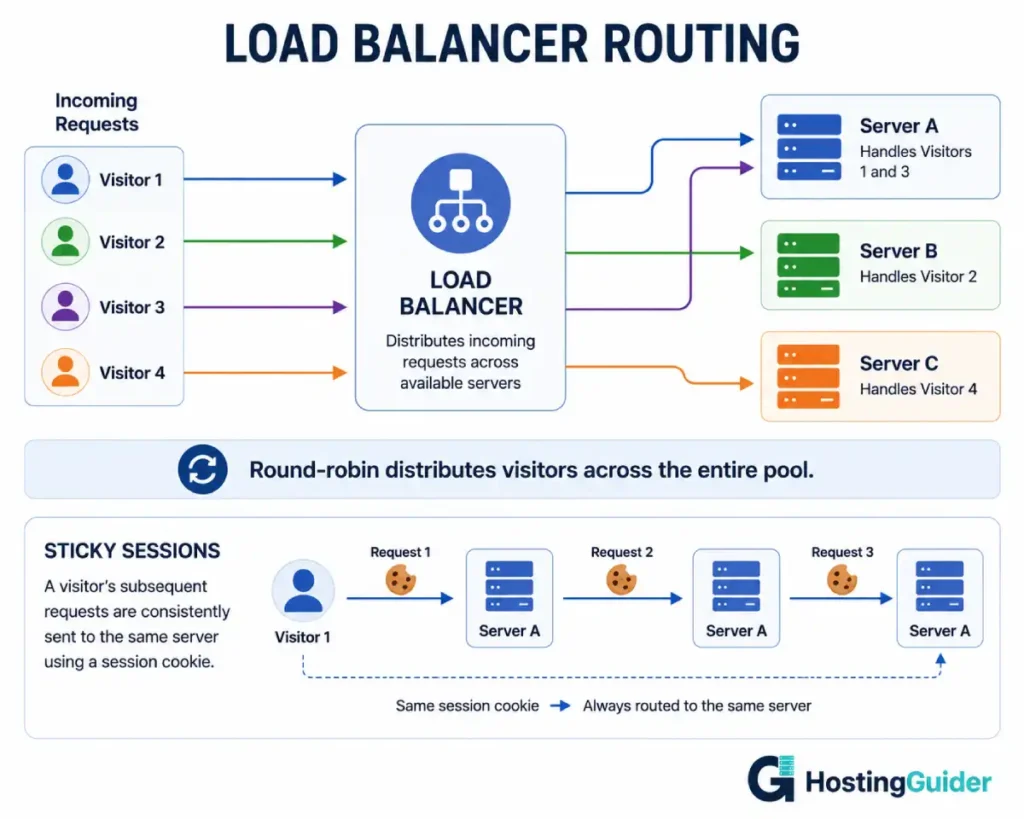
A load balancer sits in front of your hosting provider’s servers. Every incoming request for your domain hits the load balancer first. The load balancer then forwards the request to one of several backend servers.
The algorithm deciding which server gets the request varies by provider and configuration. HAProxy, the load balancer used by many hosting providers, supports all four of the patterns below out of the box:
Round-robin sends requests sequentially. Request 1 goes to Server A, request 2 to Server B, request 3 to Server C, request 4 back to Server A. Your visitors cycle through every machine in the pool regardless of what they were doing before.
Least connections sends each new request to whichever server currently has the fewest active connections. High-traffic servers get fewer new requests. Quieter servers absorb more. This distributes load well but provides no request continuity for individual users.
IP hash maps each visitor’s IP address to a specific server. The same IP always hits the same backend. This is a basic form of session affinity, but it breaks when the user is behind a NAT, shared IP, or proxy. A corporate office with 200 staff all sharing one outgoing IP would all hit the same single server.
Sticky sessions (also called session persistence) use a cookie to ensure a visitor stays on the same backend server once they start a session. The load balancer sets a cookie on the first response. On every subsequent request, the cookie tells the load balancer which server handled the previous requests for this visitor. The visitor stays on the same machine.
Why This Architecture Creates Problems
Problem 1: Session Files Split Across Servers
PHP stores session data as files by default. When a visitor logs in on Server A, PHP writes a session file to Server A’s local disk. The session file contains their login state, cart contents, form progress, and any other session data.
The next request from that visitor hits Server B. PHP on Server B looks for the session file. It does not exist. PHP treats the visitor as a new, unauthenticated session. The visitor is logged out.
This is the most visible load balancing problem on shared hosting. It causes random logouts, disappearing carts, and lost form progress. The pattern is inconsistent because it only occurs when a request crosses between servers, which happens based on load balancer routing decisions the visitor cannot see or predict.
Check if this is happening on your site. Log in and immediately run a series of page loads while watching the PHPSESSID cookie. If the session ID changes between pages, or if you get logged out after navigating, session file isolation is the cause.
# From your browser developer tools, check Application > Cookies
# Look for PHPSESSID
# It should remain identical across all page loads while logged in
Good shared hosts solve this with centralised session storage. Instead of writing session files to each server’s local disk, they configure PHP to store sessions in a shared Redis or Memcached instance that all servers in the cluster can access. Every server reads and writes sessions from the same source. Login state persists correctly regardless of which server handles each request.
PHP’s session.save_handler setting controls where sessions are stored — the default is files, meaning local disk. A host using redis here shares sessions across the entire cluster instead of isolating them per machine.
Ask your hosting provider directly: where does PHP session storage live? If the answer is local disk per server, sessions will fail unpredictably for your logged-in users.
Problem 2: File Uploads Disappearing
A visitor uploads a file through a contact form or attachment field. The file is handled by the server that processed the upload request. That server writes the file to its local disk.
The next request from that visitor, or a subsequent request to view the uploaded file, hits a different server. The file does not exist on that server’s disk. The upload appears to have failed. Or the image appears to load for some users (those hitting the server that has it) and not others (those hitting servers that do not).
This is especially damaging for WooCommerce product images uploaded by store owners, user profile pictures, and any application that relies on file uploads. On a busy day with many uploads, the problem scales badly because uploads scatter across all servers in the cluster.
The correct fix from the provider side is shared file storage. All servers in the cluster mount the same NFS volume or use a shared object storage layer for uploads. A file written by Server A is immediately visible to Server B and Server C because they all read from the same underlying storage.
Shared hosting providers that use NFS or a similar solution for uploads eliminate this problem entirely. Providers that give each server isolated local storage do not.
Problem 3: Page Cache Inconsistency
Most WordPress sites use a page cache. The first time a visitor requests a page, PHP generates the HTML. The page cache stores a copy of that HTML. Every subsequent request serves the cached copy without running PHP.
On shared hosting with a cluster, each server maintains its own page cache. Server A might have a cached version of your homepage from 10 minutes ago. Server B has a fresh version from 30 seconds ago. Server C has no cached version and serves directly from PHP.
A visitor’s experience of your site varies depending on which server they land on. Some see stale content. Some see fresh content. Some see slow response times (the ones hitting an uncached server).
When you publish a post and then refresh to check it, you might see the old version. Your browser’s refresh went to a different server than the one your browser just updated the post on. The server that got the refresh request has a stale cache.
This is one of the most confusing load balancing symptoms because it looks like a caching plugin bug. The plugin is working correctly on each individual server. The problem is that the plugin operates in isolation on each machine. Page caching cuts database queries to near zero for anonymous visitors — but that only holds when every server shares the same cache state. On a cluster with isolated caches per node, the benefit fractures.
A provider that uses a shared caching layer (like a centralised Varnish or Redis page cache accessible by all cluster nodes) eliminates this inconsistency. A provider where each server runs its own local cache does not.
Problem 4: WordPress Cron Running on Every Server
WordPress uses a pseudo-cron system called WP-Cron. It runs scheduled tasks by triggering on visitor requests. Every time a page loads, WordPress checks whether any scheduled tasks are due.
On a single server, this runs once per scheduled interval. On a cluster of five servers, every server independently decides that a task is due and runs it. The same task runs five times simultaneously.
WP-Cron was designed as a fallback for shared hosting without real cron access — which is exactly why it behaves so badly when a cluster gives every server its own independent task queue.
Common tasks that run via WP-Cron include scheduled post publishing, plugin update checks, backup jobs, email sending, cache cleanup, and WooCommerce order status checks.
The consequences of duplicate cron execution include:
- Scheduled posts published five times (five email notifications sent to subscribers)
- Five backup jobs running simultaneously, consuming massive disk I/O
- Payment confirmation emails sent five times to customers
- Cache cleanup wiping and rebuilding five times in parallel
This problem is difficult to diagnose because it only happens on clustered hosting. On a single server (like a VPS), the same cron setup works correctly. Move to clustered shared hosting and the problem appears without any configuration change.
The standard fix is to disable WP-Cron and replace it with a real cron job via cPanel or the server’s cron daemon. A real cron job runs on exactly one machine, once per interval, regardless of how many servers are in the cluster.
# Disable WP-Cron in wp-config.php
define('DISABLE_WP_CRON', true);
Then add a real cron job in cPanel pointing to your site:
*/5 * * * * curl -s https://yourdomain.com/wp-cron.php?doing_wp_cron > /dev/null
This runs cron from a single scheduled job rather than from every page load on every server. It eliminates duplicate execution entirely.
Problem 5: Admin Changes Not Appearing Immediately
You update a post. You refresh the page. The old content appears. You edit a widget. Refresh. The old widget is back. You flush the cache. Refresh. Still old content.
This happens because your admin action went to Server A. Your refresh went to Server B. Server B has no knowledge of the change you just made on Server A. Its database cache, object cache, and file cache all reflect the state before your change.
The database itself is usually consistent because shared hosting typically uses a single shared database server. But the application-layer caches on each web server introduce the lag.
This confuses site owners enough that they submit support tickets reporting their changes are not saving. Changes are saving. They are saving to the database. The problem is that caches on different servers have not been flushed.
Problem 6: Performance Benchmarks Showing Unusual Variance
When you run a series of identical page speed tests and see wildly different results — 180ms TTFB on one test, 620ms on the next, 240ms after that — load balancing across unequal servers is often the cause.
Not all servers in a shared hosting cluster are under identical load at the same moment. When your test hits a quiet server, response is fast. When it hits an overloaded server, it is slow. The server receiving each test request is not your choice.
This makes performance optimisation frustrating on shared hosting. You implement a change that should reduce TTFB by 100ms. You test and see improvement. You test again and the improvement is gone. You test a third time and it is back. The optimisation did work. The benchmarks are measuring different servers.
For accurate performance measurement on shared hosting, run the same test 20 or more times and take the median. A single test or even five tests gives an unreliable sample when multiple servers are in play.
What Good Providers Do Differently
The problems described above are not inevitable consequences of shared hosting. They result from how the shared hosting infrastructure is designed.
Good shared hosting providers invest in the shared infrastructure layers that eliminate these problems:
Centralised session storage using Redis or Memcached shared across all servers. Session files never live on individual server disks.
Shared file storage using NFS, GlusterFS, or a cloud object storage layer. Uploads land in one place that all servers read from.
Sticky sessions configured at the load balancer level. Once a visitor starts a session, they stay on the same backend server for the duration of that session. This eliminates most session-related problems at the cost of slightly less efficient load distribution.
Centralised page cache or no server-level page cache at all (relying on CDN-level caching instead). Consistent cache state across all backend servers.
WP-Cron awareness with documentation and tooling to help customers disable WP-Cron and replace it with a real cron schedule.
Providers that do not invest in these shared infrastructure layers pass the complexity to their customers as a series of confusing, inconsistent bugs.
How to Test Whether Your Shared Host Has These Problems
Before assuming your host handles clustering correctly, run these tests.
Test 1: Session consistency
Log into your WordPress admin. Run 20 rapid page loads using curl:
# First get the login cookie
curl -c cookies.txt -d "log=yourusername&pwd=yourpassword&wp-submit=Log+In&redirect_to=%2Fwp-admin%2F&testcookie=1" https://yourdomain.com/wp-login.php

# Then make 20 rapid requests while logged in
for i in {1..20}; do
  STATUS=$(curl -b cookies.txt -s -o /dev/null -w "%{http_code}" https://yourdomain.com/wp-admin/)
  echo "Request $i: HTTP $STATUS"
done
All 20 requests should return 200. Any 302 redirect response means the request was redirected to the login page, indicating a session was lost between servers.
Test 2: Response time variance
Run 20 timed requests to the same URL:
for i in {1..20}; do
  curl -w "%{time_starttransfer}\n" -o /dev/null -s https://yourdomain.com/
done
Look at the spread of values. A healthy single server shows tight clustering. A cluster with varying load shows wide variance, often with distinct bands of results (fast results from less-loaded servers, slow results from heavily-loaded ones).
Test 3: Cache consistency after a change
Make a visible change to your site (update a post title). Then immediately run 10 requests and record the post title in each response:
for i in {1..10}; do
  curl -s https://yourdomain.com/your-post/ | grep -o '<h1[^>]*>.*</h1>'
done
If different requests return different versions of the post title, caches on different servers are inconsistent.
When Shared Hosting Load Balancing Becomes Your Problem
Not every site suffers from these problems equally.
A simple brochure site with no logins, no file uploads, no shopping cart, and no scheduled email sending can run on clustered shared hosting without issues. The problems only surface when the site uses features that assume a consistent server state.
Sites that suffer most are those where users log in, upload files, make purchases, have personalised content, or rely on background processing. For WooCommerce stores and membership sites on shared hosting, the session and upload problems are usually visible and reported by real customers.
Sites with high enough traffic that performance variance becomes noticeable in analytics are also affected. Variable load-balanced performance costs sessions and ad revenue the same way downtime does — the difference is that no alert fires and no dashboard goes red.
The Upgrade Path
If shared hosting load balancing is causing problems for your site, the cleanest fix is a VPS.
A VPS gives you a single, dedicated virtualised machine. There is no load balancer routing your visitors between multiple servers. Every request hits the same machine. Sessions are consistent. Uploads stay put. Page cache is unified. WP-Cron runs once.
The performance characteristics are also different. Cloud hosting scales horizontally by spinning up additional servers automatically without the resource-pooling trade-offs that create shared hosting clusters. A VPS gives you one reliable environment where what you test is what your visitors get.
For deciding whether a VPS is the right next step, the traffic and workload thresholds where shared hosting breaks down map closely onto the problems in this article — when those thresholds are crossed, the cluster issues get worse, not better.
If your site needs to stay on shared hosting, the most impactful changes in order of effectiveness are:
- Disable WP-Cron and use a real cron job instead
- Ask your provider whether they use centralised session storage
- Ask whether they use shared file storage for uploads
- Test session consistency before assuming your host handles it correctly
- Consider adding a CDN in front of your site to reduce the number of requests that reach the inconsistent backend cluster
Hostinger shared plans use LiteSpeed Web Server with LSPHP and a centralised session and object cache layer, which reduces several of the cluster-related problems described in this article.
ScalaHosting managed VPS eliminates all of them by running your site on an isolated environment.
For a direct comparison of ScalaHosting vs HostArmada load handling, see our full test.
Frequently Asked Questions
How do I know if my shared host uses load balancing?
The most direct approach is to ask their support team. Ask specifically whether your hosting account runs on a single server or a server cluster, and whether session storage is local or shared. Indirect signs include highly variable response times across repeated tests of the same URL, inconsistent logged-in behaviour for WordPress users, and support articles in their knowledge base mentioning Redis or Memcached for session storage.
Does sticky sessions fix all the problems described?
Sticky sessions fix session-related problems (random logouts, lost cart data) as long as the sticky session mechanism works correctly. They do not fix file upload inconsistency (files still land on one server’s local disk), page cache inconsistency (each server still maintains its own separate cache), or WordPress cron duplication (all servers still independently execute scheduled tasks). Sticky sessions are a partial solution that helps the most visible symptoms.
Why do some hosts advertise unlimited storage and bandwidth but have these cluster problems?
Unlimited plans are possible precisely because of the cluster architecture. Resources are pooled across hundreds or thousands of accounts. The load balancer distributes requests to wherever capacity exists. Unlimited is an infrastructure-level benefit for the provider. The cluster architecture that enables that scale is the same architecture that introduces session and file consistency problems for individual sites.
Can I fix these problems myself without upgrading?
Partially. Disabling WP-Cron and replacing it with a real cron job is a complete fix for cron duplication. Using a centralised session storage plugin (like WP Redis backed by the phpredis extension) fixes session problems if your host provides Redis access. File upload consistency requires either a shared storage layer from the provider or offloading uploads to object storage like S3 using a plugin like WP Offload Media. Page cache inconsistency is hardest to fix without provider cooperation, though relying on CDN-level caching instead of server-level caching avoids the problem entirely.
Is this why my site behaves differently for different visitors?
Possibly. If visitors report inconsistent behaviour — some logged in, some not; some seeing old content, some seeing new content; some getting the upload confirmation, some not — and you cannot reproduce the problem consistently yourself, a load balancing cluster is a likely cause. The symptoms are designed by the architecture: different visitors hit different servers, different servers have different states, different visitors see different outcomes.


