Parked domain is an overloaded hosting term. In domain registration, it usually means a domain pointing to a placeholder or a parking service.
In cPanel, a parked domain is an alias that serves the same website as another domain.
Those two configurations look similar from the outside, but they behave very differently at the DNS, hosting, email, and SEO layers.
cPanel’s own documentation actually treats the two terms as connected, referring to parked domains as aliases in the interface, which is part of why the confusion is so common.
This guide covers both meanings in full technical depth, plus the DNS mechanics, subdomain takeover risk, and the SEO trade-offs.
Key Takeaways
- Parked domain has two distinct meanings: registrar-level domain parking (a placeholder page) and hosting-level domain aliasing (pointing a second domain at your live site).
- Registrar parking works through DNS, either full nameserver delegation to a parking service or a simple A record to a placeholder page.
- A cPanel alias is a hosting configuration that serves the primary domain’s content under a second name, while the domain must separately resolve through DNS to the hosting environment; the exact DNS records involved depend on how DNS is managed.
- Unused or misconfigured parked domains with dangling DNS records are a genuine subdomain takeover risk, not a theoretical one.
- A permanent redirect is generally the stronger choice when you control both domains and want the alternate domain to resolve to a single preferred URL.
Quick Answer
A parked domain is a registered domain that is not being used as an independent website. At the registrar level, this usually means it points to a placeholder or ad page through DNS parking.
Inside a hosting control panel like cPanel, it specifically means an alias domain that displays the same content as your primary site through a shared document root.
The Two Meanings, Side by Side
| Registrar-level parking | cPanel alias | |
|---|---|---|
| What it shows | Placeholder, ads, or nothing | The same website as the main domain |
| Who controls the web configuration | Your registrar or a parking service | Your hosting server |
| Typical purpose | Holding or monetizing a domain | Brand variants, alternate domains, typo domains |
| DNS requirement | DNS must point to the parking service or page | DNS must resolve to the hosting environment |
| Depends on the domain’s own MX configuration | Separate from the web alias configuration | |
| SEO consideration | Usually little or no content to index | Can expose the same content under multiple URLs |
The rest of this guide covers each one on its own, then the parts that matter regardless of which kind you are dealing with: DNS internals, security, and SEO.
What Is Domain Parking?
Domain parking is the practice of registering a domain and pointing it somewhere other than an independent, fully built website.
The destination can be a placeholder page, an ad-supported landing page run by a parking service, or nothing meaningful at all beyond a default registrar page.
It is distinct from building a site on the domain or redirecting it elsewhere, both of which are covered later in this guide.
How Registrar-Level Domain Parking Actually Works
After registration, many registrars place a newly bought domain on their default DNS or parking configuration, which often renders a generic placeholder page, sometimes branded with the registrar’s name.
This varies by registrar though, so do not assume every registrar behaves identically here.
If you later move that domain to a different registrar, the sequencing that keeps DNS working through the switch without downtime is exactly what a domain transfer guide walks through.
If you want the domain to earn ad revenue instead, you delegate it to a domain parking service such as Sedo, Bodis, or ParkingCrew. This happens at the nameserver level, not through a single DNS record.
You change the domain’s NS records at your registrar to point to the parking service’s nameservers, and the service’s own DNS then controls everything under that domain.
Parking services commonly use wildcard DNS to catch every possible subdomain under the parked name. A wildcard record looks like this in a zone file:
*.example.com. 3600 IN A 198.51.100.10
A wildcard record like this causes any otherwise-unconfigured subdomain someone types, real or made up, to resolve to the same parking server. The parking service’s web server then inspects the requested hostname and serves a page built around keyword-matched ads, often using pay-per-click ad networks tied to the domain’s perceived value.
A simpler, non-monetized version of parking just points an A record at a static placeholder page you control:
example.com. 3600 IN A 203.0.113.20
This is common when a business reserves a name for a future product launch and wants a plain coming-soon page rather than third-party ads.
What Is a cPanel Alias?
A cPanel alias, still commonly called a parked domain, is a second domain that points to the account’s main domain and serves the same website. In the current cPanel interface, this is normally created by sharing the main domain’s document root, which is the implementation detail rather than the fundamental definition.
Visitors typing either domain see identical pages, though the browser’s address bar keeps showing whichever domain they actually typed.
Setting Up a cPanel Alias (The Other Kind of Parked Domain)
This is the feature most hosting customers actually mean when they search for how to park a domain. Depending on which screen you are looking at, your host may call it Aliases in the cPanel interface or parked domain in the WHM Park a Domain tool, though both terms describe the same underlying concept.
Before you start, confirm two things. The domain must already be registered, and its nameservers or DNS records need to point at your hosting server rather than anywhere else.
Here is the process on a current cPanel installation:
- Log in to cPanel and open Domains.
- Click Create A New Domain.
- Enter the domain you want to add.
- Enable Share document root if you want it to display your primary domain’s existing website.
- Submit the form.
Older cPanel interfaces may label this function Aliases directly rather than routing through the general Domains screen, but the underlying steps are the same.
A standard alias points to the account’s primary domain and serves the same website content, since that is what Share document root ties it to.
If you need a new domain to have its own independent website instead, create it as a separate addon domain rather than an alias, covered further down.
DNS changes may appear within minutes, but cached DNS responses can persist until their TTL expires. Depending on the previous DNS configuration and resolver caching, full propagation can take longer.
Verify It Actually Worked
Do not just trust the cPanel success message. Check it from the outside, the way a real visitor would hit it.
First, confirm DNS is actually pointing where you expect:
dig +short A aliasdomain.com
Compare that IP against your primary domain’s IP:
dig +short A primarydomain.com
If both commands return the same IP address, DNS is pointing in the right direction. That alone does not confirm the web server is actually serving the correct site on that domain though, since a matching IP only proves name resolution, not that the virtual host is configured correctly, which is what the next check is for.
If the alias domain returns nothing at all, or a clearly different IP with no relation to your host, propagation has not finished, or the domain’s nameservers were never pointed at your host in the first place.
Next, confirm the web server is actually serving your content on that domain, not just resolving to the right IP:
curl -I https://aliasdomain.com
Look for the response status you actually expect. For a directly served alias that is typically 200, regardless of whether the connection negotiated HTTP/1.1, HTTP/2, or HTTP/3, since the protocol version itself is not what confirms correct configuration.
A certificate error specifically can indicate that SSL provisioning has not completed for the new domain. On cPanel systems using AutoSSL, issuance depends on the server’s SSL configuration and certificate authority, so check the SSL/TLS Status page rather than assuming a fixed provisioning time.
A curl that hangs, times out, or fails to connect at all can have several other causes though, including a DNS problem, a firewall or routing issue, or the server itself being unreachable, so do not assume every failure here is an SSL issue specifically.
Finally, open the domain in an actual browser in an incognito window, to rule out any local DNS caching giving you a false positive.
You should see your site’s content with the alias domain’s name still showing in the address bar, not the primary domain.
When It Does Not Work
| What you see | Likely cause | What to do |
|---|---|---|
| Domain already exists error in cPanel | The domain is already added as an addon domain or subdomain elsewhere in the account | Remove it from that section first, then re-add it as an alias |
| Page not found, or the host’s default page | DNS is not actually pointing at your server yet | Check nameservers with dig NS aliasdomain.com and compare against what your host told you to use |
| Alias shows the wrong site’s content | Share document root was unchecked and pointed at the wrong folder | Re-edit the alias and confirm the document root path matches the site you actually want it to mirror |
| curl or browser shows a certificate warning | SSL has not finished provisioning for the new domain | Give automatic SSL provisioning some time, then check your host’s SSL/TLS Status page in cPanel to confirm the certificate issued |
| Everything looks right in cPanel but the browser still shows the old content | Local or ISP-level DNS caching | Flush local DNS cache, or test from a different network or a public DNS checker tool |
What DNS and Web Configuration an Alias Requires
Creating an alias is not just a cosmetic redirect. DNS needs to resolve the domain to your hosting environment, and the web server needs to recognize the hostname as an alias of your main domain; the exact records involved depend on your specific hosting server’s configuration.
| Record or configuration | What it does |
|---|---|
| A / AAAA | Resolves the domain to the hosting server when those records are configured in DNS |
| www record | Allows the www hostname to resolve to the alias and serve the same site |
| MX | Controls where email for the domain is delivered; it is separate from the web alias |
The important distinction is that a cPanel alias is a web-hosting configuration, while DNS and email are separate layers.
A web alias, mail configuration, individual mailboxes, and forwarders are four distinct things that all happen to live under the same account, and creating the alias alone only handles the first one.
Neither DNS nor the alias itself means mail sent to the domain automatically forwards to your primary domain’s inbox.
Mail handling for a parked domain typically needs to be added to your mail configuration as its own step before the domain can accept email at all, and creating a mailbox afterward is separate again, behaving as a completely independent mailbox rather than a copy of your primary one.
If you want mail sent to the alias domain to land in your primary inbox instead, you need to set up an email forwarder explicitly, covered below.
A Security Detail Most Guides Skip
If your domain’s nameservers cannot be changed to point at your cPanel server, some hosts let you allow remote domains or service IPs to create an alias anyway, without full nameserver delegation.
This exists for legitimate cases, such as enterprise setups where DNS is managed centrally elsewhere.
Enabling this loosens a control that normally prevents someone else from aliasing a domain they do not fully control into your account. cPanel’s own documentation is direct about the risk here, warning hosts against enabling this setting broadly because it can create serious security issues.
Only enable it if you specifically need it, and whitelist the exact service IPs involved rather than allowing it to everyone.
This kind of access control typically sits at the same layer as web hosting firewalls, which is worth understanding if you are not sure what else on your stack might be affected.
Doing the Same Thing in Hostinger’s hPanel
Not everyone is on cPanel. Hostinger handles domain aliases through its hPanel interface rather than cPanel, and the exact screens differ, though the underlying concept is the same. Hostinger’s own interface uses the phrase parked domain, also known as domain alias, which matches the terminology this guide has used throughout.
The domain ultimately needs to point to the hosting environment before the alias can serve your website, the same underlying requirement as cPanel.
Hostinger’s hPanel lets you add the parked domain first and then guides you through connecting its DNS, which is worth knowing since the screens walk you through it in that order.
Screens and exact steps can change between hPanel versions, so treat the sequence below as a guide rather than a guarantee for your account.
Hostinger’s behavior can also depend on the website type, which is worth knowing before you park anything. Its current documentation notes that parking a domain on a WordPress site makes it act as a redirect, sending visitors from the parked domain to the primary one, while parking a domain on a PHP or HTML site mirrors the website instead, keeping the parked domain’s own name in the address bar the way a standard alias does elsewhere.
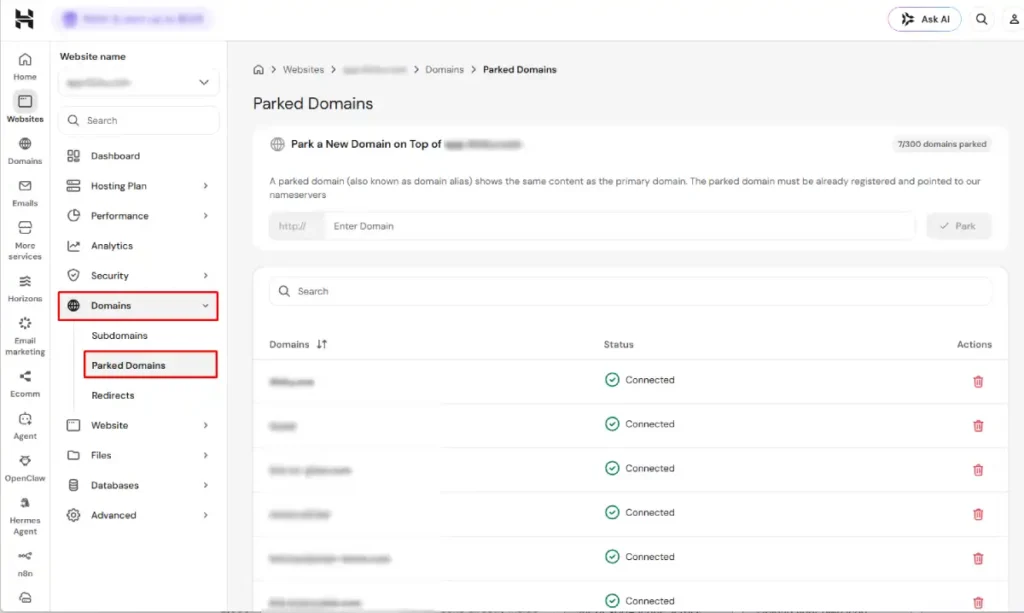
Verify the exact behavior shown in your own hPanel account before relying on this, since hosting interfaces and implementation details can change.
- Confirm you have full ownership and DNS access for the domain you want to park.
- In hPanel, go to Websites, select the site, and open Domains, then Parked Domains.
- Enter the domain and click Park.
- Point the domain’s DNS to your hosting plan, using either Hostinger’s nameservers or an A record pointed at your hosting plan’s IP.
After pointing the domain, allow time for DNS propagation before it starts working, as covered above.
What hPanel Shows You That cPanel Does Not
hPanel’s Parked Domains section includes an indicator showing whether the domain is currently pointing to Hostinger correctly.
If it does not show as connected, check the domain’s DNS configuration and confirm it points to your hosting plan the way Step 4 above describes, rather than assuming a fixed wait time will resolve it on its own.
Hosting plans may also limit how many domains you can park on a single account. Check the limit shown on your own plan directly rather than assuming a specific number, especially if you manage a large portfolio of brand-protection or misspelling domains.
Removing a parked domain in hPanel is also more direct than the cPanel equivalent. Each entry in the Parked Domains list has its own removal action, which cleans up the alias in one step rather than requiring a separate trip into a DNS zone editor.
One detail worth knowing before you unpark a domain: if it has existing email accounts tied to it, Hostinger deletes them permanently as part of that process, so back up anything important first.
Parking a Domain from WHM Instead
Everything so far assumes you are logged into your own cPanel account. If you are a reseller or agency managing several client accounts from one server, you do this from WHM instead, and it works slightly differently in a way worth knowing.
Here is the process:
- Log in to WHM as root or as a reseller with the correct permissions.
- Search for Park a Domain, or navigate to Home, then DNS Functions, then Park a Domain.
- Under Domain to park on top of, select the existing cPanel account’s domain from the dropdown.
- In the Domain to park field, enter the new domain you want to alias onto it.
- Click Submit.
The domain being parked still needs valid DNS pointing at your server first, the same prerequisite covered earlier for cPanel.
When WHM Gives You More Control
This is worth knowing if you manage multiple sites under one reseller account. The regular cPanel Domains interface is designed around creating an alias for the account’s main domain, confirmed directly in cPanel’s own support documentation, and it does not offer a path to alias a new domain onto an addon domain through that standard screen.
WHM exposes administrative controls that are not available in the standard cPanel user interface.
Its Park a Domain interface lets an administrator select the domain on which the new parked domain should be placed, rather than being limited to the account’s main domain the way the standard Domains screen is.
The exact domains available for selection depend on the account configuration and server version, so verify the available options in your own WHM installation before relying on this for an addon-domain setup with a client.
Removing a Parked Domain in WHM
Go to Account Information, then List Parked Domains (or List Sub-domains, depending on your WHM version), find the entry, and unpark it from there. If the domain has any custom DNS records added manually, review the zone afterward rather than assuming every manually added record has been removed along with the alias.
For anything beyond the alias itself, such as verifying the exact A, CNAME, or MX records WHM generated, the DNS Zone Manager (search for it directly, or find it under DNS Functions) shows the raw zone file for any domain on the server and lets you edit individual records if something needs correcting by hand.
Addon Domain vs Alias vs Subdomain
Confusing these three inside cPanel is extremely common, and picking the wrong one means redoing the setup later.
| Type | Independent content | Typical configuration | Typical use |
|---|---|---|---|
| Addon domain | Yes | Separate document root | A second, unrelated website on the same account |
| Alias (parked domain) | No, mirrors another domain | Points to the main domain | Typo catches, extra TLDs, brand protection |
| Subdomain | Usually a separate section or content | Its own hostname with a configurable document root | A structured section like shop.example.com |
If you are trying to launch a second, genuinely different website on the same hosting account, you want an addon domain, not an alias. An alias will only ever show a copy of content that already exists elsewhere in your account.
The Security Risk: Dangling DNS and Subdomain Takeover
One security issue worth understanding well is dangling DNS and subdomain takeover, since it applies directly to any domain that sits unused for long stretches.
A dangling DNS record is a record, most often a CNAME, that still resolves but points at a resource you no longer control, the exact pattern covered in OWASP’s takeover prevention guidance.
This happens constantly in normal operation. You spin up a marketing landing page on a third-party platform, point a subdomain at it with a CNAME, then later cancel that service and forget to remove the DNS record.
The DNS record keeps resolving because DNS does not know or care whether the destination still exists.
An attacker who discovers a dangling CNAME may be able to claim the abandoned resource on that third-party platform, such as an S3 bucket name, a Heroku app name, or a GitHub Pages repository, depending on that provider’s own resource-reuse and ownership rules at the time.
The impact goes beyond simply serving unwanted content. A successful takeover can be used to host phishing pages that look legitimate because they sit on your actual domain.
In some configurations it can also expose sensitive application functionality, including cookies or authentication data, when those are scoped to the affected domain or otherwise reachable from the compromised origin.
It can also abuse trust relationships in OAuth redirect flows or CSP and CORS rules that named your domain as trusted.
If the attacker successfully takes control of the hostname, they may also be able to obtain a trusted TLS certificate through the certificate authority’s domain-validation process, at which point HTTPS protects the connection to the attacker’s site rather than protecting the user from the takeover.
Why This Connects to Parked Domains Specifically
Parked and idle domains are disproportionately affected for a simple reason. Nobody is actively watching them.
A domain you registered two years ago for a project that never launched, with a CNAME still pointing at a landing-page builder you canceled, is exactly the kind of asset that sits unmonitored while the underlying resource quietly becomes claimable.
The record types that carry the most risk:
| Record type | Risk scenario |
|---|---|
| CNAME to a decommissioned cloud service | Points at an unclaimed S3 bucket, Heroku app, or similar, which an attacker may be able to claim depending on the provider’s rules |
| NS record delegating to a third-party DNS provider | If that provider account is closed, anyone can potentially claim the delegated zone |
| A record pointing to a released cloud IP | If the IP gets reassigned to another customer, they now control what that record serves |
A real-world example, as reported by BleepingComputer in September 2021: security researcher Ian Carroll found that more than 60,000 domains associated with registrar MarkMonitor were pointing at unclaimed Amazon S3 buckets, following a DDoS vendor misconfiguration on MarkMonitor’s side.
Carroll’s own testing demonstrated successful takeover of over 800 root domains before the issue was reported to MarkMonitor.
MarkMonitor later stated that the affected domains reverted to their normal parking configuration within roughly an hour of notification, though that specific timeline comes from MarkMonitor’s own statement to the press rather than independent verification.
Auditing Your Own Parked Domains for Dangling Records
You do not need enterprise security tooling to check your own small portfolio of parked and alias domains.
The dig command, available on macOS, Linux, and through WSL on Windows, is enough for a manual check.
Start by checking whether the hostname has a CNAME record and identifying its target:
dig CNAME olddomain.example.com
A healthy record on an active site returns your actual current host or CDN:
;; ANSWER SECTION:
olddomain.example.com.  3600  IN  CNAME  server123.hostingprovider.com.
A dangling record looks similar at the DNS level but points at something no longer claimed:
;; ANSWER SECTION:
promo.example.com.  3600  IN  CNAME  old-campaign-2023.herokuapp.com.
DNS alone cannot tell you which of those two is the problem. That is what the next check is for.
Once you have the CNAME target, request it directly and inspect the actual response, not just the headers:
curl -s https://old-campaign-2023.herokuapp.com
A claimed, active app returns a normal 200 response or a redirect. An unclaimed service may instead return a provider-specific error page indicating that the resource no longer exists, such as this one Heroku shows for a deprovisioned app:
<html><body>No such app</body></html>
If you only need to confirm the status code quickly without pulling the full body, curl -sI works for that instead, since it sends a HEAD request and shows headers only, but it will not show you the HTML fingerprint above, since that only appears in the response body.
A provider-specific response like this one is a signal to investigate, not proof that the resource is currently claimable.
Whether it can actually be reclaimed depends on the provider’s own reuse and verification rules, but it is exactly the pattern worth treating as a priority to check. If the target instead returns your own expected content, the record is fine and you can move on to the next one.
For a domain with many subdomains, export the full zone file from your DNS provider and grep for every CNAME at once:
grep -i cname zonefile.txt
Check each target the same way. Anyone managing more than a handful of domains should also know that community-maintained fingerprint databases exist, such as can-i-take-over-xyz, which catalog the exact error responses different cloud providers show for unclaimed resources.
Fixing a Dangling Record the Right Way
The order of operations matters here. If you delete the underlying cloud resource first and remove the DNS record later, there is a window where the record is dangling and exploitable, which is the exact scenario this whole section is about.
The key rule is straightforward: remove or repoint the DNS record before releasing the third-party resource, not after.
Removing or repointing the record first is the control that actually matters, since it prevents the hostname from continuing to reference a resource someone else could later claim. Allowing the old DNS response to expire from caches afterward is a reasonable additional precaution, not the thing that makes the release safe on its own.
If you are not ready to delete the record entirely, pointing it at something you actually control, even a simple redirect to your main domain, closes the gap immediately.
Parked Domains and Email
Email deserves its own mention because it is where parked domain mistakes cause the most confusion. Adding a domain alias for web traffic does not, by itself, tell your existing mailbox how to handle mail sent to that domain.
Whether the alias domain can accept email at all is determined by a separate action for adding it to your mail config, distinct from creating individual mailboxes on it afterward.
This creates two common problems. First, someone emails an address at the alias domain expecting it to reach your primary inbox, and it does not, because no forwarder was configured.
Second, if the domain was previously used for email elsewhere, its DNS zone may still contain legacy MX, SPF, DKIM, or DMARC records, which can conflict with your current mail setup or, in a worse case, get exploited if a record still authorizes a mail server you no longer control.
Before parking or aliasing a domain that has any history, check its existing DNS zone for old MX, SPF (TXT starting with v=spf1), and DMARC records, and clean up anything that does not match your current setup.
Setting Up a Forwarder So Alias Domain Mail Actually Reaches You
If you want mail sent to the alias domain to land in your existing inbox, set this up explicitly rather than assuming it happens automatically.
- In cPanel, go to Email, then Forwarders.
- Click Add Forwarder.
- In the Address to Forward field, enter the address on the alias domain, for example
contact@aliasdomain.com. - Under Destination, choose Forward to Email Address and enter your real inbox address.
- Click Add Forwarder to save.
Test it by sending a message from an external account to the alias address, then confirm it arrives in your primary inbox within a few minutes. If it does not arrive, check your primary domain’s spam folder first, since forwarded mail occasionally triggers spam filters until SPF is adjusted to authorize the forward.
SEO Implications of Parked and Alias Domains
An alias domain can be crawled and indexed separately if search engines discover it, but because it serves substantially identical content to whatever it mirrors, Google may treat the URLs as duplicates and select one canonical version to show in results.
That selection process is a normal part of how canonicalization works rather than a penalty against your site.
Where you control both domains and technically can redirect, a permanent redirect is a stronger and more direct consolidation signal than a canonical tag, according to Google’s guidance, because users and crawlers are actually sent to the preferred URL rather than merely being told which URL should be treated as canonical.
The canonical tag still has plenty of legitimate uses beyond this specific scenario, including many single-domain duplicate or near-duplicate URL situations, so treat it as the right tool when you specifically need both domains to stay independently reachable without a redirect, not as a lesser option in general.
The practical decision comes down to this: if the alternate domain should disappear from normal user navigation entirely, use a redirect. If both URLs genuinely need to stay accessible on their own, canonicalization is the appropriate tool instead.
Either way, a cPanel alias by itself is not an SEO strategy, it is a hosting configuration, and whether it helps or hurts your SEO depends entirely on which of these two paths you take with it.
A parked domain that previously hosted a real website is a different case from one that is simply new.
Its historical content, backlinks, and indexing history can matter if you later reuse or redirect it, so investigate that history rather than treating it as a clean slate, which is exactly the research expired domain SEO requires before anyone buys a domain for its existing backlinks.
Alias Versus Redirect: The Actual Technical Difference
These two get confused constantly, and the distinction is worth stating plainly since it explains everything else in this guide.
An alias is a DNS and virtual-host configuration. DNS resolves the alias hostname to your hosting environment, and the server serves the exact same content for that hostname as it does for your primary domain, with no HTTP-level instruction involved at all.
A redirect is an HTTP response. The server responds to a request with a redirect status code and a Location header, which tells the browser or crawler to go request a different URL entirely, and the address bar changes to match.
That difference is why an alias keeps showing its own domain in the address bar while a redirect does not, and why search engines treat the two so differently for SEO purposes.
Should You Park, Redirect, or Build?
The right choice depends on what you actually want the domain to do.
If you own a domain purely to prevent someone else from registering it, and have no near-term plan to use it, registrar-level parking with a plain placeholder is fine. Just make sure whatever DNS record you use does not point at a third-party resource you might later abandon.
If you own several TLD variants or common misspellings of your main domain and want them all reachable, a cPanel alias handles that cleanly.
If the alternate domain does not need to remain independently accessible though, a permanent redirect is generally the cleaner way to consolidate it with the preferred domain.
Setting Up the 301 Redirect Instead of a Plain Alias
If you decide a redirect is the better call, you have two ways to do it once the alias is already created.
The simpler method is cPanel’s own Redirects tool. Go to Domains, then Redirects, select the alias domain from the dropdown, enter your primary domain as the destination, set the type to Permanent (301), and click Add.
In hPanel, the same tool sits right next to Parked Domains in the sidebar, under Domains, then Redirects. The setup is the same idea: pick the domain, enter the destination, and choose a permanent redirect.
If you want more control, or your host does not expose the Redirects tool for alias domains, remember that a standard alias shares the primary domain’s document root rather than having its own separate folder.
Add this rule to the .htaccess file in that shared document root, and make sure the host conditions target only the alternate domain so you do not accidentally redirect the primary domain too:
RewriteEngine On
RewriteCond %{HTTP_HOST} ^aliasdomain\.com$ [OR]
RewriteCond %{HTTP_HOST} ^www\.aliasdomain\.com$
RewriteRule ^(.*)$ https://primarydomain.com/$1 [R=301,L]
Treat this as a starting point rather than a drop-in production rule. If Cloudflare, another CDN, or a reverse proxy sits in front of Apache, or if WordPress or another CMS is already issuing its own canonical redirects on the same domain, test carefully rather than assuming this rule is the only thing in play.
If WordPress is installed in that shared document root, place this domain-specific rule before WordPress’s own rewrite block near the bottom of the file, so WordPress does not process the request first. Confirm on your actual hosting stack before relying on it.
Verify it worked with a header check rather than just clicking the link:
curl -I https://aliasdomain.com
You should see a 301 response along with a Location: header pointing at your primary domain, regardless of whether the connection shows as HTTP/1.1 or HTTP/2.
If you instead see a 200, the redirect rule did not apply, usually because it was added to the wrong document root or a caching layer served a stale response.
If the domain is meant to become an actual second business or product, it needs to be an addon domain with its own content, not an alias.
Mistakes to Avoid
A short list worth checking against your own setup:
- Do not leave a CNAME pointing at a canceled third-party service. Remove it or repoint it the day you cancel that service.
- Do not assume an alias domain’s email works like a forwarder. It needs an explicit forwarder rule if that is what you want.
- Do not enable remote domain aliasing broadly on a host that supports it. Scope it to specific IPs if you need it at all.
- Do not use canonical tags as a substitute for a 301 redirect when you control both domains and redirecting is technically possible.
- Do not assume a domain you bought used has a clean DNS history. Check its old records before pointing it anywhere.
Frequently Asked Questions
Can a parked domain show the same website as my main domain?
Yes, if it is set up as a cPanel alias, since that is exactly what an alias does by design. Registrar-level parking normally does not show your main site at all, since it is just a placeholder or ad page with no connection to your actual content. A 301 redirect is a third option that sends visitors to your main domain entirely, rather than displaying content under the alias domain’s own address.
Is a parked domain the same as an addon domain?
No. An addon domain hosts independent content in its own folder, while a parked domain, called an alias in current cPanel versions, mirrors content that already exists elsewhere in your account.
Can a parked domain get hacked?
The domain registration itself is not necessarily compromised. The more relevant risk is DNS or hosting misconfiguration: a dangling DNS record can sometimes let an attacker take control of an abandoned third-party resource and serve content from the affected hostname. This is commonly called subdomain takeover, though the affected hostname does not actually have to be a subdomain, and the same risk applies to any domain with a stale record, parked or not.
Does parking a domain hurt my SEO?
Simply registering and parking a domain does not normally create an SEO penalty for your other website. The consideration changes if the domain previously had a website, has acquired backlinks, gets indexed, or is configured to serve duplicate content. If an alias domain does get indexed separately and it does not need independent visibility, redirect it to the preferred domain; a canonical tag is the appropriate signal when both URLs genuinely need to stay accessible, though Google treats canonicalization as a hint rather than a guarantee.
How long does domain parking take to show up?
DNS changes can appear within minutes, but full visibility depends on TTL and resolver caching, which can take longer than a day in some cases depending on the previous DNS configuration.
Can I use a parked domain for email right away?
A parked or alias domain can be configured to accept email, but web aliasing and mail delivery are separate configurations that do not happen automatically together. Mail sent to the alias domain does not automatically become mail for an existing mailbox on the primary domain. If you want a specific alias-domain address to deliver into your primary inbox, configure an email forwarder explicitly rather than assuming it happens on its own.
What is the difference between a parked domain and a redirected domain?
A parked domain (alias) displays the destination content while keeping its own URL visible in the browser address bar. A redirect actually sends the browser to the target URL, which then appears in the address bar instead.
Conclusion
The decision in front of you is usually one of these five. Holding a name for later means registrar-level parking. Showing your existing site under a second name means a cPanel alias.
Consolidating several domains into one for SEO means a redirect. Running a genuinely separate site means an addon domain, not an alias.
Finding an old, abandoned DNS record pointing at a service you no longer control means removing or repointing it now, before someone else finds it first.
If you have domains you parked and forgot about, that last one is worth checking today. Audit their DNS records, especially CNAME, A, NS, and MX entries pointing to services you no longer control, since an unwatched domain with a stale record is exactly the kind of low-effort target that ends up in a subdomain takeover report.