Every managed WordPress hosting provider’s homepage says the same thing. Lightning fast. Built for speed. Optimised infrastructure. None of these claims are measurable, none of them are comparable between providers, and none of them tell you what your specific site will experience after you migrate.
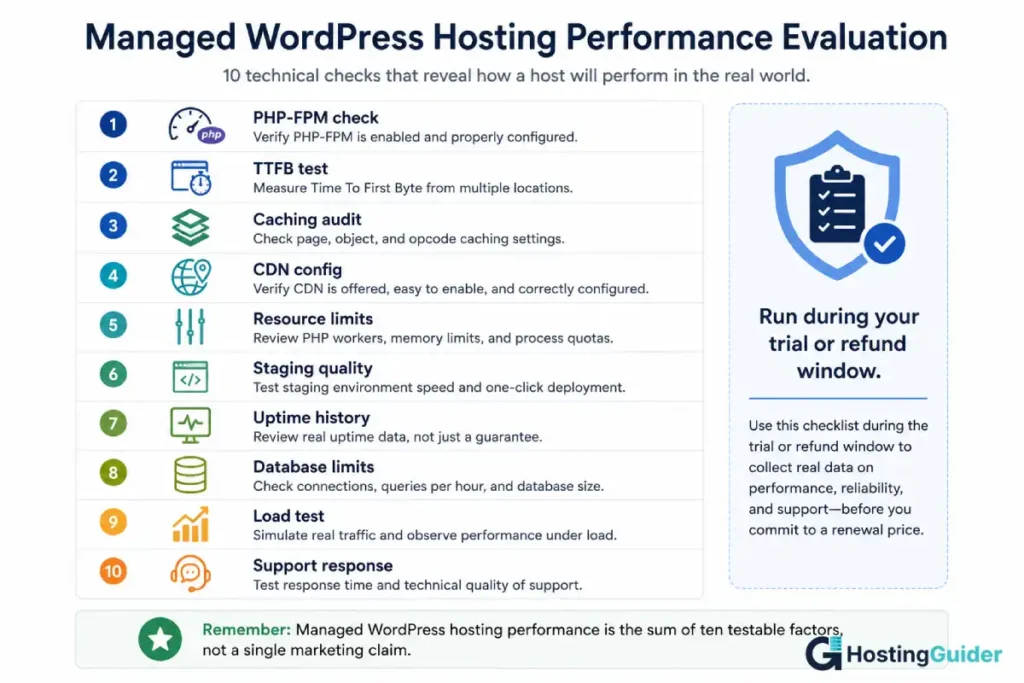
Managed WordPress hosting performance is not a single number you can read off a pricing page. It is the combined result of the PHP configuration, the caching layer, the server’s actual resource allocation under your specific plugin set, the network path between the server and your visitors, and what happens when your traffic exceeds whatever the plan was sized for. Every one of these can be tested, and most providers offer a trial period or money-back guarantee window that is long enough to test them properly, if you know what to test.
This guide is the testing process. It assumes you have, or can get, a trial account or a refund-eligible signup period with the provider you are evaluating, and walks through exactly what to check, in what order, with the commands and tools to do it. By the end, you will have real data on managed WordPress hosting performance for your specific site, not a marketing claim.
Managed WordPress Hosting Performance: Why Marketing Claims Do Not Predict It
Managed WordPress hosting performance claims fail for a structural reason, not a dishonesty reason: the marketing page describes the infrastructure in its best-case state, and your experience depends on your specific site running on that infrastructure under your specific conditions.
A provider’s “lightning fast” claim might be based on a benchmark using a minimal WordPress installation with no plugins, on a server with no other accounts competing for resources, tested from a location near the data centre. Your site has fifteen plugins, a page builder, a handful of third-party scripts, runs on a server shared with other accounts (even on “managed” plans, multi-tenancy is common below the highest tiers), and is visited by people in locations the provider’s benchmark never tested from.
None of this means the marketing claim is false. It means the claim and your experience are answers to different questions. The marketing claim answers “how fast can this infrastructure be.” Your experience answers “how fast is this infrastructure, for my site, under my conditions, from my visitors’ locations.” Managed WordPress hosting performance, in the sense that actually matters to you, is the second question, and the only way to answer it is to test your own conditions on the actual infrastructure.
Managed WordPress Hosting Performance: The Trial Period Strategy
Most managed WordPress hosting providers offer either a free trial, a money-back guarantee period (commonly 14 to 30 days), or both. This window is the testing opportunity, and using it deliberately is the difference between a real evaluation and a guess.
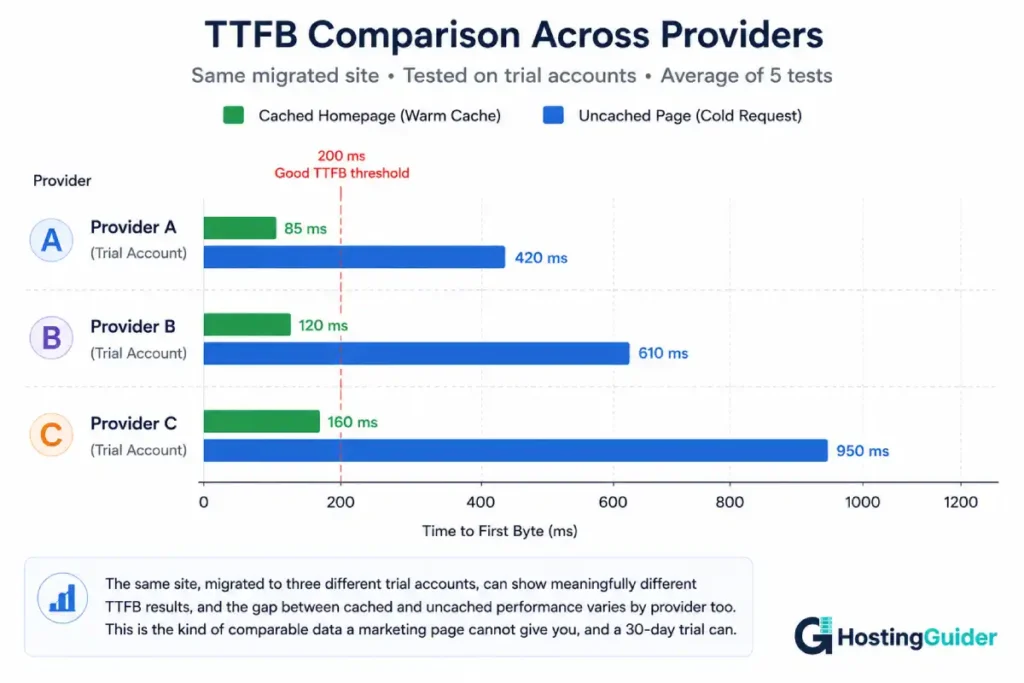
Before signing up, decide what “pass” and “fail” look like for each check in this guide. Vague impressions (“it feels fast”) are not useful for comparing providers. Specific numbers (TTFB under 200ms, a specific pm.max_children value, a specific load test result) are comparable across providers and across time.
Migrate a real copy of your site, not a fresh WordPress install. A fresh install with no plugins and no content will perform well on almost any hosting, and tells you nothing about how your actual site behaves. If your site is large or you are not ready to migrate the live site, a full copy (database and files) on a staging subdomain on the new host gives you realistic data without affecting your live site.
Run every check in this guide during the trial, and record the results. A simple spreadsheet with one row per provider and one column per check turns this from a series of one-off impressions into a structured comparison you can refer back to when deciding.
Be aware of what trial accounts sometimes do not represent. Some providers place trial accounts on different infrastructure than paying accounts, or apply different resource limits during a trial. Where possible, ask support directly whether the trial environment matches the paid tier you are considering, since this affects how much weight to give your trial results.
Check 1: PHP Version and PHP-FPM vs mod_php
This is the first check because it has one of the largest effects on managed WordPress hosting performance under concurrent load, and it is rarely advertised clearly.
Create a temporary file on the trial account:
echo "<?php phpinfo(); ?>" > /path/to/site/phpinfo.php
Visit it in a browser and check two things: the PHP version (WordPress performs meaningfully better on current PHP versions than on older ones, and some providers default new accounts to an older version for compatibility reasons), and the Server API value.
If Server API shows FPM/FastCGI, the provider runs PHP-FPM, which handles concurrent requests significantly more efficiently than the alternative. If it shows Apache 2.0 Handler, the provider runs mod_php, where every web server worker carries the full PHP interpreter overhead regardless of whether that specific request needs PHP. The architectural reasons this matters, including the memory math behind why it affects concurrency, are covered in detail in our guide on PHP-FPM vs mod_php.
Delete the phpinfo file immediately after checking, since it exposes server configuration details publicly.
rm /path/to/site/phpinfo.php
If the provider runs PHP-FPM, also check whether pm.max_children (or an equivalent setting, sometimes exposed in the hosting panel as “PHP workers” or “concurrent PHP processes”) is visible. A provider that publishes this number, even just in their plan comparison table, is giving you something concrete to compare, rather than asking you to trust “optimised” as a description.
Check 2: TTFB Under Realistic Conditions
Time to First Byte (TTFB) measures how long the server takes to begin sending a response, before any of the page’s content (images, CSS, JavaScript) starts loading. For a dynamic WordPress page, TTFB is dominated by server-side processing: PHP execution, database queries, and whether the page is served from cache.
Measure TTFB directly using curl:
curl -o /dev/null -s -w 'TTFB: %{time_starttransfer}s\nTotal: %{time_total}s\n' https://your-trial-site.com/
Tools like WebPageTest and GTmetrix automate this from multiple global locations. Run this multiple times, at different times of day, including during what is likely to be the provider’s peak usage hours (which roughly correlates with daytime in the regions the provider’s customer base is concentrated, often US or European business hours depending on the provider). A single fast result during a quiet period tells you less than several results across different conditions.
Test both a cached page (the homepage, requested a second time) and an uncached or rarely-cached page (a page with a contact form, a logged-in admin page, or a WooCommerce cart page if applicable), since these represent very different conditions and a provider can perform well on one while performing poorly on the other.
A meaningfully high TTFB has specific, identifiable causes at the hosting level, and testing TTFB during the trial, rather than discovering it is high after committing, is the difference between an informed decision and an unpleasant surprise on the first invoice cycle.
Check 3: Caching Configuration, Default vs Manual
Caching has one of the largest impacts on perceived managed WordPress hosting performance, and providers differ significantly in what is enabled by default versus what requires manual configuration.
Check whether full-page caching is active by default on a fresh install. Request a page twice and look for caching-related response headers:
curl -I https://your-trial-site.com/
Look for headers like X-Cache, X-LiteSpeed-Cache, cf-cache-status, or similar, depending on the provider’s stack. A HIT on the second request indicates page caching is active. If no such header appears, either caching is not active, or it is present but not exposed in headers, which is worth asking support about directly.
If a caching plugin is pre-installed (common on managed WordPress hosting), check its configuration. Is full-page caching enabled by default, or does it require activation. What is the default cache expiration time. Is object caching (Redis or Memcached, which caches database query results rather than full pages, and matters for logged-in users and dynamic content that full-page caching does not help with) available, and is it enabled or does it require a separate setup step.
Test the cache purge behaviour: update a post or page, then check how quickly the change appears for a new visitor. Some setups purge instantly; others have a delay, or require a manual purge action, which matters if you update content frequently.
The interaction between caching and the underlying server configuration compounds: a site with both full-page caching and PHP-FPM benefits more from each than either alone, because cached requests bypass PHP fully while uncached requests still benefit from PHP-FPM’s efficiency. Testing caching in isolation from Check 1 gives an incomplete picture.
Check 4: CDN Inclusion and Configuration
Many managed WordPress hosting plans include a CDN, but “includes a CDN” can mean very different things in practice, from a fully integrated, zero-configuration setup to an optional add-on requiring manual DNS changes.
Check whether a CDN is active by default:
curl -I https://your-trial-site.com/wp-content/themes/your-theme/style.css
Look at the server-related headers for indications of a CDN (a server header showing a CDN provider’s name, or CDN-specific headers like cf-ray for Cloudflare). If the headers show your hosting provider’s own infrastructure directly with no CDN indicators, static assets are being served from the origin server rather than an edge network.
If a CDN is present, check its configuration scope: is it caching only static assets (images, CSS, JavaScript), or is it configured to also cache HTML pages at the edge. Edge HTML caching delivers the largest performance improvement but requires more careful configuration (the kind covered in our guide on CDN cloud hosting configuration) to avoid serving stale or incorrect content to logged-in users.
If no CDN is included, or the included CDN is limited, factor the cost and effort of adding one yourself (Cloudflare’s free tier is a common choice) into your comparison. A provider without a CDN is not necessarily worse for managed WordPress hosting performance if you are prepared to add one, but it does mean the provider’s price comparison to a competitor that includes a CDN is not directly apples to apples.
Check 5: Finding the Real Resource Ceiling
Every managed WordPress hosting plan has resource limits, whether stated explicitly (a specific number of PHP workers, a specific amount of RAM) or implicitly (vague terms like “optimised for X visits per month” without a clear definition of what happens beyond that number).
If the plan states a specific PHP worker count or concurrent process limit, this is the most useful number for predicting how your site behaves under traffic spikes, and you can sanity-check it against your site’s actual needs: a site that, when load tested (Check 9), needs 15 concurrent PHP processes to serve 50 simultaneous visitors will struggle on a plan offering 4 PHP workers, regardless of how fast each individual request is when the server is otherwise idle.
If the plan uses vague language (“optimised for up to 100,000 visits per month”), ask support directly: what specifically happens when that number is exceeded. Is the site throttled (requests queue and slow down), suspended (the site goes offline until the next billing cycle or until you upgrade), or is the stated number actually just a marketing guideline with no hard enforcement. The answer to this question often reveals more about the plan’s real ceiling than the headline number itself.
During the trial, if your testing (Check 9) reaches a point where response times degrade sharply or errors begin appearing, that is the practical ceiling for that plan, regardless of what the marketing page states, and it is the number that matters for predicting what happens during your highest-traffic periods (a sale, a viral post, a marketing campaign).
Check 6: Staging Environment Quality
A staging environment lets you test changes (plugin updates, theme changes, major edits) on a copy of your site before they affect live visitors. Whether a provider includes this, and how well it works, affects both your ongoing workflow and, indirectly, your site’s reliability, since a good staging workflow reduces the chance of a bad update causing downtime on the live site.
During the trial, create a staging copy and test:
How long does cloning the site to staging take, and does it include both files and database. Can you push changes from staging to live selectively (files only, database only, or both), or is it all-or-nothing. Is the staging site automatically excluded from search engine indexing (a staging site that gets indexed by Google creates duplicate content issues for your live site). Does pushing staging to live require any downtime on the live site during the push.
The differences between providers’ staging implementations are significant and not always visible from a plan comparison table; testing this directly during the trial, especially if you update your site frequently, is worth the time even if staging feels like a secondary concern compared to raw speed.
Check 7: Uptime Track Record vs Guarantee
Every managed WordPress hosting provider publishes an uptime guarantee, almost always 99.9%, and the guarantee itself tells you less than you might expect about real-world reliability.
A 99.9% uptime guarantee permits 8.75 hours of downtime per year, and the SLA credit for missing it is typically a small percentage of your monthly fee, not meaningful compensation for any actual impact. The guaranteed number is a contractual floor, not a prediction.
What is more useful: the provider’s public status page, if one exists, showing the history of actual incidents over the past several months. How frequently do incidents occur, how long do they typically take to resolve, and how transparent is the communication during an incident.
During your own trial period, set up an external uptime monitor (free tiers from UptimeRobot cover this) pointed at your trial site, even for just the trial duration. A short trial period will not generate statistically meaningful uptime data on its own, but combined with the provider’s published incident history, it gives you a fuller picture than the 99.9% figure alone, and it establishes the monitoring habit you should continue regardless of which provider you choose.
Check 8: Database Performance and Limits
WordPress is database-heavy: nearly every page load involves multiple database queries, and managed WordPress hosting performance is significantly affected by database configuration that is rarely discussed on marketing pages at all.
If you have any server access (even limited access through the hosting panel), check the database version. MySQL and MariaDB versions matter for both performance and compatibility with current WordPress and plugin requirements.
Check whether the plan states any database-specific limits: a maximum database size, a maximum number of database connections, or query execution time limits. These limits matter most for sites with significant content (large product catalogues, extensive post archives) or plugins that run complex queries (advanced search, reporting plugins, certain page builders with dynamic content).
If your site has any slow-loading admin screens or front-end pages that you suspect are database-related on your current host, test the same pages on the trial account. Database query performance is sometimes the actual bottleneck behind what looks like a general hosting performance problem, and a provider with a faster or better-tuned database layer can produce a noticeable improvement on exactly these pages, even if other pages show little difference.
Check 9: Load Testing During the Trial
Everything tested so far measures performance for a single visitor, one request at a time. Load testing measures what happens when multiple visitors arrive at once, which is where the resource limits from Check 5 actually become visible.
Using Apache Bench against your trial site, run a test with gradually increasing concurrent requests:
ab -n 200 -c 10 https://your-trial-site.com/
ab -n 200 -c 25 https://your-trial-site.com/
ab -n 200 -c 50 https://your-trial-site.com/
Each command runs 200 total requests at the specified concurrency level (10, then 25, then 50). Watch the “Requests per second” figure and the “Time per request” figure across these three tests. A healthy result shows requests per second holding roughly steady (or only gradually declining) as concurrency increases. A result where requests per second drops sharply, or where error rates appear, between two concurrency levels identifies roughly where the plan’s real ceiling sits.
Test responsibly: run these tests against your trial account, be mindful that even a brief load test can affect a shared server’s other tenants if the provider’s infrastructure is not well isolated (which is itself informative), and avoid running sustained high-concurrency tests for extended periods.
For online load testing without command-line tools, services like Loader.io let you configure a similar ramping test through a web interface, which is useful if command-line access is not available on the trial account.
Compare the concurrency level where performance degrades against your site’s actual traffic patterns. A plan that handles 50 concurrent requests comfortably is very different from one that starts struggling at 15, even if both perform identically for a single visitor, and your actual traffic (check your analytics for peak concurrent sessions, not just total visits) determines which difference matters to you.
Check 10: Support Response Quality
Managed WordPress hosting performance issues, when they occur, are often resolved (or not) through support interactions, making support quality a performance factor in its own right, not a separate consideration.
During the trial, contact support with a genuinely technical question, not a generic “how do I” question that any documentation page would answer. Ask something specific to performance: what PHP-FPM pool settings are configured for your plan, whether object caching is available and how to enable it, or what the actual process is if your site exceeds the stated traffic allowance.
Note the response time, the channel (live chat, ticket, phone), and crucially, the quality of the answer. A specific, accurate technical answer indicates a support team capable of helping during an actual performance incident. A generic response that does not address the specific question, or that redirects to a documentation page that does not answer it either, is a signal about what to expect when something is actually wrong and the stakes are higher than a pre-purchase question.
If possible, ask the same question to two or three providers during their respective trials, so the comparison is direct rather than relying on a single data point that might be unusually good or bad.
The Pricing Reality Check
This is not strictly a performance check, but it directly affects whether good performance during the trial remains good performance after you commit, because the infrastructure tier you can afford may change at renewal.
Find the actual renewal price, not the introductory price shown during signup. Many managed WordPress hosting providers offer significant first-term discounts, with renewal prices substantially higher. If the performance you tested during the trial was on a plan you will downgrade from at renewal due to cost, the trial results do not represent your ongoing experience.
Check whether the resource limits (PHP workers, traffic allowances, staging availability) differ between the plan you are trialling and the plan you will actually be able to afford long-term. Testing managed WordPress hosting performance on a higher tier than you intend to pay for ongoing gives you an inflated picture of what your actual experience will be.
The Full Pre-Commit Checklist
For quick reference during your trial, here is the complete managed WordPress hosting performance evaluation checklist.
Server configuration:
- PHP version and whether PHP-FPM or mod_php is in use
pm.max_childrenor equivalent worker limit, if published or askable- Database version and any stated connection or size limits
Speed under normal conditions:
- TTFB on a cached page, measured at multiple times of day
- TTFB on an uncached or dynamic page
- Caching headers present, and cache purge behaviour confirmed
CDN:
- Whether a CDN is active by default, and what it caches (static only vs full page)
- Cost and effort to add one if not included
Capacity:
- Stated resource limits and what happens when exceeded (confirmed with support, not assumed)
- Load test results at increasing concurrency levels, and where performance degrades
Reliability:
- Provider’s public status page and incident history over the past several months
- External uptime monitor set up for your own trial-period data
Workflow:
- Staging environment: clone time, push behaviour, search engine exclusion
Support:
- Response time and answer quality to a specific technical question
Cost:
- Actual renewal price, and whether the trialled tier matches what you will pay ongoing
Frequently Asked Questions
How long should I spend evaluating managed WordPress hosting performance before committing?
A thorough evaluation using the checks in this guide typically takes a few hours of active testing spread across the available trial or refund window, plus some passive monitoring (uptime, TTFB at different times of day) that benefits from running over several days rather than all at once. A 14 to 30 day trial period is generally sufficient if you run the checks early enough to have time to act on the results (request a refund, try a different provider) before the window closes.
Is it worth migrating my actual live site to test a trial, or should I use a copy?
A full copy of your site (database and files) on a staging subdomain on the trial account gives realistic results without the risk and disruption of pointing your live domain at unproven infrastructure. The performance characteristics (PHP configuration, caching, database performance) are determined by the server and your site’s content and plugins, not by which domain is currently pointing at it, so a copy on a subdomain produces meaningful results. Reserve migrating the actual live domain for after you have completed your evaluation and decided to proceed.
What Is the Single Most Important Factor in Managed WordPress Hosting Performance?
There is no single factor that dominates for every site, because the bottleneck depends on your specific site’s characteristics. For a site with heavy plugin usage and significant logged-in user activity (membership sites, WooCommerce stores with frequent cart updates), PHP-FPM configuration and database performance tend to matter most, since full-page caching helps less for this kind of traffic. For a largely static content site (blogs, brochure sites), caching and CDN configuration tend to matter most, since most requests can be served from cache regardless of underlying PHP performance. This is exactly why testing your specific site, rather than relying on generic benchmarks, matters.
Managed WordPress Hosting Performance: Should I Trust a Provider’s Own Speed Test Results?
Treat provider-published benchmarks as a best-case illustration of the infrastructure’s capability, not a prediction of your experience. These benchmarks typically use minimal test sites, ideal network conditions, and infrastructure configurations that may differ from the plan tier you would actually purchase. They are not necessarily dishonest, but they answer a different question than “how will my site perform on my plan,” which is the question this guide’s checks are designed to answer directly.
What if a provider does not offer a trial or refund period at all?
A provider unwilling to offer any trial or money-back period for managed WordPress hosting is a less common situation among mainstream providers, but where it occurs, it removes the most effective evaluation method available. In this situation, rely more heavily on independent, recent reviews that include specific performance data (not just star ratings), the provider’s public status page history, and direct, specific pre-sales questions to support (similar to Check 10) as a substitute, while being aware that none of these fully replace testing your own site directly.
How do I compare results fairly across providers with different trial lengths or conditions?
Standardise what you can: use the same test site (or an identical copy) across every trial, run the same specific commands and load test parameters, and test at comparable times relative to each provider’s likely peak hours where possible. Record results in a single spreadsheet with one row per provider and one column per check, so the comparison is structured rather than relying on memory or impressions formed at different times under different conditions. Where trial lengths differ significantly, prioritise the checks that do not require extended observation (Checks 1 through 6 and 8 through 10) over those that benefit from longer observation (Check 7, uptime), since the latter will always be less complete on a shorter trial regardless of how it is run.