
Two WordPress sites. Identical theme, identical plugins, identical traffic. One handles a sudden spike of 200 concurrent visitors without a hiccup. The other grinds to a crawl, serving 500 errors until the spike passes.
The difference is not the hosting plan. It is not the server’s CPU or RAM. It is a single setting buried in the hosting panel that most site owners never see, and that many control panels do not make easy to find or change: whether PHP runs as mod_php or as PHP-FPM.
This is not a small technical detail. PHP-FPM vs mod_php is one of the most consequential server configuration decisions for any PHP-based website (WordPress, Joomla, Drupal, Magento, and most custom PHP applications), and it is also one of the least visible. Many shared hosting control panels still default new accounts to mod_php, with PHP-FPM available only if you know to look for it, or not available at all on lower-tier plans.
This guide explains exactly what each one does, why the performance gap is real and measurable, how to check which one your site is currently using, and how to switch if you have the access to do so.
PHP-FPM vs mod_php: What mod_php Actually Is
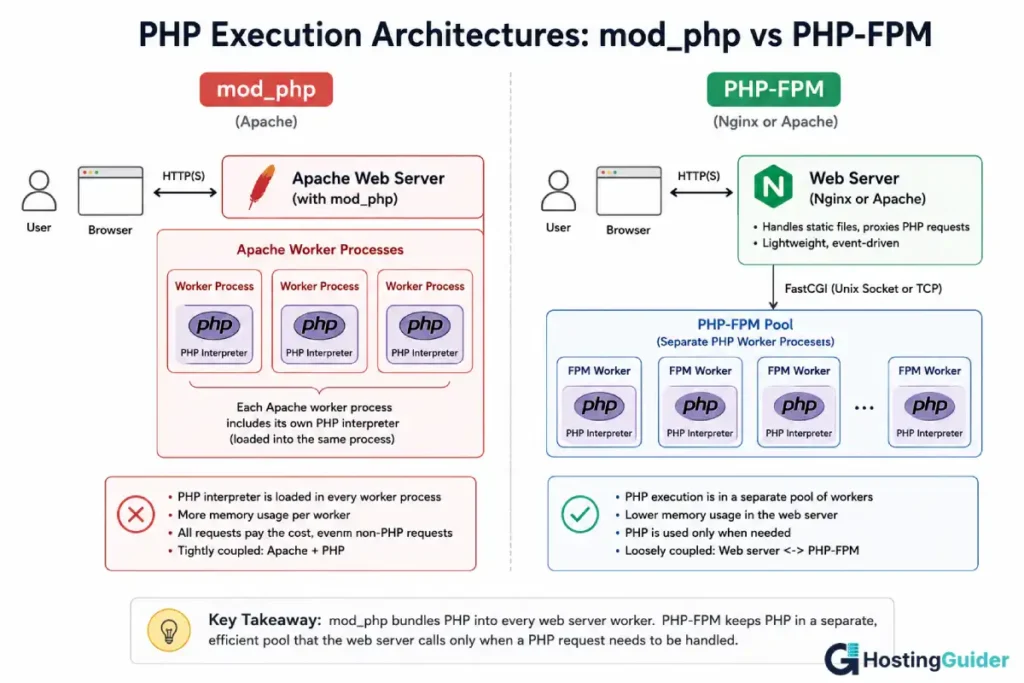
mod_php is an Apache module that embeds the PHP interpreter directly inside the Apache web server process.
When Apache starts, each worker process that Apache creates to handle incoming requests also loads a full copy of the PHP interpreter into its memory, along with every PHP extension your site uses (database drivers, image processing libraries, and so on). This happens whether or not that specific worker is currently processing a PHP request.
The architecture is simple, which is why it was the default for many years. One process handles the full request: receiving it, running the PHP code if needed, and sending the response. There is no communication between separate processes for PHP execution because PHP execution happens inside the same process as the web server.
The cost of this simplicity is memory. Every Apache worker, even one currently serving a static image or CSS file that needs no PHP at all, carries the full weight of the PHP interpreter and all loaded extensions in its memory. If Apache is configured to run 50 worker processes, and each one carries roughly 40MB of PHP overhead, that is 2GB of RAM dedicated to PHP interpreters, most of which are not running PHP at any given moment.
PHP-FPM vs mod_php: What PHP-FPM Actually Is
PHP-FPM stands for PHP FastCGI Process Manager. It separates PHP execution into its own pool of processes, fully independent of the web server.
The web server (commonly Nginx, but Apache can also use PHP-FPM through mod_proxy_fcgi) handles incoming requests. For requests that need PHP, the web server passes the request to the PHP-FPM pool over a fast local connection (a Unix socket or a TCP port). PHP-FPM processes the request, runs the PHP code, and returns the result to the web server, which sends it to the visitor.
This separation means the web server itself can be extremely lightweight. Nginx, in particular, is designed to handle a very large number of simultaneous connections with a small number of worker processes, because each connection does not need to carry a PHP interpreter. PHP-FPM, meanwhile, runs its own pool of worker processes specifically sized for PHP execution, configured independently of the web server’s connection handling.
PHP-FPM also adds process management features that mod_php does not have: you can configure how many PHP workers run, how they scale up and down based on demand, and set limits on how long a single PHP process can run before being killed, all without touching the web server’s configuration.
PHP-FPM vs mod_php: Quick Comparison
| Factor | mod_php | PHP-FPM |
|---|---|---|
| Architecture | PHP embedded in each Apache worker | PHP runs in a separate process pool |
| Web server compatibility | Apache only | Nginx, Apache (via proxy), LiteSpeed |
| Memory per static request | Full PHP overhead, even for non-PHP files | None, web server handles it directly |
| Process management | Tied to Apache’s process settings | Independent, configurable pools |
| Concurrency under load | Limited by Apache worker count and memory | Scales more efficiently |
| Opcache sharing | Per worker process | Shared across FPM pool |
| Restart impact | Restarting Apache restarts PHP too | PHP-FPM can restart independently |
| Multiple PHP versions | Difficult (one PHP per Apache instance) | Easy (multiple FPM pools, different versions) |
| Configuration complexity | Simple, fewer moving parts | More configuration options |
| Typical hosting panel default | Often still the default | Often requires manual selection |
| Performance under concurrent load | Degrades faster | Holds up significantly better |
PHP-FPM vs mod_php: Why the Performance Gap Is Real
The performance difference between PHP-FPM vs mod_php is not theoretical. It comes down to memory, and memory determines how many requests a server can handle at once before it runs out of capacity and starts queuing or rejecting connections.
Consider a server with 2GB of RAM available for the web server and PHP combined, after accounting for the operating system, database, and other services.
Under mod_php with Apache’s prefork MPM (the configuration mod_php requires), each Apache worker process loads PHP and its extensions. A realistic figure for a WordPress site with a typical plugin set is 40MB to 80MB per worker process, depending on which extensions are loaded. With 2GB available, that server can run somewhere between 25 and 50 Apache workers before running out of memory. Each worker handles exactly one request at a time, whether that request is a PHP page, a CSS file, an image, or anything else.
If 50 visitors load a page at the same time, and each page load involves the HTML plus 10 additional asset requests (images, CSS, JavaScript), that is potentially 550 simultaneous requests. With only 25 to 50 workers available, most of those requests queue, and visitors experience slow loading or timeouts, even though the actual PHP processing for each page might take only 200 milliseconds.
Under PHP-FPM with Nginx, Nginx handles the 550 simultaneous connections itself, using a small number of worker processes (often just 2 to 4, regardless of connection count, because Nginx is event-driven rather than process-per-connection). Nginx serves the static assets (images, CSS, JavaScript) directly without involving PHP at all. Only the actual PHP page requests, a much smaller subset of the 550, get passed to the PHP-FPM pool.
With the same 2GB of RAM, because PHP-FPM workers are only needed for actual PHP execution (not for serving static files), and because Nginx’s connection handling is far more memory-efficient than Apache’s prefork model, the same server can comfortably handle the 550 simultaneous connections, with PHP-FPM workers sized appropriately for the actual PHP request volume rather than the total connection count.
This is the core of the performance gap: mod_php ties your concurrency limit to your total memory divided by the cost of a PHP-loaded process, for every single request including static files. PHP-FPM ties your concurrency limit to your total memory divided by the cost of handling a connection (very cheap with Nginx) for most requests, and only pays the PHP cost for requests that actually need PHP.
PHP-FPM vs mod_php: How to Check Which One Your Site Is Using
You can determine which setup your site is running with a few simple checks.
The fastest method: create a small PHP file that displays the PHP configuration.
echo "<?php phpinfo(); ?>" > /path/to/your/website/phpinfo.php
Visit https://yourdomain.com/phpinfo.php in a browser. Look for the “Server API” value near the top of the page.
If it says Apache 2.0 Handler or simply apache2handler, your site is running mod_php.
If it says FPM/FastCGI or FastCGI/FPM, your site is running PHP-FPM.
Important: delete this file immediately after checking. A phpinfo() page publicly exposes detailed information about your server configuration, including paths, loaded modules, and sometimes environment variables, which is useful information for an attacker. Remove it as soon as you have the information you need.
rm /path/to/your/website/phpinfo.php
If you have server access, you can also check directly. Look for running PHP-FPM processes:
ps aux | grep php-fpm
If this returns several php-fpm processes (typically a master process and several worker processes), PHP-FPM is running on the server, though this does not guarantee your specific site is configured to use it if multiple PHP configurations exist on the same server.
Check your web server configuration directly. For Nginx, look at your site’s configuration file for a reference to a PHP-FPM socket or port:
grep -r "fastcgi_pass" /etc/nginx/sites-enabled/
If you see a line like fastcgi_pass unix:/run/php/php8.2-fpm.sock; or fastcgi_pass 127.0.0.1:9000;, your Nginx configuration is passing PHP requests to PHP-FPM.
For Apache, check whether mod_php is loaded:
apache2ctl -M | grep php
If this shows a module like php8_module or php_module, mod_php is active. If it shows nothing, or if you instead see proxy_fcgi_module enabled alongside a PHP-FPM configuration, Apache is using PHP-FPM through a proxy rather than mod_php directly.
PHP-FPM vs mod_php: Benchmarking the Difference Yourself
If you want to see the difference rather than take it on description alone, a basic load test demonstrates it clearly. This requires a server you can configure (a VPS, not typical shared hosting, since shared hosting does not let you switch the PHP handler for comparison).
Install a simple benchmarking tool:
sudo apt install apache2-utils -y
This installs ab (Apache Bench), a basic but effective load testing tool. For a more modern alternative, wrk simulates higher concurrency more realistically.
Run a test against your site with 100 total requests, 20 of them concurrent:
ab -n 100 -c 20 https://yourdomain.com/
The output includes a line for “Requests per second” and “Time per request.” Run this test against the same page configured under mod_php, then reconfigure the same site to use PHP-FPM (covered in the next section) and run the identical test again.
For a more realistic test that better represents real-world traffic with many concurrent users, wrk is a more modern tool that can simulate higher concurrency:
sudo apt install wrk -y
wrk -t4 -c100 -d30s https://yourdomain.com/
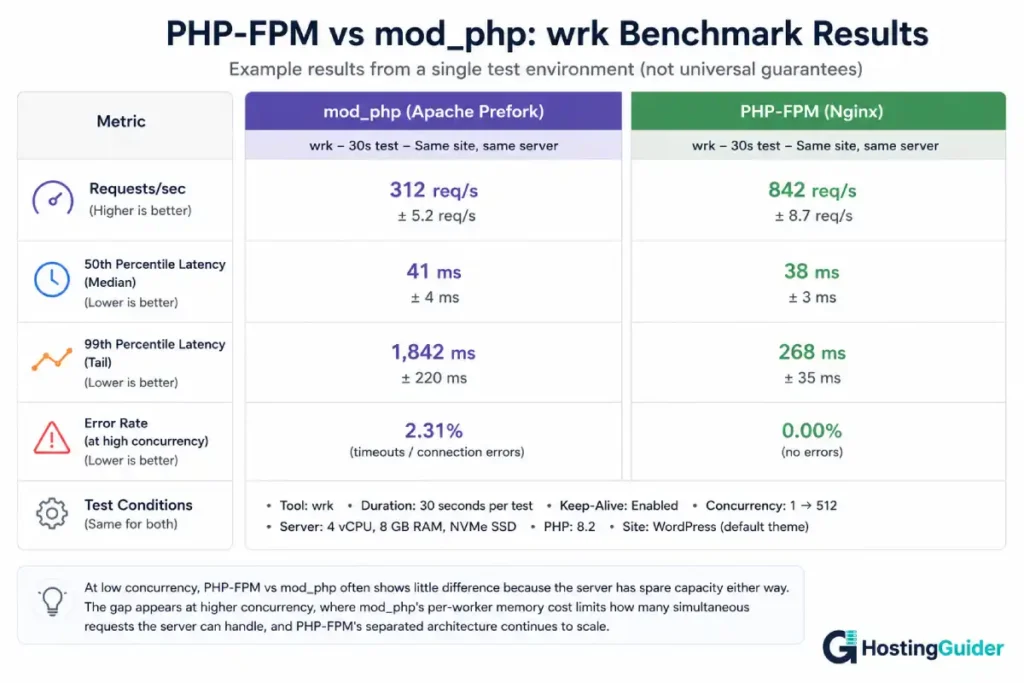
This runs a 30-second test with 4 threads and 100 concurrent connections. Watch the “Requests/sec” figure and, more importantly, the latency distribution, particularly the higher percentiles (90th, 99th). Under mod_php at this concurrency level on a memory-constrained server, you will typically see the requests per second figure plateau or drop, and the higher-percentile latencies climb sharply, as requests start queuing for available Apache workers. Under PHP-FPM with Nginx on the same hardware, the requests per second figure typically holds steadier, and the latency distribution stays more consistent across percentiles.
A note on benchmarking responsibly: run these tests against your own server, and be aware that even a modest load test can affect a live site’s performance for real visitors during the test. Running tests during low-traffic periods, or against a staging copy of the site on the same server specification, gives you a cleaner comparison without affecting real users.
PHP-FPM vs mod_php: Why Hosting Panels Default to mod_php
If PHP-FPM is faster under load, why do so many hosting panels still default to mod_php, or make it the only option on lower-tier plans?
Historical inertia. mod_php has been the standard configuration for Apache-based PHP hosting for a very long time. Many hosting control panels, particularly cPanel installations configured with Apache and the EasyApache build system, were built around mod_php as the default, and switching the default for existing infrastructure and existing customer configurations is a significant undertaking for a hosting provider.
Simplicity of support. mod_php has fewer moving parts. There is no separate PHP-FPM service to monitor, no socket or port configuration to get right, and no separate pool configuration per site. For a hosting provider supporting a very large number of accounts with a small support team, fewer moving parts per account means fewer support tickets related to PHP configuration issues.
.htaccess compatibility. Some PHP configuration directives that site owners are used to setting through .htaccess files (a common method on shared hosting where users do not have access to server-level configuration) work differently or not at all under PHP-FPM, depending on how the FPM pool is configured. Hosting providers that have built their support documentation and customer-facing tools around .htaccess-based PHP configuration sometimes find it simpler to keep mod_php as the default rather than rebuild that tooling.
Per-account isolation models. Some hosting providers use Apache’s mod_php specifically because of how it integrates with per-account user and permission models (such as Apache’s suexec or ITK MPM) that some panel-based hosting environments rely on for isolating customer accounts on shared servers. Reconfiguring this for PHP-FPM, while very possible and done by many providers, requires deliberate architectural work.
The honest summary: PHP-FPM is not used less because it is worse. It is used less by default on some hosting panels because mod_php was the original default, and changing defaults at scale across a hosting provider’s entire customer base is operationally significant, even when the destination configuration is better. Many premium managed WordPress hosts (and increasingly, mainstream shared hosting providers) have made the switch, but it is not universal, and on panels where it is available, it is sometimes an opt-in setting rather than the default.
PHP-FPM vs mod_php: How to Switch to PHP-FPM Step by Step
If you have root or sudo access to your server (typical on a VPS, not typical on shared hosting), here is how to switch from mod_php to PHP-FPM with Nginx, which is the most common and most beneficial combination.
This assumes you currently have Apache with mod_php and want to move to Nginx with PHP-FPM. If you are already on Nginx but somehow running PHP through CGI or another method, the PHP-FPM installation steps still apply; you would skip the Apache removal.
Step 1: Install PHP-FPM. Install the PHP-FPM package matching your PHP version, along with common extensions your application needs.
sudo apt install php8.2-fpm php8.2-mysql php8.2-curl php8.2-gd php8.2-xml php8.2-mbstring -y
Adjust the PHP version number and extension list to match your application’s requirements.
Step 2: Install Nginx if not already present.
sudo apt install nginx -y
Step 3: Configure a PHP-FPM pool. The default pool configuration is usually adequate as a starting point. Check the pool file:
sudo nano /etc/php/8.2/fpm/pool.d/www.conf
Note the listen directive, typically /run/php/php8.2-fpm.sock. This is the socket Nginx will connect to.
Step 4: Configure Nginx to pass PHP requests to PHP-FPM. Edit your site’s Nginx configuration:
sudo nano /etc/nginx/sites-available/yourdomain.com
Add a location block for PHP files within your server block:
location ~ \.php$ {
    include snippets/fastcgi-php.conf;
    fastcgi_pass unix:/run/php/php8.2-fpm.sock;
}
The snippets/fastcgi-php.conf file is included with most Nginx installations on Ubuntu and contains standard FastCGI parameters. If it does not exist, the necessary parameters can be added directly, but using the snippet is simpler.
Step 5: Start and enable PHP-FPM.
sudo systemctl start php8.2-fpm
sudo systemctl enable php8.2-fpm
Step 6: Test and reload Nginx.
sudo nginx -t
sudo systemctl reload nginx
Step 7: If migrating from Apache, stop Apache to free the ports Nginx now needs, or reconfigure Apache to run on different ports if you need both temporarily during migration.
sudo systemctl stop apache2
sudo systemctl disable apache2
Step 8: Verify using the phpinfo check from earlier in this guide. The Server API should now show FPM/FastCGI.
A note on migration risk: switching web servers and PHP handlers on a live site carries real risk of misconfiguration causing downtime. Test this on a staging copy of the site first if at all possible. Configuration that worked under Apache’s .htaccess (rewrite rules, custom headers, access restrictions) needs to be translated to Nginx configuration syntax, which is different. Our guide on cloud hosting architecture for WordPress at scale covers the broader architecture considerations when making infrastructure changes like this for a production WordPress site.
If you are not comfortable performing this migration yourself, this is exactly the kind of task where the skills required for self-managed VPS hosting become relevant. If those skills are not in-house, choosing a managed WordPress host that already runs PHP-FPM by default avoids the need to perform this migration at all.
PHP-FPM vs mod_php: Tuning PHP-FPM Once It Is Running
Installing PHP-FPM with default settings is an improvement over mod_php, but the real performance gains come from tuning the pool configuration to match your server’s resources and your application’s behaviour.
The most important setting is pm.max_children, which controls the maximum number of PHP-FPM worker processes. Set this too low, and the server has spare memory it is not using, with requests queuing unnecessarily. Set it too high, and too many workers can be spawned under load, exhausting server memory and causing the kind of failure PHP-FPM is supposed to prevent.
Calculate a starting point: determine the average memory usage of a single PHP-FPM worker under your application’s typical load.
ps -ylC php-fpm8.2 --sort:rss
This shows memory usage (RSS column, in kilobytes) for each PHP-FPM worker process. Take an average figure, say 50MB per worker as an example.
Determine how much RAM you can dedicate to PHP-FPM, after accounting for the operating system, the database (if on the same server), Nginx, and any other services. If you have 4GB total and reserve 1.5GB for everything else, that leaves 2.5GB for PHP-FPM.
pm.max_children = available_memory_for_php / average_worker_memory
pm.max_children = 2500MB / 50MB = 50
Edit the pool configuration:
sudo nano /etc/php/8.2/fpm/pool.d/www.conf
Set the relevant values:
pm = dynamic
pm.max_children = 50
pm.start_servers = 10
pm.min_spare_servers = 5
pm.max_spare_servers = 15
pm = dynamic lets the number of workers scale between the minimum and maximum based on demand, which is appropriate for most sites with variable traffic. pm.start_servers is how many workers start when PHP-FPM launches. pm.min_spare_servers and pm.max_spare_servers define the range PHP-FPM tries to maintain as idle, ready workers.
Restart PHP-FPM to apply changes:
sudo systemctl restart php8.2-fpm
Also consider pm.max_requests, which restarts a worker after it has handled a set number of requests. This guards against gradual memory leaks in long-running PHP processes:
pm.max_requests = 500
A worker restarting after 500 requests has negligible performance impact but prevents a slow memory leak from a poorly written plugin from gradually consuming all available memory over days of uptime.
Finally, ensure opcache is enabled and properly sized. Opcache caches compiled PHP code in shared memory, which benefits PHP-FPM particularly because the cache is shared across the entire worker pool, unlike mod_php where caching behaviour can be less consistent across separate Apache worker processes. Check your php.ini:
grep -A 5 "\[opcache\]" /etc/php/8.2/fpm/php.ini
Ensure opcache .enable=1 and opcache.memory_consumption is set to a reasonable value (128MB is a common starting point for a WordPress site with a typical plugin count).
PHP-FPM vs mod_php: When mod_php Is Still Acceptable
This guide makes the case for PHP-FPM clearly, but mod_php is not universally wrong, and there are situations where the difference matters less.
Very low-traffic sites. A personal blog or small brochure site with a handful of visitors per day will rarely experience the concurrency conditions where the architectural difference becomes visible. The server has more than enough spare capacity under either configuration.
Sites where you have no control over the configuration. On many shared hosting plans, the PHP handler is determined by the hosting provider, and individual site owners cannot change it. In this situation, the practical takeaway from this guide is less “switch to PHP-FPM yourself” and more “consider whether your hosting provider’s PHP-FPM availability should be a factor in your hosting choice,” particularly when evaluating an upgrade or a move to a new provider.
Legacy applications with specific mod_php dependencies. Some older PHP applications, or applications that rely on specific Apache module interactions that only work cleanly with mod_php (certain authentication modules, for example), may require more work to migrate than the performance benefit justifies for a low-traffic internal tool.
For the large majority of production websites, particularly anything running WordPress, WooCommerce, or any PHP application expecting real visitor traffic, the case for PHP-FPM is strong enough that it is worth treating as close to a default best practice rather than an optional optimisation.
PHP-FPM vs mod_php: What This Means for WordPress Specifically
WordPress is the most common application affected by the PHP-FPM vs mod_php decision, simply because of how widely it is used.
WordPress sites are particularly sensitive to this difference for a specific reason: a large portion of a typical WordPress page load consists of static assets (theme CSS and JavaScript, images, fonts) alongside the actual dynamic PHP-rendered content. Under mod_php, every one of those static asset requests still occupies an Apache worker carrying the full PHP interpreter overhead, even though PHP never executes for that request. Under PHP-FPM with Nginx, those static requests are served directly by Nginx, which is dramatically more efficient at this, freeing PHP-FPM workers to handle only the requests that actually need PHP: the main page render, AJAX calls, and admin-ajax.php requests that WordPress and many plugins rely on heavily.
This is also why caching has such a significant impact on WordPress performance: a full-page cache means even the PHP-rendered portion of a page can be served as a static file on repeat requests, compounding the benefit of PHP-FPM’s efficient static file handling. The two optimisations work together rather than substituting for each other.
For WordPress sites specifically, fixing TTFB at the hosting level and the PHP-FPM vs mod_php configuration are closely related: a large part of TTFB on a dynamic WordPress request is the time PHP takes to start processing, and PHP-FPM’s persistent worker pool (which keeps PHP processes warm and ready, rather than mod_php’s workers which carry PHP regardless of whether they were recently used for PHP) contributes directly to faster TTFB under PHP-FPM in many configurations.
When evaluating managed WordPress hosting providers, checking whether PHP-FPM is the standard configuration (and ideally checking the pm.max_children and related settings if the provider publishes them) is one of the more meaningful technical signals available, even for a non-technical site owner, because it reflects whether the provider’s infrastructure decisions are optimised for the realistic traffic patterns of a WordPress site.
Frequently Asked Questions
PHP-FPM vs mod_php: Is PHP-FPM Always Faster?
For any site with meaningful concurrent traffic, yes, PHP-FPM is faster in practice because of how it separates static file serving from PHP execution and because of its more efficient memory usage under load. For a very low-traffic site where the server never approaches its concurrency limits under either configuration, the measurable difference may be small because neither configuration is under enough pressure to reveal the architectural gap. The performance difference is most visible under concurrent load, not in single-request response times on an idle server.
PHP-FPM vs mod_php: Can I Switch on Shared Hosting?
It depends fully on your hosting provider. Some shared hosting control panels (certain cPanel configurations, for example) include a PHP version and handler selector where PHP-FPM may be available as an option alongside mod_php. Others do not expose this choice to individual accounts at all, with the PHP handler determined at the server level by the hosting provider. If your control panel does not show a PHP-FPM option, contacting your host’s support to ask whether it is available, even if not exposed in the interface, is worth doing before assuming it is not possible.
Does PHP-FPM work with Apache, or only Nginx?
PHP-FPM works with both. The most common pairing, and the one with the most efficient static file handling, is Nginx with PHP-FPM. However, Apache can also use PHP-FPM through the mod_proxy_fcgi module, which allows Apache to pass PHP requests to a PHP-FPM pool rather than processing PHP through an embedded mod_php interpreter. This configuration gets some of PHP-FPM’s process management and memory benefits while keeping Apache as the web server, which can be useful if existing .htaccess-based configuration needs to be preserved during a transition.
Will switching to PHP-FPM break my WordPress site?
The PHP execution itself works identically from WordPress’s perspective: WordPress does not know or care whether PHP-FPM or mod_php is running it. What can break during a switch is anything that depended on Apache-specific configuration, particularly .htaccess rules for rewrites, redirects, or access control, if you are also switching from Apache to Nginx as part of the change (Nginx does not read .htaccess files; equivalent rules must be added to the Nginx server configuration directly). If you switch to PHP-FPM while keeping Apache (via mod_proxy_fcgi), .htaccess compatibility is generally preserved. Testing on a staging copy before changing a production site is the safest approach regardless of which path you take.
How do I know if my current hosting plan uses PHP-FPM?
The most reliable check is the phpinfo() method described in this guide: create a temporary file containing <?php phpinfo(); ?>, visit it in a browser, look for the “Server API” value (FPM/FastCGI means PHP-FPM, Apache 2.0 Handler means mod_php), and delete the file immediately afterward. Many hosting providers also document this in their knowledge base, and some display it directly in the control panel’s PHP settings section.
What is the memory difference in practice for a typical WordPress site?
For a WordPress site with a typical plugin set (10 to 20 active plugins, a page builder, an SEO plugin, a caching plugin, and similar), a single PHP process under either mod_php or PHP-FPM might use somewhere in the range of 40MB to 100MB, depending heavily on which plugins are active and how they are coded. The key difference is not the per-process figure itself, but how many processes need to carry that cost. Under mod_php, every Apache worker carries it, including workers serving static files. Under PHP-FPM, only the PHP-FPM pool workers carry it, and Nginx workers serving static files do not. On a memory-constrained server (2GB or less), this difference can determine whether the server can handle dozens of concurrent visitors or only a handful before performance degrades.
Does using PHP-FPM mean I need to switch from Apache to Nginx?
No, though the combination of Nginx and PHP-FPM delivers the largest performance improvement because Nginx’s connection handling is itself more efficient than Apache’s for serving static content. Apache can use PHP-FPM via mod_proxy_fcgi, which captures the process management and memory benefits of PHP-FPM’s separated worker pool while keeping Apache as the web server. This is a smaller step than a full migration to Nginx and can be a reasonable intermediate improvement if a full web server migration is not practical in the near term.


