
Picking a VPS plan feels overwhelming at first. The spec sheets throw numbers at you, providers upsell aggressively, and it is hard to know what your project actually needs until it is already struggling.
The good news: you do not need to guess. Every VPS plan is built around three core resources, CPU, RAM, and storage. Once you understand what each one does and how your workload uses it, choosing the right plan becomes a straightforward decision.
Here is what this guide covers:
- How CPU cores, RAM, and storage each affect your server’s performance
- The right resource levels for common use cases (blogs, apps, databases, game servers)
- How to read a VPS spec sheet without being misled
- When to start small vs. when to go bigger from day one
- How to monitor usage and know when it is time to upgrade
Table of Contents
Key Takeaways
- CPU core count matters for concurrent tasks, not raw speed
- RAM is usually the first bottleneck after migrating from shared hosting
- NVMe storage is 5 to 10 times faster than SATA SSD for random I/O operations
- Shared vCPUs are cheaper but inconsistent; dedicated vCPUs are worth it for production
- Start with monitoring before upgrading; real data beats gut feeling every time
Quick Answer: How to Choose a VPS Plan
To choose the right VPS plan, match your CPU to your concurrency needs, your RAM to your software stack’s memory requirements, and your storage type to your read/write intensity. A basic WordPress site runs on 1 vCPU and 1 to 2 GB RAM with SSD storage. A medium-traffic app with a database needs at least 2 vCPUs, 4 GB RAM, and NVMe storage for reliable performance.
What a VPS Plan Actually Gives You
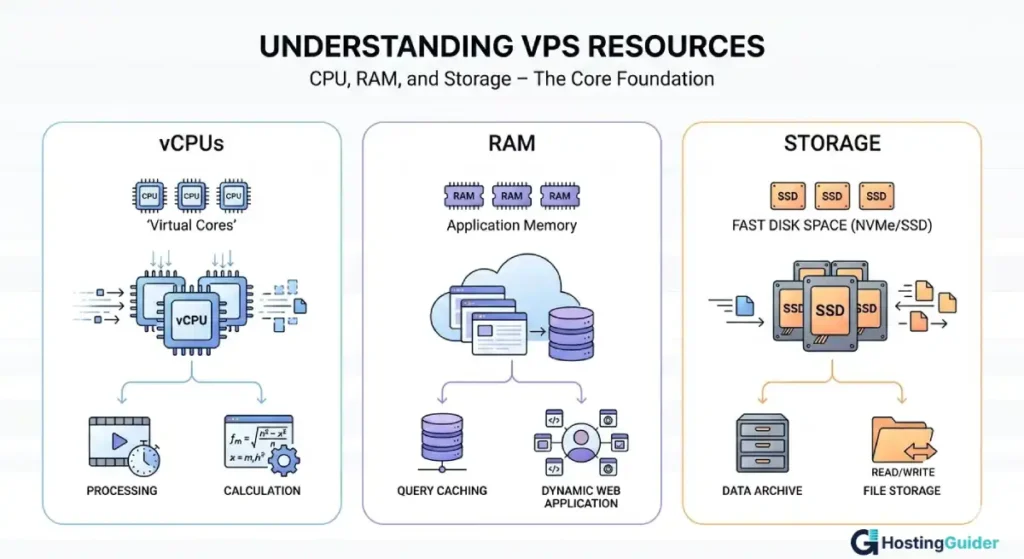
A Virtual Private Server (VPS) gives you a guaranteed slice of a physical server. Your CPU cores, RAM, and disk space are reserved for your use. Other tenants on the same hardware cannot eat into your allocation, which is the key difference from shared hosting.
Three resources define every VPS plan:
- vCPUs: Virtual processor cores assigned to your server
- RAM: Memory available for your running applications
- Storage: Disk space and, critically, the type of disk (NVMe, SSD, or HDD)
These three work together. A database-heavy app needs fast storage and plenty of RAM to cache frequently read data. A video processing job cares most about CPU cores. A basic blog barely touches any of them.
Understanding how each one behaves under load is the foundation of a good plan choice.
How to Choose the Right Number of CPU Cores
More CPU cores do not automatically mean a faster server. What matters is whether your workload is multi-threaded: can it do multiple things at the same time?
A WordPress blog mostly runs in short bursts. A page request hits PHP, pulls from the database, renders HTML, and finishes. Between requests, the CPU is idle. One vCPU handles this easily.
A Node.js API handling 300 simultaneous requests is a different story. It benefits from multiple cores because it genuinely works on many tasks in parallel.
Here is a practical starting point by use case:
| Use Case | Recommended vCPUs |
|---|---|
| Personal blog or portfolio site | 1 vCPU |
| Small business site (up to 5,000 visitors/day) | 1 to 2 vCPUs |
| WooCommerce or Magento store | 2 to 4 vCPUs |
| Node.js or Python API (medium traffic) | 2 to 4 vCPUs |
| Game server (up to 20 players) | 2 to 4 vCPUs |
| CI/CD pipelines or build servers | 4 to 8 vCPUs |
| Video transcoding or data processing | 4 to 8+ vCPUs |
One detail many buyers overlook: the difference between shared vCPUs and dedicated vCPUs.
A shared vCPU is scheduled alongside other customers on the same physical core. Your performance can vary when the host is under load, because you are competing for time on that core. These plans cost less but are inconsistent.
A dedicated vCPU is pinned to your server. Other tenants do not share it. Performance is predictable. You pay more, but for production apps, APIs, or e-commerce stores where slowdowns cost you money, dedicated cores are the right call.
AWS’s EC2 instance type documentation illustrates how dedicated compute options differ from burstable ones. The same logic applies across all major VPS providers.
How Much RAM Do You Actually Need?
RAM is the resource most beginners underestimate. Here is why it matters so much.
Every service you run on your VPS loads into memory. Your web server (Nginx or Apache), your application runtime (PHP-FPM, Node.js, Python), your database (MySQL or PostgreSQL), and your caching layer (Redis or Memcached) all share the same pool of RAM.
When that pool fills up, your server starts using swap space on disk. Swap is slow. Disk reads happen in milliseconds. RAM reads happen in nanoseconds. The moment your server starts swapping under load, performance drops sharply and can spiral into timeouts.
The practical rule: size your RAM so that all your running services fit comfortably with 20 to 30 percent headroom remaining.
Here is a stack-by-stack reference:
| Stack | Minimum RAM | Comfortable RAM |
|---|---|---|
| Static HTML + Nginx | 512 MB | 1 GB |
| WordPress (Nginx + PHP + MySQL) | 1 GB | 2 GB |
| WordPress with WooCommerce | 2 GB | 4 GB |
| Laravel or Django + database | 2 GB | 4 GB |
| Node.js API + Redis | 1 GB | 2 GB |
| MySQL or PostgreSQL (standalone) | 2 GB | 4 to 8 GB |
| Docker with 3 to 5 containers | 2 GB | 4 GB |
| Redis cache server | 512 MB | 1 to 2 GB |
One useful habit: check the official documentation for every major piece of software in your stack. MySQL, for example, can be configured to use as little as 256 MB or several GB depending on your InnoDB buffer pool size setting. Knowing these baselines lets you plan accurately.
SSD vs NVMe vs HDD: Which Storage Type Is Right for You?
Storage size gets most of the attention on spec sheets. Storage type is what actually determines performance.
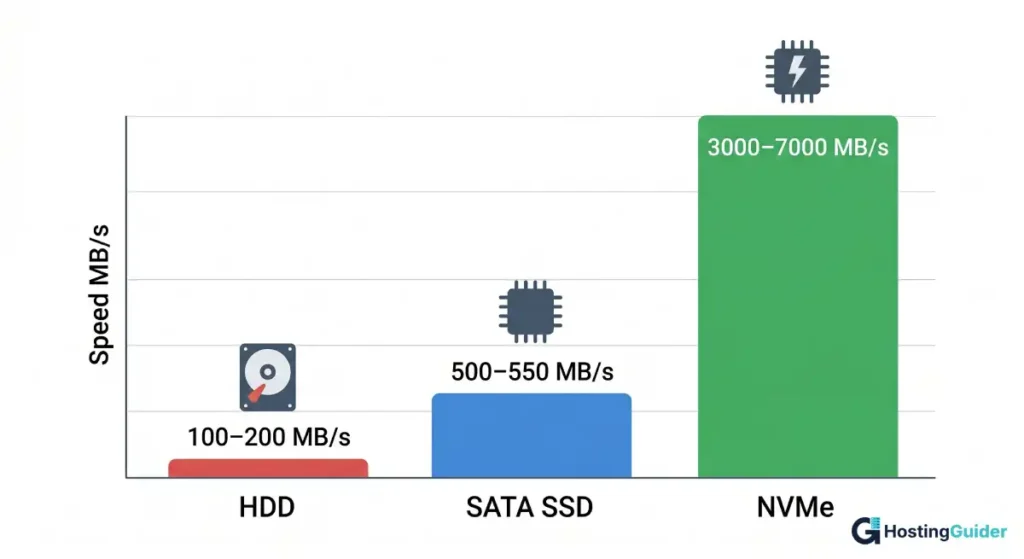
HDD storage is mechanical. Some budget VPS providers still offer it. Sequential read speeds sit around 100 to 200 MB per second. Avoid HDD for any production workload. The latency is too high for anything database-driven.
SATA SSD storage is the current standard on most mid-tier VPS plans. It uses flash memory, has no moving parts, and handles random reads far better than HDD. Expect 500 to 550 MB per second sequential reads, with strong random I/O.
NVMe storage connects directly to the CPU through PCIe lanes, bypassing the SATA controller entirely. Sequential read speeds commonly reach 3,000 to 7,000 MB per second. More importantly, NVMe delivers dramatically lower latency on the random read/write operations that databases perform constantly. According to Google Cloud’s compute documentation, local NVMe storage reduces I/O latency significantly compared to standard persistent disk options, which matters most for read-heavy and write-heavy database workloads.
When does storage type actually change your results?
- Databases (MySQL, PostgreSQL, MongoDB): NVMe makes a real, measurable difference in query speed under load
- High-traffic dynamic sites: Serving many small files with frequent database reads benefits from fast random I/O
- Log-heavy applications: Apps writing to disk constantly perform better on NVMe
- Static site hosting: Paired with a CDN, storage speed matters very little here
- Dev and staging environments: SATA SSD is completely adequate
If your provider offers NVMe at a modest price premium, take it for any production app running a database. The performance gap is not marginal.
Matching VPS Specs to Real-World Use Cases
WordPress Blog or Small Business Website
A WordPress site with a caching plugin (W3 Total Cache, WP Rocket, or similar) and an optimized database runs well on:
- 1 vCPU
- 1 to 2 GB RAM
- 20 to 40 GB SSD storage
Add WooCommerce and that minimum RAM jumps to 2 GB. Checkout pages hit the database hard, and PHP workers multiply under even moderate traffic.
SaaS Application or Web App
A medium-traffic app running Laravel, Django, or Rails, with a few thousand active users, typically needs:
- 2 to 4 vCPUs
- 4 to 8 GB RAM
- 50 to 100 GB NVMe storage
If your app and database share the same VPS, plan for more RAM than either would need alone. Separation of concerns (app server plus database server) becomes worth it once you scale past a few thousand daily active users.
Development or Staging Server
Dev environments are forgiving. You can start lean:
- 1 to 2 vCPUs
- 2 GB RAM
- 30 to 40 GB SSD
The DigitalOcean community’s tutorials on development server setup provide useful baselines for configuring common stacks on modest VPS plans.
Game Server
The resource needs vary heavily by game and player count. A Minecraft Java server for 10 players needs:
- 2 vCPUs
- 4 GB RAM (the Java runtime alone wants 2 to 3 GB)
- 20 to 40 GB SSD
A Counter-Strike 2 server for 16 players runs on 2 vCPUs and 2 GB RAM. Always check the official documentation for your specific game engine, as requirements differ significantly.
VPN or Proxy Server
These are light on CPU and RAM:
- 1 vCPU
- 512 MB to 1 GB RAM
- 10 to 20 GB SSD
Bandwidth and network port speed matter far more than compute here. Check your provider’s transfer limits carefully.
What to Check Beyond CPU, RAM, and Storage
Three factors often get buried in the fine print.
Bandwidth and data transfer limits: Most VPS plans include a monthly transfer cap. Exceed it and you pay overage fees or get throttled. A media-heavy site or streaming service can hit 1 TB in days.
Network port speed: Look for 1 Gbps or higher. This affects file transfer speeds, API response times under load, and the experience of users globally.
Data center location: Put your server close to your primary audience. A server in Frankfurt will feel noticeably slow to users in Sydney. Most providers let you select a region at signup, and some offer multiple locations for the same price.
Scalability path: Can you resize in place with a reboot, or do you have to spin up a new VPS and migrate everything? This distinction matters when you need to scale quickly under pressure.
The Linux Foundation’s resources on cloud infrastructure cover the broader architecture decisions worth understanding before you commit to a provider long-term.
How to Avoid Overspending on a VPS Plan
The most expensive VPS plan is not the best one. It is the one you cannot justify with real usage data.
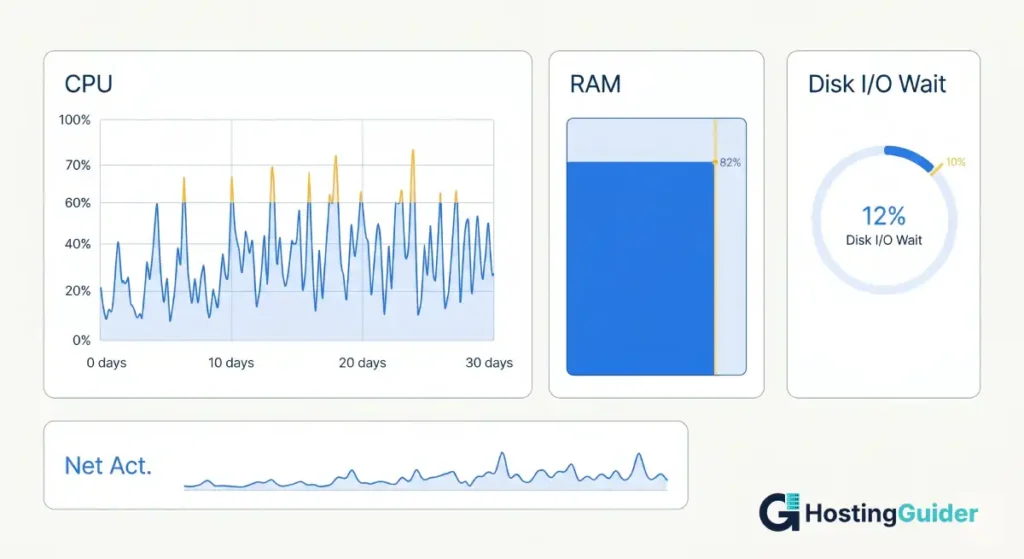
Start small and monitor from day one. Install a lightweight monitoring tool: Netdata, htop, Glances, or your provider’s built-in dashboard. Track CPU usage percentage, RAM usage percentage, disk I/O wait, and network throughput over a full 30-day period that includes your typical traffic patterns.
Upgrade when you see these signals consistently, not occasionally:
- CPU sustained above 70 to 80 percent: Add more cores
- RAM usage above 85 percent: You are close to swapping; upgrade soon
- Disk I/O wait above 10 to 15 percent: Storage is becoming a bottleneck
- Response times climbing without traffic changes: Check all three metrics above
NIST’s Computer Security Resource Center documents server performance benchmarking standards used in enterprise environments. The principles behind those benchmarks apply here: measure first, scale second.
A $6 VPS with proper caching and a CDN in front can handle more traffic than a $40 VPS running a poorly optimized stack. Optimize before you scale.
Common Mistakes When Choosing a VPS Plan
These come up repeatedly, especially with first-time buyers.
Overbuying storage: Most websites and apps use far less disk than their owners expect. A WordPress site with hundreds of posts and a moderate image library typically uses 5 to 15 GB. Storage is cheap, but it is almost never the first limit you hit. Do not pay for 500 GB when you need 40 GB.
Ignoring storage type: Choosing a large HDD plan over a smaller NVMe plan is almost always the wrong trade for any app with a database layer.
Skipping backups: Many VPS plans do not include automated backups by default. Budget for this separately or choose a provider that includes it. A single disk failure without a backup can cost you everything.
Picking on price alone: Cheap plans sometimes come with oversold hosts, slow support, and poor uptime. Read third-party reviews and check uptime history. A $2 difference per month is irrelevant if your site goes down unpredictably.
Not testing during the refund window: Most providers offer 7 to 30 days to get a refund. Deploy your real application, run actual tests, and check performance before you commit long-term.
Frequently Asked Questions
How many vCPUs do I need for a VPS?
For most blogs, small business sites, and personal projects, one vCPU is enough. Move to 2 vCPUs if you are running a database on the same server or handling several thousand daily visitors. Use 4 or more vCPUs when your workload is genuinely parallel: APIs under sustained load, game servers with many players, or data processing pipelines. More cores only help when your software actually uses them.
What is the minimum RAM for a VPS running WordPress?
WordPress with a caching plugin can function on 1 GB of RAM, but performance headroom is thin. Two gigabytes is the practical starting point because it gives PHP workers and MySQL enough memory to run without spilling into swap. Add WooCommerce and your minimum becomes 2 GB, with 4 GB recommended as traffic grows. Check your actual RAM usage in the first 30 days and scale from there.
Is NVMe storage worth the extra cost on a VPS?
For most production workloads, yes. NVMe is 5 to 10 times faster than SATA SSD on random read and write operations, which is the type of I/O databases perform constantly. The performance difference is measurable in real applications running MySQL, PostgreSQL, or MongoDB. For a static site or a development environment, standard SSD is completely adequate and the NVMe premium is not justified.
How do I know when my VPS plan is too small?
The clearest signals are slow page load times, CPU usage consistently above 75 to 80 percent, RAM usage above 85 percent, and disk I/O wait above 10 percent. Request timeouts under moderate traffic are a late-stage warning sign. Install a monitoring tool early, set usage alerts, and watch trends over 30 days rather than reacting to a single spike.
What is the difference between shared vCPU and dedicated vCPU?
A shared vCPU is scheduled alongside other tenants on the same physical core. Your performance varies when the host machine is busy. A dedicated vCPU is reserved for your server only. No one else competes for it. Dedicated plans cost more, but they deliver consistent and predictable performance. Choose shared vCPUs for dev servers and low-traffic sites. Choose dedicated for production apps, e-commerce stores, and anything where performance reliability matters.
Can I upgrade my VPS plan without downtime?
It depends on your provider. Some support live resizing with only a reboot required. Others require you to take a snapshot of your current server, provision a new VPS with the upgraded plan, restore from the snapshot, and update DNS. Check your provider’s upgrade process before you sign up. If zero-downtime scaling matters to you, prioritize providers that support in-place resizing.
How much disk storage does a typical website need?
Most websites need less than buyers expect. A WordPress site with several hundred posts and a standard image library uses 5 to 20 GB. An e-commerce store with a product database and order history typically uses 20 to 50 GB. Video content is the outlier: a single uncompressed HD video file can use 5 to 20 GB depending on length and bitrate. If you plan to host large media files, use an object storage service (S3-compatible providers are widely available) and keep your VPS disk for application files and databases only.
Pick Smart, Monitor Early, Scale When the Data Says So
The right VPS plan is not the most powerful one available. It is the one that matches your actual workload today with enough headroom for the next three to six months.
Start with an honest assessment of your software stack, your expected traffic, and your storage access patterns. Deploy with monitoring in place from day one. Let usage data drive your upgrade decisions. That approach saves money, keeps performance predictable, and means you never scramble to fix an undersized server mid-traffic spike.


