
Something is wrong with your VPS. Your site is down. SSH is not connecting. Your server is crawling. Your disk is full.
Do not panic.
Most VPS problems are fixable. Most have clear causes. Most have straightforward solutions.
This guide covers the most common VPS issues. Each one includes a plain-language explanation, the exact commands to diagnose the problem, and the steps to fix it.
If you have not set up your VPS yet, start with our VPS setup tutorial first. This guide assumes your server is already running.
Key Takeaways
- Most VPS problems come from a small set of recurring causes
- Always diagnose before you fix. Check logs before changing settings
- Five commands cover most common server problems
- Having a recent backup makes every problem easier to recover from
- Managed VPS providers handle most of these issues for you automatically
Quick Diagnosis: Run These First
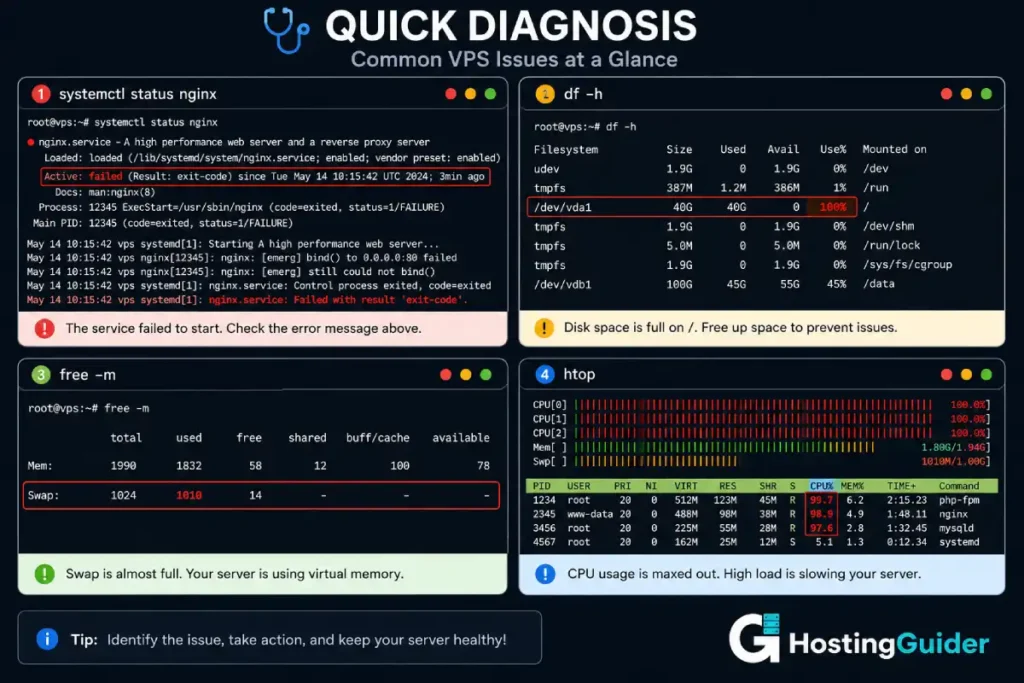
Before anything else, run these commands. They show you the current state of your server.
Check for failed services:
sudo systemctl list-units --type=service --state=failed
Check disk space:
df -h
Check RAM and swap:
free -m
Check CPU and processes:
htop
Press Q to exit htop.
Failed services appear in red. A full disk shows 100% in the Use% column. High swap usage means RAM is exhausted.
Find your specific issue below.
Issue 1: Cannot Connect via SSH
You type your SSH command. You get Connection refused or Connection timed out.
This is one of the most stressful VPS problems. There are several causes.
Check Server Status First
Log into your hosting provider’s dashboard. Check whether your VPS shows as online or offline. If it is offline, restart it from the dashboard. Wait two minutes. Try SSH again.
Use the Provider’s Emergency Console
If SSH is blocked but the server is online, use the web console. Most providers offer this as Emergency Console, VNC, or KVM in their dashboard. It gives you terminal access through a browser without needing SSH.
From the console, check the SSH service.
sudo systemctl status sshd
If it shows inactive or failed, restart it.
sudo systemctl restart sshd
Check the Firewall
Your firewall may be blocking SSH.
sudo ufw status
If SSH is not listed, add it.
sudo ufw allow ssh
sudo ufw reload
Check for the Right Port
Some servers use a non-standard SSH port. Try specifying the port directly.
ssh yourname@YOUR.IP.ADDRESS -p 2222
Replace 2222 with your actual port number.
Fix the Host Key Error
If you see WARNING: REMOTE HOST IDENTIFICATION HAS CHANGED, the server was reinstalled. Remove the old key.
ssh-keygen -R YOUR.IP.ADDRESS
Then try connecting again.
| Error Message | Likely Cause | Action |
|---|---|---|
| Connection refused | SSH not running or wrong port | Check via web console |
| Connection timed out | Firewall blocking or server offline | Check dashboard status |
| Permission denied | Wrong key or wrong user | Try with -i key path or check username |
| Remote host identification changed | Server was reinstalled | Run ssh-keygen -R YOUR.IP |
Issue 2: Website Showing 502, 503, or 504 Error
Your site shows an error page. The server is online but the website is not responding.
| Error Code | What It Means |
|---|---|
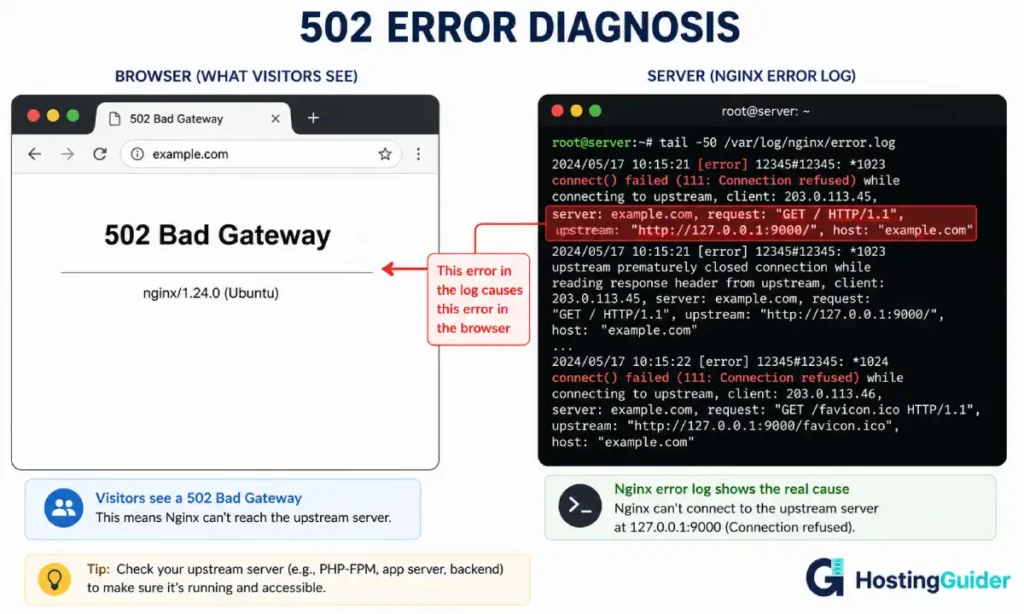
| 502 Bad Gateway | Nginx cannot reach PHP-FPM |
| 503 Service Unavailable | Server overloaded or a service stopped |
| 504 Gateway Timeout | A service took too long to respond |
Check Failed Services
sudo systemctl list-units --type=service --state=failed
Check the Nginx Error Log
sudo tail -50 /var/log/nginx/error.log
Look for connect() failed or no live upstreams. These point to PHP-FPM being down.
Restart the Affected Services
Restart PHP-FPM:
sudo systemctl restart php8.1-fpm
Restart Nginx:
sudo systemctl restart nginx
Restart MySQL:
sudo systemctl restart mysql
Test your site after each restart.
Check for Overload
A 503 often means the server is too busy.
htop
If CPU is at 100%, find the process causing it. It appears at the top of the htop list.
Kill a runaway process:
sudo kill -9 PROCESS_ID
Replace PROCESS_ID with the number shown in htop.
If overload happens regularly, your server needs more resources. Read our VPS scalability guide to understand your upgrade options.
Issue 3: High CPU Usage
Pages load slowly. htop shows CPU bars near 100%.
High CPU is caused by a runaway process, a traffic spike, or a badly written script.
Find the Culprit
Open htop. Press F6 to sort by CPU. The biggest consumer appears at the top.
| Process Eating CPU | Cause | Fix |
|---|---|---|
| php-fpm | Too many PHP requests | Enable caching |
| mysql | Slow queries | Optimise queries |
| nginx or apache2 | Traffic spike | Add caching, scale up |
| wp-cron | WordPress cron loop | Disable WP-CRON |
| unknown process | Possible compromise | Investigate immediately |
Disable WordPress Cron on the Server
WordPress cron fires on every page load. On busy servers, this creates constant CPU pressure.
Add this to your wp-config.php:
define('DISABLE_WP_CRON', true);
Then add a real server cron job.
crontab -e
Add this line at the bottom:
*/15 * * * * curl -s https://yourdomain.com/wp-cron.php?doing_wp_cron > /dev/null 2>&1
This runs WordPress cron every 15 minutes from the server instead.
Enable Page Caching
Caching reduces CPU use dramatically. Cached pages do not execute PHP on every request.
Install WP Super Cache on WordPress. Enable page caching. Enable browser caching.
Issue 4: Disk Space is Full
Files cannot upload. Database writes fail. Your site stops working entirely.
A full disk is urgent. Fix it immediately.
Confirm the Problem
df -h
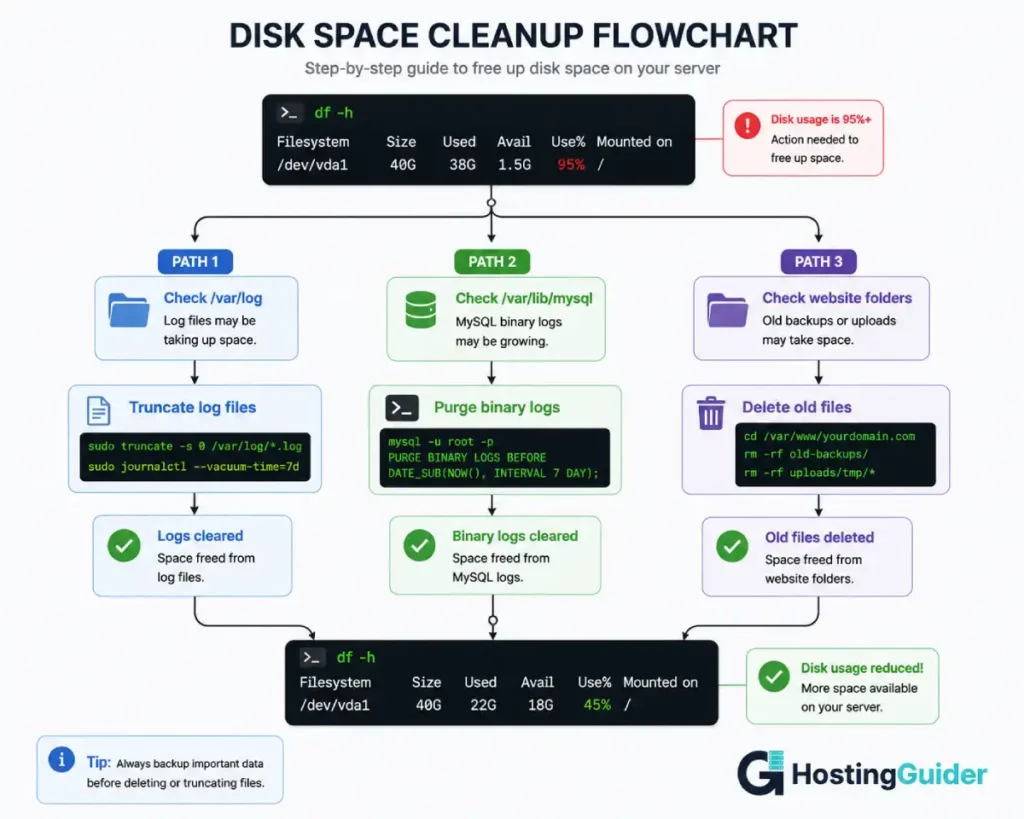
Any partition at 100% or close needs immediate action.
Find What is Taking Space
Check the largest directories:
sudo du -sh /* 2>/dev/null | sort -rh | head -20
Check the log directory specifically:
sudo du -sh /var/log/* 2>/dev/null | sort -rh | head -10
Clear Log Files
Logs are the most common cause of unexpected disk growth.
Find large log files:
sudo find /var/log -type f -name "*.log" -exec du -sh {} + | sort -rh | head -10
Clear a large log file without deleting it:
sudo truncate -s 0 /var/log/nginx/error.log
Remove Old MySQL Binary Logs
MySQL binary logs grow large. Safe to delete if you do not use replication.
sudo mysql
PURGE BINARY LOGS BEFORE '2024-01-01 00:00:00';
EXIT;
Clean Package Cache
sudo apt autoremove -y
sudo apt clean
Remove Old PHP Sessions
sudo find /var/lib/php/sessions -type f -mtime +1 -delete
Issue 5: MySQL Not Starting
Your website shows a database connection error. Visitors see Cannot connect to database.
Check MySQL Status
sudo systemctl status mysql
Check the MySQL error log:
sudo tail -50 /var/log/mysql/error.log
| Log Error Message | Cause | Fix |
|---|---|---|
| No space left on device | Disk is full | Free disk space first |
| Table is marked as crashed | Corrupted table | Run MySQL repair |
| Address already in use | Port conflict | Kill conflicting process |
| Can’t open and lock privilege tables | Permissions problem | Fix MySQL directory ownership |
Restart MySQL
sudo systemctl restart mysql
Repair Corrupted Tables
sudo mysqlcheck --all-databases --auto-repair -u root
Reduce MySQL Memory Use
On low-RAM servers, MySQL may fail to start because it cannot allocate enough memory.
sudo nano /etc/mysql/mysql.conf.d/mysqld.cnf
Add under [mysqld]:
innodb_buffer_pool_size = 128M
Use 128M for 1GB RAM servers. Use 256M for 2GB RAM servers.
Save and restart.
sudo systemctl restart mysql
Issue 6: SSL Certificate Problems
Visitors see a security warning. Your padlock shows an error. Your site loads on http but not https.
Understanding what an SSL certificate does helps you diagnose what went wrong.
Check Your Certificates
sudo certbot certificates
This shows all certificates, their expiry dates, and which domains they cover.
Renew an Expired Certificate
sudo certbot renew
If renewal fails, force it:
sudo certbot renew --force-renewal
Fix Mixed Content Warnings
A padlock with a warning means some page resources load over http instead of https.
In WordPress, go to Settings and then General. Change both site URL fields from http to https.
Install Really Simple SSL plugin. It fixes most mixed content automatically.
Certificate Does Not Cover Your Domain
Create a certificate covering both versions of your domain.
sudo certbot --nginx -d yourdomain.com -d www.yourdomain.com
Port 443 Not Open
sudo ufw allow 443
sudo ufw reload
Issue 7: Nginx Not Starting
Your web server stopped. Websites return no response at all.
Check Status and Error
sudo systemctl status nginx
Read the error in the status output. It tells you the exact cause.
Check the error log:
sudo tail -20 /var/log/nginx/error.log
Fix Configuration Syntax Errors
The most common reason Nginx fails to start is a configuration mistake.
sudo nginx -t
If the output shows a file name and line number, that is where the error is.
Open that file and look at the indicated line.
sudo nano /etc/nginx/sites-available/yourdomain.com
Common errors include:
- Missing semicolon at end of a line
- Mismatched curly braces
- Wrong file path
- Incorrect PHP socket path
Fix the error. Test again. Restart.
sudo nginx -t
sudo systemctl restart nginx
Fix Port Conflict
Another process may be using port 80.
sudo ss -tlnp | grep :80
Kill the conflicting process:
sudo kill -9 PROCESS_ID
Restart Nginx:
sudo systemctl restart nginx
Issue 8: Permission Denied Errors
WordPress cannot install plugins. File uploads fail. Error logs show permission denied.
Linux file permissions are strict. The wrong ownership stops Nginx and PHP from reading or writing files.
Check File Ownership
ls -la /var/www/yourdomain.com
Look at the owner column. Files should be owned by www-data.
Fix Ownership
sudo chown -R www-data:www-data /var/www/yourdomain.com
Fix File Permissions
Folders need 755. Files need 644.
sudo find /var/www/yourdomain.com -type d -exec chmod 755 {} \;
sudo find /var/www/yourdomain.com -type f -exec chmod 644 {} \;
For WordPress uploads:
sudo chmod -R 775 /var/www/yourdomain.com/wp-content/uploads
Issue 9: Server Running Out of RAM
Pages load slowly. PHP crashes. MySQL restarts itself. Swap usage is high.
Confirm the Problem
free -m
If the Swap row shows heavy use, your server is starved of RAM.
In htop, the memory bar near the top shows usage visually.
Find the RAM Consumers
In htop, press F6 and sort by MEM%. Biggest consumers appear at the top.
Restart Memory-Leaking Services
PHP-FPM develops memory leaks over time. Restarting it frees the leaked memory.
sudo systemctl restart php8.1-fpm
Limit PHP-FPM Worker Count
sudo nano /etc/php/8.1/fpm/pool.d/www.conf
Adjust these values for a low-RAM server:
pm = dynamic
pm.max_children = 5
pm.start_servers = 2
pm.min_spare_servers = 1
pm.max_spare_servers = 3
Save and restart:
sudo systemctl restart php8.1-fpm
Add a Swap File as a Temporary Fix
sudo fallocate -l 1G /swapfile
sudo chmod 600 /swapfile
sudo mkswap /swapfile
sudo swapon /swapfile
To make it permanent:
echo '/swapfile none swap sw 0 0' | sudo tee -a /etc/fstab
Swap is slower than RAM. It prevents crashes but does not fix the root problem. If RAM shortage is recurring, upgrade your VPS.
Issue 10: Emails Not Sending
Your contact form silently fails. Password reset emails never arrive. WooCommerce order confirmations disappear.
Check Whether a Mail Server is Running
sudo systemctl status postfix
Most VPS providers block outbound email on port 25. This is why direct email sending fails.
The Fix: Use an SMTP Relay
Do not send email directly from your VPS. Use an external SMTP service.
Good options include:
- SendGrid (free: 100 emails per day)
- Mailgun (free: 100 emails per day)
- Amazon SES (very affordable at scale)
For WordPress, install WP Mail SMTP. Enter your SMTP provider credentials. Test with the built-in email test.
Check Spam Blacklists
New VPS IP addresses are sometimes pre-listed on spam blacklists. Use MXToolbox to check your IP against major blacklists. It is free.
Contact your hosting provider if your IP is listed. They can issue a new IP address.
Issue 11: WordPress-Specific VPS Errors
White Screen of Death
A blank white page with no error message.
Enable WordPress debug mode.
sudo nano /var/www/yourdomain.com/wp-config.php
Find:
define( 'WP_DEBUG', false );
Change to:
define( 'WP_DEBUG', true );
define( 'WP_DEBUG_LOG', true );
Reload your website. The actual error now appears. Fix it. Then set WP_DEBUG back to false.
All Pages Except Home Show 404
Your Nginx configuration is missing the WordPress rewrite rule.
sudo nano /etc/nginx/sites-available/yourdomain.com
Make sure this block exists inside your server block:
location / {
    try_files $uri $uri/ /index.php?$args;
}
Save. Reload Nginx.
sudo systemctl reload nginx
WordPress Cannot Install Plugins or Update
The WordPress root or uploads folder has wrong permissions.
sudo chown -R www-data:www-data /var/www/yourdomain.com
sudo chmod 755 /var/www/yourdomain.com
For more detailed WordPress protection steps, read our guide on how to protect your WordPress site.
When to Contact Your Host
Some problems require your provider’s intervention. Know when to escalate.
| Situation | Who Handles It |
|---|---|
| Server unresponsive, no console access | Contact provider immediately |
| Hardware failure | Provider must replace hardware |
| IP address blacklisted at network level | Provider can assign a new IP |
| DDoS overwhelming your network | Provider handles at network level |
| Data centre outage | Wait for provider status update |
| Account or billing issues | Contact provider |
ScalaHosting and Cloudways both offer 24/7 support that handles server-level problems for you. If you find yourself spending significant time troubleshooting your VPS every month, a managed VPS removes most of that burden.
Prevention: Stop Problems Before They Start
| Prevention Task | How Often | Command |
|---|---|---|
| Update packages | Weekly | sudo apt update && sudo apt upgrade -y |
| Check disk space | Weekly | df -h |
| Check RAM usage | Weekly | free -m |
| Review Nginx error log | Weekly | sudo tail -50 /var/log/nginx/error.log |
| Verify SSL expiry | Monthly | sudo certbot certificates |
| Confirm backups exist | Monthly | Check provider dashboard |
| Review firewall rules | Monthly | sudo ufw status |
Read our hosting security guide for a full list of security practices that prevent many of these problems before they start.
Good website uptime is a result of good prevention habits. Set up a free monitoring tool like UptimeRobot. It checks your site every five minutes and alerts you the moment something goes wrong.
Frequently Asked Questions
What should I check first when my VPS website goes down?
Check four things in this order. First, log in to your hosting dashboard and confirm the server is online. Second, try SSH. If it works, the server is running. Third, run sudo systemctl list-units –type=service –state=failed to see which services stopped. Fourth, check sudo tail -50 /var/log/nginx/error.log for error messages. In most cases, one stopped service is the cause. Restart Nginx, PHP-FPM, or MySQL, depending on which one failed. If the server is completely unresponsive, use your provider’s emergency web console and contact their support team.
Why does my VPS keep running out of disk space?
Log files are the most common cause. Nginx access logs, MySQL binary logs, and PHP error logs can grow to gigabytes without automatic cleanup. Check your /var/log directory with sudo du -sh /var/log/*. Set up log rotation using the logrotate tool, which comes installed on Ubuntu. Also, run sudo apt autoremove and sudo apt clean regularly to remove unused packages and cached downloads. If MySQL binary logs are growing, run PURGE BINARY LOGS from inside MySQL to clear old ones.
How do I fix a 502 Bad Gateway error on Nginx?
A 502 means Nginx cannot reach PHP-FPM. Check PHP-FPM status with sudo systemctl status php8.1-fpm. If stopped, restart with sudo systemctl restart php8.1-fpm. Then reload Nginx with sudo systemctl reload nginx. If PHP-FPM is running but the 502 continues, check your Nginx configuration. The fastcgi_pass line must point to the correct PHP-FPM socket. Run sudo nginx -t to check for configuration errors. Fix any errors it finds, then restart Nginx.
How do I fix permission denied errors on WordPress?
Run sudo chown -R www-data:www-data /var/www/yourdomain.com to give Nginx and PHP ownership of your files. Then set folder permissions to 755 with sudo find /var/www/yourdomain.com -type d -exec chmod 755 {} and file permissions to 644 with sudo find /var/www/yourdomain.com -type f -exec chmod 644 {}. For the WordPress uploads folder specifically, use sudo chmod -R 775 /var/www/yourdomain.com/wp-content/uploads. These three steps fix the majority of WordPress permission errors on VPS servers.
Why is my VPS slow even though CPU and RAM look normal?
Slow pages despite normal CPU and RAM usually point to database problems. Slow database queries cause pages to wait even when the server is not stressed. Run sudo mysql -e “SHOW FULL PROCESSLIST” to see if queries are stuck. Also check whether you have a caching layer in place. Without caching, every page visit executes PHP and queries the database from scratch. Enabling page caching through a plugin or Nginx FastCGI cache often resolves slowness more effectively than upgrading server resources.
When should I consider switching to managed VPS?
Consider managed VPS when server maintenance takes more of your time than your actual work. If you spend hours each month troubleshooting SSH issues, fixing permission errors, or dealing with MySQL crashes, that time has a real cost. Managed providers like ScalaHosting handle updates, security patches, performance monitoring, and most of the issues in this guide automatically. The extra monthly cost is often less than the value of the time you get back. Read our managed vs unmanaged VPS comparison to decide which fits your situation.


