
A CDN is supposed to make your site faster. In many documented cases, misconfigured CDNs make sites measurably slower, serve stale content, break JavaScript functionality, and create redirect chains that add hundreds of milliseconds to every page load.
The frustrating part is that these problems often look like everything is working. The CDN dashboard shows green status. Traffic is flowing. Cache hit rate looks acceptable. But the site loads slower than it did before the CDN was added.
This guide covers the specific misconfigurations that produce this result, how to diagnose each one, and what to fix.
Key Takeaways
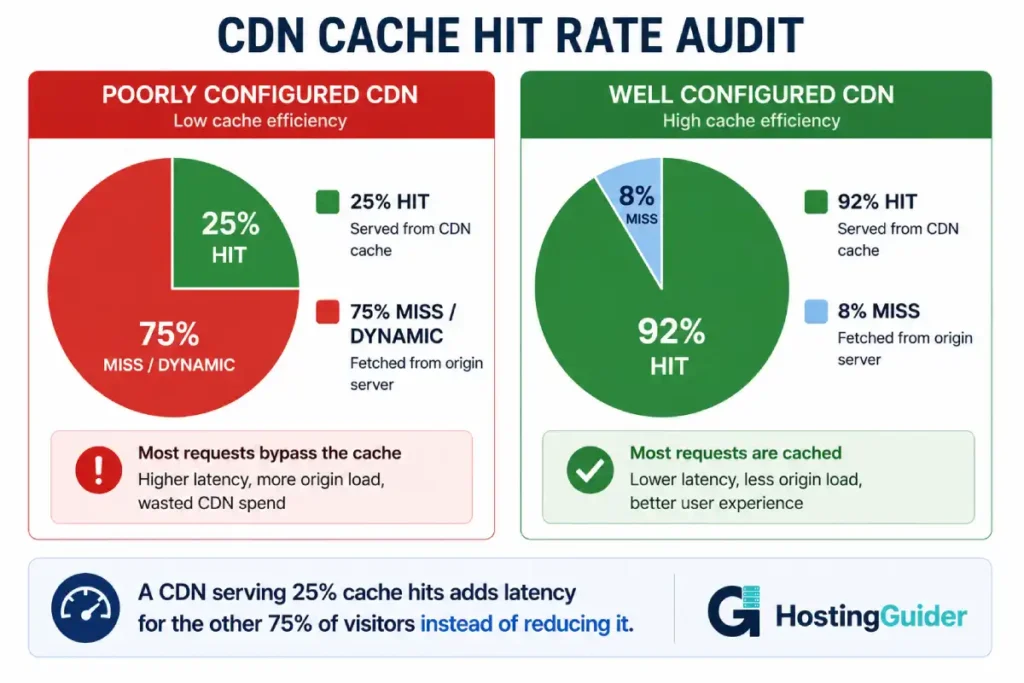
- A cache hit rate below 70 percent means the CDN is primarily acting as a slow proxy, not an accelerator
- Cookies are the most common cause of near-zero cache hit rates, and most CDN tutorials do not mention this
- Every CDN redirect adds one round trip of latency before the browser receives a single byte
- JavaScript minification, Rocket Loader, and Auto Minify can each independently break site functionality without obvious error messages
- Cache-Control headers from the origin and CDN cache rules can conflict silently, causing either no caching or incorrect caching
- Always measure before and after with identical test conditions. Visual inspection is not sufficient
How a CDN Can Add Latency Instead of Removing It
The mechanism through which a CDN is supposed to help is caching. A visitor in Tokyo requests your page. Instead of a request travelling to your London server (150ms round trip), it hits a Cloudflare edge in Tokyo (8ms round trip). The cached page returns in milliseconds.
That assumes the page is cached. When a page is not cached, the request still travels to the edge, gets forwarded to your origin in London, receives the response, sends it back to the edge, and then delivers it to Tokyo. That is the same London round trip plus the overhead of two additional network hops through the CDN infrastructure.
A CDN with a low cache hit rate is slower than no CDN for the traffic it is not caching. The uncached traffic pays extra latency for the additional routing hops.
This is why cache hit rate is the single most important diagnostic metric for a CDN. A CDN running at 30 percent hit rate is helping 30 percent of visitors and slowing down the other 70 percent. Each caching layer — browser cache, CDN edge cache, and server-side page cache — handles a different segment of that traffic, and a gap in any one of them routes requests to a slower fallback.
Diagnosing Your Real Cache Hit Rate
Before looking at specific misconfigurations, get a baseline number.
Check the CF-Cache-Status header on your pages:
curl -sI https://yourdomain.com/ | grep -i "cf-cache-status"
Run this five times and note the values:
for i in {1..5}; do
  curl -sI https://yourdomain.com/ | grep -i "cf-cache-status"
  sleep 2
done
The values you see:
| CF-Cache-Status | Meaning | Good or Bad |
|---|---|---|
| HIT | Served from CDN cache | Good |
| MISS | Not in cache, fetched from origin | First request only — acceptable |
| BYPASS | Cache intentionally skipped | Expected for admin, bad for public pages |
| DYNAMIC | CDN decided this should never be cached | Investigate why |
| EXPIRED | Was cached but TTL passed | Adjust TTL |
| REVALIDATED | Cache was validated against origin | Fine |
If a public page keeps showing MISS or DYNAMIC after multiple requests, something is preventing it from being cached.
Check the Cloudflare Analytics dashboard. Go to Analytics, then Cache. The Cache Hit Rate percentage shows how many requests were served from cache versus origin over time. Any rate below 70 percent on a content site deserves investigation.
Misconfiguration 1: Cookies Killing Your Cache Hit Rate
This is the most common and least discussed CDN problem.
When a browser sends cookies with a request, Cloudflare and most CDNs treat the request as potentially unique. If the response might vary by user, caching it would mean one user sees another user’s content. So the CDN defaults to not caching requests that carry cookies.
WordPress sets cookies for many purposes: logged-in state, comment author names, WooCommerce cart state, and dozens of plugin cookies. A visitor who has ever visited your site likely has one or more WordPress cookies in their browser. Their requests carry those cookies to the CDN. The CDN sees the cookies and bypasses cache. Every request goes to origin.
The result is a cache hit rate close to zero for returning visitors, who happen to be your most frequent and highest-value traffic.
Check which cookies your site sets:
curl -sI https://yourdomain.com/ | grep -i "set-cookie"
Also check what cookies arrive with requests. Open your browser developer tools, go to Application then Cookies, and look at what is stored for your domain. Any cookie name that appears there is being sent on every request.
Common WordPress cookies that destroy cache hit rates:
| Cookie Name | Set By | Action Needed |
|---|---|---|
| wordpress_logged_in_ | WordPress core | Bypass cache (correct) |
| wp_woocommerce_session | WooCommerce | Bypass cache (correct) |
| woocommerce_cart_hash | WooCommerce | Bypass cache (correct) |
| woocommerce_items_in_cart | WooCommerce | Bypass cache (correct) |
| wordpress_test_cookie | WordPress core | Safe to ignore — session only |
| comment_author_ | WordPress comments | Strip from caching consideration |
| _ga, _gid | Google Analytics | Strip — do not affect content |
| _fbp | Facebook Pixel | Strip — do not affect content |
| PHPSESSID | PHP sessions | Consider stripping for anonymous pages |
Analytics and tracking cookies from Google Analytics, Facebook Pixel, and similar tools do not affect page content. They are client-side only. But the CDN does not know this. It sees a cookie and bypasses cache.
The fix is to configure Cloudflare to ignore these cookies when deciding whether to cache. Create a Cache Rule in Cloudflare that removes specific cookies from the cache key:
In Cloudflare dashboard, go to Rules then Cache Rules. Create a rule:
When: Hostname equals yourdomain.com AND Cookie does not contain wordpress_logged_in AND Cookie does not contain woocommerce
Then: Set Cache Eligibility to Eligible for Cache and Strip Cookie Header for these cookies: _ga, _gid, _fbp, _gcl_au
This tells Cloudflare to cache the page normally for visitors who are not logged in and do not have an active WooCommerce cart, while stripping analytics cookies from the cache decision. Cache hit rates on content sites commonly jump from 20 percent to 85 percent after implementing this rule.
Misconfiguration 2: Redirect Chains Adding Hundreds of Milliseconds
Every redirect is a separate HTTP round trip. The browser requests a URL, receives a 301 or 302, requests the new URL, and waits again. On a 100ms connection, two redirects add 200ms before the page starts loading.
CDNs introduce redirect chains in several predictable ways.
The www and HTTPS double redirect:
If your origin server redirects www to non-www AND separately redirects HTTP to HTTPS, and your CDN also has redirect rules, visitors can hit three or four redirects before landing on your page.
Test your redirect chain:
curl -sI -L --max-redirs 10 http://www.yourdomain.com/ | grep -E "HTTP|Location"
The output shows every redirect in order. Count them. More than two is almost always fixable.
A clean setup should have at most:
- One redirect from HTTP to HTTPS
- Zero redirects after that
If you see HTTP → HTTPS → www removal → some other redirect, each step costs a full round trip.
The Cloudflare Always Use HTTPS conflict:
If Cloudflare has Always Use HTTPS enabled AND your origin also redirects HTTP to HTTPS, requests to your HTTP URL go through two redirects. Cloudflare redirects HTTP to HTTPS at the edge. If the origin then also redirects, that is another round trip.
Fix: enable Always Use HTTPS in Cloudflare and remove the HTTP to HTTPS redirect from your origin server. Let Cloudflare handle the redirect at the edge where it is faster.
# Remove from Nginx config:
return 301 https://$host$request_uri;

# Let Cloudflare handle this via Always Use HTTPS
The SSL mode redirect loop:
Flexible SSL mode (which should never be used, but often is) can create redirect loops. The browser connects to Cloudflare over HTTPS. Cloudflare connects to the origin over HTTP. If the origin has HSTS or forces HTTPS, the origin redirects back to HTTPS. Cloudflare forwards this. The browser follows it. A loop or chain develops.
Flexible SSL also creates a data exposure problem that goes beyond redirects. Traffic between the CDN edge and your origin server travels unencrypted, meaning any network path between Cloudflare and your server carries credentials and session data in plain text regardless of what the browser’s padlock shows.
Always use Full (Strict) SSL mode. A site where HTTPS works end-to-end never has this class of redirect problem.
Check your current SSL mode in Cloudflare under SSL/TLS, Overview. If it shows Flexible, change it to Full (Strict) and ensure your origin has a valid certificate.
Misconfiguration 3: Caching Pages That Should Not Be Cached
The opposite problem from a low cache hit rate is caching pages that vary per user.
This happens when overly broad cache rules match pages they should not. A common version: cache rules set to cache everything, with bypass rules that are too narrow or incomplete.
Symptoms:
- Visitors see each other’s shopping carts
- Logged-in content appears for anonymous visitors
- Form submissions return cached confirmation pages
- Search results are identical regardless of query
Test for this:
Open two different browsers (or two different browser profiles). Log in to your site in one and stay anonymous in the other. Visit the same page in both. If the anonymous browser sees logged-in user interface elements, a page that should not be cached is being cached.
The fix:
Your cache bypass rules must cover every cookie that indicates personalised content:
# In Cloudflare Cache Rules
# Bypass cache when ANY of these cookies exist:
- wordpress_logged_in
- woocommerce_cart_hash
- woocommerce_items_in_cart
- wc_session
- PHPSESSID (if your site uses server-side sessions)
Also bypass cache for specific URL patterns:
URL contains /wp-admin
URL contains /wp-login.php
URL contains /cart
URL contains /checkout
URL contains /my-account
URL contains /wishlist
URL contains ?wc-ajax
The safest approach for WordPress is to install the WP Cloudflare Super Page Cache or the official Cloudflare plugin. These manage bypass logic automatically including plugin-specific cookies that a manual rule would miss. A correctly scoped bypass rule also matters for DDoS resilience — caching anonymous traffic at the edge absorbs attack volume that would otherwise reach the origin directly.
Misconfiguration 4: JavaScript Minification Breaking Functionality
Auto Minify is a Cloudflare feature that removes whitespace and comments from JavaScript files at the edge. For simple scripts, this works fine. For complex JavaScript, it can break execution.
The most common failure modes:
Regex literals broken by whitespace removal. Some JavaScript regexes use whitespace in ways that are significant. Minification that incorrectly strips whitespace from inside a regex pattern changes the pattern.
Template literals with intentional whitespace. Code using backtick template literals sometimes relies on the whitespace being preserved for output formatting.
Code that reads its own source. Some obfuscation or anti-tampering code reads the JavaScript source text at runtime. Minification changes the source text and breaks the check.
Minification applied twice. If your WordPress theme or build process already minifies JavaScript, and Cloudflare minifies it again, the double pass can introduce errors that neither pass would have caused alone.
Diagnosis: temporarily disable Auto Minify in Cloudflare (Speed, Optimization, turn off JavaScript minification). Test your site. If problems disappear, minification was the cause.
Fix: disable Cloudflare JavaScript minification and handle minification at the build level where you have control over the output. Webpack, Rollup, Vite, and similar tools minify more reliably than a CDN edge transform.
To test whether a specific JavaScript file is being minified:
curl -s https://yourdomain.com/wp-content/themes/yourtheme/js/script.js | head -5
If the output is one long line of compressed code, minification is active. If it has line breaks and whitespace, it is not minified at the CDN level.
Misconfiguration 5: Rocket Loader Breaking JavaScript Execution Order
Rocket Loader is a Cloudflare feature that defers all JavaScript loading until after the page content renders. The intent is to improve perceived performance by showing the page faster before scripts execute.
It works by rewriting script tags in the HTML to load asynchronously. This is where the problem lives.
The execution order problem:
Many WordPress sites load scripts in a specific order. jQuery loads first. Then jQuery UI. Then plugins that depend on jQuery. Then custom scripts that depend on all of the above.
Rocket Loader makes all scripts load asynchronously. Asynchronous loading does not preserve order. A plugin script can execute before jQuery loads. The plugin throws an error. The functionality breaks. Commonly broken items: sliders, form validation, modal popups, image galleries, and any script with a jQuery dependency.
Diagnosis:
Open browser developer tools, go to the Console tab. Reload your page. Any errors mentioning jQuery is not defined, $ is not defined, or Cannot read properties of undefined after enabling Rocket Loader are execution order failures caused by Rocket Loader.
Disable Rocket Loader in Cloudflare: Speed, Optimization, Rocket Loader, Off. Reload the page. If the console errors disappear, Rocket Loader was responsible.
Fix options:
Option 1: disable Rocket Loader entirely. Most WordPress sites have complex enough JavaScript dependency graphs that Rocket Loader causes more problems than it solves.
Option 2: exclude specific scripts from Rocket Loader using the data-cfasync attribute set to false. Scripts with this attribute load normally. Other scripts get Rocket Loader treatment.
Add to scripts that must load in order:
<script data-cfasync="false" src="/wp-content/themes/yourtheme/js/critical.js"></script>
In WordPress, add this to your theme’s wp_enqueue_scripts hook or through a filter on script_loader_tag.
Misconfiguration 6: Cache-Control Header Conflicts
Your origin server sends Cache-Control headers with every response. Your CDN has its own cache rules. When these conflict, the behaviour is unpredictable.
Scenario A: Origin says no-cache, CDN caches anyway
If you set Cache-Control: no-cache or Cache-Control: no-store on your origin and Cloudflare ignores it (for example, using the Cache Everything option without appropriate bypass rules), the CDN serves stale content to visitors regardless of what the origin instructs.
Diagnosis: check what the origin actually sends:
curl -sI https://yourdomain.com/ | grep -i "cache-control"
Then check what Cloudflare delivers to the browser. Open browser developer tools, Network tab, click the page request, and look at Response Headers. Compare the two. If they differ, Cloudflare is overriding the origin header.
Scenario B: Origin says cache for 1 year, CDN ignores it
If your origin sends Cache-Control: max-age=31536000 for static assets but Cloudflare’s default caching level is set to Standard or has bypass rules that catch these assets, Cloudflare re-fetches from origin repeatedly.
Fix: use Edge Cache TTL settings in Cloudflare Cache Rules to explicitly set how long the CDN holds cached responses, separate from what the browser caches. Cloudflare’s Edge Cache TTL overrides the origin Cache-Control header for the CDN’s own cache.
Scenario C: Vary header causing cache fragmentation
Origin servers sometimes send a Vary: Accept-Encoding or Vary: User-Agent header. The Vary header tells caches to store a separate copy for each unique value of the specified header. A Vary: User-Agent header means Cloudflare stores a separate cached copy for every unique user agent string. That is tens of thousands of cache variants instead of one. Hit rates collapse.
Check for Vary headers:
curl -sI https://yourdomain.com/ | grep -i "vary"
If the origin sends Vary: User-Agent, fix it at the origin by removing that header or limiting the Vary to only headers that actually change the response content (typically only Accept-Encoding).
Misconfiguration 7: Image Optimisation Causing Visual Regression
Cloudflare Polish and Mirage (Pro plan features) optimise images automatically. Polish converts images to WebP when the browser supports it and compresses them. Mirage adds lazy loading for images below the fold.
These features can cause problems:
Polish converting images with transparency to WebP without preserving transparency. Some PNG images use transparency. WebP supports transparency but Polish’s compression settings can strip it. Logos on non-white backgrounds appear with white boxes behind them.
Mirage breaking image dimensions. Mirage inserts placeholder images at load time and replaces them when they enter the viewport. If the JavaScript encounters a timing issue or if JavaScript is partially blocked, users see blank spaces where images should be.
Polish breaking image URLs that are hardcoded as JPG. Some code explicitly requests .jpg files and expects to receive JPEG data. Polish serving WebP through the same URL can break this code.
Diagnosis: disable Polish and Mirage temporarily. Speed, Optimization, Polish: Off, Mirage: Off. Browse the site and check for visual differences. If any images look correct after disabling that looked wrong with it enabled, Polish was the cause.
Fix: re-enable Polish only after testing all images across your site. Check logos, hero images, gallery images, and any image with transparency. Use WebPageTest to compare screenshots before and after to catch visual regressions.
Misconfiguration 8: Adding CDN to Already-Fast Regional Traffic
A CDN helps when the CDN edge is closer to the visitor than the origin server. When the visitor is already close to the origin server, a CDN can add latency.
A server in Frankfurt serving visitors in Germany. A Frankfurt visitor connects directly to the server in 10ms. The same visitor routed through a CDN connects to a CDN edge (probably also nearby, but with processing overhead), which connects to Frankfurt, which responds, which sends data back. Best case: same latency. Realistic case: 15 to 30 milliseconds added for the overhead.
Most CDNs with many PoPs (Cloudflare has 300+) usually have an edge server near the origin. The added latency is small. But if your CDN has fewer PoPs and routes regional traffic through a distant edge, it actively hurts.
Check where Cloudflare is routing your requests:
curl -sI https://yourdomain.com/ | grep -i "cf-ray"
The CF-Ray header ends with a three-letter airport code indicating the Cloudflare data centre that handled the request. For example, cf-ray: 7a1b2c3d4e5f-LHR means London Heathrow. If your origin is in London and the request hit London, the CDN added minimal overhead. If it hit AMS (Amsterdam) for a London visitor, there is some unnecessary routing.
If geographic routing mismatch is causing overhead, this is typically a CDN provider selection issue rather than a configuration issue. Cloudflare’s routing is generally good. Smaller CDN providers with fewer PoPs can be worse.
Misconfiguration 9: Purging Too Aggressively
Cache purging clears cached content and forces the CDN to re-fetch from origin on the next request. Purging is necessary after content updates. Over-purging eliminates the cache benefit.
Common over-purging patterns:
- Purging the entire cache after every WordPress post publish, even when only one URL changed
- Purging on a schedule (every 15 minutes) rather than on demand
- Automated tools that trigger global purges on any site change
After a global purge, every visitor hits the origin until the cache warms up again. On a busy site, this means the origin handles full traffic load repeatedly. Performance degrades during the warming period after each purge.
Better approach: purge specific URLs that changed, not the entire cache. The WP Cloudflare Super Page Cache plugin purges only the affected URL and related pages (category page, tag pages, home page) when a post is published, rather than purging everything.
If using the Cloudflare API directly to purge:
# Purge specific URLs (correct approach)
curl -X POST "https://api.cloudflare.com/client/v4/zones/ZONE_ID/purge_cache" \
  -H "Authorization: Bearer API_TOKEN" \
  -H "Content-Type: application/json" \
  --data '{"files":["https://yourdomain.com/specific-post/","https://yourdomain.com/"]}'

# Purge everything (use sparingly)
curl -X POST "https://api.cloudflare.com/client/v4/zones/ZONE_ID/purge_cache" \
  -H "Authorization: Bearer API_TOKEN" \
  -H "Content-Type: application/json" \
  --data '{"purge_everything":true}'
Purge everything only after major changes like theme deployments, plugin updates that affect all pages, or domain migrations.
The CDN Audit Checklist
Run through this checklist after any CDN configuration change, and on a quarterly schedule as routine maintenance.
# 1. Check cache hit rate on key pages
for url in "/" "/blog/" "/about/"; do
  echo -n "$url: "
  for i in {1..3}; do
    curl -sI "https://yourdomain.com$url" | grep -i cf-cache-status | awk '{print $2}'
  done
done

# 2. Check for redirect chains
curl -sIL --max-redirs 10 http://yourdomain.com/ | grep -E "^HTTP|^Location"

# 3. Check response time at CDN edge vs origin
curl -w "CDN TTFB: %{time_starttransfer}s\n" -o /dev/null -s https://yourdomain.com/
curl -w "Direct TTFB: %{time_starttransfer}s\n" -o /dev/null -s --resolve yourdomain.com:443:ORIGIN_IP https://yourdomain.com/

# 4. Check what cookies are being set
curl -sI https://yourdomain.com/ | grep -i "set-cookie"

# 5. Check security headers are present
curl -sI https://yourdomain.com/ | grep -iE "x-frame|x-content-type|strict-transport|referrer-policy"

# 6. Verify origin is not directly accessible
curl -sI http://ORIGIN_IP/ -H "Host: yourdomain.com" | head -3
Replace ORIGIN_IP with your actual origin server IP. Step 6 should return a connection refused or empty response, confirming origin lockdown is working.
Run the third check from different geographic locations using a tool like webpagetest.org. Measure TTFB from multiple continents to confirm the CDN is actually reducing latency for international visitors. A CDN adding 40ms for your primary audience while showing green status in the dashboard produces the same kind of visitor loss as slow server response — quieter but equally measurable in bounce rate data.
Before Enabling Any CDN Feature: The Testing Protocol
Every CDN optimisation feature should be tested before being applied to production traffic.
- Enable the feature in Cloudflare dashboard
- Clear your browser cache completely
- Test the site in a private window with JavaScript console open
- Check for any console errors
- Test every core user journey: reading content, submitting forms, logging in, adding to cart
- Run a page speed test and compare against a documented baseline
- Check cache hit rate after warming
If any step produces a problem, disable the feature immediately and investigate. The order matters: enable one feature at a time, not multiple features simultaneously. When multiple features are active, diagnosing which one caused a problem requires disabling them individually anyway.
Managed hosting providers that include CDN by default handle this testing for their specific stack.
Kinsta validates CDN feature compatibility with their Nginx and PHP-FPM configuration before enabling features platform-wide, which is one of the concrete benefits of their approach.
Rocket.net includes Cloudflare Enterprise and has preset configurations tested for WordPress compatibility. For self-managed VPS with Cloudflare, every feature decision falls to you.
Frequently Asked Questions
How do I know if my CDN is actually making my site faster?
Measure TTFB from multiple geographic locations before and after enabling the CDN. Use webpagetest.org and run tests from at least three continents. Also check the CF-Cache-Status header — if most responses show HIT, the CDN is serving requests from cache. If most show MISS or BYPASS, it is primarily acting as a slow proxy. A CDN that reduces TTFB for international visitors while showing a 70 percent or higher cache hit rate is working. A CDN showing a 20 percent cache hit rate with similar TTFB to the baseline is not helping and may be hurting.
Can a CDN slow down visitors who are close to the origin server?
Yes. If the CDN routes nearby visitors through a distant edge node, or if the overhead of the additional network hop exceeds the benefit of edge caching, the CDN adds latency. This is most common with smaller CDN providers that have fewer points of presence. Cloudflare with 300+ global PoPs rarely has this problem because there is almost always an edge server close to both the visitor and the origin. Test with TTFB comparisons from your primary audience region.
What is the fastest way to diagnose why my cache hit rate is low?
Check the CF-Cache-Status header on your public pages. If you see BYPASS, there is a cache bypass rule matching. If you see DYNAMIC, Cloudflare has decided not to cache this content type — often because of cookies or Cache-Control headers. If you see MISS on every repeated request to the same URL, cookies are likely stripping the ability to cache. Use curl -sI https://yourdomain.com/ to see the raw headers and work backwards from the DYNAMIC or BYPASS result to find which rule or header is causing it.
Should I disable all Cloudflare optimisation features to be safe?
No. Some features consistently improve performance without breaking sites. HTTP/2 and HTTP/3 never break content. Brotli compression reliably reduces transfer size. Browser Cache TTL on static assets reduces load for repeat visitors. The features that most commonly cause problems are: Rocket Loader (JavaScript), Auto Minify for JavaScript, Polish (images with transparency), and Flexible SSL. Start with the safe features enabled and add the more aggressive ones one at a time with testing between each.
What should I do if my site broke right after enabling a CDN feature?
Disable the most recently enabled feature first. If the site recovers, that feature was the cause. If the site is still broken, disable all non-essential features (Rocket Loader, Auto Minify, Polish, Mirage) and test again. Also clear your browser cache and test in a private window to rule out locally cached broken content. Check the browser console for JavaScript errors, which are the clearest indicator of which feature caused a script failure. Once the site works again, re-enable features one at a time with testing between each.


