What are HTML status codes? An HTTP status code is a three-digit number that a web server sends back to your browser after it receives a request. It tells the browser (and you) whether that request worked, failed, or needs something else to happen first.
Every time you visit a webpage, load an image, or submit a form, your browser and the server exchange these codes behind the scenes. Most of the time, you never see them. But when something goes wrong (a broken link, a server crash, a redirect loop), the status code is the first clue that tells you what happened and where to look.
This guide covers every HTTP status code category, with clear explanations, SEO considerations, and practical solutions for the issues website owners most frequently face.
I currently manage more than 15 websites, including TLinky, SkyBootstrap, and TikAdTools, across different hosting providers and server environments. During site migrations, plugin updates, traffic spikes, caching issues, and server outages, I’ve diagnosed and resolved many of the HTTP errors covered in this guide.
In my experience, understanding what a status code actually means is often the fastest way to identify the root cause and fix a problem before it affects users, traffic, or search visibility.
Quick Reference: HTTP Status Code Classes
| Class | Range | Meaning | Common Example |
|---|---|---|---|
| 1xx | 100-199 | Informational | 100 Continue |
| 2xx | 200-299 | Success | 200 OK |
| 3xx | 300-399 | Redirection | 301 Moved Permanently |
| 4xx | 400-499 | Client error | 404 Not Found |
| 5xx | 500-599 | Server error | 500 Internal Server Error |
The first digit always tells you the category. The last two digits tell you the specific situation within that category.
How HTTP Status Codes Work
When you type a URL into your browser and hit Enter, your browser sends an HTTP request to the web server hosting that page. The server processes the request and sends back a response. That response always starts with a status line: the HTTP version, a three-digit status code, and a short text description called the reason phrase.
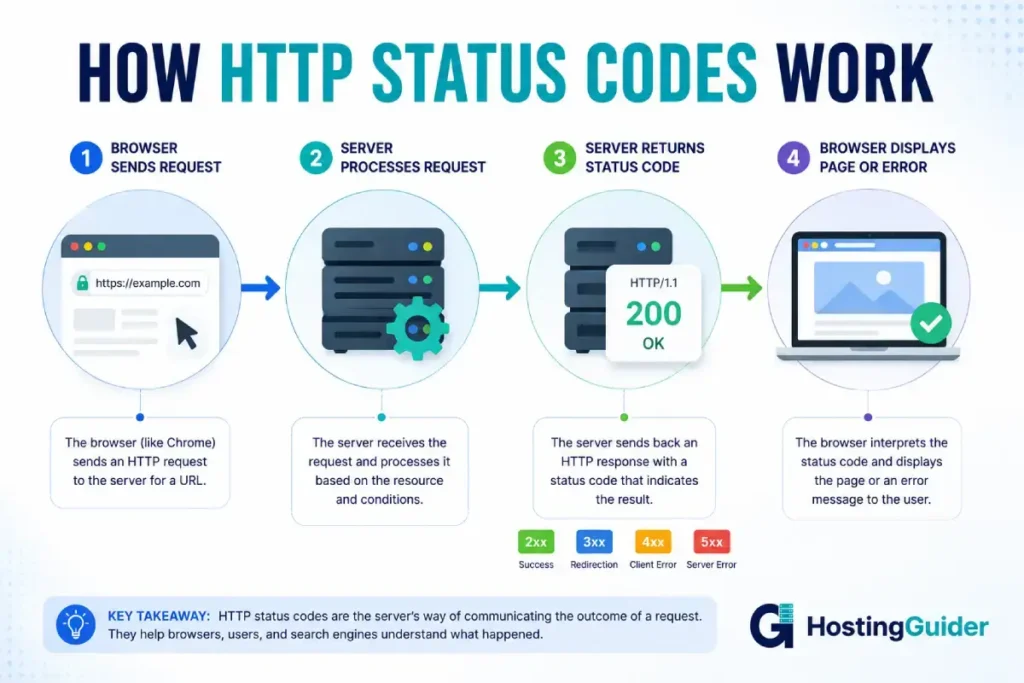
The codes are defined in a series of Internet Engineering Task Force (IETF) documents called RFCs. The core definitions live in RFC 9110, which replaced the earlier RFC 7231 in 2022. Any code not defined in an RFC is non-standard, and browser behavior toward it may vary.
1xx: Informational Responses
1xx codes are provisional. They tell the client that the server received the request and is still processing it. You rarely see these codes directly, but they matter for performance and protocol negotiation.
| Code | Name | What It Means |
|---|---|---|
| 100 | Continue | Server received the request headers; client should send the request body |
| 101 | Switching Protocols | Server agrees to upgrade the connection (for example, from HTTP to WebSocket) |
| 102 | Processing | Server is processing the request but has no response yet (WebDAV) |
| 103 | Early Hints | Server sends preliminary headers before the final response to help the browser preload resources |
100 Continue is sent when a client includes a Expect: 100-continue header before sending a large request body. It is a handshake that prevents sending a large payload only to have the server reject it.
101 Switching Protocols is used by WebSocket connections and the HTTP/2 upgrade process. When a browser and server negotiate an HTTP/3 or QUIC connection, this code appears in the negotiation.
103 Early Hints is increasingly important for performance. It allows the server to send Link headers before the full response, so the browser can start loading CSS, fonts, and scripts while the server is still preparing the page. Google has supported 103 Early Hints in Chrome since 2022 and recommends it for Core Web Vitals improvements.
2xx: Success Responses
A 2xx code means the request was received, understood, and accepted. These are the codes you want to see.
| Code | Name | What It Means |
|---|---|---|
| 200 | OK | The request succeeded; the response body contains the requested content |
| 201 | Created | The request succeeded and a new resource was created (common after POST requests) |
| 202 | Accepted | The request was accepted for processing, but processing is not complete |
| 203 | Non-Authoritative Information | The response is from a proxy or cache, not the origin server |
| 204 | No Content | The request succeeded but there is no content to return |
| 205 | Reset Content | The request succeeded; the client should reset the document view (for example, clear a form) |
| 206 | Partial Content | The server is returning only part of the resource, in response to a range request |
| 207 | Multi-Status | Multiple status codes for multiple independent operations (WebDAV) |
| 208 | Already Reported | The members of a DAV binding were already listed in a previous response |
| 226 | IM Used | The server fulfilled a GET request using instance manipulation (HTTP delta encoding) |
200 OK is by far the most common response. Every working webpage, image, script, and API call you load successfully returns a 200. For SEO, Google’s crawlers need to see a 200 to index a page. If your pages are returning anything other than 200 (or a 301 to a 200), they may not be indexed correctly.
201 Created appears frequently in REST APIs. When you submit a form that creates a new account or publishes a new post, the server returns 201 to confirm the new resource exists.
204 No Content is common for actions that succeed but produce nothing to display, like deleting a record or saving a draft. WordPress AJAX handlers often return 204 when an action completes without needing to reload content.
206 Partial Content powers video streaming and large file downloads. When a browser requests bytes 0-499 of a 1MB file, the server returns 206 with just that chunk. This allows video players to seek to a specific point without downloading the entire file first.
3xx: Redirection Responses
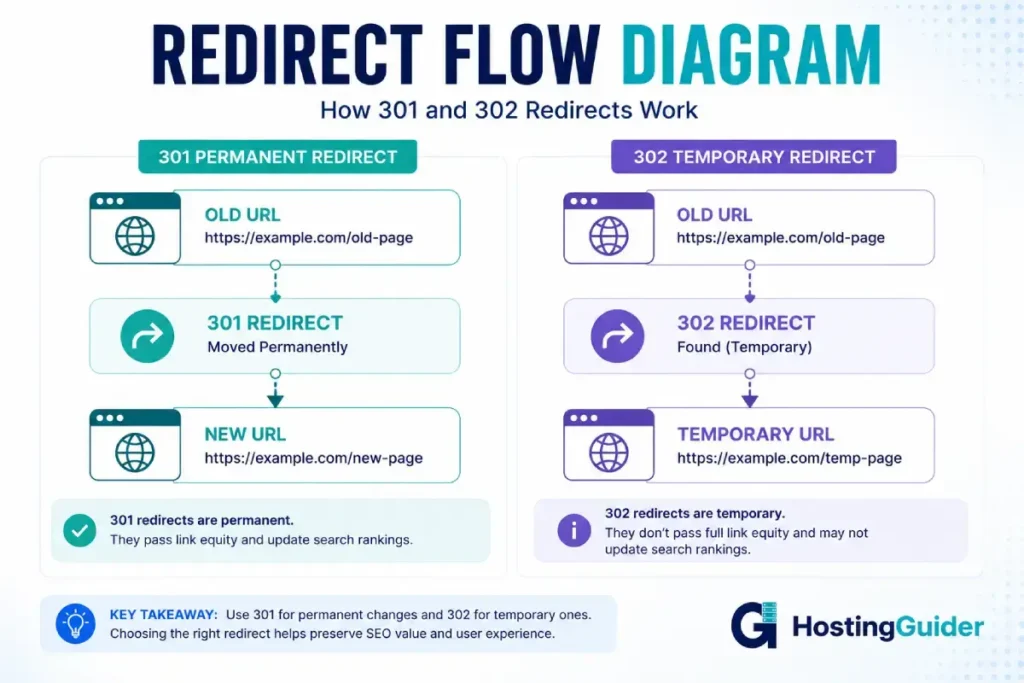
A 3xx code tells the browser that the resource has moved, and the request should be directed somewhere else. The new location is specified in the Location response header.
| Code | Name | What It Means |
|---|---|---|
| 300 | Multiple Choices | The request has more than one possible response; the client must choose |
| 301 | Moved Permanently | The resource has permanently moved to a new URL |
| 302 | Found | The resource is temporarily at a different URL |
| 303 | See Other | The response to the request is at a different URL and should be retrieved with GET |
| 304 | Not Modified | The resource has not changed since the last request; use the cached version |
| 305 | Use Proxy | (Deprecated) The requested resource must be accessed through a proxy |
| 307 | Temporary Redirect | The resource is temporarily at a different URL; the request method must not change |
| 308 | Permanent Redirect | The resource has permanently moved; the request method must not change |
301 vs 302 vs 307 vs 308: Which Redirect Should You Use?
This is one of the most common points of confusion in web development and SEO.
| Redirect | Permanent or Temporary | Method Change Allowed? | Use Case |
|---|---|---|---|
| 301 | Permanent | Yes (POST can become GET) | Changing a URL permanently |
| 302 | Temporary | Yes (POST can become GET) | Maintenance pages, A/B testing |
| 307 | Temporary | No | Preserving POST data during temporary redirect |
| 308 | Permanent | No | Permanent API endpoint moves |
301 Moved Permanently is the most important redirect for SEO. When you change a URL, restructure your site, or migrate to HTTPS, a 301 tells Google to transfer all link equity from the old URL to the new one. Without a 301, any backlinks pointing to the old URL lose their value. How hosting affects your SEO is explained in more detail in the context of server configuration.
304 Not Modified is a caching response. When a browser requests a page it has visited before, it sends a conditional request with the If-Modified-Since header. If the page has not changed, the server returns 304, and the browser loads the cached version. This dramatically speeds up repeat visits. Your website caching strategy determines how often browsers see 304 responses.
How to fix redirect problems:
- Redirect loop (ERR_TOO_MANY_REDIRECTS): A redirects to B, and B redirects back to A. Clear your browser cache first. Then check your
.htaccessfile or server configuration for conflicting redirect rules. WordPress SSL issues commonly cause this. Make sure bothsiteurlandhomeIn the database, match your HTTPS URL. - 302 used instead of 301: Many CMS platforms and plugins default to 302. Check your redirect plugin settings and confirm they are set to 301 for permanent URL changes.
- Redirect chain: URL A redirects to B, then B redirects to C. Each hop adds latency and dilutes link equity. Flatten redirect chains to go directly from old URL to final destination.
4xx: Client Error Responses
A 4xx code means the problem is on the client side. The request itself was wrong, unauthorized, or asked for something that does not exist.
Common 4xx Status Codes
| Code | Name | What It Means |
|---|---|---|
| 400 | Bad Request | The server cannot understand the request due to invalid syntax |
| 401 | Unauthorized | Authentication is required and has failed or not been provided |
| 402 | Payment Required | Reserved; occasionally used by APIs to indicate a paid tier is needed |
| 403 | Forbidden | The server understood the request but refuses to authorize it |
| 404 | Not Found | The server cannot find the requested resource |
| 405 | Method Not Allowed | The request method is not supported for the requested resource |
| 406 | Not Acceptable | The server cannot produce a response matching the list of acceptable values |
| 407 | Proxy Authentication Required | The client must authenticate with a proxy server first |
| 408 | Request Timeout | The server timed out waiting for the request |
| 409 | Conflict | The request conflicts with the current state of the resource |
| 410 | Gone | The resource was once here but has been permanently deleted |
| 411 | Length Required | The server requires the Content-Length header |
| 412 | Precondition Failed | The server does not meet one of the preconditions the client set in its headers |
| 413 | Content Too Large | The request body is larger than the server is willing to process |
| 414 | URI Too Long | The URL is longer than the server will interpret |
| 415 | Unsupported Media Type | The media format of the requested data is not supported |
| 416 | Range Not Satisfiable | The range specified in the request cannot be fulfilled |
| 417 | Expectation Failed | The expectation in the Expect header cannot be met |
| 418 | I’m a Teapot | Defined in RFC 2324 as an April Fools’ joke; used by some APIs to refuse coffee-brewing requests |
| 421 | Misdirected Request | The request was directed to a server that cannot produce a response |
| 422 | Unprocessable Content | The request is well-formed but has semantic errors (WebDAV; adopted widely by REST APIs) |
| 423 | Locked | The source or destination resource is locked (WebDAV) |
| 424 | Failed Dependency | The request failed because it depended on another request that failed (WebDAV) |
| 425 | Too Early | The server is unwilling to risk processing a request that might be replayed |
| 426 | Upgrade Required | The client must upgrade to a different protocol |
| 428 | Precondition Required | The server requires the request to be conditional |
| 429 | Too Many Requests | The client has sent too many requests in a given time (rate limiting) |
| 431 | Request Header Fields Too Large | The request header fields are too large to process |
| 451 | Unavailable For Legal Reasons | The server is denying access due to a legal demand |
How to Fix the Most Common 4xx Errors
404 Not Found
The 404 is the most common error on the web. It means the URL the browser requested does not exist on the server.
Causes:
- The page was deleted without a redirect
- A URL was changed but old links were not updated
- A typo in the URL
- A broken link from an external site or internal page
How to fix 404:
- If the content still exists at a different URL, set up a 301 redirect from the old URL to the new one.
- If the content no longer exists, let it return a true 404. Do not redirect all 404s to the homepage (this creates “soft 404s” that confuse Google).
- Use Google Search Console under Coverage to identify 404s that Googlebot is finding.
- Create a helpful custom 404 page with a search bar and links to your most popular content.
- Audit your internal links regularly to find and fix broken links before users hit them.
From an SEO standpoint, a page that returns 404 will be dropped from Google’s index within a few crawl cycles. If the page had backlinks pointing to it, those links now lead nowhere, and their value is lost. A 301 redirect recovers that value.
401 Unauthorized vs 403 Forbidden
These two are frequently confused.
- 401 Unauthorized means the user is not logged in or the provided credentials were rejected. Logging in should fix it.
- 403 Forbidden means the server knows who you are, but will not let you access this resource. Logging in will not help.
A quick rule: if authentication could solve the problem, return 401. If it cannot, return 403.
Common WordPress causes of 403:
- Incorrect file permissions (directories should be 755, files should be 644)
- IP address blocked by your server firewall or security plugin
.htaccessfile containing restrictive rules- Hotlinking protection blocks your own resources
To fix file permissions via cPanel or SFTP, set directories to 755 and files to 644. If a security plugin like Wordfence is blocking your IP, whitelist it in the plugin settings.
429 Too Many Requests
Rate limiting is intentional on the server’s part. It protects servers from abuse, API overuse, or brute-force login attempts. If you are a site owner seeing 429 errors in your logs, check whether:
- A plugin or script is making too many API calls
- A bot is hitting your login page repeatedly
- You have exceeded the rate limits on a third-party API you are using
If you are a developer consuming an API, implement exponential backoff in your requests and cache API responses where possible. The DDoS protection guide covers how rate limiting relates to server protection at the hosting level.
400 Bad Request
A 400 is almost always caused by a malformed request. Common triggers:
- A corrupted browser cookie: clear cookies and try again
- An invalid URL with illegal characters
- A form submission with data that fails server-side validation
- A misconfigured DNS that sends requests with bad headers
In WordPress, 400 errors after plugin updates are often caused by cookie conflicts. Clearing your browser cookies resolves most of these instantly.
413 Content Too Large
This appears when uploading files through a form or CMS. The server has a maximum body size configured, and the upload exceeded it.
In WordPress, you see this as “The uploaded file exceeds the upload_max_filesize directive in php.ini.”
Fixes:
- Increase
upload_max_filesizeandpost_max_sizein yourphp.iniorwp-config.php - Ask your host to increase the limit in your PHP settings
- For images specifically, compress before uploading using tools like Squoosh or ShortPixel
5xx: Server Error Responses
A 5xx code means the server encountered a problem it could not handle. Unlike 4xx errors, the fault is on the server side, not the client’s.
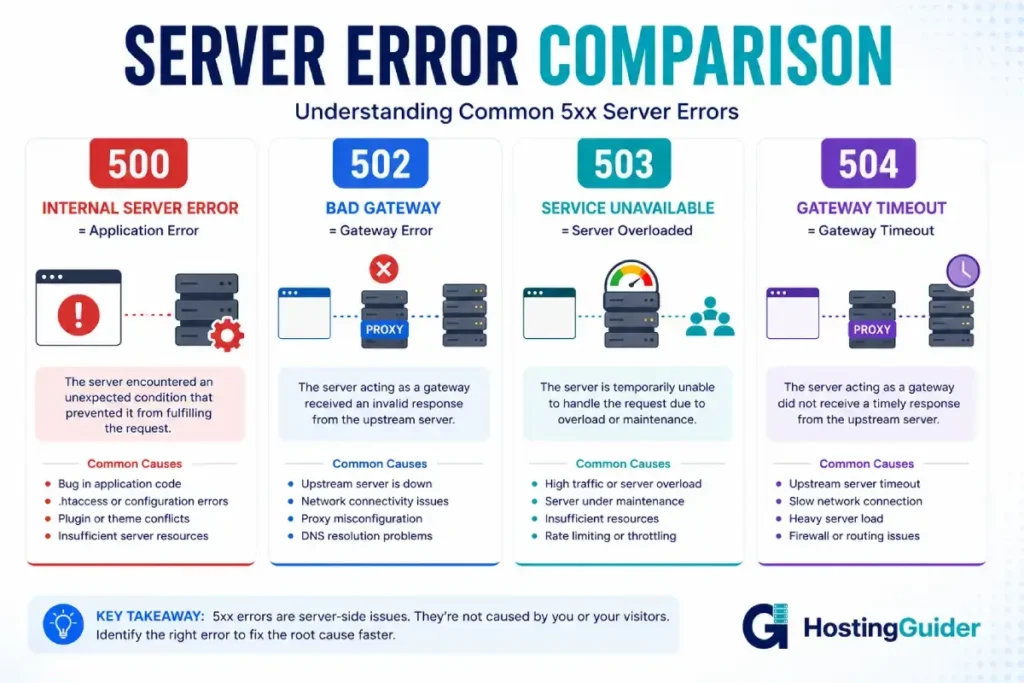
These errors affect your website uptime and need to be addressed quickly.
| Code | Name | What It Means |
|---|---|---|
| 500 | Internal Server Error | A generic server error; the server encountered an unexpected condition |
| 501 | Not Implemented | The server does not support the functionality required to fulfill the request |
| 502 | Bad Gateway | The server was acting as a gateway and received an invalid response from an upstream server |
| 503 | Service Unavailable | The server is temporarily unable to handle the request (overloaded or in maintenance) |
| 504 | Gateway Timeout | The server was acting as a gateway and the upstream server did not respond in time |
| 505 | HTTP Version Not Supported | The HTTP version used in the request is not supported |
| 506 | Variant Also Negotiates | An internal server configuration error in content negotiation |
| 507 | Insufficient Storage | The server cannot store the representation needed to complete the request (WebDAV) |
| 508 | Loop Detected | The server detected an infinite loop while processing a request (WebDAV) |
| 510 | Not Extended | Further extensions to the request are required |
| 511 | Network Authentication Required | The client needs to authenticate to gain network access (often seen on captive portals) |
How to Fix the Most Common 5xx Errors
500 Internal Server Error
The 500 is the most generic server error. It means something went wrong but the server does not know how to describe it more specifically.
Common causes on WordPress sites:
- A corrupt or malformed
.htaccessfile - A PHP memory limit is being exceeded
- A buggy or incompatible plugin
- A theme with a PHP error
- A corrupted WordPress core file
Step-by-step fix 500 Errors:
- Check your server error log. In cPanel, look under Logs > Error Log. The log entry will show exactly which file caused the error.
- Rename your
.htaccessfile to.htaccess_oldand reload the page. If it works, go to WordPress > Settings > Permalinks and save to regenerate.htaccess. - Deactivate all plugins by renaming the
/wp-content/plugins/folder to/wp-content/plugins_old/. If the site loads, rename it back and reactivate plugins one by one to find the culprit. - Increase PHP memory: add
define('WP_MEMORY_LIMIT', '256M');towp-config.php. - If the issue persists, contact your host. 500 errors can also be caused by server-side configuration issues that only they can fix.
502 Bad Gateway
A 502 appears when your server acts as a proxy or gateway (which is the case for most modern hosting setups with Nginx in front of PHP-FPM or Apache) and the backend crashes or sends an invalid response.
Common causes:
- PHP-FPM process crashed or timed out
- A reverse proxy (Cloudflare, Nginx) cannot reach the origin server
- Server is overloaded and the backend is not responding
Fix:
- If you are using Cloudflare, a 502 could mean your origin server is down. Check your hosting provider’s status page.
- For VPS or dedicated server users, restart PHP-FPM:
sudo systemctl restart php8.1-fpm. The VPS troubleshooting guide covers this in more detail. - If this happens regularly under traffic spikes, your server may be under-resourced for your current load.
503 Service Unavailable
A 503 means the server is temporarily unable to handle requests. It might be overloaded, undergoing maintenance, or blocking traffic from your IP.
Important SEO note: Google treats 503 differently from 404. A 503 tells Googlebot “the page exists but come back later.” If your site is down for planned maintenance, returning a 503 with a Retry-After header is the correct approach. Google will pause crawling and return. A site that returns 404 during maintenance risks having pages removed from the index.
Causes and fixes:
- Traffic spike: Upgrade your hosting plan or implement caching to reduce server load. Cloud hosting with auto-scaling can absorb traffic spikes automatically.
- DDoS attack: A flood of requests can overwhelm a server into 503 responses. Enable DDoS protection at the hosting level. Read more in the DDoS protection guide.
- Maintenance mode: Use a proper maintenance plugin that returns 503 with a
Retry-Afterheader, not 200 or 302.
504 Gateway Timeout
A 504 is similar to 502 but specifically means the upstream server did not respond within the allowed time. The gateway waited, gave up, and returned a timeout.
Common causes:
- A slow database query running too long
- A PHP script that takes longer than the server’s timeout limit (often 30-60 seconds)
- A third-party API call hanging
Fixes:
- Optimize slow database queries. Use a query monitor plugin in WordPress to identify which queries are slow.
- Increase the
max_execution_timein PHP settings. - Add timeouts to your external API calls so a slow third-party response does not hang your whole page.
- If you are on shared hosting, upgrading to VPS or managed WordPress hosting often resolves persistent 504 issues caused by resource contention with other accounts on the server.
HTTP Status Codes and SEO: What Google Cares About
Status codes are one of the most direct signals Google uses to understand your site’s health.
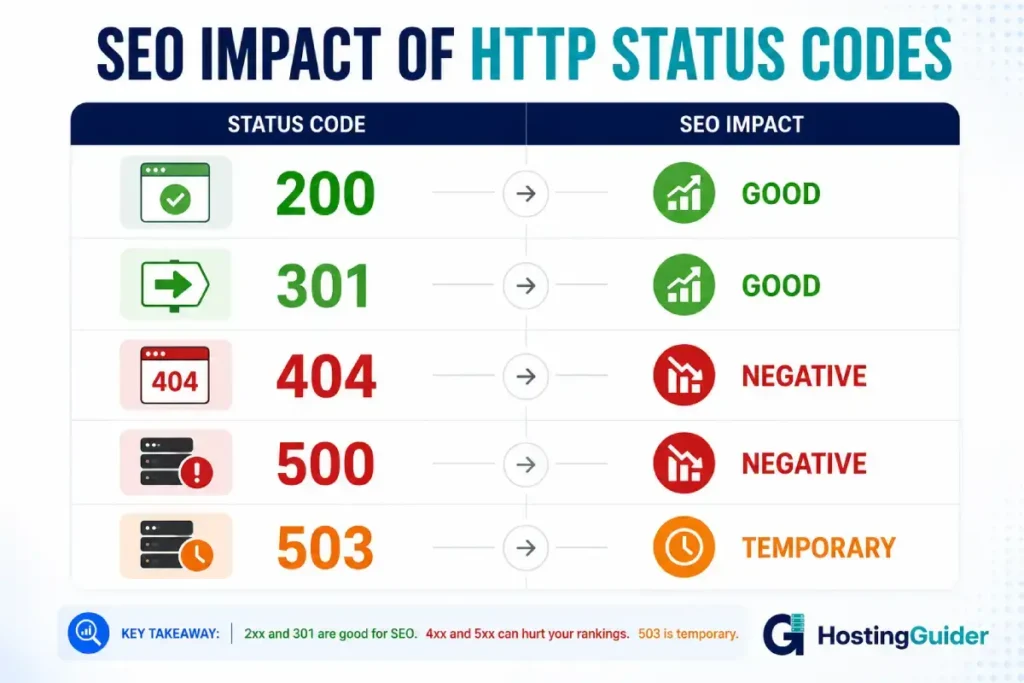
Here is a quick reference for the SEO implications of each class:
| Code | Google’s Interpretation | SEO Impact |
|---|---|---|
| 200 | Page is accessible and should be indexed | Positive (the baseline) |
| 301 | URL has permanently moved; transfer link equity | Positive if used correctly |
| 302 | URL has temporarily moved; do not transfer equity | Neutral (but use 301 for permanent moves) |
| 304 | Use cached version | Neutral (efficient caching is good) |
| 404 | Page does not exist; remove from index | Negative if pages with backlinks go 404 |
| 410 | Page is permanently gone; remove from index faster | Better than 404 for confirming deletion |
| 429 | Server is rate-limiting Googlebot | Negative (can slow crawl budget usage) |
| 500 | Server error; try again later | Negative if persistent |
| 503 | Temporarily unavailable; try again | Neutral if short-term; negative if prolonged |
Use 410 Gone instead of 404 when you intentionally delete a page and never plan to replace it. Google removes 410 pages from its index more quickly than 404 pages, which is useful when you are cleaning up old content.
HTTP Status Codes in WordPress: Quick Reference
WordPress handles most status codes automatically, but certain codes are commonly triggered by specific WordPress configurations.
| Situation | Status Code Returned | Fix |
|---|---|---|
| Page exists and loads normally | 200 OK | N/A |
| Permalink changed without redirect | 404 Not Found | Add 301 redirect via Redirection plugin |
| Incorrect file permissions | 403 Forbidden | Set directories to 755, files to 644 |
| Plugin causes fatal PHP error | 500 Internal Server Error | Deactivate plugins; check error log |
| Site under maintenance | 503 (if configured correctly) | Use a maintenance plugin that sets 503 |
| Slow database query | 504 Gateway Timeout | Optimize queries; upgrade hosting |
| Upload exceeds PHP limit | 413 Content Too Large | Increase upload_max_filesize in php.ini |
| Password-protected page | 401 Unauthorized | Expected behavior; no action needed |
Your hosting environment plays a big role in how often 5xx errors appear. Managed WordPress hosting typically includes server-level monitoring that catches 500-series errors before you do.
How to Monitor HTTP Status Codes on Your Website
Knowing the theory is not enough. You need active monitoring to catch errors before they hurt your traffic.
Google Search Console (free): Under Pages > Why pages aren’t indexed, Google surfaces crawl errors, including 404s, 403s, and 5xx errors Googlebot encountered. Check this weekly.
Uptime monitoring tools: Services like UptimeRobot or Better Uptime check your site every 1-5 minutes and alert you when it returns a non-200 response. The importance of this kind of continuous uptime monitoring cannot be overstated: you want to know about a 503 before your users do.
Server error logs: Your hosting control panel gives you access to Apache or Nginx error logs. These logs are the ground truth for diagnosing 500-series errors. Check them when investigating any server-side problem.
Screaming Frog (free up to 500 URLs): Crawls your site and reports the status code for every URL, including images, scripts, and CSS files. Useful for finding redirect chains, broken internal links, and soft 404s.
Frequently Asked Questions
What is the difference between a 401 and a 403 error?
A 401 Unauthorized error means authentication is required, but has not been provided or has failed. Logging in should resolve it. A 403 Forbidden error means the server understands your request and knows who you are, but is refusing access. Logging in will not help because the restriction is on the resource, not your identity.
Does a 404 error hurt my SEO?
A 404 by itself is not a ranking penalty. Google’s John Mueller has confirmed that 404 errors are a normal part of the web. The damage comes indirectly: if a page with backlinks returns 404, those backlinks lose their value. Fix this by setting up a 301 redirect from the old URL to the most relevant live page.
What is the difference between a 301 and a 308 redirect?
Both are permanent redirects, and both pass link equity to the destination URL. The difference is in how they handle the HTTP request method. A 301 allows the browser to change the method from POST to GET on the redirect. A 308 requires the browser to use the same method on both the original request and the redirect. For standard web page redirects, 301 is correct. For API endpoints that receive POST data, 308 is the better choice.
Why does my site show a 502 error only during high traffic?
A 502 under high traffic typically means your backend (PHP-FPM, Apache, or your application server) is running out of worker processes. When all workers are busy, new requests queue up. If the queue fills, the reverse proxy (Nginx or Cloudflare) cannot get a response and returns 502. The fix is usually increasing PHP-FPM worker processes, adding server-level caching, or upgrading to a plan with more resources.
What does error 429 mean, and how do I stop it?
A 429 Too Many Requests error means a rate limit has been reached. If you see it on your own site, a bot or script is making too many requests per second. Configure rate limiting in your .htaccess, via your hosting firewall or through a security plugin. If you see it while consuming a third-party API, reduce your request frequency or cache API responses to avoid hitting the limit.
Is a 503 error bad for SEO?
A brief 503 is not harmful for SEO. Google treats 503 as a temporary condition and will retry crawling later. If your site returns 503 for more than a few hours, or if it recurs frequently, it will affect crawl budget and indexing speed. Persistent 503 errors signal to Google that your site is unreliable. Monitoring your server uptime and addressing the root cause quickly minimizes any lasting SEO impact.
What is a soft 404?
A soft 404 is a page that returns a 200 status code but displays an error message like “Page not found” or has no meaningful content. Google calls these out in Search Console because they waste crawl budget and provide a bad user experience. The fix is to make pages that do not exist return a proper 404 status code, not a 200.
Should I use 410 or 404 for deleted pages?
If you have permanently deleted a page and have no replacement content or redirect destination, use 410 Gone instead of 404 Not Found. Google removes 410 pages from its index faster, which is useful when you want to clean up old URLs quickly. If there is any chance you will restore the content or want to redirect to something relevant, use 301 to the best matching live page.
Summary
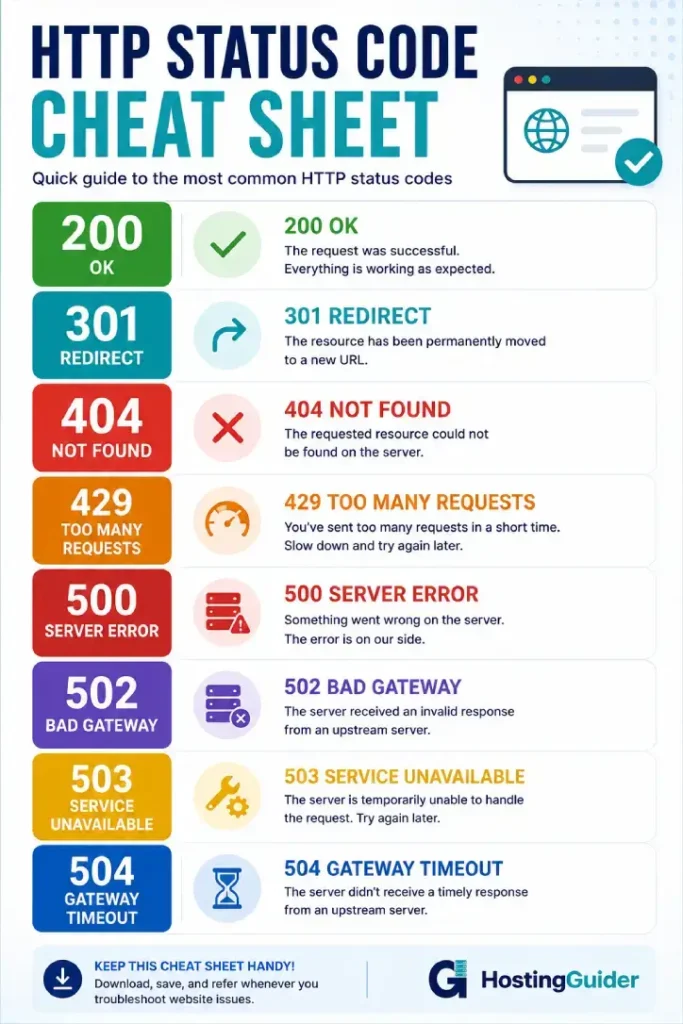
HTTP status codes fall into five classes. 1xx codes are informational and mostly invisible to users. 2xx codes confirm success. 3xx codes handle redirects and caching. 4xx codes report client-side problems like missing pages and permission issues. 5xx codes report server-side failures.
For most website owners, the codes that matter most in practice are 200 (everything works), 301 (permanent redirect), 404 (page not found), 503 (server unavailable), and 500 (server error). Knowing what triggers each one and how to fix it will save you significant time when something breaks.
If you want to understand how your hosting environment contributes to these errors, start with the web hosting glossary and the guide to fixing TTFB at the hosting level.
Sources and Verified References
I consulted official documentation and trusted industry resources to verify the information in this guide and to organize the key details into a single, easy-to-reference resource.
- RFC 9110 – HTTP Semantics (Internet Engineering Task Force)
- HTTP Status Codes, MDN Web Docs (Mozilla)
- Google Search Console Help: HTTP Status Codes (Google Search Central)
- HTTP 103 Early Hints (Chrome Developers)
- How Google Handles HTTP Errors (Google Search Central)