Running five WordPress sites means five dashboards, five sets of plugin updates, five places to check for security patches, and five separate billing accounts to manage. Every time a WordPress core update is released, you do it five times. Every time a shared plugin needs updating, you do it five times.
WordPress Multisite solves this by turning one WordPress installation into a network of sites, all managed from a single dashboard. One login. One plugin library. One core update that applies across the entire network simultaneously.
Multisite WordPress managed hosting takes this a step further. Instead of running a self-managed Multisite network on a VPS where every operational task is yours to handle, a managed hosting provider handles the infrastructure, the performance layer, the security, and the backups, while you focus on managing the network itself.
This guide covers everything you need to know about multisite WordPress managed hosting: what it is and how it works, when it is the right choice, how it differs from separate WordPress installations, which managed hosts support it properly, how to set it up, what to watch out for, and how to manage a healthy network long term.
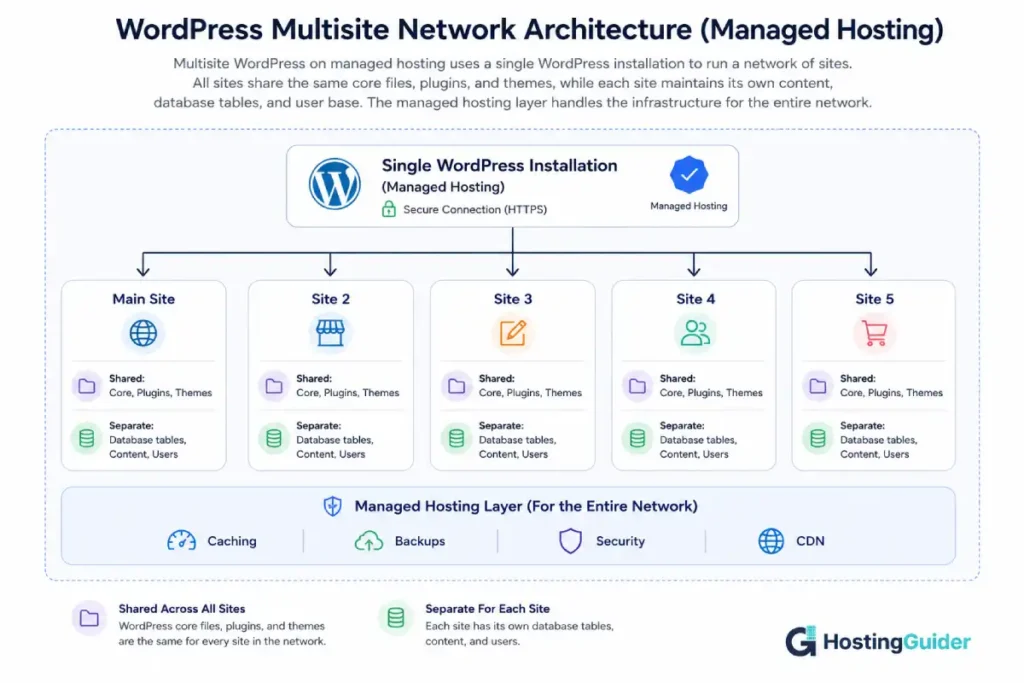
What Multisite WordPress Managed Hosting Actually Is
WordPress Multisite is a built-in feature of WordPress that transforms a standard single-site installation into a network of websites. It is not a plugin. It is a mode built into WordPress core itself, activated through a small configuration change.
When Multisite is enabled, your WordPress installation can host any number of sites, called a network. Each site in the network has its own content, its own users, its own settings, and its own appearance. From a visitor’s perspective, each site is a separate website. From your perspective as the administrator, all of them are managed from a single WordPress login.
The sites in a Multisite network share the core WordPress files, the plugin files, and the theme files. They do not share content. Each site has its own set of database tables, prefixed to separate them from other sites in the network. Site 1 has wp_1_posts, Site 2 has wp_2_posts, and so on, all within the same database.
A Multisite network has two levels of administration:
Network Admin (Super Admin): controls the network itself. Installs and activates plugins and themes network-wide. Creates and deletes sites. Manages network-level settings and user permissions.
Site Admin: manages an individual site within the network. Can customise that site’s content, menus, widgets, and settings, but only within the permissions the Super Admin has granted. Cannot install new plugins or themes without Super Admin approval.
This hierarchy is one of the most important things to understand about Multisite WordPress on managed hosting, because it determines whether Multisite fits your actual use case.
Multisite WordPress on Managed Hosting vs Separate Installations
Before deciding whether Multisite is right for you, it helps to understand exactly what is different between running a Multisite network on managed hosting versus managing several separate WordPress installations.
| Factor | Multisite WordPress on Managed Hosting | Separate WordPress Installations |
|---|---|---|
| Dashboard logins required | One for the entire network | One per site |
| Core WordPress updates | Applied once, affects all sites | Applied separately per site |
| Plugin updates | Applied once, network-wide | Applied separately per site |
| Plugin library | One library shared by all sites | Independent per site |
| Plugin compatibility risk | A bad update can break all sites at once | Limited to the individual site |
| Billing | Typically one plan covering the network | One plan per site or multi-site plan |
| Server resources | Shared across all sites on one installation | Each site can have dedicated resources |
| Site independence | Limited by shared installation | Full independence per site |
| Hosting cost | Usually lower per site | Usually higher per site |
| Technical complexity | Higher to set up and manage | Lower per site |
| Isolation between sites | Shared codebase, partial isolation | Full isolation between sites |
The key trade-off: Multisite is more efficient to manage and usually cheaper to run, but it means all sites on the network share a fate in certain situations, particularly around plugin updates and security incidents. A plugin update that breaks WordPress on a Multisite network breaks every site on that network simultaneously.
When Multisite WordPress Managed Hosting Is the Right Choice
Multisite WordPress on managed hosting is a strong fit for these specific situations.
You manage multiple sites with shared content needs or shared branding. A university network running separate sites for each faculty. A media company running separate publications under one brand. A franchise running individual location sites that share a theme and common plugins. In all of these cases, the shared plugin and theme library is an advantage, not a limitation.
You run an agency managing multiple client sites on one plan. Some managed hosting providers offer Multisite specifically for agencies, with the network admin managing the infrastructure and each client having Site Admin access to their own site only. This keeps infrastructure costs low while giving clients their own managed space.
You need to give different user groups access to different parts of the same brand’s web presence. A Multisite network lets you have different editors responsible for different sections of what is collectively your organisation’s web presence, each working in their own site with their own content, while the Super Admin maintains consistent plugins, themes, and standards across all of them.
You need to spin up new sites quickly using a consistent template. Once a Multisite network is configured with the plugins and theme activated network-wide, adding a new site to the network takes minutes: create the site, assign an admin, and the standard setup is already in place. For organisations that regularly launch new properties within a known framework, this is a meaningful time saving.
All your sites genuinely belong to one organisation. WordPress Multisite is designed for one entity managing related sites. It is not designed for hosting unrelated client sites that need full independence from one another.
When Multisite WordPress Managed Hosting Is Not the Right Choice
Multisite WordPress on managed hosting is the wrong approach in these situations.
Your clients need their own hosting accounts. If a client needs the ability to manage their own billing, move their site to a different host, or operate their WordPress site completely independently of anything else, Multisite is not appropriate. A client’s site inside a Multisite network is tied to the network’s hosting account and cannot be extracted as a standalone WordPress site without significant migration work.
Your sites have very different plugin requirements that might conflict. In a Multisite network, plugins are installed at the network level. If Site A requires Plugin X and Site B is incompatible with Plugin X, you cannot install Plugin X for Site A without it affecting Site B. If your sites have genuinely different technical requirements, separate installations are more appropriate.
One site is a high-traffic or high-security outlier. If your network includes one WooCommerce store processing payments alongside several low-traffic informational sites, putting all of them on the same Multisite network means a security vulnerability in a low-traffic site’s plugin could affect the store. The risk isolation that comes with separate installations is worth the management overhead for this kind of situation.
You are on budget shared hosting. Multisite is more resource-intensive than a single-site installation because all network activity runs through one WordPress instance. A single traffic spike on one site in the network creates a load spike that affects all sites on the same network. Low-tier shared hosting without adequate resource allocation handles this poorly. Multisite WordPress on managed hosting with adequate resource allocation handles it well. On a budget shared hosting plan, separate installs are often more practical.
How Multisite WordPress Managed Hosting Works Technically
Understanding the technical structure of a Multisite network helps you configure it correctly on managed hosting and diagnose problems when they occur.
File structure: All sites in the network share the same WordPress core files. Plugins are stored once in /wp-content/plugins/ and shared across all sites. Themes are stored once in /wp-content/themes/. Each site has its own uploads directory at /wp-content/uploads/sites/[site-id]/.
Database structure: All sites share the same database, but each site has its own set of tables. The main site uses the standard table prefix (typically wp_). Each additional site gets prefixed tables (wp_2_, wp_3_, and so on). A small set of shared tables stores network-wide data: wp_users, wp_usermeta, wp_blogs, wp_blog_versions, wp_site, wp_sitemeta, wp_signups.
wp-config.php: Multisite is enabled by adding define('WP_ALLOW_MULTISITE', true); and, after completing the network setup wizard, the network configuration constants that WordPress generates automatically.
.htaccess (Apache) or Nginx configuration: Multisite requires specific rewrite rules to route requests for each site’s URL to the correct site in the network. On Apache, WordPress generates these for .htaccess automatically. On Nginx (common on managed hosting), the rules need to be added to the server configuration by the hosting provider or through SSH access, since Nginx does not use .htaccess files. This is one of the most common setup stumbling blocks on managed Nginx-based hosting.
wp-config.php constants specific to Multisite:
define('MULTISITE', true);
define('SUBDOMAIN_INSTALL', false); // true for subdomain, false for subdirectory
define('DOMAIN_CURRENT_SITE', 'yourdomain.com');
define('PATH_CURRENT_SITE', '/');
define('SITE_ID_CURRENT_SITE', 1);
define('BLOG_ID_CURRENT_SITE', 1);
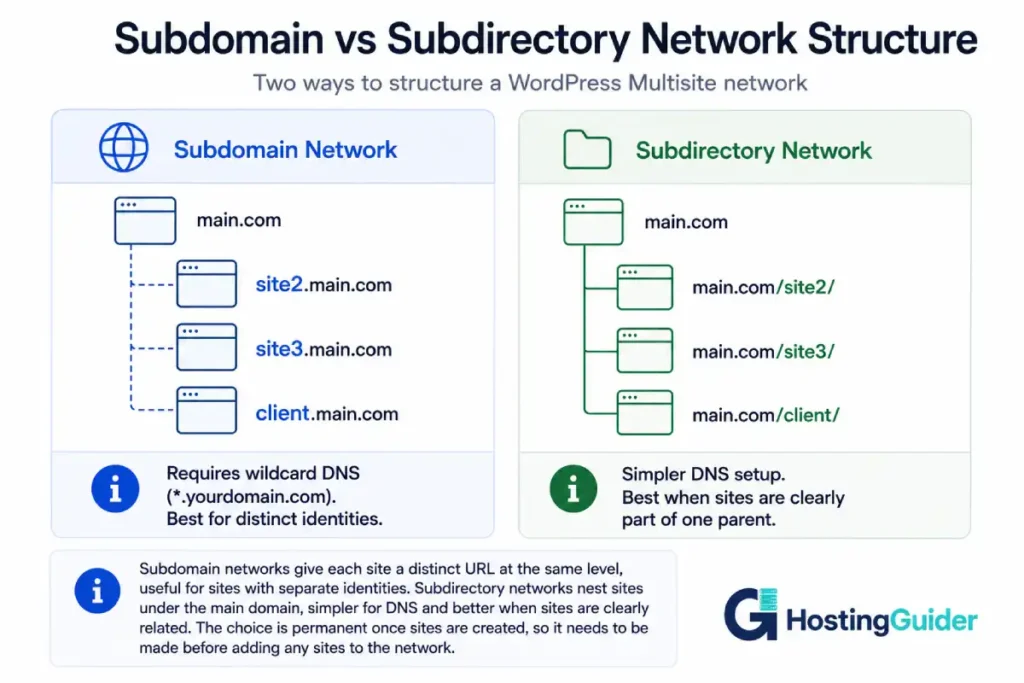
Multisite WordPress Managed Hosting: Subdomain vs Subdirectory Networks
The choice between a subdomain network and a subdirectory network is one of the most consequential decisions in Multisite WordPress on managed hosting, because it cannot be changed after sites are created on the network.
Subdomain networks give each site its own subdomain: site2.yourdomain.com, site3.yourdomain.com. This requires wildcard DNS configuration on your domain, meaning a DNS record that routes all *.yourdomain.com requests to your server. On managed hosting, this is usually handled by the provider once you enable the setting, but it is worth confirming with your specific provider before starting. Subdomain networks are best when the sites in your network have distinct identities and you want each one to feel like a separate brand rather than a subsection of the main site.
Subdirectory networks give each site a path under the main domain: yourdomain.com/site2/, yourdomain.com/site3/. These are simpler from a DNS perspective, since no wildcard record is needed. Subdirectory networks are best when the sites in your network are clearly subsections or sections of one parent entity, and you want the URLs to reflect that relationship.
Important WordPress limitation: if your WordPress installation has been running for more than a month before you enable Multisite, WordPress only allows subdomain networks, not subdirectory networks. This is because WordPress cannot distinguish between a subdirectory site URL and a page or post URL on the original single site installation after real content has been created. A fresh WordPress installation can use either type.
Which Hosts Support Multisite WordPress Managed Hosting
Not all managed WordPress hosting providers support Multisite networks, and among those that do, the level of support varies significantly.
WP Engine explicitly supports WordPress Multisite and provides documentation specific to Multisite configuration. WP Engine allows both subdomain and subdirectory configurations. Their Nginx-based environment requires Multisite-specific rewrite rules, which their support team can help configure. WP Engine’s staging environments work with Multisite networks, which is important for safe testing. See our full Kinsta vs WP Engine comparison for how their Multisite support compares.
Kinsta supports WordPress Multisite on all plans and handles the Nginx configuration required for Multisite automatically. Kinsta’s infrastructure is particularly well-suited for Multisite because it uses container-based architecture that isolates resources per installation. Their dashboard shows Multisite installations as a single site with a Multisite indicator.
Cloudways supports Multisite WordPress on managed hosting and gives you enough server-level access (through SSH and the Cloudways panel) to configure the Nginx rewrite rules Multisite requires. Cloudways’ flexibility is an advantage for more complex Multisite setups. See our Cloudways vs DigitalOcean comparison for context on how Cloudways’ managed infrastructure is structured.
SiteGround supports WordPress Multisite on its managed WordPress plans. SiteGround uses their own SG Optimizer plugin for caching, which has Multisite awareness built in.
Hostinger includes WordPress Multisite support across its Business WordPress plan and above, with LiteSpeed caching that can handle Multisite configurations.
What to confirm with any provider before enabling Multisite:
Ask whether wildcard subdomain DNS is supported (required for subdomain networks). Ask whether their caching configuration works correctly with Multisite (some caching setups cache the main site’s pages for all subdomain requests). Ask whether their staging environment supports Multisite push-to-live. Ask whether they have documentation specific to Multisite configuration on their platform.
How to Enable Multisite WordPress Managed Hosting
Before starting: check that your managed hosting provider supports Multisite and confirm whether you want a subdomain or subdirectory network. Back up your site. If your WordPress installation is older than a few weeks, note that subdirectory networks will not be available.
Step 1: Add the Multisite enable constant to wp-config.php. Add this line above the /* That's all, stop editing! */ comment:
define('WP_ALLOW_MULTISITE', true);
Step 2: Run the Network Setup wizard. After saving wp-config.php, go to Tools in your WordPress dashboard. You will see a new option: Network Setup. Click it. Choose between subdomain and subdirectory installation. Enter a Network Title and a Network Admin Email. Click Install.
Step 3: Add the generated code to wp-config.php and .htaccess. WordPress shows you two blocks of code. The first goes into wp-config.php, replacing the WP_ALLOW_MULTISITE line you added. The second goes into .htaccess if you are on Apache.
For Nginx (the most common managed hosting stack): the .htaccess block will not work, because Nginx does not process .htaccess files. Instead, the equivalent Nginx rewrite rules need to be added to your site’s Nginx server configuration. Contact your managed hosting provider’s support at this step and ask them to add the Multisite rewrite rules to your Nginx configuration. Most providers that support Multisite have this process documented.
Step 4: Log back into WordPress. After updating both files, log back in. You will see a new Network Admin menu in the top toolbar. The Multisite network is now active.
Step 5: Configure wildcard DNS if using subdomain networks. For subdomain networks, go to your domain registrar or your managed hosting provider’s DNS settings and add a wildcard A record: *.yourdomain.com pointing to your server’s IP address. On providers that manage DNS for you, this may be a setting in their panel.
Step 6: Test the network. Go to Network Admin, Sites, Add New Site. Create a test site. Visit the test site URL. Confirm it loads correctly and is independent of the main site.
Managing Multisite WordPress Managed Hosting: Super Admin vs Site Admin
The two-level admin structure of Multisite WordPress on managed hosting determines what each person in your organisation can do.
Network Admin access is required for:
Installing new plugins (plugins are installed once and can then be activated per site). Installing new themes. Creating new sites on the network. Deleting sites. Managing user roles across the entire network. Updating WordPress core (this updates for all sites simultaneously). Updating plugins and themes network-wide. Setting upload space limits per site. Configuring which features site admins can access.
Site Admin access allows:
Publishing and editing content on that site only. Managing menus, widgets, and site settings. Activating already-installed plugins (if the Network Admin has allowed this). Switching between installed themes. Managing users and their roles on that site only. Accessing the media library for that site.
What Site Admins cannot do by default:
Install new plugins or themes (they can only activate plugins the Network Admin has already installed). Access another site’s dashboard. See or modify network-level settings.
This structure is why Multisite WordPress on managed hosting works well for agencies and organisations where a central team manages the infrastructure while individual teams or clients manage their own content, but works poorly when clients need genuine independence or need to control their own plugin environments.
Multisite WordPress Managed Hosting: Performance Considerations
Multisite networks are more resource-intensive than individual WordPress installations, and this is where managed hosting’s performance layer becomes particularly important.
All network traffic runs through one WordPress installation. A traffic spike on one site in the network creates load on the shared WordPress codebase that other sites also use. On a well-resourced managed hosting plan with proper caching, this is handled gracefully. On an underpowered plan, a spike on one site can slow all sites simultaneously.
Caching must be Multisite-aware. A caching plugin or server-level caching configuration that is not designed for Multisite can serve cached pages from one site to visitors on another site. Most managed hosting providers’ caching layers handle Multisite correctly, but this is worth confirming. Server-level caching that caches by URL handles Multisite correctly by default, since each site has its own URL. Caching that relies on cookies or sessions needs careful configuration. Our guide on what managed WordPress hosting actually includes in terms of performance tools covers what to look for in a managed host’s caching implementation.
Database tables multiply with each site. Each new site added to the network adds approximately twelve database tables. A network of fifty sites has around six hundred tables in the database, which can affect database performance if the server is not sized appropriately. On managed hosting with a properly resourced database layer, this is not a problem at the scale most Multisite networks operate at.
Upload storage is per site. Each site in the network stores media in its own uploads subdirectory, and total storage is shared across the network. If one site in your network accumulates large media files, it consumes storage that counts against the total allocation for the entire network.
Uptime on a Multisite network means something different from uptime on a single site: when the single WordPress installation goes down, every site on the network is down simultaneously. The reliability of the managed hosting infrastructure matters more for a Multisite network than for an equivalent number of separate installations, because a single point of failure becomes a network-wide outage.
Multisite WordPress Managed Hosting: Security Considerations
Security in Multisite WordPress on managed hosting has specific characteristics worth understanding, because the shared architecture creates both advantages and risks that do not exist with separate installations.
A vulnerability in one site affects the entire network’s codebase. Because all sites share plugins, a vulnerable plugin that is activated on any one site in the network is present in the codebase for all sites. Network Admin control of plugin installation is a partial mitigation: if only trusted plugins are installed at the network level, the attack surface is smaller than if each site had its own independent plugin library. But because the files are shared, the vulnerability exists in the shared filesystem regardless of which sites the plugin is activated on.
User accounts are network-wide. A user account on one site is a user account in the wp_users table, shared across the network. A user with admin access on one site has that account in the same database as every other site’s user records. Proper role configuration at the site level limits what each user can do on which sites, but the shared user table is a meaningful difference from separate installations where each site’s user database is independent.
The Network Admin account is the highest-value target on the installation. Compromising the Network Admin account grants access to every site on the network simultaneously. Strong credentials, two-factor authentication, and limiting the number of accounts with Network Admin access are important practices on any Multisite WordPress on managed hosting setup. The broader security layer your managed host provides is particularly important in a Multisite context because the managed host’s WAF and malware scanning cover the entire network through one configuration.
A managed hosting provider’s security benefits scale well for Multisite. A server-level WAF protects all sites on the network. Automatic malware scanning covers the entire shared codebase once. Automated security updates apply to WordPress core across all sites simultaneously. These are genuine advantages of Multisite WordPress on managed hosting over a self-managed Multisite installation.
Plugins and Themes on a Multisite WordPress Managed Hosting Network
Plugin and theme management works differently on a Multisite network than on a single-site installation, and understanding this is important for running the network smoothly.
Plugins can be installed at the network level and then activated per site, or network-activated across all sites. When you install a plugin as Network Admin, it appears in the plugin list for every site in the network. Individual site admins can activate it on their site (if the Network Admin allows this) without being able to install new plugins themselves. A network-activated plugin is active on every site in the network automatically, with no per-site activation required.
Network-activating a plugin affects every site immediately. This is the most powerful and most dangerous aspect of Multisite plugin management. Network-activating a plugin that is incompatible with one site’s theme or data causes a problem on that site immediately. Test all plugins on a staging copy of the network before network-activating them on the live network.
Some plugins are not compatible with WordPress Multisite. Most well-maintained modern plugins are, but some plugins store data in ways that assume a single-site database structure and do not handle Multisite’s prefixed table structure correctly. Before adding a plugin to a Multisite network, check the plugin’s documentation or WordPress.org listing for explicit Multisite compatibility statements.
Themes can be enabled per site or network-enabled. Unlike plugins, themes cannot be “network-activated” in the same sense (every site having the same theme active). Instead, themes are made available to sites on the network, and each site’s admin chooses their active theme from those available. A Network Admin can restrict which themes a site can use by enabling only specific themes for specific sites.
Staging and Backups for Multisite WordPress Managed Hosting
Staging and backup behaviour for Multisite WordPress on managed hosting requires specific attention because the network architecture affects both.
Staging a Multisite network: cloning a Multisite network to staging is more complex than cloning a single-site installation. The staging copy must include all sites’ database tables (not just the main site’s tables), all sites’ uploads directories, and correct URL replacement across all sites in the network. A staging tool that is not Multisite-aware may clone only the main site, leaving the staging environment without the additional sites, or may replace URLs incorrectly for subdomain-based networks.
Confirm with your managed hosting provider whether their staging tool handles Multisite correctly before relying on it. Providers like WP Engine and Kinsta have Multisite-compatible staging. On providers where staging is not explicitly Multisite-compatible, a manual clone using wp-cli and mysqldump gives you more control:
wp site list --fields=blog_id,domain,path
wp search-replace 'yourdomain.com' 'staging.yourdomain.com' --network
The --network flag on WP-CLI wp search-replace applies the replacement across all sites’ tables in the network.
Backups of a Multisite network: a backup of a Multisite network must capture the entire database, not just the main site’s tables, and all sites’ uploads directories. A backup plugin that is not Multisite-aware may back up only the main site. Managed hosting providers that handle backups at the server level (backing up the entire database and file system) correctly capture the full Multisite network automatically.
Test a restore of your Multisite network backup at least once. The restore process is more involved than a single-site restore because it needs to correctly restore all sites’ tables and repoint URLs if restoring to a different environment. Backups that have never been tested cannot be treated as reliable for a single site, and this is doubly true for a Multisite network where a failed restore affects every site simultaneously.
Common Multisite WordPress Managed Hosting Problems and Fixes
“Site not found” errors on subsites: this is almost always a rewrite rule problem. On Nginx-based managed hosting, the Multisite rewrite rules need to be in the Nginx server configuration. If a subsite returns a 404 or “site not found” error, ask your hosting provider to verify the Multisite Nginx rewrite rules are correctly configured.
Wildcard subdomain not working: if subdomain sites are returning DNS errors, confirm the wildcard DNS record (*.yourdomain.com) is correctly configured and has propagated. Use dig (dig *.yourdomain.com) to check. On managed hosting, some providers configure the wildcard record automatically when you enable Multisite in their panel; others require you to add it manually.
Caching serving wrong site content: if visitors on one subsite are occasionally seeing content from another subsite (or from the main site), the caching layer is not correctly differentiating between the sites. This usually means the caching configuration is keying on a part of the request that is the same across sites. Contact your hosting provider to review the caching configuration for your Multisite network.
Plugin conflicts breaking the entire network: when a plugin breaks a Multisite network, it often breaks all sites simultaneously rather than just one. If you cannot access the WordPress admin after a plugin update, deactivate the problem plugin by renaming its directory via FTP or SSH:
mv /wp-content/plugins/problem-plugin /wp-content/plugins/problem-plugin-disabled
Because plugins are stored in a shared directory, this deactivates the plugin for all sites on the network at once.
A site not receiving network updates: if one site in the network is not reflecting a plugin update that was applied network-wide, try clearing that site’s cache specifically and check whether any object caching is holding a stale version of the plugin’s cached data.
Frequently Asked Questions
What Is the Main Benefit of Multisite WordPress Managed Hosting?
The primary benefit is centralised management. One WordPress installation means one set of plugin updates, one core update, and one dashboard to monitor for the entire network. Combined with managed hosting, the infrastructure maintenance (security patches, caching configuration, server updates) is handled by the provider for all sites on the network simultaneously. For anyone managing more than three or four related WordPress sites, this saves significant recurring administrative time compared to managing separate installations.
Does Multisite WordPress Managed Hosting Cost More Than Separate Installations?
Usually less per site, but often more in total than a single-site plan. A Multisite network of five sites on a single managed hosting plan typically costs less than five separate managed hosting plans. However, the network requires more server resources than a single-site installation, so the plan tier needed is higher than the entry level. The cost comparison depends on your specific provider and the number of sites, but Multisite is generally the more economical option once you have more than two or three sites to manage.
Can Different Sites in a Multisite WordPress Managed Hosting Network Have Different Themes?
Yes. Each site in the network can activate a different theme from the themes the Network Admin has made available. The Network Admin installs themes and makes them available to sites. Each site’s admin (or the Network Admin) then activates the appropriate theme for that site. Sites can have completely different visual identities while sharing the same WordPress installation.
Can I Add an Existing Site to a Multisite WordPress Managed Hosting Network?
You cannot import a fully independent WordPress installation directly into a Multisite network without migration work. The process involves exporting the site’s content using WordPress’s export tool, creating a new site in the Multisite network, and importing the content into the new site. Media files need to be migrated separately. Plugin settings and configurations stored in the database need to be recreated. It is possible but requires planning, and it is worth testing on the staging network before doing it on the live network.
What Happens to All Sites if Multisite WordPress Managed Hosting Goes Down?
Because Multisite WordPress on managed hosting runs all sites from a single installation, a hosting outage affects every site on the network simultaneously. This is the most significant operational risk specific to Multisite compared to separate installations. It makes the reliability of the managed hosting provider more important for a Multisite network than for individual sites, and it makes understanding what an uptime guarantee actually means in hours of potential downtime a more consequential evaluation when choosing a host for a Multisite network.
Is Multisite WordPress Managed Hosting Good for Agencies and Client Sites?
It depends on what your clients need. Multisite WordPress on managed hosting is a good fit for clients who need content management access to their section of a shared brand or organisation, and who do not need to move their site independently, manage their own billing, or install their own plugins. It is not suitable for clients who need full ownership and portability of their site. For agencies managing multiple independent client sites that need genuine separation, a managed hosting plan with multiple separate WordPress installations (or a plan specifically designed for agencies with per-site management) is more appropriate than a Multisite network.
Do All Plugins Work with Multisite WordPress Managed Hosting?
Most major, well-maintained plugins support Multisite, but not all do. Plugins that store data in custom database tables using the standard wp_ prefix without accounting for Multisite’s prefixed table structure may not work correctly across all sites in the network. Before adding any plugin to a live Multisite network, check the plugin’s WordPress.org page for Multisite compatibility notes, test it on a staging copy of the network, and check the plugin’s support forum for Multisite-related issues. Commercial plugins (page builders, WooCommerce extensions, membership plugins) usually document their Multisite compatibility status explicitly.