You change your domain’s DNS record. You point it to a new server. You check the domain from your own computer, and the new website loads.
Then your colleague opens the same domain. They see the old website.
You check the record again. It’s correct.
The important question isn’t whether your DNS change worked. It’s which DNS server your colleague is asking, and whether that server has already refreshed its own cached answer.
So what’s going on? The answer is DNS caching.
Your domain has an authoritative source of truth: its authoritative DNS servers. Recursive resolvers cache answers from those servers, and not everyone asks them directly every time.
That is what people usually mean when they say DNS is propagating.
Our Example for This Guide
Throughout this guide, we’ll follow one simple story. example.com is moving from an old server to a new one.
- Old server:
192.0.2.10 - New server:
192.0.2.50
We change the DNS record from the old IP to the new one. Every section below builds on this same example.
Key Takeaways
- DNS has two roles worth knowing first. The authoritative source holds the real answer. Recursive resolvers keep temporary, cached copies of it.
- A DNS response includes a TTL that tells a resolver how long it may cache the answer. Changing the TTL later does not rewrite copies that are already cached.
- Nothing is actually propagated between resolvers. Your authoritative record changes once, and each resolver picks up the new answer only when it asks again.
- Comparing the authoritative answer, a public resolver, and your own device tells you exactly where a stale answer is sitting.
- You can check all of this yourself with
dig, working through each layer in order.
Quick Answer
DNS propagation is the period after a DNS change during which different DNS resolvers may still return the old or new answer, because of caching.
DNS resolvers cache the old answer, and keep using it until it expires.
People often quote 24 to 48 hours. That’s a broad operational estimate, not a fixed rule.
For an ordinary record change, the maximum caching time is generally governed by the TTL that was in effect when a resolver cached the old answer.
Nameserver changes involve a different kind of caching, called delegation caching, so their timing can look different.
Lower your TTL sufficiently in advance of a planned change, and allow the previous TTL to fully expire before making the change. That is the main thing you can actually control.
What DNS Actually Does
DNS turns a name people can remember into a number computers actually use. For our example:
example.com
      ↓
DNS
      ↓
192.0.2.10
For the A record we’re following in this guide, DNS answers one basic question: what IPv4 address should I connect to for this name?
DNS also handles other kinds of records, like email routing or ownership verification, but this guide focuses on the address lookup behind propagation.
DNS does not load your website. For an A or AAAA lookup, it provides the address your device can use to connect to the server.
Your browser then makes the actual connection itself.
This distinction matters later. Correct DNS doesn’t guarantee a working website. A server outage, a firewall rule, or an application error can all still break things even when DNS is perfectly fine.
The DNS Lookup Path
Before going further, it helps to see who actually talks to whom. Here’s the short version:
You
 ↓
Recursive DNS resolver
 ↓
Authoritative DNS
 ↓
DNS record
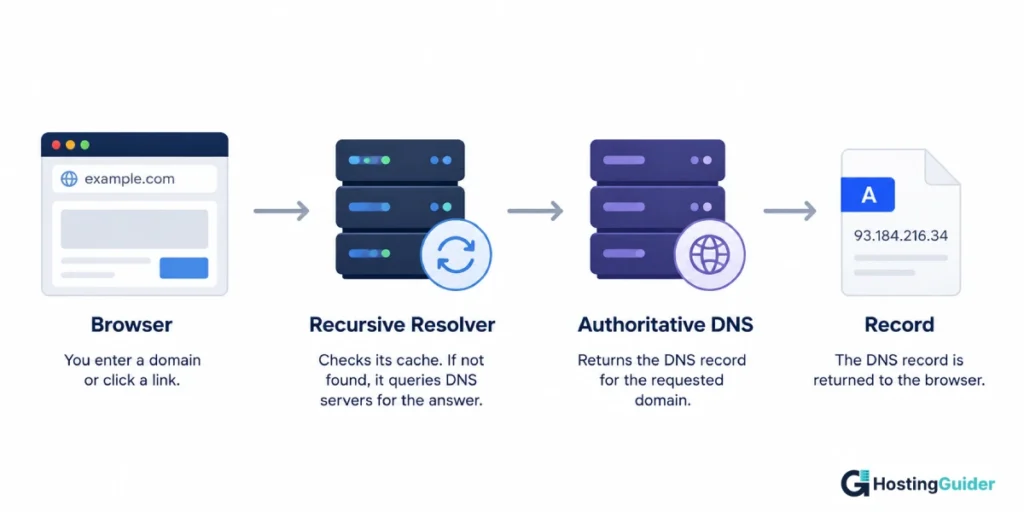
You don’t talk to the authoritative source directly. A resolver sits in between, and the next section explains exactly what each of these two boxes actually does.
Authoritative DNS vs Recursive DNS
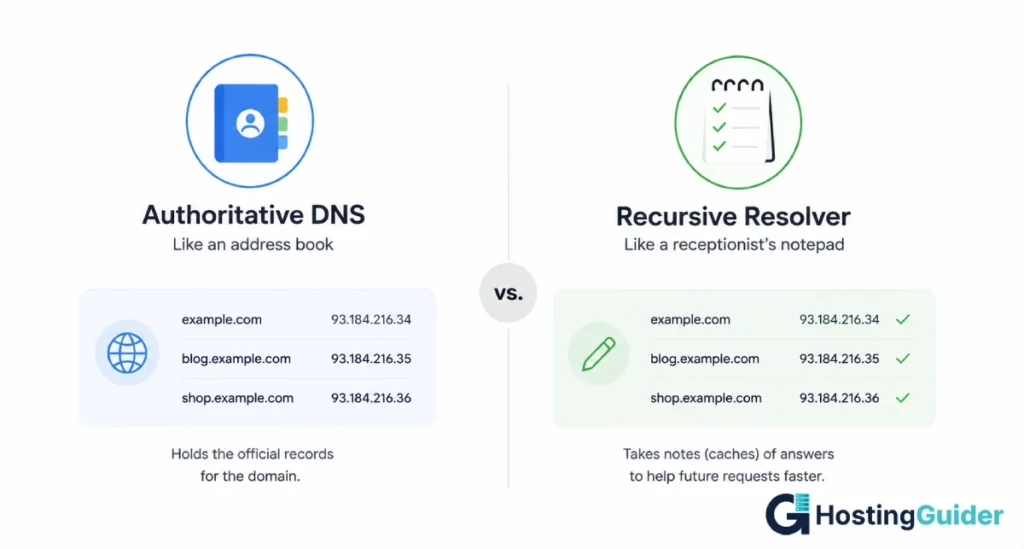
Two different systems are involved in every lookup, and they play very different roles. Think of authoritative DNS as an official address book. If example.com officially points to 192.0.2.10, the authoritative server is where that fact actually lives.
A recursive resolver is more like a receptionist who keeps notes. The first time someone asks where example.com is, the receptionist looks it up.
After getting the answer, the receptionist writes it down, and can answer instantly from that note next time.
AUTHORITATIVE DNS (the address book)
example.com → 192.0.2.10

RECURSIVE RESOLVER (the receptionist's notes)
example.com → 192.0.2.10
That note is the cache. Once you understand it that way, the whole propagation problem becomes obvious.
If you update the official address book later, the receptionist might still be reading from an old note.
Where Does the Recursive Resolver Come From?
Your computer usually doesn’t ask the authoritative source directly. It asks a recursive resolver first, and that resolver can come from several different places:
- Your internet service provider, automatically.
- Your router or network administrator’s own settings.
- A public DNS service you configured yourself, like Cloudflare or Google.
- Your operating system’s own network configuration.
That’s exactly why switching from Wi-Fi to mobile data can show you a different result. You’re likely talking to a completely different resolver, with its own separate notes.
What DNS Caching Is
Caching exists for a good reason. Without it, every single visitor would trigger a full lookup, all the way back to the authoritative source, every time.
That would be slow, and it would flood authoritative servers with repeat questions. Caching lets the receptionist answer from her notes instead:
Visitor 1 → Resolver asks authoritative DNS (first time)
Visitor 2 → Resolver answers from its own notes (instant)
Visitor 3 → Resolver answers from its own notes (instant)
That same caching is the exact reason your DNS change takes time to be seen everywhere. Speed and delay come from the same mechanism.
What TTL Really Means
TTL stands for time to live. This is the single most important idea in this whole guide, so it’s worth reading slowly.
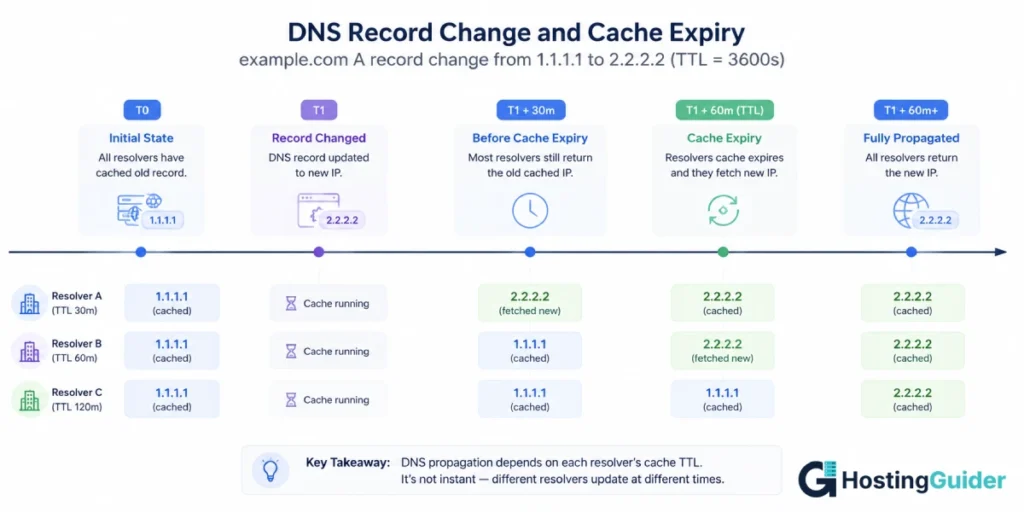
The TTL in a DNS response tells a caching resolver how long it may keep that answer. Once cached, the resolver tracks the remaining time on that specific entry, counting down from the moment it fetched the answer, not from when you make a change.
Here’s our example, followed through a full timeline:
9:00  : A resolver asks, what is example.com?
        Authoritative DNS answers: 192.0.2.10
        TTL: 3600 seconds
        This resolver's countdown starts right now

9:30  : You change the record to 192.0.2.50
        This resolver has no idea yet
        It still has about 1800 seconds left on its own countdown

10:00 : The cached answer reaches its TTL and is no longer considered fresh
        It asks again, and gets 192.0.2.50
The important part is that this resolver’s clock started at 9:00, not at 9:30 when you actually changed the record.
That single detail explains almost everything confusing about propagation.
Follow the Record Through the Actual Change
Here’s our full example, start to finish. Before anything changes, both the authoritative source and a resolver’s cache agree:
BEFORE

Authoritative DNS  →  192.0.2.10
Resolver's cache   →  192.0.2.10
You make the change. The authoritative source updates immediately, but the resolver hasn’t asked again yet:
YOU CHANGE THE RECORD

Authoritative DNS  →  192.0.2.50 (new)
Resolver's cache   →  192.0.2.10 (still old)
Eventually, that resolver’s own countdown finishes:
CACHE EXPIRES

Resolver asks authoritative DNS again
      ↓
Gets 192.0.2.50
That’s the entire mechanism. No data was pushed anywhere. One resolver simply asked again, later, and got the current answer.
Why Two People See Different Websites
There is no single, giant DNS cache for the whole internet. Every resolver keeps its own separate notes, checked at different times.
Here’s why that actually happens, using two resolvers with the same TTL:
Resolver A checked at 9:50, TTL 3600
Resolver B checked at 9:10, TTL 3600

You change the record at 10:00

Resolver A: only 10 minutes into its countdown
            → about 50 minutes still remaining

Resolver B: 50 minutes into its countdown
            → only about 10 minutes remaining
Both resolvers received the exact same TTL. They still won’t update at the same time, since they didn’t ask at the same time either.
That’s the real reason DNS propagation isn’t one single countdown. It’s many separate ones, all started at different moments.
What Actually Propagates?
So what actually propagates? Technically, nothing is being pushed from one resolver to another.
Your authoritative DNS data changes once, and recursive resolvers gradually replace their cached copies as those entries expire and they query the authoritative servers again.
Here’s that idea as our example. The authoritative record changes once:
OLD: example.com  A  192.0.2.10
NEW: example.com  A  192.0.2.50
Nothing gets sent out from there to every resolver on earth. Instead, each resolver catches up on its own, whenever it happens to ask again:
Resolver A: still has the old answer
Resolver B: still has the old answer
Resolver C: asks again, gets the new answer
Resolver D: asks again, gets the new answer
Why Lowering TTL Doesn’t Work Immediately
Since a TTL is attached to a cached copy at the moment it was fetched, this has a direct consequence. Say our example’s TTL is currently 86400 seconds, a full day.
You lower it to 300 seconds right now, hoping to speed things up immediately:
Current TTL: 86400 seconds
      ↓
You lower it to 300 seconds
      ↓
Resolvers that already cached your record
saved it with the OLD 86400-second TTL
      ↓
Their countdown doesn't reset just because you changed a setting
      ↓
The new 300-second TTL only affects answers resolvers
retrieve after the new TTL is in effect
      ↓
Existing cached copies keep using the TTL they had
when they were originally cached
That’s why the advice is always to lower TTL in advance, then wait. Changing it right before your migration does almost nothing for resolvers that already have an answer cached.
Record Changes vs Nameserver Changes
Not every DNS change works the same way. An A record change changes the answer returned by your existing authoritative DNS servers.
A nameserver change changes the delegation that tells recursive resolvers which servers are authoritative for the domain at all.
Compare our A record change against a nameserver change directly:
Scenario 1: changing the A record, which is what we’ve been following:
example.com
      ↓
Same nameservers as before
      ↓
Only the A record itself changes
      ↓
192.0.2.10 → 192.0.2.50
Only the answer inside the existing zone changed. Nothing about who’s authoritative changed at all.
Scenario 2: changing nameservers instead. Before:
example.com → ns1.oldprovider.com, ns2.oldprovider.com
After:
example.com → ns1.newprovider.com, ns2.newprovider.com
This time you’re not changing the answer itself. You’re changing who is allowed to provide answers for your entire domain, a much bigger change.
What the Parent Zone Does
A nameserver change works through one extra layer, called the parent zone. For example.com, that’s .com.
Root
  ↓
.com (the parent zone)
  ↓
Delegation: which nameservers are authoritative?
  ↓
Your authoritative nameservers
  ↓
Your actual DNS records
The .com parent zone doesn’t normally contain your website’s A record. It contains the delegation that tells recursive resolvers which nameservers are authoritative for your domain.
Recursive resolvers can cache that delegation too, separately from your actual records, which is why nameserver changes take longer than a simple record update.
It’s also why the timeline in a domain transfer usually runs longer than updating one record at your existing provider.
Negative Caching and NXDOMAIN
This is a more advanced case, worth knowing once the basics make sense. Most caching involves a successful answer. DNS can also remember that something doesn’t exist yet, a response called NXDOMAIN.
Say example.com briefly had no working record, maybe during a migration gap. A resolver asked during that gap and got NXDOMAIN back.
It can cache that negative answer too, even after you fix the record properly.
Negative caching follows the rules set out in RFC 2308.
For an NXDOMAIN response, the negative cache lifetime is determined using the SOA record’s TTL and its MINIMUM field, and the lower of the two values is used.
You don’t need to calculate this during a normal DNS migration, it mainly matters when a resolver has cached the fact that a name doesn’t exist.
If a domain looks completely stuck rather than gradually improving, this is worth checking.
How to Check DNS Yourself With dig
We now know what should happen with our example. Let’s actually prove it. The tool for that is called dig.
Replace example.com with your actual domain when running these commands. The 192.0.2.x addresses used throughout this guide are documentation examples, not real values you should expect to see.
Start with the simplest possible version:
dig example.com @1.1.1.1 +short
That should just return the IP address on its own:
192.0.2.50
The +short flag tells dig to show a compact result instead of the full DNS response. Once you’re comfortable with that, drop the flag to see the full answer:
dig example.com @1.1.1.1
Here’s what each part means:
dig
 ↓
the DNS lookup tool

example.com
 ↓
the domain we're asking about

@1.1.1.1
 ↓
which resolver we're asking, Cloudflare in this case
A realistic answer looks like this:
;; ANSWER SECTION:
example.com.    300    IN    A    192.0.2.50
How to Read That Output
| Part | Meaning |
|---|---|
example.com. | The domain you queried |
300 | Seconds remaining on this resolver’s cached answer |
IN | The DNS class, almost always this value |
A | The record type, an IPv4 address record |
192.0.2.50 | The actual IP address returned |
That 300 is the remaining TTL reported by the resolver you queried.
It may be lower than the TTL configured at your authoritative DNS, since the resolver may have already cached the answer for some time before you ran this command.
Find Exactly Where the Stale Answer Is
Work through these three checks in order. Each one narrows down exactly where a stale answer is sitting.
First, find your authoritative nameserver, if you don’t already know it:
dig example.com NS +short
This asks DNS for the nameservers responsible for your domain, returning something like ns1.example-dns.com.. Take one of the returned names and use it in the next command.
Check 1: ask the authoritative server directly.
dig example.com @ns1.example-dns.com
If it already says 192.0.2.50, your DNS provider has the correct record. If it still says 192.0.2.10, stop here. This isn’t propagation, the record itself is wrong.
Check 2: ask public resolvers.
dig example.com @1.1.1.1
dig example.com @8.8.8.8
If both Cloudflare’s 1.1.1.1 and Google Public DNS show the new IP, those two public resolvers have already updated.
That’s strong evidence the change is being seen normally, although other resolvers you haven’t checked may still have older cached answers.
If one still shows the old IP, that specific resolver simply hasn’t caught up yet.
Check 3: check your own device.
If public resolvers are already correct but your own browser still reaches the old server, the stale answer is much closer to home.
Check your local device cache, your router, or a VPN next.
Why DNS Checker Websites Sometimes Disagree
A DNS checker website is really just several dig-style queries packaged into a convenient interface, not one master database.
It asks several different resolvers, from different networks and locations, and shows you all their answers at once:
Checker asks several resolvers:

Resolver A → OLD
Resolver B → NEW
Resolver C → NEW
Resolver D → OLD
Resolver E → NEW
That mixed result doesn’t mean the checker is broken. It means those resolvers genuinely don’t all have the same cached answer yet.
A checker showing green everywhere is useful evidence that things look good, but it isn’t proof that every resolver on the entire internet has refreshed.
Flushing Your Own Local DNS Cache
If Check 3 points to your own device, check the local DNS cache and other local DNS layers next, since flushing isn’t always the fix on its own. On Windows, open Command Prompt as administrator:
ipconfig /flushdns
On macOS, open Terminal:
sudo dscacheutil -flushcache; sudo killall -HUP mDNSResponder
On most Linux systems using systemd:
sudo resolvectl flush-caches
Planning a DNS Migration
A planned migration goes much smoother with a simple timeline. Here’s one that works well for our example:
- Several days before migration: check your current TTL, and plan when you’ll need to lower it.
- At least one full previous-TTL duration before migration: lower the TTL, for example from 86400 down to 300, and let old cached answers age out completely before moving on.
- Migration day: change the record from
192.0.2.10to192.0.2.50. - After migration: run the three checks above, and watch your new server’s traffic.
- Once things look stable: raise the TTL back to a normal value.
Right after a real migration like this, it’s completely normal to see your authoritative source and one public resolver already show the new IP, while another public resolver still shows the old one for a while longer.
Neither is wrong. They just haven’t asked again at the same time.
DNS Propagation Is Not the Same as Cache Flushing
One more misconception worth clearing up directly. You control your own authoritative DNS. You do not control the caches sitting on unrelated recursive resolvers everywhere else.
Changing your record cannot instantly erase copies other resolvers already saved. Lowering your TTL only changes how future lookups get cached.
It cannot retroactively rewrite a copy a resolver already has sitting in its notes.
Common Mistakes to Avoid
A short list worth checking against your own situation:
- Don’t lower the TTL and make the change on the same day. Already-cached copies keep their old countdown.
- Don’t assume a domain is broken just because it hasn’t updated everywhere yet. Work through the three checks above first.
- Don’t take the old server offline right away. Wait until traffic has actually shifted.
- Don’t forget a nameserver change takes longer than a record change. Budget your timeline for that.
- Don’t ignore negative caching if a domain seems stuck rather than gradually improving.
Frequently Asked Questions
Why does my colleague see my old website when mine shows the new one?
You’re very likely using different DNS resolvers. Each one caches independently, and yours simply asked again more recently than theirs did.
Why does my old hosting server still receive visitors after I moved?
Some resolvers still have your old record cached, and they haven’t checked again yet. This is expected until their own TTL countdown finishes, not a sign the migration failed.
How can I tell whether the problem is my DNS provider or something else?
Query your authoritative nameserver directly first. If it already shows the new value, your DNS provider is correct, and any remaining stale answer is sitting somewhere else on the path instead.
What happens if I changed nameservers instead of just a record?
Expect a longer wait than a normal record change. Nameserver changes depend on delegation caching at the parent zone, controlled by the registry rather than your own TTL settings.
How long does DNS propagation actually take?
There’s no universal 24 or 48 hour timer. For an ordinary record change, the relevant cache lifetime is usually driven by TTL. Nameserver changes involve delegation caching too, so their timing can look different.
How do I know if propagation is actually done?
Work through the three checks in this guide: the authoritative server, a couple of public resolvers, and your own device. Once the authoritative server, several independent public resolvers, and your own device all agree, you have strong evidence the change has reached the DNS paths you’re testing.
Conclusion
DNS propagation comes down to one thing: an authoritative source with the real answer, and resolvers slowly catching up to it, each on its own independent schedule. There’s no data spreading, no broadcast, and no single moment when a change goes live everywhere at once.
Use that mental model directly:
- Check your authoritative source first, then public resolvers, using
dig. - Remember that TTL is locked in at fetch time, so lower it in advance, not at the last minute.
- When something looks wrong, compare authoritative, public resolver, and your own device, in that order, to find out where the stale answer actually lives.