
Every website builder promises you can build anything without writing a single line of code. For a lot of sites, that promise holds. You pick a template, drag in your content, connect a form, and launch.
Then you need something the drag-and-drop editor cannot do.
Maybe it is a third-party analytics script that needs to go in the page head. Maybe it is a custom hover animation on a button. Maybe it is a specific booking widget your drag-and-drop builder simply does not have a block for. Or maybe it is something as small as a custom CSS tweak that would take two minutes in code but does not exist as a visual setting anywhere in the interface.
This is where website builder custom code matters, and where most builder users discover that “you can build anything” was never quite the full story.
This guide explains the limits each major builder hits, what website builder custom code options exist within each one, when adding code is the right answer, and when the better answer is a platform change fully.

Why Website Builder Custom Code Exists: Drag-and-Drop Has Built-In Limits
A drag-and-drop website builder works by sitting between you and the actual HTML, CSS, and JavaScript of your site. Instead of writing code, you interact with a visual layer, and the builder converts your choices into code automatically.
This is genuinely useful. It removes a significant barrier for people who want a website but do not want to learn web development. The trade-off is that the visual layer can only expose what the builder’s team decided to include. Anything the builder does not have a UI element for is, from the drag-and-drop perspective, inaccessible.
The underlying web platform (HTML, CSS, JavaScript) can do far more than any builder exposes. Builders differ in how much of that gap they close through custom code options, and this difference is one of the most important factors to understand when choosing a builder, because it determines what you will and will not be able to do without switching platforms fully.
The Most Common Reasons You Need Website Builder Custom Code
These are the situations that send website builder users looking for custom code options.
Adding a tracking or analytics script. Google Tag Manager, Facebook Pixel, TikTok Pixel, LinkedIn Insight Tag, and similar scripts need to be placed in specific locations (usually the <head> of every page, sometimes also the <body>) to function correctly. If the builder does not provide a head embed option, these scripts either cannot be added at all, or they have to be placed in a workaround location that affects accuracy.
A specific third-party widget or embed. A booking system, a live chat widget, a custom map, a social proof tool, a specific video player with custom parameters. Many of these are provided as a snippet of JavaScript or HTML that you paste into the page. If the builder has no “embed code” block, or if the specific widget conflicts with the builder’s own script loading, this becomes a blocker.
Custom CSS for visual changes the editor does not expose. Font size relationships, hover state colours, spacing adjustments, hiding certain builder-generated elements that cannot be removed through the UI, responsive behaviour for edge cases the builder’s breakpoints do not handle. A huge category of small cosmetic changes falls here.
Custom JavaScript behaviour. A scroll animation that the builder’s built-in animation system does not support. An interaction between two elements that requires code logic. A form that needs custom validation beyond what the builder’s form tool offers. Any dynamic behaviour that goes beyond what the builder’s visual interaction tools cover.
Schema markup or other structured data. Adding JSON-LD script blocks for rich results in Google Search requires placing custom code in the page head. This is straightforward with code access and nearly impossible without it.
Wix Website Builder Custom Code Options and Where They Break Down
Wix provides custom code access through two main routes.
The first is the Wix Velo development platform. Velo lets you write JavaScript that runs alongside your Wix site, both in the browser and in a server-side function environment Wix provides. You can interact with Wix elements through a scripting API, create custom database collections, add custom backend logic, and build genuinely complex functionality beyond what the drag-and-drop editor offers. For a website builder environment, this is a notable level of code access.
The second is the custom code section in Wix’s site settings (Settings, Custom Code), which lets you inject code snippets into the page head, start of body, or end of body, across all pages or specific pages. This covers the tracking script use case cleanly.
Where it breaks down:
The Velo API is Wix-specific. Code you write there does not transfer to any other platform, which creates a dependency on Wix’s ecosystem the same way WordPress plugin code creates dependency on WordPress. If you ever move off Wix, the custom code you wrote using Velo does not come with you.
The custom HTML embed element on Wix pages has some limitations depending on the context. Embeds in certain Wix page types (within Wix’s native blog, for example, or inside Wix eCommerce product pages) behave differently than embeds on standard pages, and some widget types conflict with Wix’s rendering approach.
Wix also does not let you directly edit the site’s underlying HTML structure. The builder controls the markup, and your custom code works around it rather than directly within it.
Squarespace Website Builder Custom Code: Code Injection and Its Limits
Squarespace’s custom code access is called code injection, and it is available on Business, Commerce, and higher plan tiers. It is not available on the Personal plan.
Code injection lets you add custom HTML or JavaScript to the site header (inserted before the closing </head> tag on every page), the site footer (before the closing </body> tag), and on specific pages via per-page injection settings. This covers tracking scripts, third-party embeds in headers and footers, and some custom JavaScript.
For CSS, Squarespace provides a dedicated Custom CSS editor (in Design, Custom CSS) that applies site-wide. This is the main tool for visual customisations the Squarespace editor does not expose directly.
Individual pages can also contain code blocks, which embed HTML, CSS, or JavaScript inline within the page content.
Where it breaks down:
Squarespace uses a proprietary block and section system. You cannot edit the underlying HTML structure of Squarespace pages, only inject code around and inside the existing structure. Some custom behaviours require targeting Squarespace’s own generated class names, which change between template versions and after updates, creating maintenance fragility.
Squarespace’s template system is the most locked-down of the major builders outside of Wix’s simpler tiers. Switching templates on Squarespace is a significant rebuild rather than a style change, which means some custom code that works with one template may need rewriting if you change templates. And, as with Wix, Squarespace has the most significant lock-in of any major builder, meaning code written specifically to work within Squarespace does not migrate cleanly if you move to another platform.
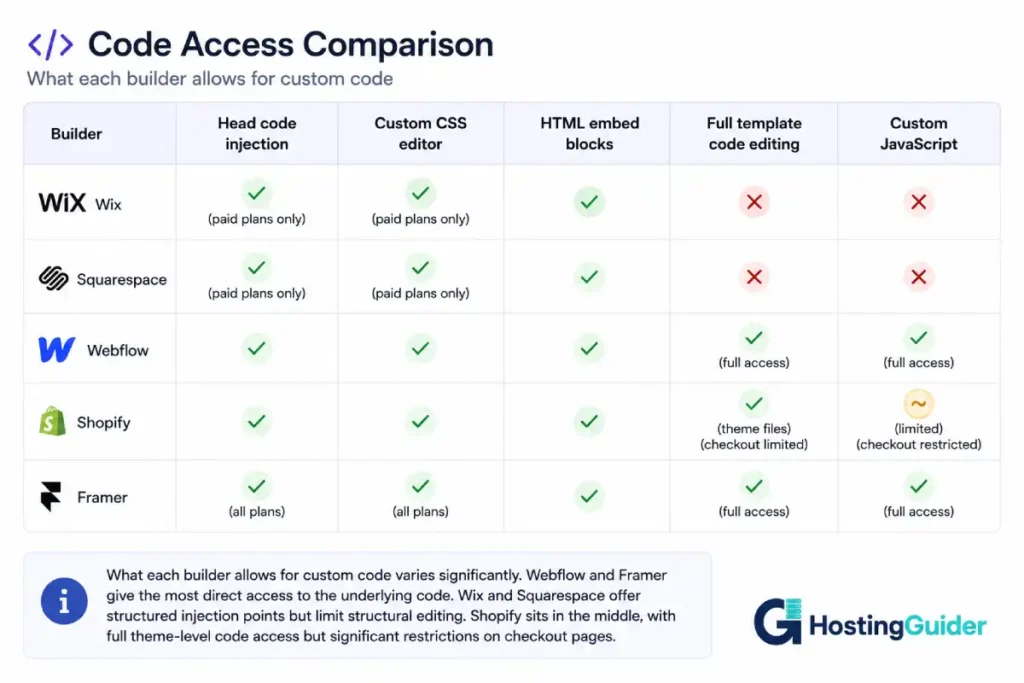
Webflow Website Builder Custom Code: The Most Developer-Friendly Option
Webflow occupies a different position from Wix and Squarespace. It is a visual builder, but its visual system maps directly to HTML and CSS rather than abstracting them away. Every element you place in the Webflow editor corresponds to a real HTML element, every visual setting corresponds to a CSS property, and the resulting code is clean, semantic, and inspectable.
For custom code, Webflow provides:
Page head and body code on a per-page or site-wide basis, through Project Settings and per-page settings in the designer. This handles tracking scripts, custom font loading, structured data injection, and similar use cases cleanly.
Embed elements that can be placed anywhere on the page layout, containing arbitrary HTML, CSS, and JavaScript. Unlike Wix’s or Squarespace’s embed restrictions, Webflow’s embeds sit inside the actual page structure rather than floating outside it.
Full exported HTML, CSS, and JavaScript if you export the site code for self-hosting. Webflow lets you take the generated code and host it yourself, which means custom server-side functionality can be built around a Webflow-designed frontend in a way that most builders do not permit.
Custom interactions and animations built through a visual system that generates real JavaScript, covering a wider range of motion design than most builders can match without any custom code at all.
Where it breaks down:
Webflow’s custom code options do not fully substitute for a traditional CMS for sites with complex content management needs. The CMS features are capable but structured around Webflow’s own data model. Server-side processing requires either Webflow’s built-in Logic feature (for workflow automation) or external services connected through embed code or APIs. And while Webflow’s visual editor is more powerful than Wix or Squarespace, there is a genuine learning curve compared to simpler builders. Our full comparison of Webflow vs WordPress covers where the line between “Webflow is sufficient” and “WordPress is more appropriate” actually falls.
Shopify Website Builder Custom Code Access at the Theme Level
Shopify sits in a different category from the other builders here, because it is purpose-built for eCommerce rather than general website building. Custom code on Shopify operates primarily through the theme code layer.
Shopify themes are built in Liquid, Shopify’s own templating language, which blends HTML and template syntax together. If you are comfortable editing code, you can edit any part of your theme’s templates: pages, product templates, cart, navigation, the footer, the header, and section templates. This gives you significant structural control over most of your site.
Shopify also provides:
Theme settings and customisation options exposed through the theme editor, which non-technical users can access without touching code.
Custom CSS through the theme’s CSS files or through a dedicated custom CSS section in newer themes.
Script tags injected site-wide through Apps or through the theme’s theme.liquid file.
Where it breaks down:
Shopify’s checkout page (the actual payment step) is restricted to plus plans for meaningful structural customisation. Standard Shopify plans can customise some checkout appearance through settings, but adding custom JavaScript or structural HTML changes to the checkout page requires Shopify Plus, which is a significant cost step. This is relevant if your use case involves custom trust signals, upsell elements, or tracking configurations on the checkout step specifically.
Additionally, some of what non-Shopify-developers want to do through custom code on Shopify is more simply done through an App from the Shopify App Store, which can add complexity (App costs accumulate quickly) and performance overhead (each App typically adds scripts to every page load). Our comparison of Shopify vs WooCommerce covers the cost and capability differences in detail.
Framer Website Builder Custom Code: Built for Designers Who Code
Framer is a newer entrant among mainstream website builders, and it bridges the gap between design tool and code platform more directly than any of the others.
Framer lets you use React components within your site design. If you have JavaScript knowledge, you can write actual React code and embed it as a component anywhere on your Framer site. This is a meaningfully different capability from “paste a code snippet”: you can build interactive components with their own state, accept configuration from the Framer editor, and use the full React ecosystem.
For more straightforward custom code needs:
Custom Code settings in Framer let you inject code into the page head and body, covering analytics scripts and third-party tags.
HTML embed components let you paste arbitrary HTML and JavaScript inline on the page canvas.
AI-generated code through Framer’s AI features can draft component code from a description, which lowers the barrier for designers who have limited JavaScript experience.
Where it breaks down:
Framer’s React component approach is compelling for designers with coding knowledge but is a meaningful barrier for those without it. Unlike Webflow, where you can do a lot through the visual system alone and add custom code only for specific needs, Framer assumes more comfort with code to unlock its differentiated capabilities. For sites that do not need custom React components, Framer’s standard custom code options (head injection, embed blocks) are similar to Squarespace’s. Our detailed comparison of Framer vs Webflow covers where each builder makes more sense depending on how much code access you actually need.
What No Amount of Website Builder Custom Code Can Fix
Custom code access within a website builder is more powerful than drag-and-drop alone, but there are things it genuinely cannot solve.
Full server-side processing. If your site needs a custom backend: a complex API that runs server-side logic, a custom authentication system, a database that goes beyond simple content storage, a real-time application, none of these are achievable within a website builder’s custom code system, even on the most developer-friendly builders. They require a real server environment, which means either a separate backend service accessed through an API, or moving to a platform that gives you server access, like a self-hosted application on a VPS.
Database-level customisation. Website builders manage their own data storage. You cannot add database tables, change how data is structured at the schema level, or query data directly in the way you can with a self-hosted application and a database you control.
Full control over page markup structure. Even the most code-permissive builders control the HTML structure of their own system elements (navigation, footer, headers). Custom code typically works around this structure rather than within it, which creates limits for specific SEO or accessibility requirements that depend on exact markup structure.
Escape from the builder’s performance overhead. Every website builder adds its own layer of JavaScript, CSS, and infrastructure to every page it generates. Custom code can add functionality, but it cannot remove the builder’s own footprint. A performance-optimised custom website built on a lean stack will outperform the same content built on any visual builder, not because of the builder’s features but because of its baseline overhead. This is part of why comparing Wix vs Squarespace vs WordPress ultimately comes back to what you are willing to trade in control and performance for the convenience of visual editing.
The Three Signs Your Website Builder Custom Code Is the Wrong Solution
These patterns signal that you are at a point where custom code within the builder is a workaround for the wrong platform, rather than the right tool for a legitimate need.
You spend more time fighting the builder than building. When a significant portion of your development time goes to working around builder limitations (targeting generated class names that change after updates, injecting code to remove or override things the builder adds by default, building workarounds for things that should be native), the builder is costing you time rather than saving it.
The custom code is large and increasingly complex. A website builder with a few carefully placed tracking scripts and a small CSS customisation file is using custom code appropriately. A website builder where custom code has grown to thousands of lines that interact in complex ways with the builder’s output is a platform mismatch. The larger your custom code layer, the more you are effectively building on top of a builder that was not designed for what you are building.
You cannot do something your business needs, and there is no workaround. A booking system that requires server-side session management. A customer portal with login and personalised content. A complex product configurator with real-time pricing logic. When the thing you need is architecturally impossible within any website builder’s custom code system, the answer is a platform that gives you real server access, not a more creative workaround.
When Website Builder Custom Code Is the Answer vs When to Switch Platforms
Custom code within a website builder is the right answer when:
The thing you need is a script embed, a visual customisation, or an interactive element that genuinely fits within the builder’s code injection system. The custom code you are adding is small, stable, and does not need to be maintained frequently. Moving platforms would cost more time and risk than the limitation is worth.
A platform switch is the right answer when:
You are hitting the same category of limitation repeatedly, not a one-off specific need. The custom code required to achieve what you need is large, fragile, or requires you to work against the builder’s own behaviour rather than alongside it. The builder’s inherent performance overhead or lock-in is becoming a real cost rather than an acceptable trade-off.
For sites outgrowing a visual builder, the most common destinations are WordPress (for content-heavy sites, eCommerce via WooCommerce, or any site where plugin ecosystem breadth matters), a headless CMS with a custom frontend, or a fully custom application. The right choice depends on what specifically the builder cannot do for you, not on a general sense that the builder is “limited.” Our comparison of WordPress.com vs WordPress.org is a useful starting point if self-hosted WordPress is the direction you are considering, since the difference between the two matters significantly for code access and long-term flexibility.
Frequently Asked Questions
Can I Add Website Builder Custom Code to Any Builder?
Not all of them, and not to the same extent. Webflow and Framer give the most direct custom code access, including full template editing in Webflow and React component support in Framer. Wix and Squarespace offer structured code injection (head and body embed points, custom CSS editors) on higher plan tiers. Squarespace restricts code injection to Business plan and above. Simpler or entry-level builders often have no custom code access at all.
Does Adding Website Builder Custom Code Affect Site Performance?
It can, depending on what the code does. Adding a tracking script or a small CSS customisation has negligible performance impact. Adding multiple large third-party scripts (each making its own network requests, each executing their own JavaScript) compounds the builder’s own baseline performance overhead and can noticeably affect page load times. Any third-party script loaded in the page head blocks rendering until it loads, which directly affects TTFB and perceived load speed. This is worth considering both when adding scripts and when choosing which scripts to load conditionally (on specific pages only) rather than site-wide.
What is the difference between head code injection and body code injection?
Code injected into the <head> runs before the page’s visible content loads. Tracking scripts, font loading, and structured data (JSON-LD) typically go here because they need to be available from the moment the page begins loading. Code injected into the <body> (typically near the closing </body> tag) runs after the page content is visible, which avoids blocking the initial page render. Scripts that do not need to run before the page appears to the visitor (chat widgets, non-critical third-party tools) perform better here. Most builders that offer code injection give you the choice of both locations.
Can I add Google Analytics or Meta Pixel to a website builder without custom code?
Most major builders have native integrations for Google Analytics and Meta Pixel that do not require manual script insertion. Wix, Squarespace, Shopify, and Webflow all have settings-level fields where you paste your tracking ID and the builder handles the script placement automatically. Using the native integration is preferable to manual code injection where it exists, because the builder can ensure the tracking script is placed correctly in relation to its own scripts and does not conflict with page rendering. Custom code injection for analytics is a fallback for tracking tools the builder does not have a native integration for.
When should I use a website builder vs WordPress for a site that needs custom functionality?
Website builders are the better choice when: the site’s requirements are well-served by the builder’s native features and a modest amount of custom code; you do not have (and do not want to develop) WordPress management skills; and the site type (portfolio, small business, landing page, basic eCommerce) fits squarely within what builders are designed for. WordPress is the better choice when: the site’s functionality needs (complex content types, specific plugin requirements, server-side logic, a large plugin ecosystem) go beyond what a builder’s custom code can realistically address; you need full control over hosting infrastructure and performance; or the long-term cost of builder subscription fees versus self-hosted hosting is a significant factor. Our comparison of WordPress vs Wix vs Squarespace covers this decision in more depth.
Is it possible to move a website built on a builder to WordPress if I outgrow it?
Yes, but the migration is not simple, and how complex it is depends heavily on which builder you are moving from. Content (text, images, blog posts) can often be exported in some form and imported to WordPress. Design, layout, custom code, and builder-specific features (a Wix app, a Squarespace block, a Shopify App) do not transfer and need to be rebuilt on the new platform. This is why builder lock-in is a real consideration, particularly for Squarespace, which has the most limited export options of the major builders. The practical migration effort ranges from a few hours for a small informational site to a significant rebuild for a content-heavy or eCommerce site. Factoring this future migration cost into the original platform choice, especially for a growing business, is worth doing before you commit to a builder long-term.


